

Introduction
Cognitive Services help us to develop an intelligent application, just by writing a few lines of code. These applications are deployed across major platforms, like Windows, iOS, and Android. This article focuses on developing an application using Emotion API.
Emotion API detects emotions such as - anger, contempt, disgust, fear, happiness, neutral, and sadness. The emotion is detected by using a sentiment score of the face.
Before reading this article, please go through the following article to gain some information on Cognitive Services and Universal Windows applications.
To complete this article, we need the following requirements
- Visual Studio 2015 (Community, Enterprise, or Professional edition)
If you don’t have Visual Studio 2015, download the community edition, as it is absolutely free. You can download Visual Studio 2015 from here. To install Universal Windows Platform (Windows 10 SDK), we are in need of the internet with good bandwidth.
- Windows 10 (Mandatory)
Let’s get started.
Getting Keys from Cognitive Services
Each user is able to get 2 keys for each product such as Face API, Emotion API, Text Analysis, and so on. To activate Cognitive Emotion API, visit Cognitive service official site.

Once the key is generated, click the copy option to copy the key and make a note of it, as it will be used in the future.
Creating App
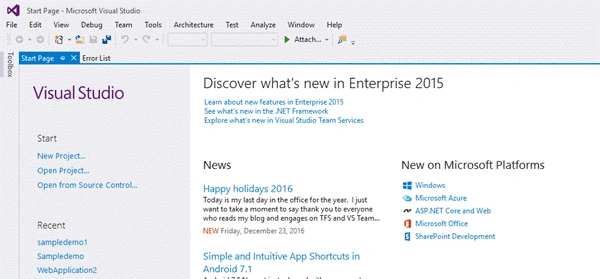
Open Visual Studio 2015 to start developing Emotion app using Cognitive Services. Click on File -> New -> Project/solution or simply click "New Project" link which is available on the Start page.
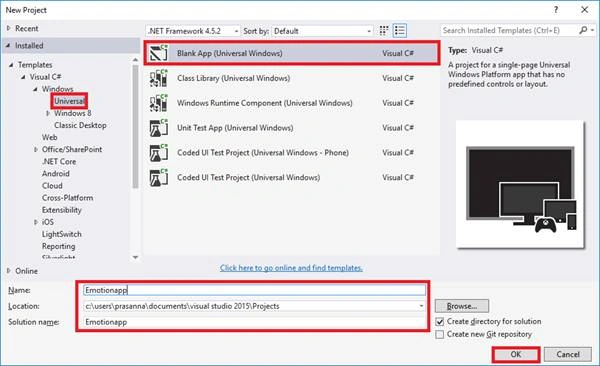
Now, the "New Project" dialog appears. Click Visual C# ->Windows ->Universal ->Blank App (Universal Windows) and then, name the application as per your wish and click OK.
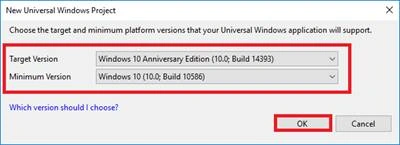
Select minimum version and targeted version for UWP application, then click OK.
Now, Visual Studio creates an application and it takes about a minute to complete the task successfully. Then, you will be navigated to MainPage.xaml where we are going to develop an application.
Locate "Solution Explorer" to install "Newtonsoft.Json" NuGet package. Now, right click on the solution's name and click "Manage NuGet Packages". Search for “Newtonsoft.Json” and install.
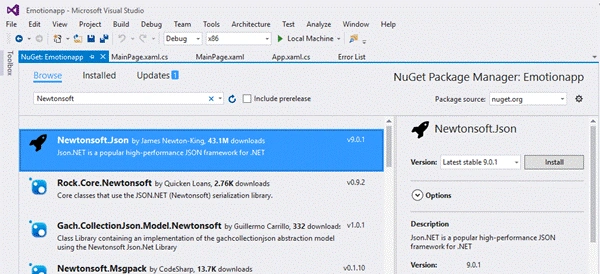
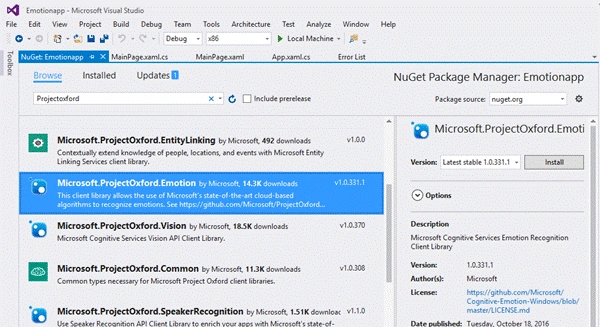
Again, open Manage NuGet gallery, search for "Microsoft.ProjectOxford.Emotion" and install it.
After installation, you will be able to find the installed reference under the reference tree. Now, it is a coding part - so open MainWindow.xaml and add the code given under Grid opening tag.
Add the code, given below, in MainPage.xaml. The below code generates Image View that's used for rendering an image when the button is clicked; and the event handler takes place. Again, add two buttons and set the button click property.
- <Image x:Name="imgEmotion" HorizontalAlignment="Left" Height="304" Margin="408,224,0,0" VerticalAlignment="Top" Width="310" />
- <Button x:Name="btnTakePhoto" Content="Take Photo" HorizontalAlignment="Left" Margin="172,548,0,0" VerticalAlignment="Top" FontSize="20" FontWeight="Bold" Click="btnTakePhoto_Click" />
- <Button x:Name="btnEmotions" Content="Get Emotions" HorizontalAlignment="Left" Margin="810,548,0,0" VerticalAlignment="Top" Height="39" Width="227" FontSize="20" FontWeight="Bold" Click="btnEmotions_Click" />
![private async void btnTakePhoto_Click(object sender, RoutedEventArgs e) { try { photo = await captureUI.CaptureFileAsync(CameraCaptureUIMode.Photo); if (photo == null) { return; } else { imageStream = await photo.OpenAsync(FileAccessMode.Read); BitmapDecoder decoder = await BitmapDecoder.CreateAsync(imageStream); SoftwareBitmap softwarebitmap = await decoder.GetSoftwareBitmapAsync(); SoftwareBitmap softwarebitmapBGRB = SoftwareBitmap.Convert(softwarebitmap, BitmapPixelFormat.Bgra8, BitmapAlphaMode.Premultiplied); SoftwareBitmapSource bitmapsource = new SoftwareBitmapSource(); await bitmapsource.SetBitmapAsync(softwarebitmapBGRB); imgEmotion.Source = bitmapsource; } } catch { tblEmotion.Text = "error taking Photo"; } } private async void btnEmotions_Click(object sender, RoutedEventArgs e) { try { emotionresult = await emotionserviceclient.RecognizeAsync(imageStream.AsStream()); if (emotionresult != null) { Scores score = emotionresult[0].Scores; tblEmotion.Text = "Your Emotion are : \n" + "Happiness: " + score.Happiness + "\n" + "Sadness: " + score.Sadness + "\n" + "Surprise: " + score.Surprise + "\n" + "Neutral: " + score.Neutral + "\n" + "Anger: " + score.Anger + "\n" + "Contempt: " + score.Contempt + "\n" + "Disgust: " + score.Disgust + "\n" + "Fear: " + score.Fear + "\n"; } } catch { tblEmotion.Text = "Error Returning the emotion"; } }](https://cdn.c-sharpcorner.com/article/emotion-api-in-cognitive-services-using-c-sharp/image007.webp)
Leo MardoPosted Aug 2, 2017, 1:47 PM
The contents of this article seems incomplete and uninformative, full of errors and uncompileable. Why publish an incomplete article? Aside from not returning valid info this line is not compiling. Scores score = emotionresult[0].Scores; ... always returning "Error Returning the emotion"; .... Thanks for wasting our time..
Rky MishraPosted Apr 18, 2017, 12:17 PM
Its says tblEmotion doesn't exits in current context. What can be done?