

Introduction
This article explains Cross Origin Request Sharing and how to enable it in our ASP.NET Web API application.
Introduction about CORS
Cross Origin Resource Sharing (CORS) allows the server to serve a resource to the permitted origin domains. It is used for defining the way by which the server and browser can interact and whether or not cross origin requests are allowed. It is a W3C standard.
Here we create two projects. The first one is "CrosEnable" that hosts the Web API controller. And the second is "ClienApp" that invokes the web services. Each application is hosted in a different domain. An AJAX request from "ClientApp" to "CorsEnable" is called the cross-origin request.
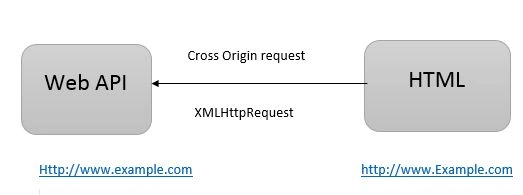
Creating the Web API project to enable the CORS
Step 1
To create the web application:
- Start Visual Studio 2012.
- Click on "New Project", select "template" -> "Visual C#" -> "Web".
- Choose "ASP.NET MVC Application4" and change the name of the application.
- Click onthe "OK" button.
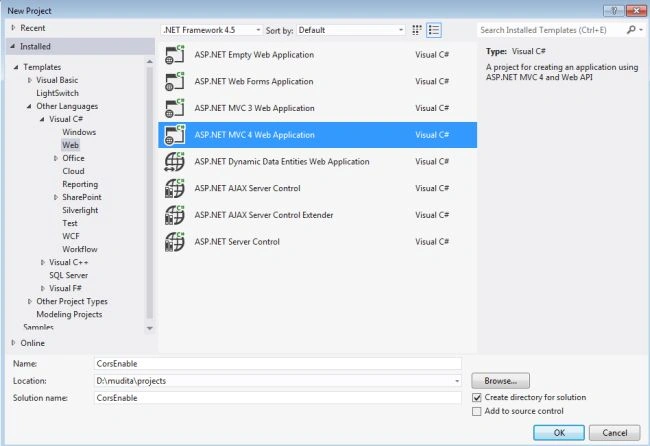
- From the new ASP.NET MVC4 Project:
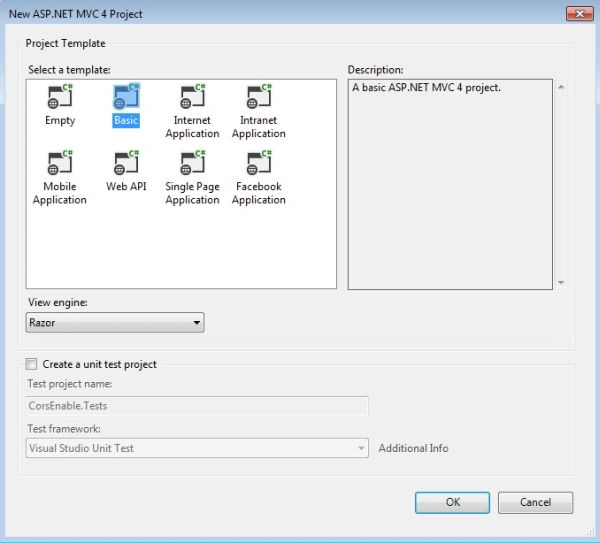
- Select the "Basic" .
- Click on the "OK" button.
Step 2
Create a controller class "CheckController.cs".
- In the "Solution Explorer".
- Right-click on the "Controller Folder" -> "Add" -> "Controller".
- Change the name and select the "Empty API controller" from the Template.
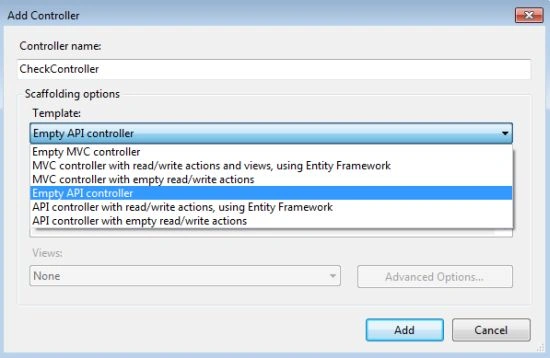
- Click on the "OK" button.
Write this code in the "CheckController.cs" class:
- using System;
- using System.Collections.Generic;
- using System.Linq;
- using System.Net;
- using System.Net.Http;
- using System.Web.Http;
- using System.Web.Cors;
- {
- public class CheckController : ApiController
- {
- public HttpResponseMessage Get()
- {
- return new HttpResponseMessage()
- {
- Content = new StringContent("GET: Check new Message")
- };
- }
- public HttpResponseMessage Post()
- {
- return new HttpResponseMessage()
- {
- Content = new StringContent("POST: Check new Message")
- };
- }
- public HttpResponseMessage Put()
- {
- return new HttpResponseMessage()
- {
- Content = new StringContent("PUT: Check new Message")
- };
- }
- }
- }
Step 3
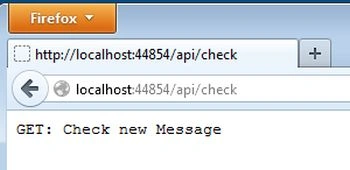
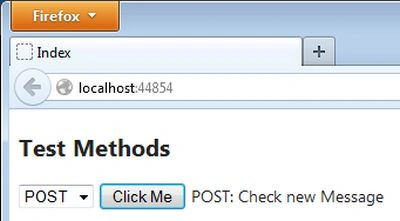
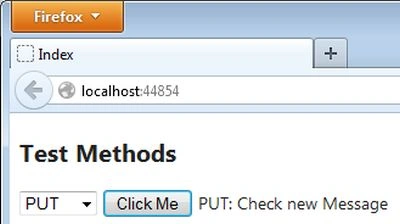
Now execute the application; press F5. Then navigate to the URL http://localhost:44854/api/check. It looks likes this:
Step 4
Now add another "MVC4 application project" with the "Basic" project template.
- In the "Solution Explorer".
- Right-click on the "Solution'CorsEnable'(Project 1)" then select "Add" -> "New Project".
- Select MVC4 web application with "Basic" template.
Step 5
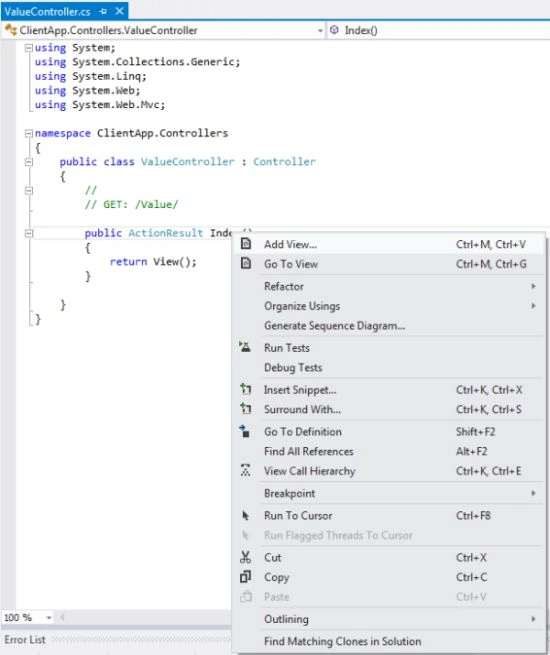
Create the controller class in the second project using the following:
- In the "Solution Explorer".
- Right-click on the "Controller Folder" then select "Add" -> "Controller".
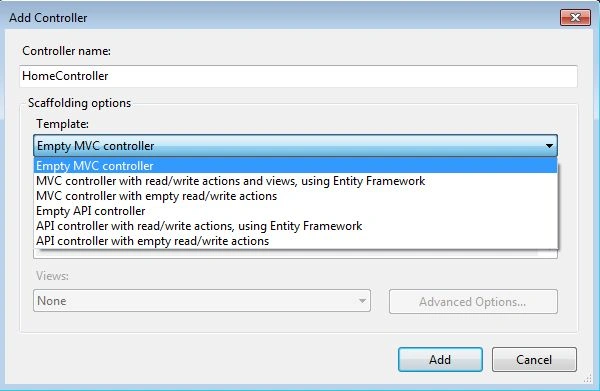
- Change the name and select the "Empty MVC controller" from the Template.
- Click on the "OK" button.
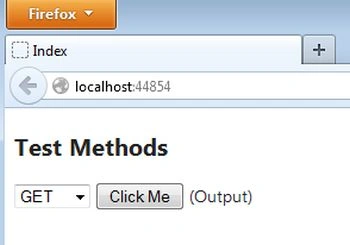
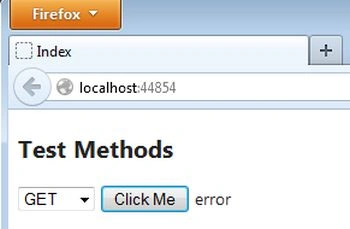
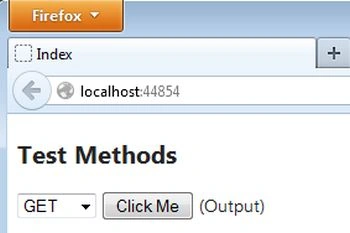
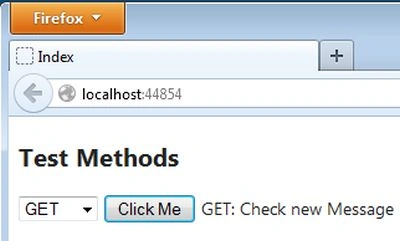
Gowtham RajamanickamPosted Jan 6, 2016, 1:22 AM
good article...