

Overview
You must have observed the new Windows Search Charm introduced by Microsoft in Windows 8 and onward versions. You can get this search charm for your help right away by pressing the Windows Key ( ) and "S" key together in other words + S keystrokes. Most of the Windows app developers will be contemplating methods to implement the same Windows Search Charm feature customized to their application. Introducing the new search charm customized to your Windows Store App for app users can be done by following this article and applying the changes to your Windows Store App.
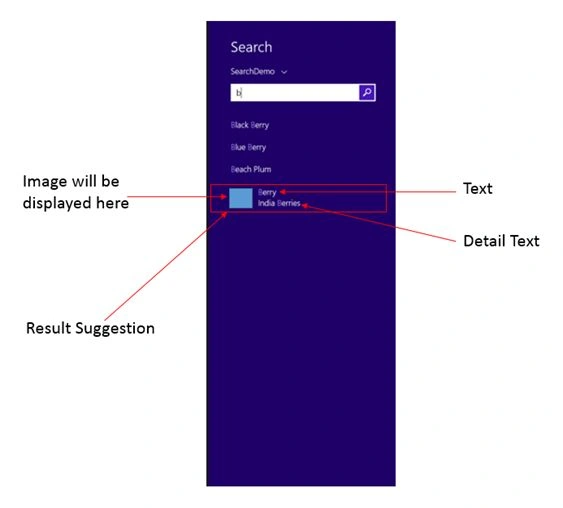
In this document, I have taken a very basic scenario with regard to the Windows Store App. The main page will have a button named “Search” at the center of the page. When you press the “Search” button, a Search Charm restricted to your Windows Store App will appear. The search charm is a search tool that provides suitable suggestions (query suggestions and requested suggestions) recommended for the application within the search pane.
Step 1: Create a Windows Store App project then drag and drop a button control upon the designer view of the main page from the pre-populated toolbox list.
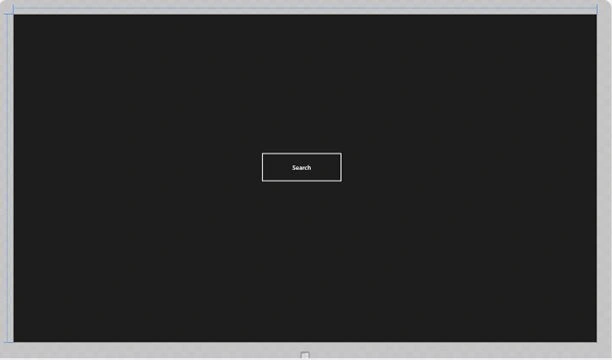
Figure 1: Screen shot of design view of main page with button named “Search”.
Double-click on the button results so as to generate a button click event handler. Upon click of this “Search” button, we will execute the code that gives us the Search Charm.
Step 2: Using the SearchPane class to make use of the Search feature in your Windows Store App.
The SearchPane helps in the management of the search pane by the result of the search charm activation done by the user.
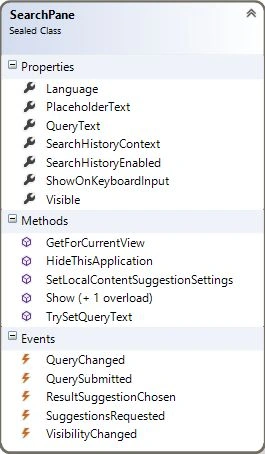
Figure 2: Class Diagram of SearchPane class.
In this class (as shown in the preceding class diagram: Figure 2), I am more concerned about GetForCurrentView( ) method because this is a method that fetches us instances of the search pane upon a user's search.
- SearchPane.GetForCurrentView().Show();
The preceding line of code makes the search pane displayed on the screen and thereby makes it available to the user using the Windows Store App.
Step 3: Registering the app as the search provider by adding a “Search” declaration to enable search charm capabilities.
- Click on the Package.appxmanifest designer.

Figure: Highlighting the Package.appxmanifest designer file present under the project in the Solution Explorer.
- Go to the “Declarations” tab and select the “search” option from the dropdown.
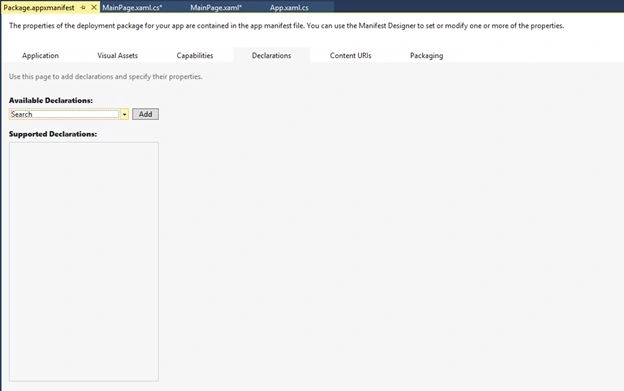
Figure 3: Selecting the “search” option from the Available Declarations dropdown in the Declarations tab.
- Adding “search” to the Supported Declarations.
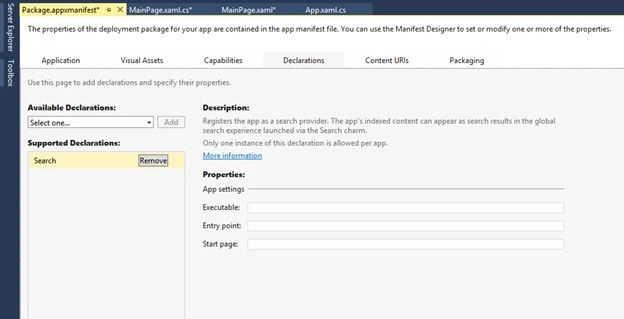
Figure 4: After adding the “search” option to the Supported Declarations.
Step 4: Creating and displaying the search pane upon clicking the “Search” button present in the main page.
- Add the namespace in the code to use the Windows Search Charm:
- using Windows.ApplicationModel.Search;
- Trigger SuggestionsRequested event upon a user's search.
- Trigger ResultSuggestionChosen event when the user selects one of the results displayed in the search pane.
The code present inside the method present within the button click event handler is presented below:
- SearchPane.GetForCurrentView().SuggestionsRequested += MainPage_SuggestionsRequested;
- SearchPane.GetForCurrentView().ResultSuggestionChosen += MainPage_ResultSuggestionChosen;
- SearchPane.GetForCurrentView().Show();
Step 5: Writing the code inside the method (in other words Event Handler) associated with the SuggestionsRequested event.
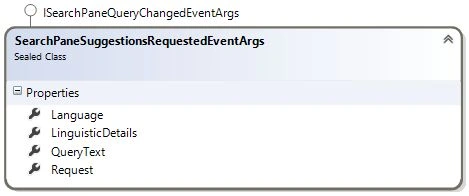
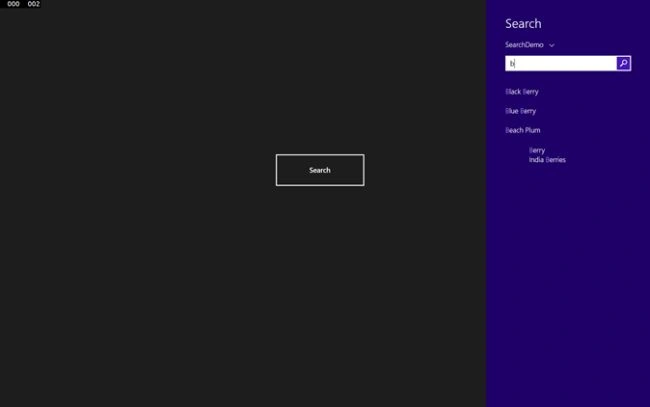
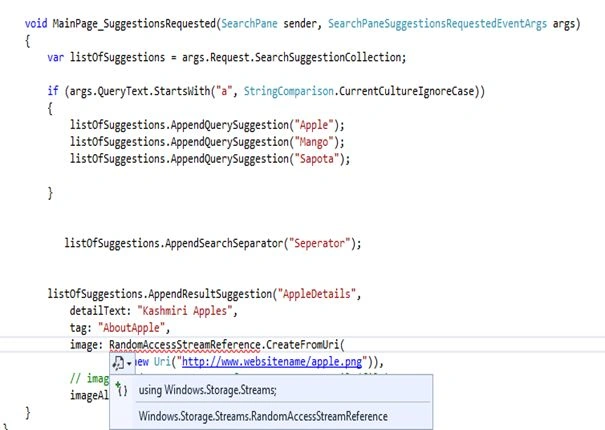
Once you type SearchPane.GetForCurrentView().SuggestionsRequested+= , press the Tab keystroke twice so that it will generate a method associated with the SuggestionsRequested event that is necessary to handle this event. Post this, move to this method and write the necessary code that provides suggestions and results fetched by the search charm depending on the user's entry in the search field. The entire code is placed below:
- void MainPage_SuggestionsRequested(SearchPane sender, SearchPaneSuggestionsRequestedEventArgs args)
- {
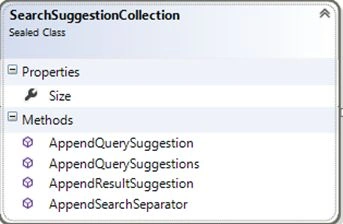
- var listOfSuggestions = args.Request.SearchSuggestionCollection;
- if(listOfSuggestions.Size==0)
- {
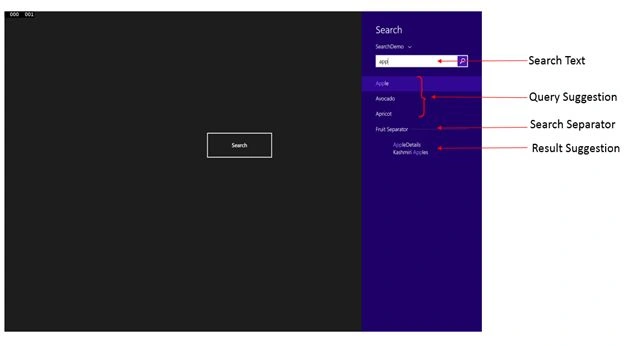
- listOfSuggestions.AppendQuerySuggestion("Apple");
- listOfSuggestions.AppendQuerySuggestion("Avocado");
- listOfSuggestions.AppendQuerySuggestion("Apricot");
- listOfSuggestions.AppendSearchSeparator("Fruit Seperator");
- listOfSuggestions.AppendResultSuggestion("AppleDetails",
- detailText: "Kashmiri Apples",
- tag: "AboutApple",
- image: RandomAccessStreamReference.CreateFromUri(
- new Uri("http://www.websitename/apple.png")),
- // image:RandomAccessStreamReference.CreateFromFile(file),
- imageAlternateText: "Apples");
- }
- }
Join the conversation! Your thoughts help the community grow.