

Note: this article is published on 08/10/2024.
After I wrote several articles on this site, I found out it seemed almost for every article, I needed to set up a sample application associated with an entity framework if accessing the database. And, every time, I needed to rewrite the setup process from scratch in order for a new reader to follow along easily. Even for introducing a very simple concept, such as Caching, I needed to spend 80% of the time setting up the sample app, and only 20% on introducing the Caching concept itself.
Therefore, I think it is better to write a basic model such as entity framework sample for various approaches, and then I can reuse them when needed. I made a list of the series of articles below, I will write them one by one, while the Entity framework overview and concept will be covered in the article (0):
- Entity Framework (0), Overview
- Entity Framework (1), with .Net MVC, Code-First
- Entity Framework (2), with .Net MVC, Database-First
- Entity Framework (3), with .Net MVC, Model-First
- Entity Framework (4), with .Net Core MVC, Code-First
- Entity Framework (5), with .Net Core MVC, Database-First
- Entity Framework (6), with .Net Core MVC, Model-First
- Entity Framework (7), with .Net WPF, Database-First
- Entity Framework (8), with .NET Core Web API, Stored Procedure
- Entity Framework (9), with .NET Core Web API, Stored Procedure Implementation
- Entity Framework (10), with .Net WebForms, Database-First
- Entity Framework (11), with .Net Core Razor Pages Code-First
- Entity Framework (11-1), with .Net Core Razor Pages Code-First (2) --- this article
- Entity Framework (12), with New .Net Core MVC Code-First
- Entity Framework (13), with .Net Core Code-First Summary
Introduction
This article is the second part of the previous article:
- Entity Framework (11), with .Net Core Razor Pages Code-First
- Step 1 - Create a .Net Core Razor Page app
- Step 2 - Add a Model
- Step 3 - Scaffold the Movie Model (Set up DbContext and Data Connection)
- Step 4 - Migrate and Update database
Content of this article
- Step 5, update the generated pages in an ASP.NET Core app
- 5-1, Add Attributes to the Model
- 5-2, Add Route Template
- 5-3, Concurrency Protection
- 5-4, Posting and Binding
- Step 6, Add Search
- 6.1 Add Search Code
- 6.2 Add Route Template
- 6.3 Add a Search Box
- Step 7, Add a New Data Field
- 7.1 Change Data Model
- by Adding a Filed to the Movie Model
- 7.2 Update Database
- by adding a Migration for the Added Field
- 7.1 Change Data Model
- Step 8, Validation
- 8.1 Add validation rules to the movie model
- 8.2 View Results
Step 5, update the generated pages in an ASP.NET Core app [ref]
There are some additional feature for the new Razor model.
5-1, Add Attributes to the Model
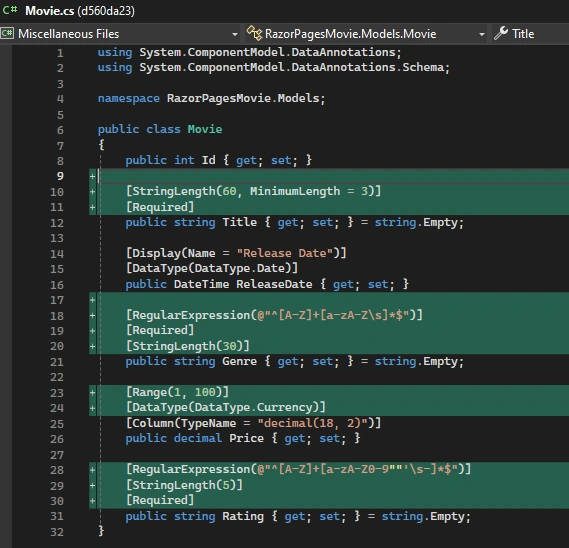
Update Models/Movie.cs with the following highlighted code:
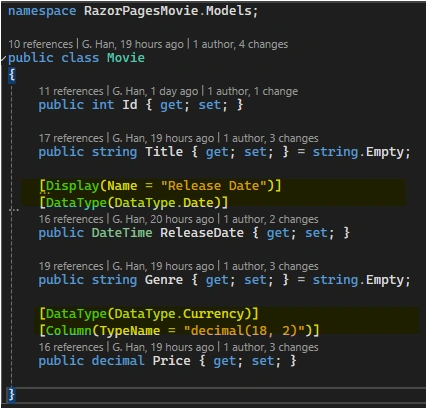
In the previous code:
- The
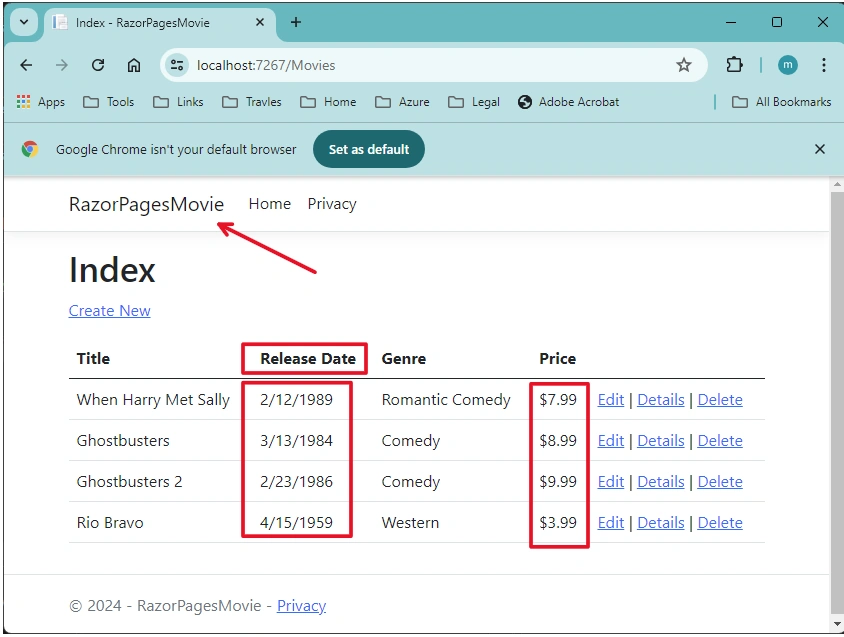
[Column(TypeName = "decimal(18, 2)")]data annotation enables Entity Framework Core to correctly mapPriceto currency in the database. - The [Display] attribute specifies the display name of a field. In the preceding code,
Release Dateinstead ofReleaseDate. - The [DataType] attribute specifies the type of the data (
Date). The time information stored in the field isn't displayed.
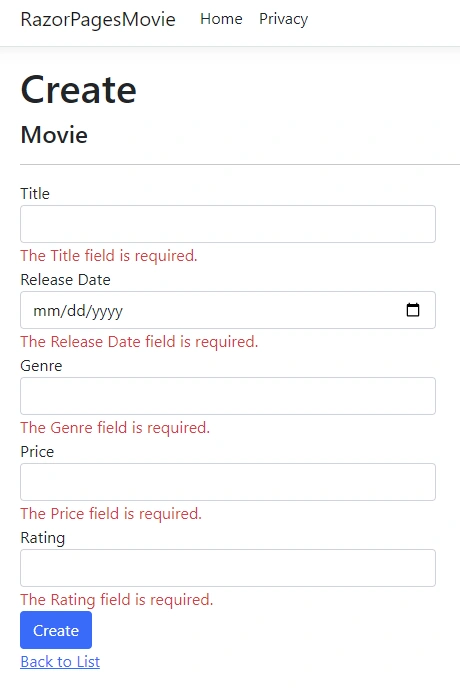
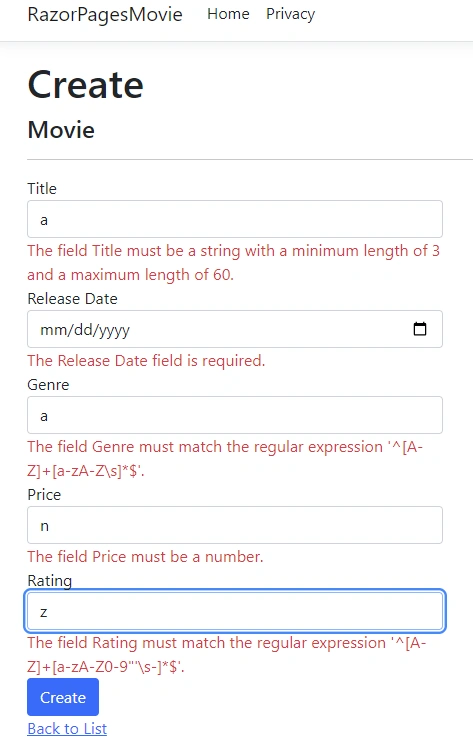
Result:
5-2, Add Route Template
Update the Edit, Details, and Delete Razor Pages to use the {id:int} route template.
@page "{id:int?}"
We add it in the details page:
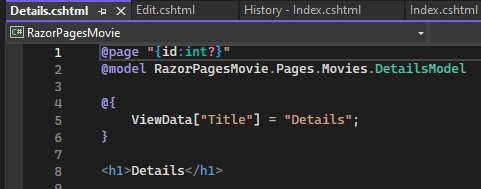
Details page highlighted previously:

while edit page highlighted after Route Template added:

5-3, Concurrency Protection
Review the OnPostAsync method in the Pages/Movies/Edit.cshtml.cs file:
public async Task<IActionResult> OnPostAsync()
{
    if (!ModelState.IsValid)
    {
        return Page();
    }

    _context.Attach(Movie).State = EntityState.Modified;

    try
    {
        await _context.SaveChangesAsync();
    }
    catch (DbUpdateConcurrencyException)
    {
        if (!MovieExists(Movie.Id))
        {
            return NotFound();
        }
        else
        {
            throw;
        }
    }

    return RedirectToPage("./Index");
}

private bool MovieExists(int id)
{
  return _context.Movie.Any(e => e.Id == id);
}
The previous code detects concurrency exceptions when one client deletes the movie and the other client posts changes to the movie.
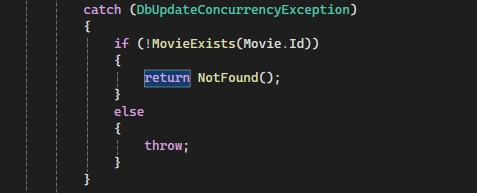
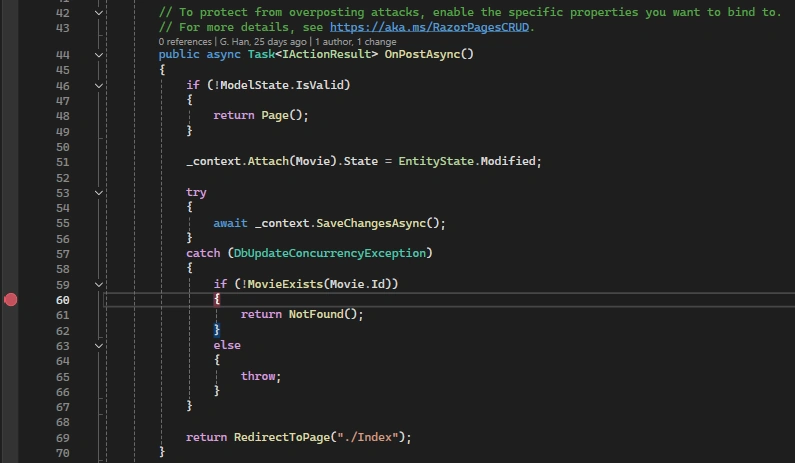
To test the catch block:
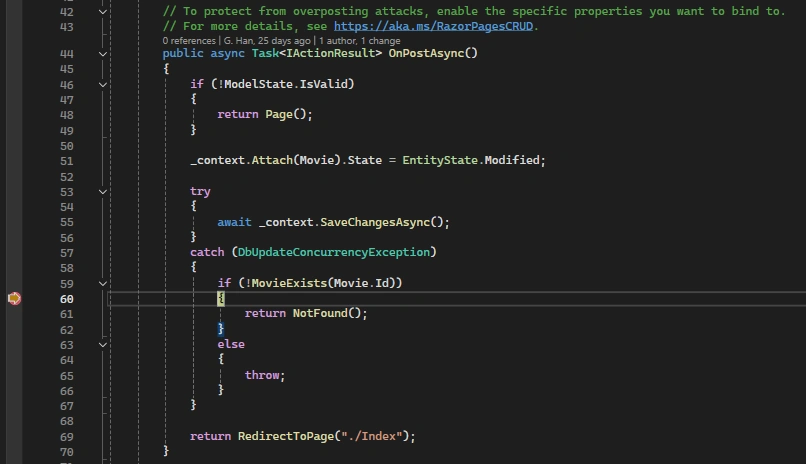
- Set a breakpoint on
catch (DbUpdateConcurrencyException).
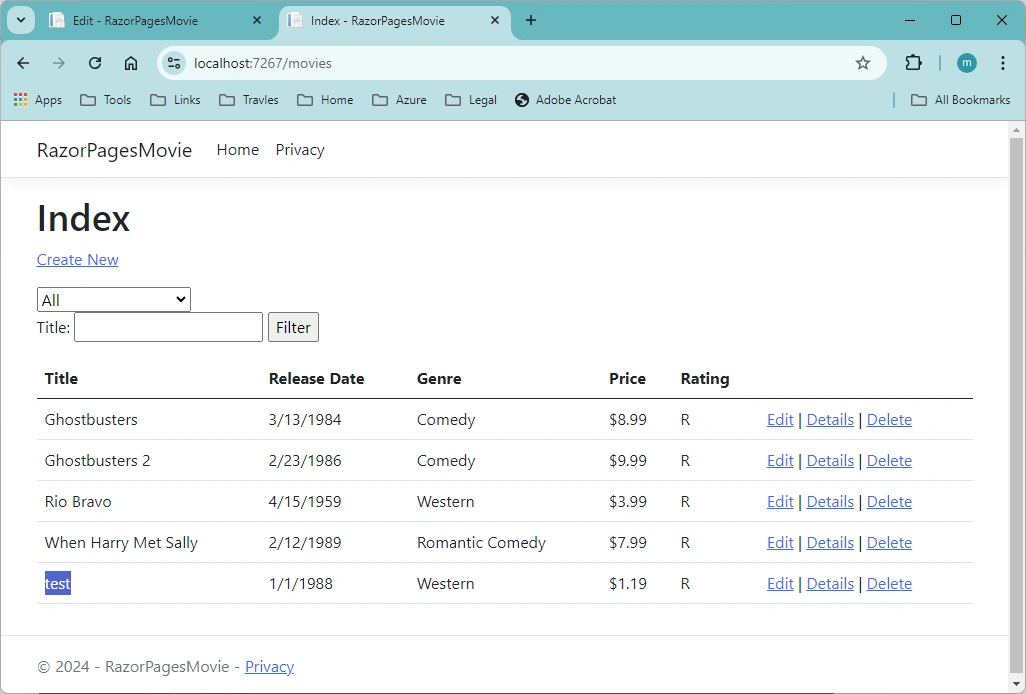
- Open the app, and Add one item test:
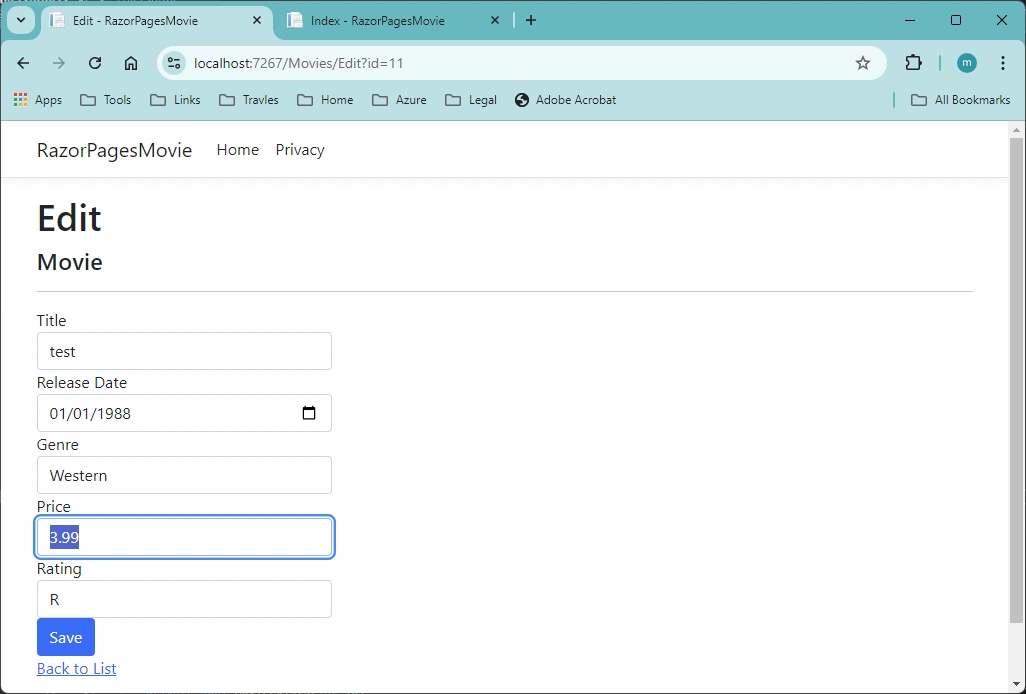
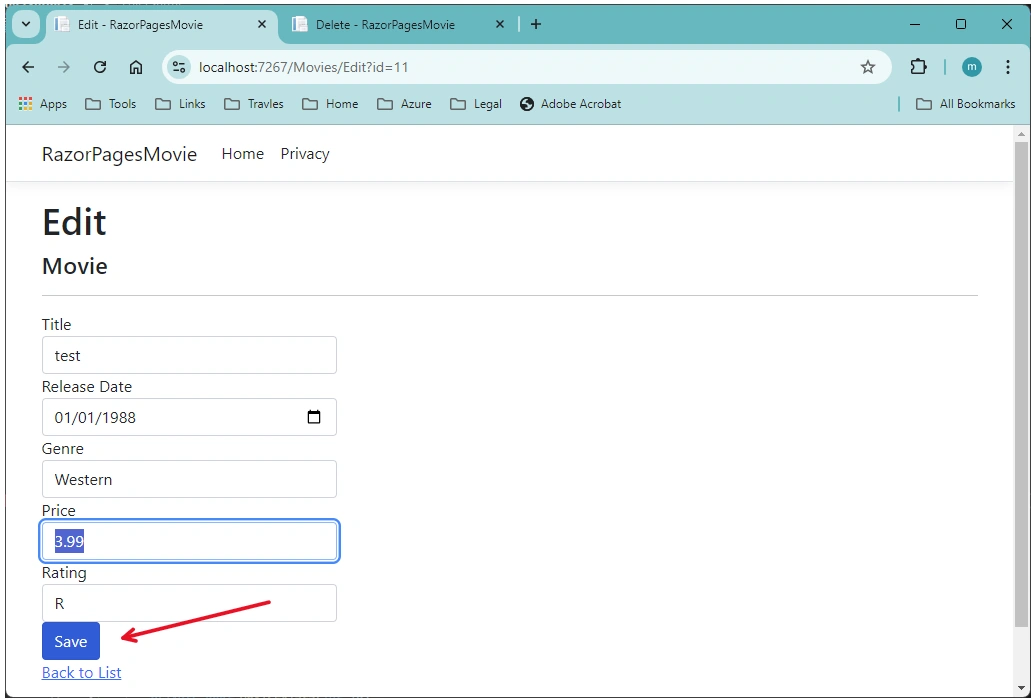
- Select Edit for the test Movie, make changes (from 1.19 to 3.99), but don't enter Save.
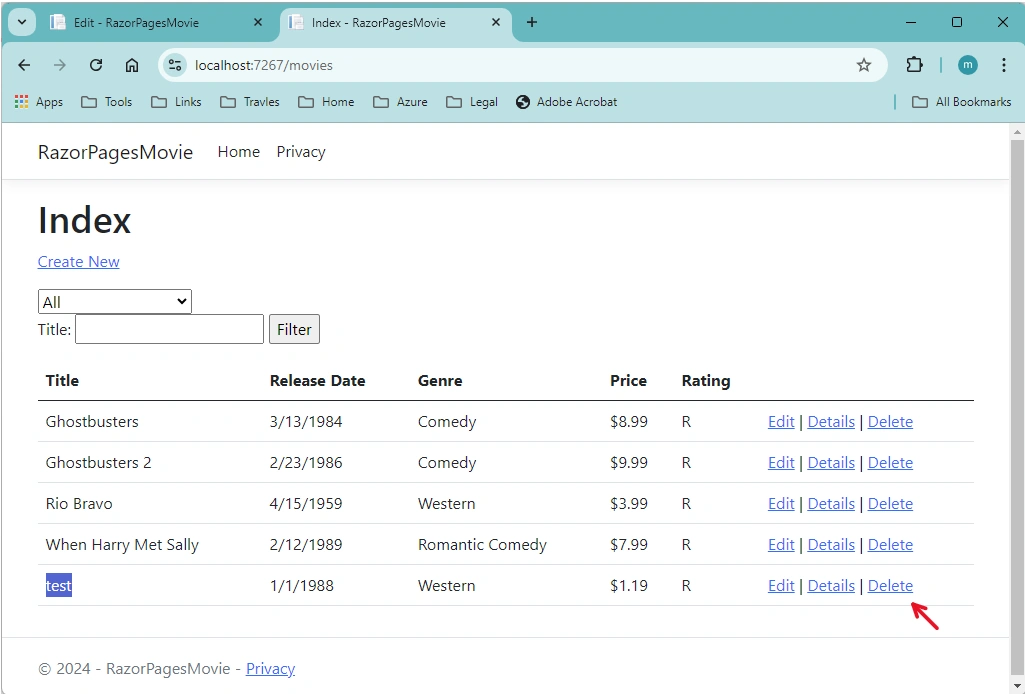
- In another browser window, select the Delete link for the same movie, and then delete the movie.
- Confirm to Delete
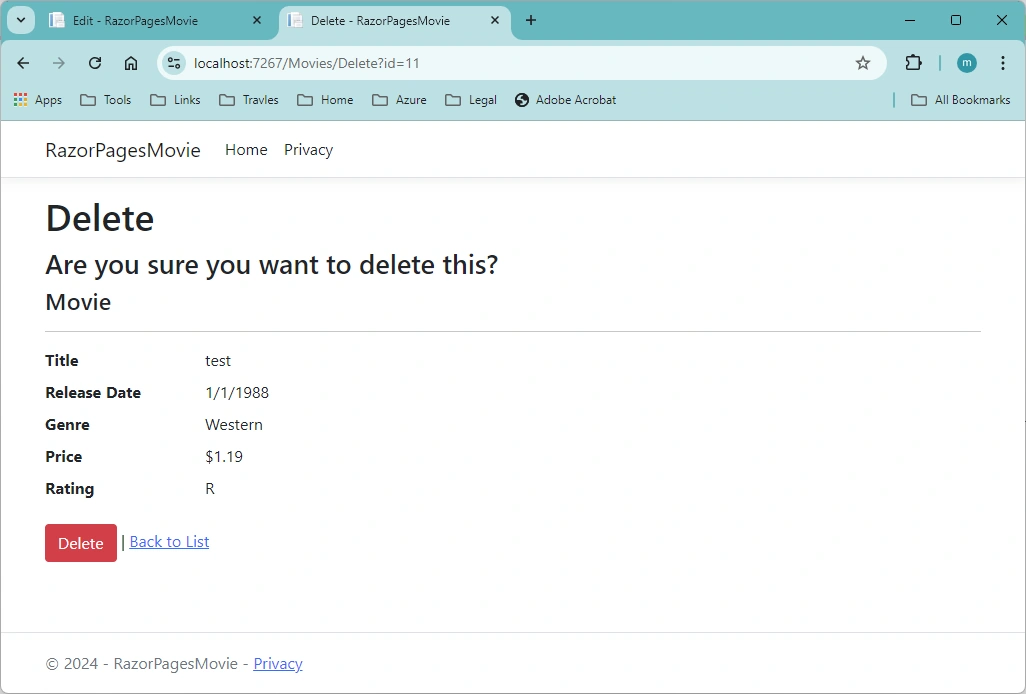
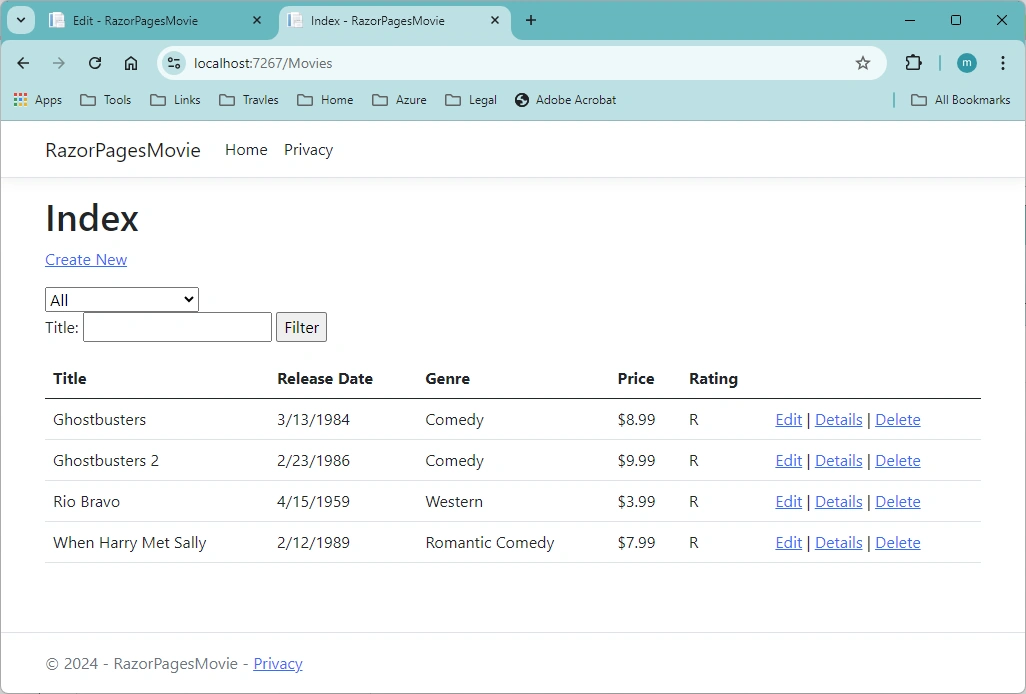
- The item is deleted:
- In the previous browser window, post changes to the movie.
- The concurrency error is caught:
Note:
Here, we only say we can catch the concurrency errors, however, we did not handle that. Production code may want to detect concurrency conflicts. See Handle concurrency conflicts for more information.
5-4, Posting and Binding
Examine the Pages/Movies/Edit.cshtml.cs file:
public class EditModel : PageModel
{
    private readonly RazorPagesMovie.Data.RazorPagesMovieContext _context;

    public EditModel(RazorPagesMovie.Data.RazorPagesMovieContext context)
    {
        _context = context;
    }

    [BindProperty]
    public Movie Movie { get; set; } = default!;

    public async Task<IActionResult> OnGetAsync(int? id)
    {
        if (id == null || _context.Movie == null)
        {
            return NotFound();
        }

        var movie =  await _context.Movie.FirstOrDefaultAsync(m => m.Id == id);
        if (movie == null)
        {
            return NotFound();
        }
        Movie = movie;
        return Page();
    }

    // To protect from overposting attacks, enable the specific properties you want to bind to.
    // For more details, see https://aka.ms/RazorPagesCRUD.
    public async Task<IActionResult> OnPostAsync()
    {
        if (!ModelState.IsValid)
        {
            return Page();
        }

        _context.Attach(Movie).State = EntityState.Modified;

        try
        {
            await _context.SaveChangesAsync();
        }
        catch (DbUpdateConcurrencyException)
        {
            if (!MovieExists(Movie.Id))
            {
                return NotFound();
            }
            else
            {
                throw;
            }
        }

        return RedirectToPage("./Index");
    }

    private bool MovieExists(int id)
    {
      return _context.Movie.Any(e => e.Id == id);
    }
When an HTTP GET request is made to the Movies/Edit page, for example, https://localhost:5001/Movies/Edit/3:
- The
OnGetAsyncmethod fetches the movie from the database and returns thePagemethod. - The
Pagemethod renders thePages/Movies/Edit.cshtmlRazor Page. ThePages/Movies/Edit.cshtmlfile contains the model directive@model RazorPagesMovie.Pages.Movies.EditModel, which makes the movie model available on the page. - The Edit form is displayed with the values from the movie.
Join the conversation! Your thoughts help the community grow.