

While I was migrating my App to Windows 10 UWP, I faced some issues implementing back navigation and related things. I've found a few solutions with different implementation. I'm combining all those things here with the proper code. So, this will be a complete solution to implement back navigation and related concepts in your UWP App.
This article is geared for app development in UWP Windows 10 with C# and XAML.
While coding a UWP app, you need to take care of two platforms; mainly, Windows Phone and other Windows devices (including tablet and desktop/surface hub). While in some devices you'll get a hardwared back button for backward navigation so you don't need to include UI for the back button in your app, whereas in the desktop you need to include a Back Button in your application's UI.
There are two ways to manage backward navigation in UWP
- Implement Windows.UI.Core.SystemNavigationManager API
- Implement custom logic with Back Button in Application's UI
Let's elaborate this in detail with code examples.
Implementing SystemNavigationMnager
Implementing SystemNavigationMnager
There are two benefits of using SystemNavigationManager.
- If the App is running on the device which doesn't have hardware back button, it'll show the back button onthe application's window header.
- You don't need to import any external SDK to do this.
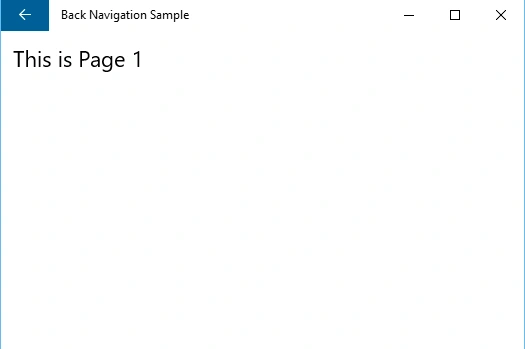
To make that back button visible on the specific page and handle the click event of that back button, write the following code in the page's constructor or in Loaded event of that page.
- SystemNavigationManager.GetForCurrentView().AppViewBackButtonVisibility = AppViewBackButtonVisibility.Visible;
- SystemNavigationManager.GetForCurrentView().BackRequested += (s, e) =>
- {
- // Handle the Back pressed
- };
To do that, you need to make some changes in App.xaml.cs file of your App.
You need to add some code to your OnLaunched event handler as below. The code to be added is highlighted in red ink.
You need to add some code to your OnLaunched event handler as below. The code to be added is highlighted in red ink.
- protected override void OnLaunched(LaunchActivatedEventArgs e)
- {
- Frame rootFrame = Window.Current.Content as Frame;
- // Do not repeat app initialization when the Window already has content,
- // just ensure that the window is active
- if (rootFrame == null)
- {
- // Create a Frame to act as the navigation context and navigate to the first page
- rootFrame = new Frame();
- rootFrame.NavigationFailed += OnNavigationFailed;
- rootFrame.Navigated += RootFrame_Navigated;
- if (e.PreviousExecutionState == ApplicationExecutionState.Terminated)
- {
- //TODO: Load state from previously suspended application
- }
- // Place the frame in the current Window
- Window.Current.Content = rootFrame;
- // Register a handler for BackRequested events and set the
- // visibility of the Back button
- SystemNavigationManager.GetForCurrentView().BackRequested += OnBackRequested;
- SystemNavigationManager.GetForCurrentView().AppViewBackButtonVisibility =
- rootFrame.CanGoBack ?
- AppViewBackButtonVisibility.Visible :
- AppViewBackButtonVisibility.Collapsed;
- }
- if (rootFrame.Content == null)
- {
- // When the navigation stack isn't restored navigate to the first page,
- // configuring the new page by passing required information as a navigation
- // parameter
- rootFrame.Navigate(typeof(Page1), e.Arguments);
- }
- // Ensure the current window is active
- Window.Current.Activate();
- }
- private void RootFrame_Navigated(object sender, NavigationEventArgs e)
- {
- // Each time a navigation event occurs, update the Back button's visibility
- SystemNavigationManager.GetForCurrentView().AppViewBackButtonVisibility =
- ((Frame)sender).CanGoBack ?
- AppViewBackButtonVisibility.Visible :
- AppViewBackButtonVisibility.Collapsed;
- }
- private void OnBackRequested(object sender, BackRequestedEventArgs e)
- {
- Frame rootFrame = Window.Current.Content as Frame;
- if (rootFrame.CanGoBack)
- {
- e.Handled = true;
- rootFrame.GoBack();
- }
- }
By adding above code in App.xaml.cs you'll get a fully functional Back Button throughout your App.
Note: You can find more detail about the above solution from the following blog.
Implement your own logic with Back Button in the App UI
While implementing custom logic, the important thing to take care is of showing the back button on Windows Desktopm but hiding it while in the Windows phone. For that we need to detect which device the app is running on. To detect that we have two options.
- Use VisualStateManager in XAML
- Detecting through backend code
Sometimes using VisualStateManager to detect whether the app is running on the Windows phone or desktop can cause inaccuracy because the user can resize the App window in Desktop mode. Though the code should look like this:
- <VisualStateManager.VisualStateGroups>
- <VisualStateGroup>
- <VisualState x:Name="visualStateDesktop">
- <VisualState.StateTriggers>
- <AdaptiveTrigger MinWindowWidth="700" />
- </VisualState.StateTriggers>
- <VisualState.Setters>
- <Setter Target="btnBack.Visibility" Value="Visible" />
- </VisualState.Setters>
- </VisualState>
- <VisualState x:Name="visualStateMobile">
- <VisualState.StateTriggers>
- <AdaptiveTrigger MinWindowWidth="0" />
- </VisualState.StateTriggers>
- <VisualState.Setters>
- <Setter Target="btnBack.Visibility" Value="Collapsed" />
- </VisualState.Setters>
- </VisualState>
- </VisualStateGroup>
- </VisualStateManager.VisualStateGroups>

Now, to detect the platform (whether Windows phone or desktop) by C# code we just need to add one method in App.xaml.cs page.
- public static Platform DetectPlatform()
- {
- bool isHardwareButtonsAPIPresent = ApiInformation.IsTypePresent("Windows.Phone.UI.Input.HardwareButtons");
- if (isHardwareButtonsAPIPresent)
- {
- return Platform.WindowsPhone;
- }
- else
- {
- return Platform.Windows;
- }
- }
- if (App.DetectPlatform() == Platform.WindowsPhone)
- {
- HardwareButtons.BackPressed += new EventHandler<BackPressedEventArgs>((s, a) =>
- {
- if (frameContent.CanGoBack)
- {
- frameContent.GoBack();
- a.Handled = true;
- }
- });
- }

So while runningthe app on the Windows desktop an exception will fire while executing HardwareButtons.BackPressed line of code if there will not be any condition to check the current platform.
Conclusion
So in this article we've covered the following topics:
- Back navigation
- Using Default API for Back Navigation (SystemNavigationmanager)
- Managing Back Button visibility on Windows desktop through VisualStateManager
- Handling hardware BackButton in Windows phone
- Detecting platform whether Windows Phone or Windows
I hope this article will be helpful. If you find anything to include or change, please comment.
Read more articles on Universal Windows Apps:
Anil PatelPosted Feb 10, 2016, 12:23 PM
helpful..
Kumaresh RajalingamPosted Feb 10, 2016, 8:48 AM
Nice share
Sr KarthigaPosted Feb 10, 2016, 8:27 AM
Nice
Shubham KumarPosted Feb 10, 2016, 4:46 AM
nice
Pramod ThakurPosted Feb 9, 2016, 12:11 PM
thanks for sharing.. and welcome to community...
Santhakumar MunuswamyPosted Feb 9, 2016, 11:39 AM
Welcome
Santhakumar MunuswamyPosted Feb 9, 2016, 11:39 AM
Good Start
Sibeesh VenuPosted Feb 9, 2016, 7:15 AM
Nice Share