Hello every one. Today, I will show you how to bind the combo box in WPF MVVM. Before starting with this, you have to be clear with the concept of INotifyPropertyChanged and ICommand interface, which was explained in my previous articles, whose links are .
- Explain INotifyPropertyChanged In WPF - MVVM
- ICommand Interface In MVVM - WPF
Now, for binding the combo box in WPF MVVM, I will explain two methods -- one is using simple binding and another is using item template. First, we take simple binding, so create one WPF Application and put the combo box in it.
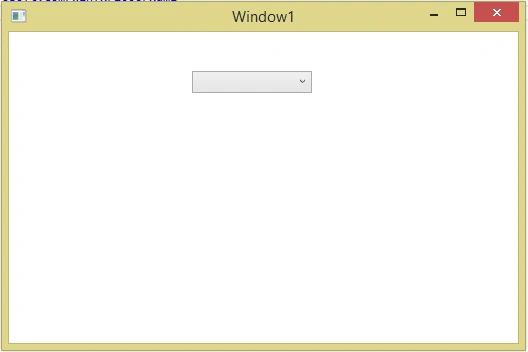
XAML Code
- <Window x:Class="MVVM_Combobox. MainWindow"
- xmlns="http://schemas.microsoft.com/winfx/2006/xaml/presentation"
- xmlns:x="http://schemas.microsoft.com/winfx/2006/xaml"
- Title="Window1" Height="350" Width="525" >
- <StackPanel Orientation="Vertical">
-
- <ComboBox HorizontalAlignment="Left"
- Margin="183,39,0,0"
- VerticalAlignment="Top"
- Width="120" />
- </StackPanel>
- </Window>
Now, consider that we have one model ‘Person’ and it has two properties ‘Id’ and ‘Name’ with get and set method. Make it public.
Code - Person.cs
- public class Person
- {
-
- private int _id;
-
- public int Id
- {
- get { return _id; }
- set { _id = value; }
- }
- private string _name;
-
- public string Name
- {
- get { return _name; }
- set { _name = value; }
- }
- }
Our model as person class is ready with its property. Next, we have to make view-model. We have to create the collection of the person class because we have to give the collection to the combo box as an item source, so we create the property in view-mode, where one is ObservableCollection of the person class and second is person class. Since we want single class property, we have to select any item from the combo box collection.
- private ObservableCollection<Person> _persons;
-
- public ObservableCollection<Person> Persons
- {
- get { return _persons; }
- set { _persons = value; }
- }
- private Person _sperson;
-
- public Person SPerson
- {
- get { return _sperson; }
- set { _sperson = value; }
- }
Now, create the constructor of this view model and set the ObservableCollection with some static value like-
ID=1,Name=”Nirav”
ID=2,Name=”Kapil”
ID=3,Name=”Arvind”
ID=4,Name=”Rajan”
Code
- public ViewModel()
- {
- Persons = new ObservableCollection<Person>()
- {
- new Person(){ Id=1, Name="Nirav"}
- ,new Person(){Id=2,Name="Kapil"}
- ,new Person(){Id=3 , Name="Arvind"}
- ,new Person(){Id=4 , Name="Rajan"}
- };
- }
Now, we have to give this collection to the combo box as an item source, so we have to give this view model reference to the our design (XAML) file.
- xmlns:viewmodel="clr-namespace:MVVM_Combobox.ViewModel"
Now, define the Window resources, as shown below and assign some key to it.
- <Window.Resources>
- <viewmodel:ViewModel x:Key="vm"></viewmodel:ViewModel>
- </Window.Resources>
Now, move to combo box control and assign its Item source. Select Item and display member property.
- ItemsSource="{Binding Path=Persons}"
- SelectedItem="{Binding Path=SPerson}"
- DisplayMemberPath="Name"
Here, in item source, we give the collection name and in selected item, we give single person property. We have to define the display member here and you have to give whatever we have to display in combo box dropdown list.
Full Code
- <Window x:Class="MVVM_Combobox.MainWindow"
- xmlns="http://schemas.microsoft.com/winfx/2006/xaml/presentation"
- xmlns:x="http://schemas.microsoft.com/winfx/2006/xaml"
- xmlns:viewmodel="clr-namespace:MVVM_Combobox.ViewModel"
- Title="MainWindow" Height="350" Width="525">
- <Window.Resources>
- <viewmodel:ViewModel x:Key="vm"></viewmodel:ViewModel>
- </Window.Resources>
- <StackPanel Orientation="Vertical" DataContext="{Binding Source={StaticResource vm}}">
-
- <ComboBox HorizontalAlignment="Left"
- Margin="183,39,0,0"
- VerticalAlignment="Top"
- Width="120"
- ItemsSource="{Binding Path=Persons}"
- SelectedItem="{Binding Path=SPerson}"
- DisplayMemberPath="Name"/>
- </StackPanel>
- </Window>
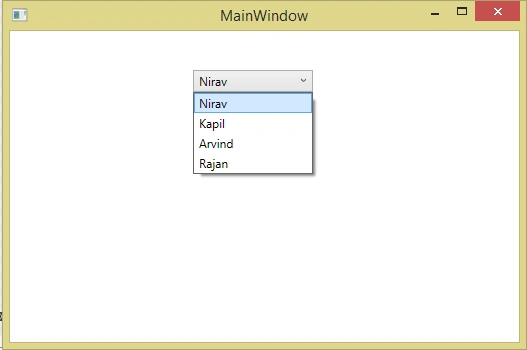
Now, run the Application and show the result.
 Combo box binding using Item template
Now, add another combo box in the Window with its item source and the selected item property.
- <ComboBox ItemsSource="{Binding Path=Persons}"
- SelectedItem="{Binding Path=SPerson}"
- Width="120"
- HorizontalAlignment="Left"
- Margin="183,39,0,0"
- VerticalAlignment="Top" >
- </ComboBox>
Now, we define the item template for this combo box, as shown below-
- <ComboBox ItemsSource="{Binding Path=Persons}"
- SelectedItem="{Binding Path=SPerson}"
- Width="120"
- HorizontalAlignment="Left"
- Margin="183,39,0,0"
- VerticalAlignment="Top" >
- <ComboBox.ItemTemplate>
- <DataTemplate>
- <StackPanel Orientation="Horizontal">
- <TextBlock Text="{Binding Path=Id}"/>
- <TextBlock Text=" - "/>
- <TextBlock Text="{Binding Path=Name}"/>
- </StackPanel>
- </DataTemplate>
- </ComboBox.ItemTemplate>
- </ComboBox>
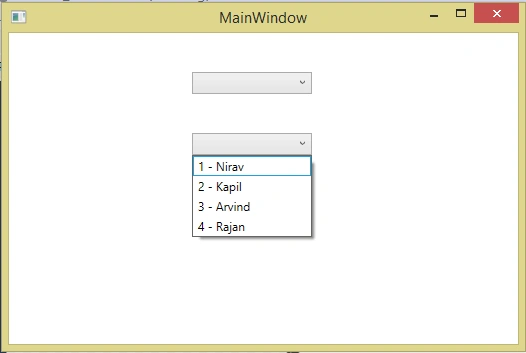
As shown in the code, shown above, we define combo box followed by the item template and the data template. In data template, we define our custom design code, as shown in the example, above, so complete XAML code looks, as shown below-
- <Window x:Class="MVVM_Combobox.MainWindow"
- xmlns="http://schemas.microsoft.com/winfx/2006/xaml/presentation"
- xmlns:x="http://schemas.microsoft.com/winfx/2006/xaml"
- xmlns:viewmodel="clr-namespace:MVVM_Combobox.ViewModel"
- Title="MainWindow" Height="350" Width="525">
- <Window.Resources>
- <viewmodel:ViewModel x:Key="vm"></viewmodel:ViewModel>
- </Window.Resources>
- <StackPanel Orientation="Vertical" DataContext="{Binding Source={StaticResource vm}}">
-
- <ComboBox HorizontalAlignment="Left"
- Margin="183,39,0,0"
- VerticalAlignment="Top"
- Width="120"
- ItemsSource="{Binding Path=Persons}"
- SelectedItem="{Binding Path=SPerson}"
- DisplayMemberPath="Name"/>
- <ComboBox ItemsSource="{Binding Path=Persons}"
- SelectedItem="{Binding Path=SPerson}"
- Width="120"
- HorizontalAlignment="Left"
- Margin="183,39,0,0"
- VerticalAlignment="Top" >
- <ComboBox.ItemTemplate>
- <DataTemplate>
- <StackPanel Orientation="Horizontal">
- <TextBlock Text="{Binding Path=Id}"/>
- <TextBlock Text=" - "/>
- <TextBlock Text="{Binding Path=Name}"/>
- </StackPanel>
- </DataTemplate>
- </ComboBox.ItemTemplate>
- </ComboBox>
- </StackPanel>
- </Window>
Output


Mazhar AliPosted May 16, 2020, 9:00 AM
Hi sir i have question
Ritesh RajPosted Nov 30, 2019, 3:36 PM
hi @Nirav Daraniya i tried your second combobox as i needed to bind two values from my Combobox but i am not getting the values displayed can you please help me !!!!! i am really struggling in this issue. I tried this but i am not getting the values please refer this code for reference. https://stackoverflow.com/questions/58574522/not-able-to-display-the-the-values-in-combobox-from-the-bound-observable-collect
Akash JackPosted Aug 6, 2019, 12:49 AM
How do I display a default value to the combo box in this case?
Ramjee SanthanamPosted May 15, 2019, 1:50 AM
I used the code like but the data is not binding. Can anyone help me?
Bhavesh JadavPosted Apr 6, 2019, 2:39 AM
Thank you so much Nirav Daraniya, It's helpfull to me.
Monica PachecoPosted Aug 27, 2018, 4:59 PM
Thank you so much the tutorial is really useful. But i have one question, how i can have multiples binding in the <StackPanel Orientation="Vertical" DataContext="{Binding Source={StaticResource vm}}"> . I have two buttons that doesn't work when i use the tag like that.
Richard RolstonPosted Nov 8, 2017, 9:27 PM
Thanks! This was helpful.
Prasanna MuraliPosted Oct 9, 2016, 10:10 AM
Nice post..