

In my previous article I wrote how to Export DataGridView Data to Excel in C# Without Saving to File System In this article, we will learn how to export a Dataset to individual Excel sheets in a C# Windows application.
1. Create a new project in Visual C# and select "Windows Forms Application" from the list of available templates and name your project "ExportDataSetToExcel".
2. Now let us create two instances of DataTable.
Coding
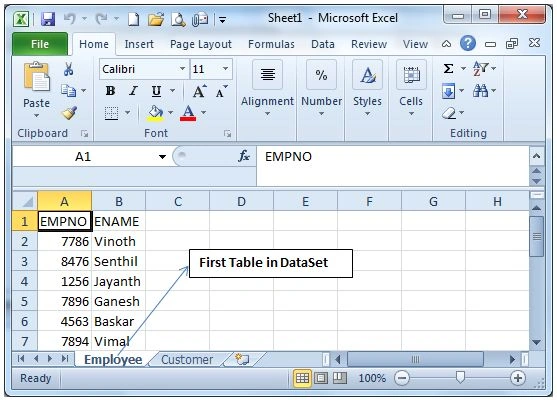
DataTable 1 (Employee)
System.Data.DataTable table1 = new System.Data.DataTable("Employee");
table1.Columns.Add("EMPNO");
table1.Columns.Add("ENAME");
table1.Rows.Add("7786", "Vinoth");
table1.Rows.Add("8476", "Senthil");
table1.Rows.Add("1256", "Jayanth");
table1.Rows.Add("7896", "Ganesh");
table1.Rows.Add("4563", "Baskar");
table1.Rows.Add("7894", "Vimal");
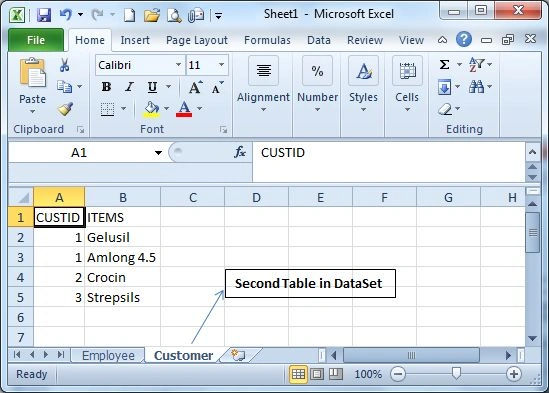
DataTable 2 (Customer)
System.Data.DataTable table2 = new System.Data.DataTable("Customer");
table2.Columns.Add("CUSTID");
table2.Columns.Add("ITEMS");
table2.Rows.Add(1, "Gelusil");
table2.Rows.Add(1, "Amlong 4.5");
table2.Rows.Add(2, "Crocin");
table2.Rows.Add(3, "Strepsils");
3. Create a DataSet and put both tables in it using the Add method of DataSet as in the following:
dataSet = new DataSet("General");
dataSet.Tables.Add(table1);
dataSet.Tables.Add(table2);
4. Next we add a reference to the Microsoft.Office.Interop to the project from "Project" -> "Add Reference".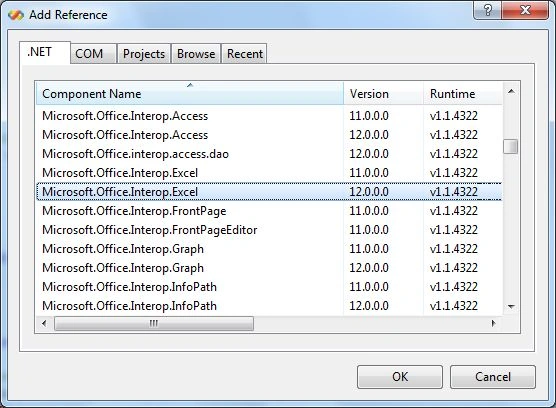
5. Now we create an Object for the Excel Application using the ApplicationClass as in the following:
Microsoft.Office.Interop.Excel.ApplicationClass ExcelApp = new Microsoft.Office.Interop.Excel.ApplicationClass();
6. Next we loop through the DataTables in DataSet using the DataTableCollection class as in the following:
DataTableCollection collection = dataSet.Tables;
7. Now, we need to store the Header details for the DataTables in a DataSet in Excel using code as in the following:
for (int j = 1; j < table.Columns.Count + 1; j++)
{
ExcelApp.Cells[1, j] = table.Columns[j - 1].ColumnName;
}
8. And then we store each row and column values of the DataTables to an Excel Sheet as in the following:
// Storing Each row and column value to excel sheet
for (int k = 0; k < table.Rows.Count; k++)
{
for (int l = 0; l < table.Columns.Count; l++)
{
ExcelApp.Cells[k + 2, l + 1] =
table.Rows[k].ItemArray[l].ToString();
}
}
Complete Source Code
using System;
using System.Collections.Generic;
using System.ComponentModel;
using System.Data;
using System.Drawing;
using System.Linq;
using System.Text;
using System.Windows.Forms;
using Microsoft.Office.Interop.Excel;
namespace ExportDataSetToExcel
{
public partial class Form1 : Form
{
//Create a DataSet and put both tables in it.
System.Data.DataSet dataSet = null;
public Form1()
{
InitializeComponent();
SubashPosted Sep 6, 2016, 2:33 AM
Good one
Ashish ParmarPosted Dec 18, 2015, 1:41 AM
i Want your contact detail Mr. Shankar M
Chandan SharmaPosted Apr 25, 2014, 1:41 AM
good artical
anand somaiyaPosted Apr 25, 2014, 12:54 AM
thanks a lot