Robotic Process Automation is the technology that allows anyone today to configure computer software, or a “robot” to emulate and integrate the actions of a human interacting within digital systems to execute a business process.
RPA robots utilize the user interface to capture data and manipulate applications just like humans do. They interpret, trigger responses and communicate with other systems in order to perform on a vast variety of repetitive tasks. Only they are substantially better than humans: an RPA software robot never sleeps and makes zero mistakes.
UiPath is a leading Robotic Process Automation vendor providing a complete software platform to help organizations efficiently automate business processes.
UiPath Studio is a tool that can model an organization's business processes in a visual way.
Reading this article, you can learn how to extract the specific data from the PDF document automation bot using GetText and Message Box activities in UiPath Studio Pro Community.
The following important tools are required for developing UiPath Bots,
  1. Windows 7/8.1/10 (Recommended)
  2. UiPath Studio Pro - Community Cloud (It is a free software available online – https://www.uipath.com/start-trial)
Now we can discuss step by step Bot development.
Step 1
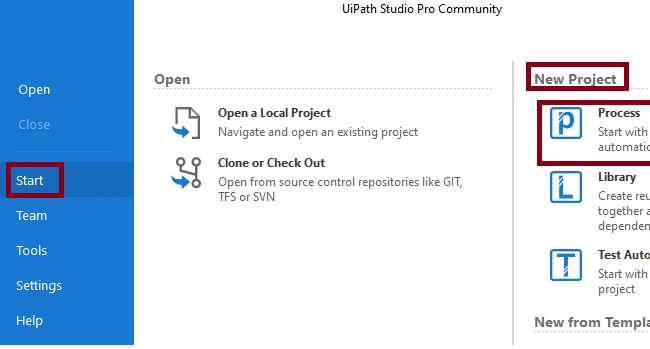
Open UiPath Studio -> Start -> New Project-> Click Process
Extract Specific Data From PDF Automation Using UiPath Studio
Step 2
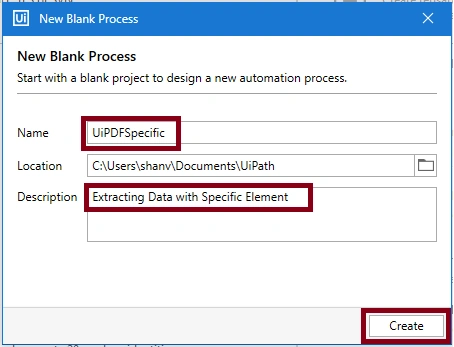
Now, create new Blank Process, and name it UiPdfSpecific and give your description.
Extract Specific Data From PDF Automation Using UiPath Studio
Step 3
After that UiPath studio creates the project UiPdfSpecific with supporting files.
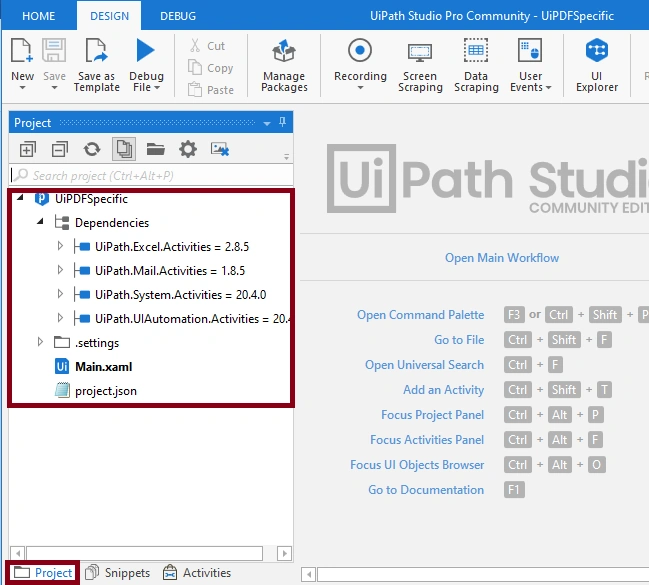
Extract Specific Data From PDF Automation Using UiPath Studio
Step 4
Next, for extracting the specific text in PDF document, create a new sequence workflow named ReadSpecificData:
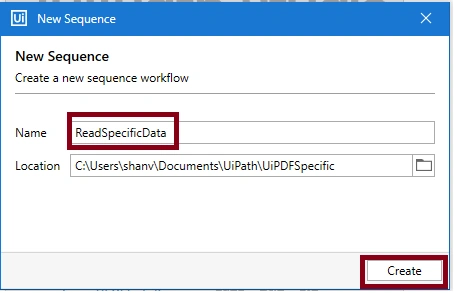
Extract Specific Data From PDF Automation Using UiPath Studio
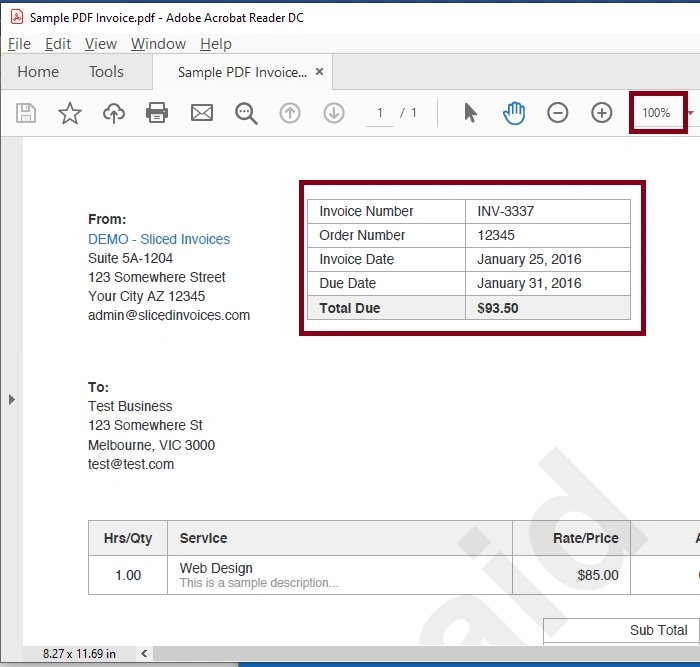
Sample PDF with Data,
Extract Specific Data From PDF Automation Using UiPath Studio
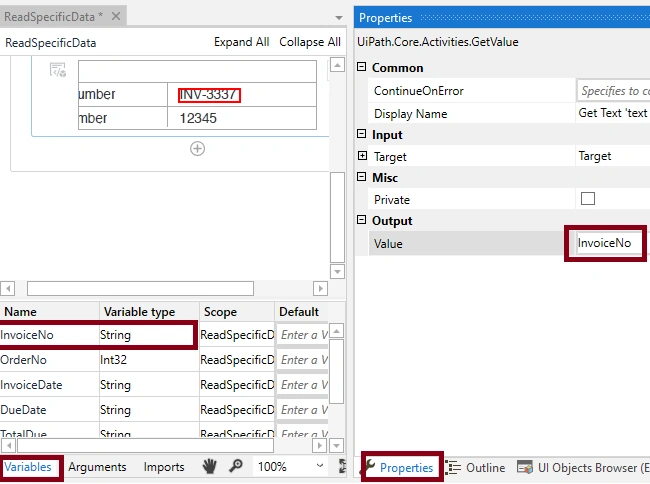
Create 5 variables, InvoiceNo as a String Data Type, OrderNo as a Int32 Data Type, InvoiceDate as a String Data Type, DueDate as a String Data Type, TotalDue as a String Data Type.
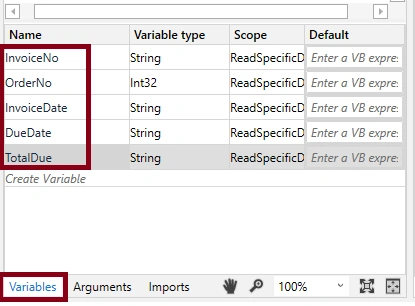
Extract Specific Data From PDF Automation Using UiPath Studio
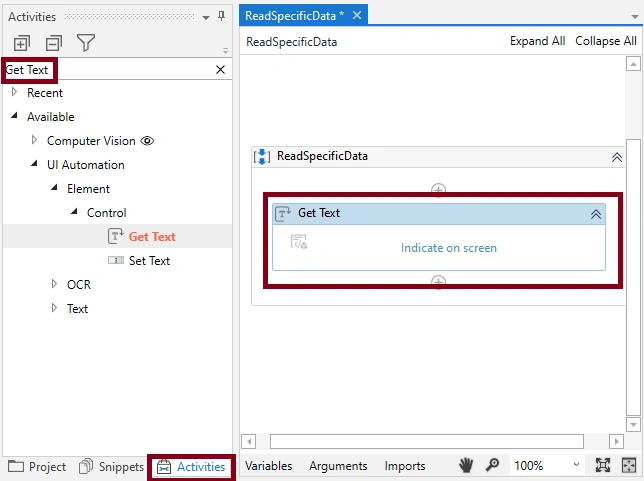
For getting the invoice number, Click Activities -> search GetText activity->Drag and drop into sequence,
Extract Specific Data From PDF Automation Using UiPath Studio
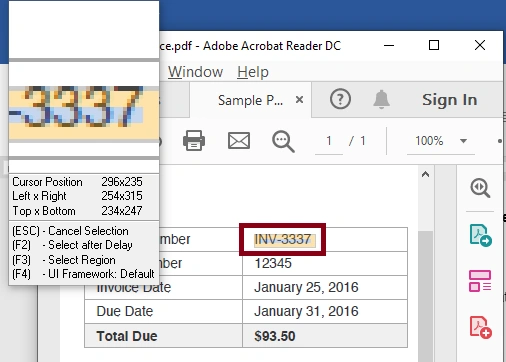
Click the Indicate in screen, select the Invoice number:
Extract Specific Data From PDF Automation Using UiPath Studio
Set the element value property as InvoiceNo:
Extract Specific Data From PDF Automation Using UiPath Studio
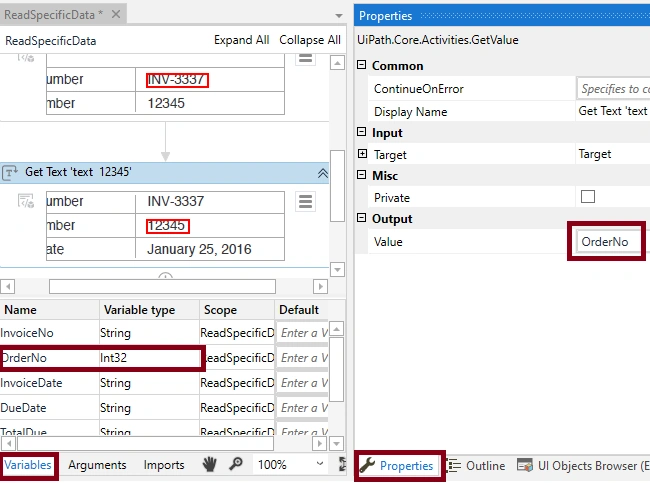
Similarly, for getting the ordernumber, click Activities -> search GetText activity->Drag and drop in to sequence, click the Indicate in screen, select the Order Number, Set the element value property as OrderNo,
Extract Specific Data From PDF Automation Using UiPath Studio
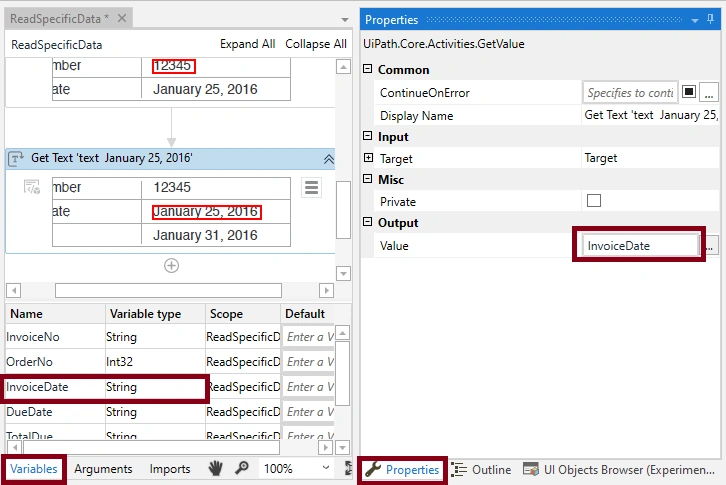
Similarly, for getting the invoice date, click Activities -> search GetText activity->Drag and drop in to sequence, click the Indicate in screen, select the Invoice date, set the element value property as InvoiceDate,
Extract Specific Data From PDF Automation Using UiPath Studio
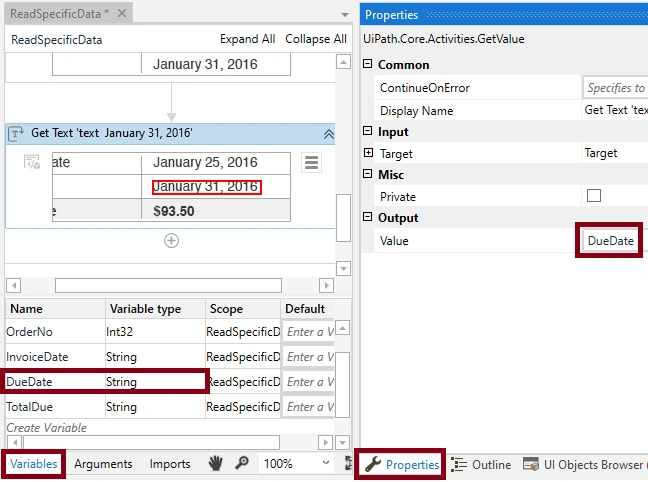
Similarly, for getting the due date, click Activities -> search GetText activity->Drag and drop in to sequence, click the Indicate in screen, select the Due Date, set the element value property as DueDate,
Extract Specific Data From PDF Automation Using UiPath Studio
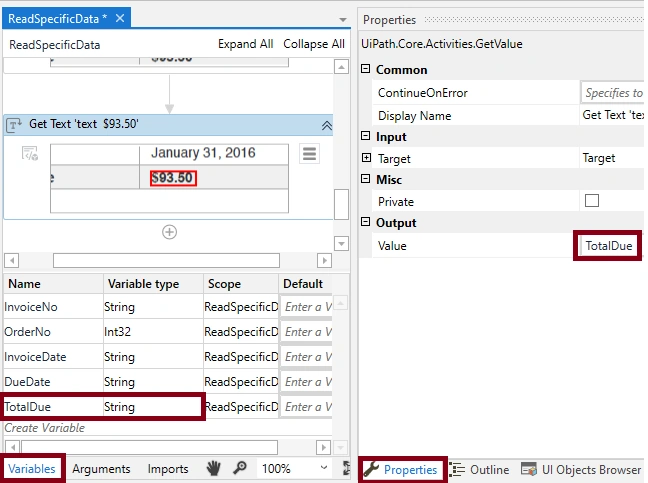
Similarly, for getting the Total Due, click Activities -> search GetText activity->Drag and drop in to sequence, click the Indicate in screen, select the Total Due, set the element value property as Total Due,
Extract Specific Data From PDF Automation Using UiPath Studio
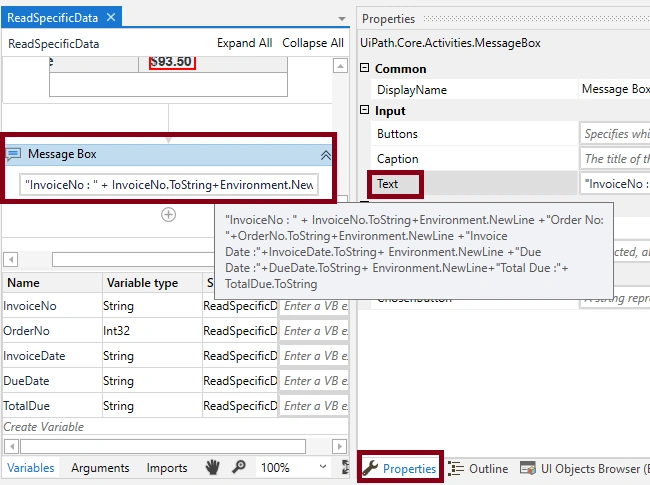
Click Activities -> search Message Box activity->Drag and drop into sequence and set the text as:
"InvoiceNo : " + InvoiceNo.ToString+Environment.NewLine +"Order No: "+OrderNo.ToString+Environment.NewLine +"Invoice Date :"+InvoiceDate.ToString+ Environment.NewLine +"Due Date :"+DueDate.ToString+ Environment.NewLine+"Total Due :"+ TotalDue.ToString
Extract Specific Data From PDF Automation Using UiPath Studio
Step 5
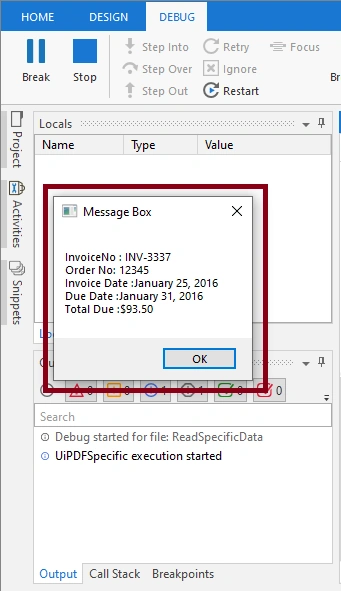
For running your project, Select debug file -> Run. The output of the UiPdfSpecific project is,
Extract Specific Data From PDF Automation Using UiPath Studio

Summary

Now you have successfully extracted the specific text in the PDF document automation bot using UiPath Studio.