

Introduction
This article describes a simple approach to implementing special character use
in a Visual Basic based text editor. If your OS is configured for English and
you’d like to leave it like that, and if you have not quite memorized all of
the key code values required to insert all of the special characters you might
use in writing; or if you work from a laptop without a number pad, then this
article will offer an alternative approach and may be of interest.
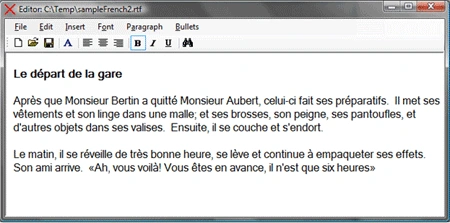
Figure 1: Test Application in Use
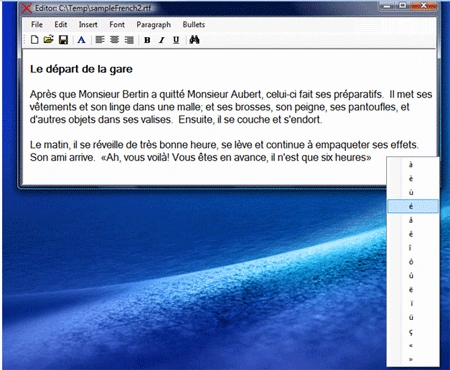
Figure 2: Character Selection from a Context Menu
Rather than remembering to lock the number pad and to type things like ALT+0192
or ALT+134, I found it easier to provide an interface in the form of a context
menu. To handle case differences, I set it up to insert upper case versions of
the characters if I use Shift+F1 to open the menu or lower case versions of the
characters if I open the menu with F1 without the shift key. The lower case
version is also available using a right click and if the user holds the shift
key when selecting from the right-click context menu, the character will also be
written in upper case. You won’t win any speed typing awards going this route
but it is less error prone than keying the codes and will work for you even if
you don’t have a number pad on your keyboard as is the case with my laptop.
I built the example on top of a fleshed out rich text editor that is also
described and available on this site.
Getting Started
The solution contains a developed word processor built around the rich text box
control; that much of the code will not be described herein but a description is
available on this site in an earlier article. This article will only address
that part of the code used to handle the context menu to do the character
inserts.
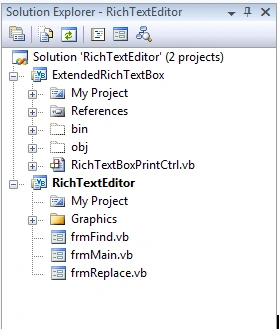
Figure 3: Solution Explorer with the Project Visible
All of the code discussed in this article is contained in frmMain.vb. As a delta
from the original editor, the main form was modified by the addition of an
insert menu which contains most of the French Accent Marks and through the
addition of a context menu with the same characters made available by the new
insert menu. A similar approach could be used to allow the user to insert other
special characters such as mathematical equation symbols or any other special
character that might be of interest to the user.
Code: Main Form (frmMain.vb)
This class provides all of the functionality used in this example to allow the
user to insert special characters. The bulk of the code in this class will not
be discussed; only those parts that pertain to the placement of special
characters into the document.
The first part of the code to depart from the original version of the Visual
Basic based word processor project is the declarations region of the main form.
In this section, two new variables are declared, the first is a point used to
maintain awareness as to the physical location of the mouse (which is later used
to decide where to show the context menu) and the second is a string variable
entitled "mode" which is used to maintain awareness as to whether or not to use
upper case or lower case when inserting the character.
#Region "Declarations"
Private currentFile As String
Private checkPrint As Integer
Private pLocation As Point
Private mode As String
#End Region
The next new part of the application is used to insert the French accent marks
into the active document. The following event handlers and these are the
handlers for the new insert menu. All work the same and when called, each will
insert the requested accent mark into the document at the position of the
cursor.
Region "Insert
Menu"
''' <summary>
'''
Accent Grave - Ã
''' </summary>
''' <param
name="sender"></param>
''' <param
name="e"></param>
''' <remarks></remarks>
Private Sub à ToolStripMenuItem_Click(ByVal sender As System.Object, ByVal
e As System.EventArgs) Handles à ToolStripMenuItem.Click
rtbDoc.SelectedText = "Ã "
End Sub
''' <summary>
'''
Accent Grave - è
''' </summary>
''' <param
name="sender"></param>
''' <param
name="e"></param>
''' <remarks></remarks>
Private Sub èToolStripMenuItem_Click(ByVal sender As System.Object, ByVal
e As System.EventArgs) Handles èToolStripMenuItem.Click
rtbDoc.SelectedText = "è"
End Sub
''' <summary>
'''
Accent Grave - ù
''' </summary>
''' <param
name="sender"></param>
''' <param
name="e"></param>
''' <remarks></remarks>
Private Sub ùToolStripMenuItem_Click(ByVal sender As System.Object, ByVal
e As System.EventArgs) Handles ùToolStripMenuItem.Click
rtbDoc.SelectedText = "ù"
End Sub
''' <summary>
'''
Accent Aigu - é
''' </summary>
''' <param
name="sender"></param>
''' <param
name="e"></param>
''' <remarks></remarks>
Private Sub éToolStripMenuItem_Click(ByVal sender As System.Object, ByVal
e As System.EventArgs) Handles éToolStripMenuItem.Click
rtbDoc.SelectedText = "é"
End Sub
''' <summary>
'''
Accent circonflexe - â
''' </summary>
''' <param
name="sender"></param>
''' <param
name="e"></param>
''' <remarks></remarks>
Private Sub âToolStripMenuItem_Click(ByVal sender As System.Object, ByVal
e As System.EventArgs) Handles âToolStripMenuItem.Click
rtbDoc.SelectedText = "â"
End Sub
''' <summary>
'''
Accent circonflexe - ê
''' </summary>
''' <param
name="sender"></param>
''' <param
name="e"></param>
''' <remarks></remarks>
Private Sub êToolStripMenuItem_Click(ByVal sender As System.Object, ByVal
e As System.EventArgs) Handles êToolStripMenuItem.Click
rtbDoc.SelectedText = "ê"
End Sub
''' <summary>
'''
Accent circonflexe - î
''' </summary>
''' <param
name="sender"></param>
''' <param
name="e"></param>
''' <remarks></remarks>
Private Sub îToolStripMenuItem_Click(ByVal sender As System.Object, ByVal
e As System.EventArgs) Handles îToolStripMenuItem.Click
rtbDoc.SelectedText = "î"
End Sub
''' <summary>
'''
Accent circonflexe - ô
''' </summary>
''' <param
name="sender"></param>
''' <param
name="e"></param>
''' <remarks></remarks>
Private Sub ôToolStripMenuItem_Click(ByVal sender As System.Object, ByVal
e As System.EventArgs) Handles ôToolStripMenuItem.Click
rtbDoc.SelectedText = "ô"
End Sub
''' <summary>
'''
Accent circonflexe - û
''' </summary>
''' <param
name="sender"></param>
''' <param
name="e"></param>
''' <remarks></remarks>
Private Sub ûToolStripMenuItem_Click(ByVal sender As System.Object, ByVal
e As System.EventArgs) Handles ûToolStripMenuItem.Click
rtbDoc.SelectedText = "û"
End Sub
''' <summary>
'''
Accent tréma - ë
''' </summary>
''' <param
name="sender"></param>
''' <param
name="e"></param>
''' <remarks></remarks>
Private Sub ëToolStripMenuItem_Click(ByVal sender As System.Object, ByVal
e As System.EventArgs) Handles ëToolStripMenuItem.Click
rtbDoc.SelectedText = "ë"
End Sub
''' <summary>
'''
Accent tréma - ï
''' </summary>
''' <param
name="sender"></param>
''' <param
name="e"></param>
''' <remarks></remarks>
Private Sub ïToolStripMenuItem_Click(ByVal sender As System.Object, ByVal
e As System.EventArgs) Handles ïToolStripMenuItem.Click
rtbDoc.SelectedText = "ï"
End Sub
''' <summary>
'''
Accent tréma - ü
''' </summary>
''' <param
name="sender"></param>
''' <param
name="e"></param>
''' <remarks></remarks>
Private Sub üToolStripMenuItem_Click(ByVal sender As System.Object, ByVal
e As System.EventArgs) Handles üToolStripMenuItem.Click
rtbDoc.SelectedText = "ü"
End Sub
''' <summary>
'''
Accent Cedille - ç
''' </summary>
''' <param
name="sender"></param>
''' <param
name="e"></param>
''' <remarks></remarks>
Private Sub çToolStripMenuItem_Click(ByVal sender As System.Object, ByVal
e As System.EventArgs) Handles çToolStripMenuItem.Click
rtbDoc.SelectedText = "ç"
End Sub
Join the conversation! Your thoughts help the community grow.