

The SPAutocomplete lets you provide values for a single line of text columns from values in a SharePoint list. The function is highly configurable and can enhance the user experience with forms.
To use this function you need to put it on a new item form. On one of the fields of this new item form the SPAutoComplete can be implemented and used.
To make this work, create a new blank webpart page. Open the page in SharePoint Designer and insert a dataview on the page. At the Data Source Library select the list you want to create a new item form for and select Show Data. Select the desired fields to show on the new item form and select "Insert Selected Fields as … New Item Form".
Imagine
I have a list called Microsoft employees with a Title column with the name of the employees. In another list I need these names also but I want to suggest the user who adds a new item that employees we already have and how these are spelled.
Let’s proceed
Edit the page in the browser and add a Content Editor Web part, modify the web part and show the Source Editor to add the following code.
<script language="javascript" src="/JS/jquery-1.6.2.min.js"
type="text/javascript"></script>
<script language="javascript" src="/JS/jquery.SPServices-0.7.2.min.js"
type="text/javascript"></script>
<script type="text/javascript">
$(document).ready(function () {
$().SPServices.SPAutocomplete({
sourceList: "Microsoft employees",
sourceColumn: "Employee",
columnName: "Employee",
ignoreCase: true,
numChars: 2,
slideDownSpeed: 'fast'
});
});</script>
For all available options to set please have a look at the following link, but for the important ones here.
http://spservices.codeplex.com/wikipage?title=%24%28%29.SPServices.SPAutocomplete
- sourceList: the list to get the suggestions from
- sourceColumn: the static column name to get the suggestions from
- columnName: the displayname of the field in the new item form
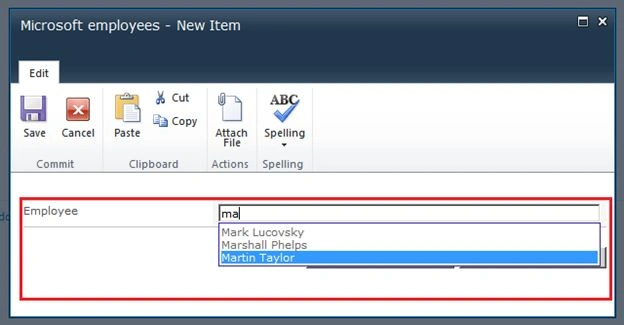
Summary
In this article we provided an easy way to implement an autocomplete column for a SharePoint list using SPService.
usha GPosted Jun 2, 2020, 4:12 AM
How to use this code on InfoPath form
usha GPosted Jun 2, 2020, 3:49 AM
Hi, is this code work for InfoPath form 2013
ThamiPosted Aug 14, 2018, 3:26 PM
Hi Sagar, for me the code works very well on a list but does not respond on a document library (edit mode). Please help. I'm using O365, Thanks.
KamnaPosted Apr 25, 2018, 11:30 PM
Hi Sagar - I am also able to get the options when I start typing something in the text box however evenevr I try to select the option it does not work. Your solution below i.e. to follow the code on this https://www.c-sharpcorner.com/UploadFile/sagarp/sharepoint-2010-jquery-autocomplete-textbox-containing-list/ is not useful to me as I need to capture the value in the SharePoint list column only and not any html input tag. Is there any alternate or correction to your code?
Techno BridgePosted Dec 28, 2016, 7:56 AM
Is there a way to get the autocomplete data from document library column not from the list column....???
Prashant VermaPosted Mar 9, 2016, 10:09 AM
nice
Vijay SPosted Apr 10, 2015, 6:29 AM
Hi am Also facing the Same Issue.. Auto Complete is working.. But i couldn't select the Item from the dropdown.. Please provide some suggestions
aku baikPosted Nov 11, 2014, 4:31 AM
mine success appeared the autocomplete. but cannot select the data. still have to complete typing the data. need your help. im using sharepoint 2013