

There are many ways to filter database data using an ASP.NET control and display it in a Grid view.
In this article we will work with a RadioButton, Textbox and CheckBox control.
Step 1
Create an EmployeeDB table in a SQL database.
Example:
- create table EmployeeDB
- (
- EmpID int primary key identity(1,1),
- EmpName varchar(20),
- EmpGender varchar(10),
- EmpDOB date null,
- EmpDepartment varchar(20)
- )

Step 2
The following are some Employee data records to be inserted into the EmployeeDB table.
- insert into EmployeeDB values('Rakesh','Male','1986-05-11','Development')
- insert into EmployeeDB values('Karan','Male','1987-06-19','Account')
- insert into EmployeeDB values('Priya','Female','1987-05-01','Account')
- insert into EmployeeDB values('Anita','Female','1988-02-21','Tax Department')
- insert into EmployeeDB values('Aman','Male','1986-05-10','Development')
- insert into EmployeeDB values('Kavita','Female','1986-05-11','Tax Department')
- insert into EmployeeDB values('Ramesh','Male','1978-09-14','Mathematical')
- insert into EmployeeDB values('Mahi','Female','1989-05-11','Mathematical')

Step 3
Now go to your project design (.aspx) page.
Add a new web form using a Master Page.
Step 4
How to fill in the GridView from the database using Radio Button, Textbox, and Check Box controls one by one.
Radio Button Control
Fill GridView Data Using Radio Button Control:
After providing your radio button id and defining a ListItem.
- <asp:RadioButtonList runat="server" ID="rdGender" AutoPostBack="true"
- onselectedindexchanged="rdGender_SelectedIndexChanged">
- <asp:ListItem Selected="True">None</asp:ListItem>
- <asp:ListItem>Male</asp:ListItem>
- <asp:ListItem>Female</asp:ListItem>
- </asp:RadioButtonList>
Step 5
Add a Grid View to your form as in the following:
- <asp:GridView runat="server" ID="GridEmpRecord" AutoGenerateColumns="false">
- <Columns>
- <asp:TemplateField HeaderText="Name">
- <ItemTemplate><%#Eval("EmpName")%></ItemTemplate>
- </asp:TemplateField>
- <asp:TemplateField HeaderText="Gender">
- <ItemTemplate><%#Eval("EmpGender")%></ItemTemplate>
- </asp:TemplateField>
- <asp:TemplateField HeaderText="Birth Date">
- <ItemTemplate><%#Eval("EmpDOB")%></ItemTemplate>
- </asp:TemplateField>
- <asp:TemplateField HeaderText="Department">
- <ItemTemplate><%#Eval("EmpDepartment")%></ItemTemplate>
- </asp:TemplateField>
- </Columns>
- </asp:GridView>
Step 6
Now go to the Page Design Side and Page Code side.
Here write code for the Grid View data record bind with Radio Button List Control. This code is written inside the Radio Button onselectedindexchanged event.
Now here hive all the code for the Grid View bind using Radio Button list.
The following is the Page Design Side:
- <%@ Page Title="" Language="C#" MasterPageFile="~/MasterPage.Master" AutoEventWireup="true" CodeBehind="FilterGridviewData.aspx.cs" Inherits="Test_WebApplication.BlogWork.FilterGridviewData" %>
- <asp:Content ID="Content1" ContentPlaceHolderID="head" runat="server">
- </asp:Content>
- <asp:Content ID="Content2" ContentPlaceHolderID="ContentPlaceHolder1" runat="server">
- <asp:RadioButtonList runat="server" ID="rdGender" AutoPostBack="true"
- onselectedindexchanged="rdGender_SelectedIndexChanged">
- <asp:ListItem Selected="True">None</asp:ListItem>
- <asp:ListItem>Male</asp:ListItem>
- <asp:ListItem>Female</asp:ListItem>
- </asp:RadioButtonList>
- <br />
- <br />
- <asp:GridView runat="server" ID="GridEmpRecord" AutoGenerateColumns="false">
- <Columns>
- <asp:TemplateField HeaderText="Name">
- <ItemTemplate><%#Eval("EmpName")%></ItemTemplate>
- </asp:TemplateField>
- <asp:TemplateField HeaderText="Gender">
- <ItemTemplate><%#Eval("EmpGender")%></ItemTemplate>
- </asp:TemplateField>
- <asp:TemplateField HeaderText="Birth Date">
- <ItemTemplate><%#Eval("EmpDOB")%></ItemTemplate>
- </asp:TemplateField>
- <asp:TemplateField HeaderText="Department">
- <ItemTemplate><%#Eval("EmpDepartment")%></ItemTemplate>
- </asp:TemplateField>
- </Columns>
- </asp:GridView>
- </asp:Content>
- using System;
- using System.Collections.Generic;
- using System.Linq;
- using System.Web;
- using System.Web.UI;
- using System.Web.UI.WebControls;
- using System.Data;
- using System.Data.SqlClient;
- using System.Configuration;
- namespace Test_WebApplication.BlogWork
- {
- public partial class FilterGridviewData : System.Web.UI.Page
- {
- //define connection string for connect database
- string conString = ConfigurationManager.ConnectionStrings["connstr"].ConnectionString;
- protected void Page_Load(object sender, EventArgs e)
- {
- }
- protected void rdGender_SelectedIndexChanged(object sender, EventArgs e)
- {
- using (SqlConnection con = new SqlConnection(conString))
- {
- {
- using (SqlCommand cmd = new SqlCommand("select * from EmployeeDB where EmpGender='" + rdGender.SelectedItem + "'"))
- {
- SqlDataAdapter dt = new SqlDataAdapter();
- try
- {
- cmd.Connection = con;
- con.Open();
- dt.SelectCommand = cmd;
- DataTable dTable = new DataTable();
- dt.Fill(dTable);
- GridEmpRecord.DataSource = dTable;
- GridEmpRecord.DataBind();
- }
- catch (Exception)
- {
- //
- }
- }
- }
- }
- }
- }
- }
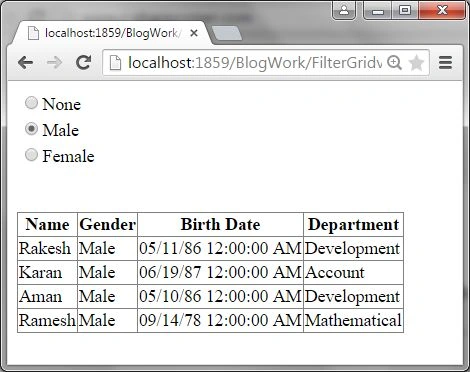
- Screen 1: Display Male Record
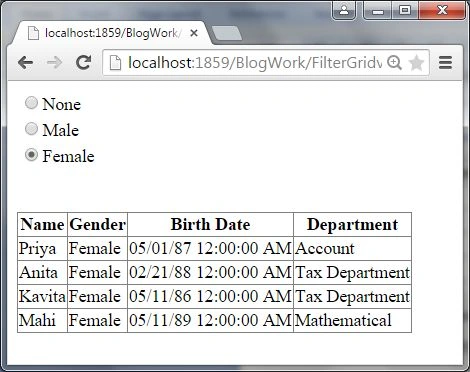
- Screen 2: Display Female Record
Textbox Control
Now to fill in the GridView data using Textbox Control.
Now search from the Employee Data by Employee Name and display the GridView.
In this example use a GridView control to display a database record, textbox control and button control for searching for a database record.
- <asp:TextBox runat="server" ID="txtName"></asp:TextBox>
- <asp:Button runat="server" ID="btnFind" Text="Find Employee" onclick="btnFind_Click" />
- <%@ Page Title="" Language="C#" MasterPageFile="~/MasterPage.Master" AutoEventWireup="true" CodeBehind="FilterGridviewData.aspx.cs" Inherits="Test_WebApplication.BlogWork.FilterGridviewData" %>
- <asp:Content ID="Content1" ContentPlaceHolderID="head" runat="server">
- </asp:Content>
- <asp:Content ID="Content2" ContentPlaceHolderID="ContentPlaceHolder1" runat="server">
- <asp:RadioButtonList runat="server" ID="rdGender" AutoPostBack="true"
- onselectedindexchanged="rdGender_SelectedIndexChanged">
- <asp:ListItem Selected="True">None</asp:ListItem>
- <asp:ListItem>Male</asp:ListItem>
- <asp:ListItem>Female</asp:ListItem>
- </asp:RadioButtonList>
- <br />
- Employee Record Search with Name : <asp:TextBox runat="server" ID="txtName"></asp:TextBox>
- <asp:Button runat="server" ID="btnFind" Text="Find Employee"
- onclick="btnFind_Click" />
- <br />
- <br />
- <asp:GridView runat="server" ID="GridEmpRecord" AutoGenerateColumns="false">
- <Columns>
- <asp:TemplateField HeaderText="Name">
- <ItemTemplate><%#Eval("EmpName")%></ItemTemplate>
- </asp:TemplateField>
- <asp:TemplateField HeaderText="Gender">
- <ItemTemplate><%#Eval("EmpGender")%></ItemTemplate>
- </asp:TemplateField>
- <asp:TemplateField HeaderText="Birth Date">
- <ItemTemplate><%#Eval("EmpDOB")%></ItemTemplate>
- </asp:TemplateField>
- <asp:TemplateField HeaderText="Department">
- <ItemTemplate><%#Eval("EmpDepartment")%></ItemTemplate>
- </asp:TemplateField>
- </Columns>
- </asp:GridView>
- </asp:Content>
- using System;
- using System.Collections.Generic;
- using System.Linq;
- using System.Web;
- using System.Web.UI;
- using System.Web.UI.WebControls;
- using System.Data;
- using System.Data.SqlClient;
- using System.Configuration;
- namespace Test_WebApplication.BlogWork
- {
- public partial class FilterGridviewData : System.Web.UI.Page
- {
- //define connection string for connect database
- string conString = ConfigurationManager.ConnectionStrings["connstr"].ConnectionString;
- protected void Page_Load(object sender, EventArgs e)
- {
- }
- protected void btnFind_Click(object sender, EventArgs e)
- {
- using (SqlConnection con = new SqlConnection(conString))
- {
- {
- using (SqlCommand cmd = new SqlCommand("select * from EmployeeDB where EmpName = '" + txtName.Text + "'"))
- {
- SqlDataAdapter dt = new SqlDataAdapter();
- try
- {
- cmd.Connection = con;
- con.Open();
- dt.SelectCommand = cmd;
- DataTable dTable = new DataTable();
- dt.Fill(dTable);
- GridEmpRecord.DataSource = dTable;
- GridEmpRecord.DataBind();
- }
- catch (Exception)
- {
- //
- }
- }
- }
- }
- }
- }
- }
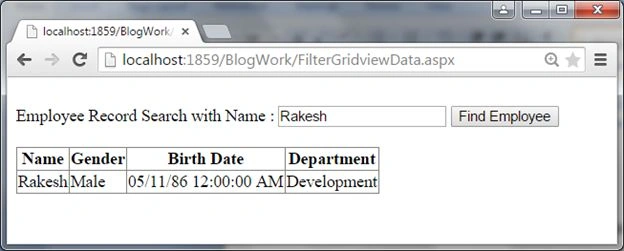
Here, finally search for a name using a textbox.
Checkbox Control
Now to fill in the GridView data using a Checkbox Control.
Now GridView fill with Checkbox control. Take a checkbox list as in the following:
- <asp:CheckBoxList runat="server" ID="chkDepartment" >
- </asp:CheckBoxList>
First see the Page Design side as in the following design code:
- <%@ Page Title="" Language="C#" MasterPageFile="~/MasterPage.Master" AutoEventWireup="true" CodeBehind="FilterGridviewData.aspx.cs" Inherits="Test_WebApplication.BlogWork.FilterGridviewData" %>
- <asp:Content ID="Content1" ContentPlaceHolderID="head" runat="server">
- </asp:Content>
- <asp:Content ID="Content2" ContentPlaceHolderID="ContentPlaceHolder1" runat="server">
- <asp:CheckBoxList runat="server" ID="chkDepartment" AutoPostBack="true"
- onselectedindexchanged="chkDepartment_SelectedIndexChanged">
- <asp:ListItem>Development</asp:ListItem>
- <asp:ListItem>Account</asp:ListItem>
- <asp:ListItem>Tax Department</asp:ListItem>
- <asp:ListItem>Mathematical</asp:ListItem>
- </asp:CheckBoxList>
- <br />
- <asp:GridView runat="server" ID="GridEmpRecord" AutoGenerateColumns="false">
- <Columns>
- <asp:TemplateField HeaderText="Name">
- <ItemTemplate><%#Eval("EmpName")%></ItemTemplate>
- </asp:TemplateField>
- <asp:TemplateField HeaderText="Gender">
- <ItemTemplate><%#Eval("EmpGender")%></ItemTemplate>
- </asp:TemplateField>
- <asp:TemplateField HeaderText="Birth Date">
- <ItemTemplate><%#Eval("EmpDOB")%></ItemTemplate>
- </asp:TemplateField>
- <asp:TemplateField HeaderText="Department">
- <ItemTemplate><%#Eval("EmpDepartment")%></ItemTemplate>
- </asp:TemplateField>
- </Columns>
- </asp:GridView>
- </asp:Content>
- using System;
- using System.Collections.Generic;
- using System.Linq;
- using System.Web;
- using System.Web.UI;
- using System.Web.UI.WebControls;
- using System.Data;
- using System.Data.SqlClient;
- using System.Configuration;
- namespace Test_WebApplication.BlogWork
- {
- public partial class FilterGridviewData : System.Web.UI.Page
- {
- //define connection string for connect database
- string conString = ConfigurationManager.ConnectionStrings["connstr"].ConnectionString;
- protected void Page_Load(object sender, EventArgs e)
- {
- }
- protected void chkDepartment_SelectedIndexChanged(object sender, EventArgs e)
- {
- using (SqlConnection con = new SqlConnection(conString))
- {
- {
- using (SqlCommand cmd = new SqlCommand("select * from EmployeeDB where EmpDepartment='" + chkDepartment.SelectedItem + "'"))
- {
- SqlDataAdapter dt = new SqlDataAdapter();
- try
- {
- cmd.Connection = con;
- con.Open();
- dt.SelectCommand = cmd;
- DataTable dTable = new DataTable();
- dt.Fill(dTable);
- GridEmpRecord.DataSource = dTable;
- GridEmpRecord.DataBind();
- }
- catch (Exception)
- {
- //
- }
- }
- }
- }
- }
- }
- }
- Screen 1: The following is the result displayed by Development Department.
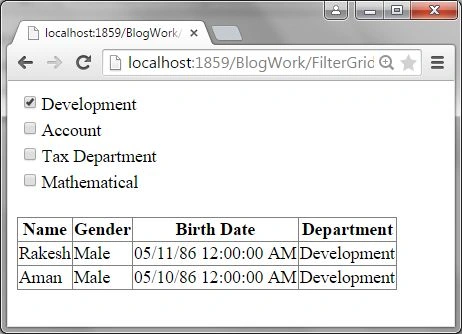
- Screen 2: Again GridView data filled iin using Tex Department.

Finally I hope you understand how to work with a GridView with a Radio Button, Textbox and Checkbox.
anilkumar kanchanapallyPosted Apr 10, 2017, 10:10 AM
Hi frnds, plz any 1 help me its urgent. i want to search data from sql server and display in ASP.Net gridview, after that based on data available in gridview i want to apply other condition and that result display in gridview only, after that one more condition apply. so plz help me how to search data with multiple controllers like textboxex, dropdownlist, checkboxs.
Santhakumar MunuswamyPosted Jun 12, 2015, 2:33 PM
Keep it up Rakesh Chavada
Santhakumar MunuswamyPosted Jun 12, 2015, 2:33 PM
Thanks for nice article :)
Sibeesh VenuPosted Jun 12, 2015, 1:45 AM
Good One.
NitinPosted Jun 12, 2015, 1:37 AM
good one
Rahul Kumar SaxenaPosted Jun 11, 2015, 10:44 AM
Good Show..
Former memberPosted Jun 11, 2015, 5:28 AM
Nice article
Pankaj Kumar ChoudharyPosted Jun 11, 2015, 4:42 AM
Nice Article sir.............