

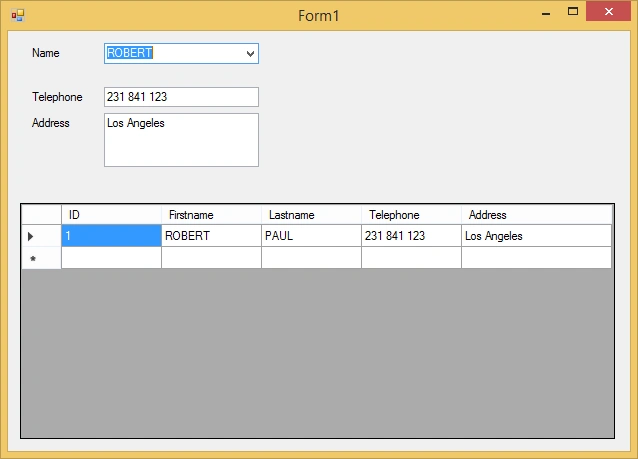
This article is about Filter Combobox Datasource in C#. C# controls are located in the Toolbox of the development environment, and you use them to create objects on a form with a simple series of mouse clicks and dragging motions. Filter combobox using C# can display a text box combined with a ListBox, which enables the user to select items from the list or enter a new value. In this tutorial, you will learn in detail how to filter data that will display to atextbox and datagridview. We can use Event Combobox SelectedIndexChanged to complete this tutorial.
Combobox SelectedIndexChanged event
The SelectedIndexChanged event of a combobox fires when you change the selected item in a combobox. If you want to do something when you change the selection, you can write the program on the SelectedIndexChanged event. From the following code you can understand how to set values in the SelectedIndexChanged event of a combobox.
This tutorial uses Mysql for connecting the database and binding data. Follow this step to see how filtering data will display to Textbox and Datagridview.
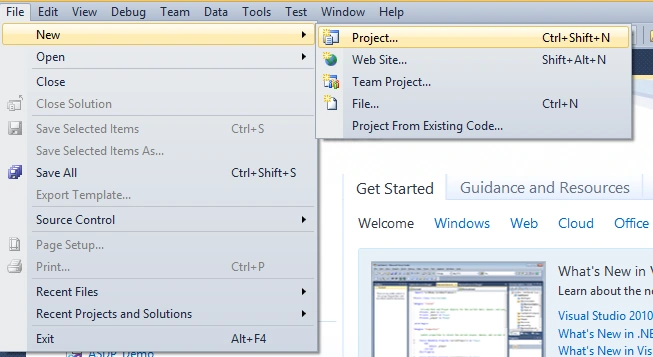
- Create a new application project. In Visual Studio, on the menu click File> New > Project. For more details, see the following menu on the display.
- Then the New Project window will appear.
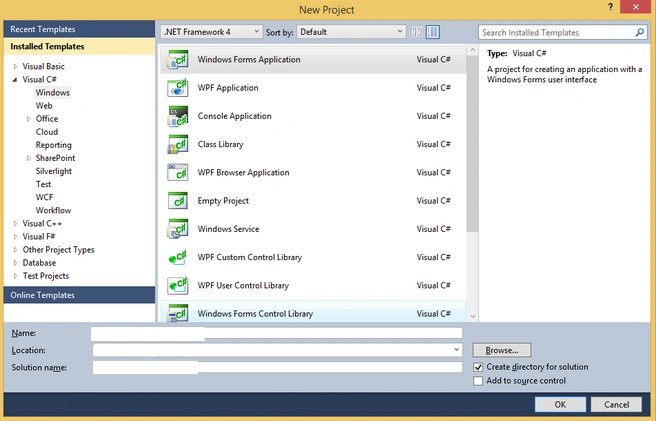
- Write down the name of the project that will be created on a field name. Specify the directory storage project by accessing the field location. Next, give the name of the solution in the Solution Name. Then click OK.
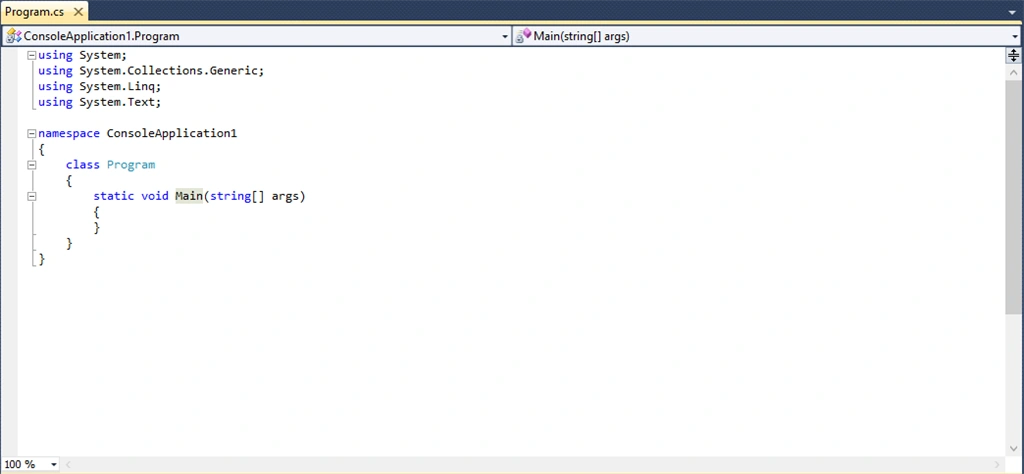
Create a new class for connecting database to Mysql and write the following program listing:
- using System;
- using System.Collections.Generic;
- using System.Linq;
- using System.Text;
- using MySql.Data.MySqlClient;
- using System.Windows.Forms;
- using System.Data;
- namespace Filter_Combobox
- {
- class ConnectionDB
- {
- MySql.Data.MySqlClient.MySqlConnection conn;
- string myConnectionString;
- static string host = "localhost";
- static string database = "test";
- static string userDB = "ecco";
- static string password = "password";
- public static string strProvider = "server=" + host + ";Database=" + database + ";User ID=" + userDB + ";Password=" + password;
- public bool Open()
- {
- try
- {
- strProvider = "server=" + host + ";Database=" + database + ";User ID=" + userDB + ";Password=" + password;
- conn = new MySqlConnection(strProvider);
- conn.Open();
- return true;
- }
- catch (Exception er)
- {
- MessageBox.Show("Connection Error ! " + er.Message, "Information");
- }
- return false;
- }
- public void Close()
- {
- conn.Close();
- conn.Dispose();
- }
- public DataSet ExecuteDataSet(string sql)
- {
- try
- {
- DataSet ds = new DataSet();
- MySqlDataAdapter da = new MySqlDataAdapter(sql, conn);
- da.Fill(ds, "result");
- return ds;
- }
- catch (Exception ex)
- {
- MessageBox.Show(ex.Message);
- }
- return null;
- }
- public MySqlDataReader ExecuteReader(string sql)
- {
- try
- {
- MySqlDataReader reader;
- MySqlCommand cmd = new MySqlCommand(sql, conn);
- reader = cmd.ExecuteReader();
- return reader;
- }
- catch (Exception ex)
- {
- MessageBox.Show(ex.Message);
- }
- return null;
- }
- public int ExecuteNonQuery(string sql)
- {
- try
- {
- int affected;
- MySqlTransaction mytransaction = conn.BeginTransaction();
- MySqlCommand cmd = conn.CreateCommand();
- cmd.CommandText = sql;
- affected = cmd.ExecuteNonQuery();
- mytransaction.Commit();
- return affected;
- }
- catch (Exception ex)
- {
- MessageBox.Show(ex.Message);
- }
- return -1;
- }
- }
- }
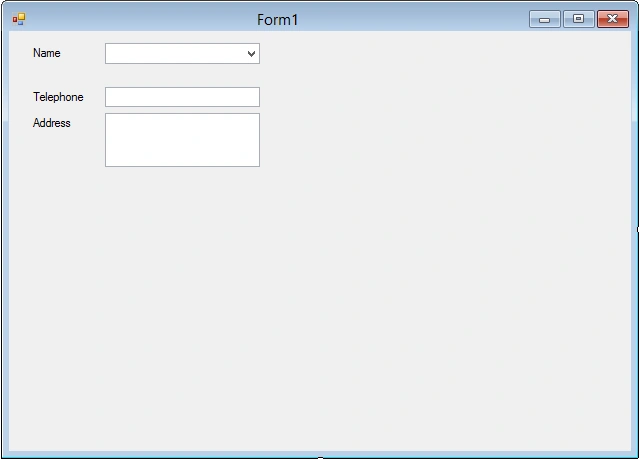
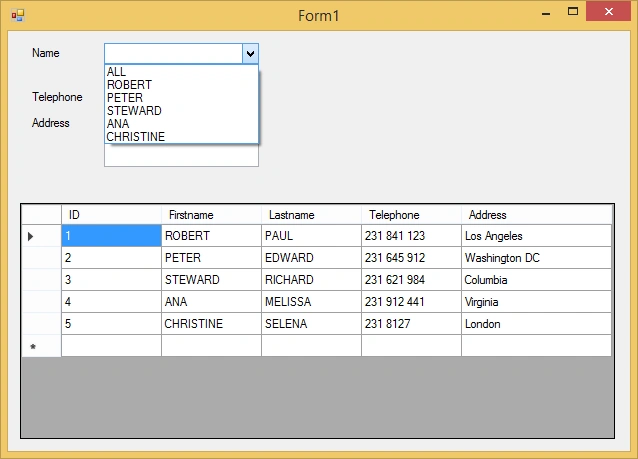
- Create textbox, combobox, label properties in a windows form like below.
- Create Datagridview with properties like below.

Next step, BGo back to Windows form and view the code to write the following program listing,
Join the conversation! Your thoughts help the community grow.