

This article explains how to filter a List in the range of data of a date column. It can be done by setting up multiple date filters to filter a list by a date range out of the box in SharePoint 2010 using SharePoint Designer.
We can implement it by using date filter Web Parts to send values to a lists parameters.
For implementing a date range filter, I have created a simple list with a date column.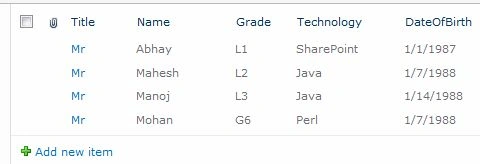
Use the following procedure to create a sample do this.
Step 1: Open the page in Edit mode and add a Date Filter Web Part.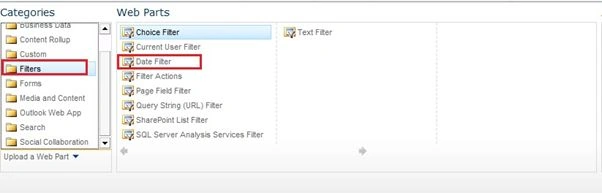
Step 2: Add two date filter Web Parts, one for the "from" date and the other for the "to" date on the page as below.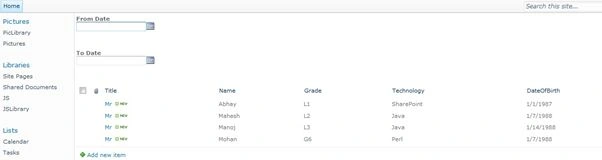
Step 3: Open the List View Page in Designer.
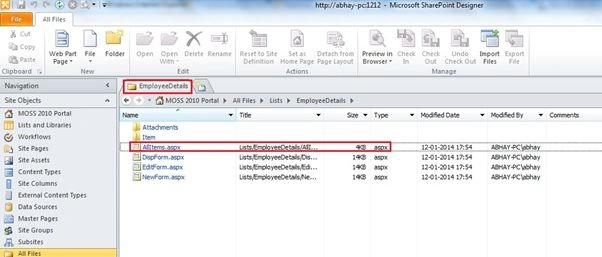
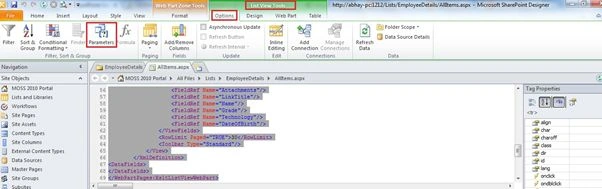
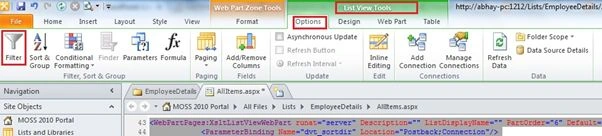
Step 4: After opening the List Web Part in SharePoint Designer, click anywhere on the List Web Part to select it, then in the ribbon click on the list view tools select "Options" then the Parameters icon.
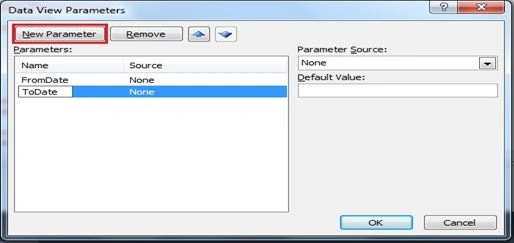
Step 5: Add two parameters, “FromDate” and “Todate”. Don’t make any change in the Parameter Source and Default Value control.
Step 5: Add two parameters, “FromDate” and “Todate”. Don’t make any change in the Parameter Source and Default Value control.
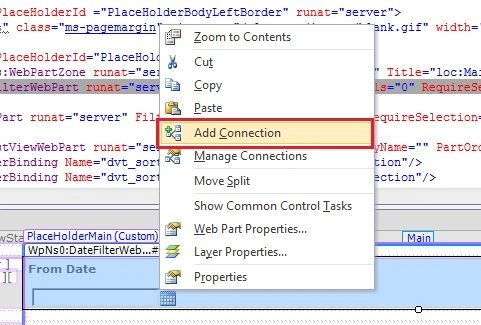
Step 6: Right-click on the From Date filter and click "Add Connection" as below.
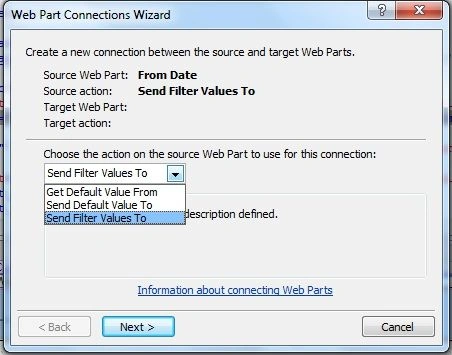
Step 7: In the next dialog that pops up change the dropdown value to “Send filter values to” as below and click "Next".
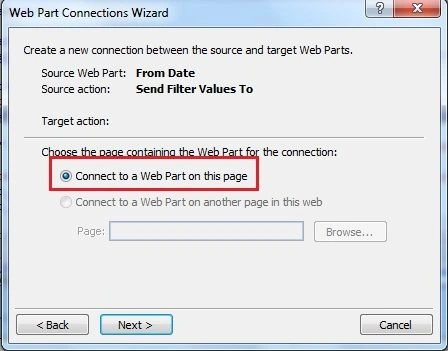
Step 8: Make sure that “Connect to a Web Part on this page” (the default selection) is selected in the next dialog and click "Next".
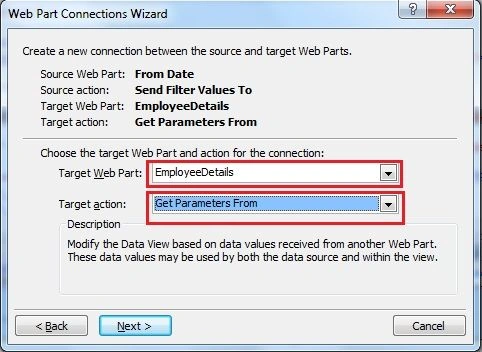
Step 9: In the next dialog select Target Web Part (if multiple Web Parts are added to the page) and change the target action to “Get parameters from” and click "Next".
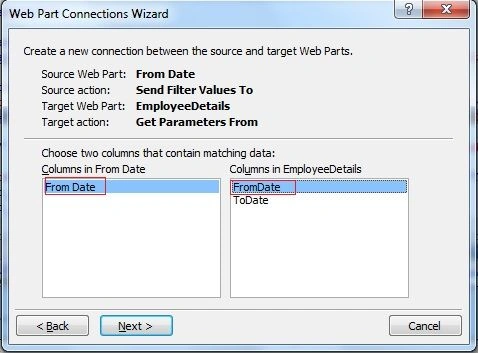
Step 10: In the next dialog, select “From Date” from the first box, and “FromDate” from the second box and click "Next". Then click "Finish".
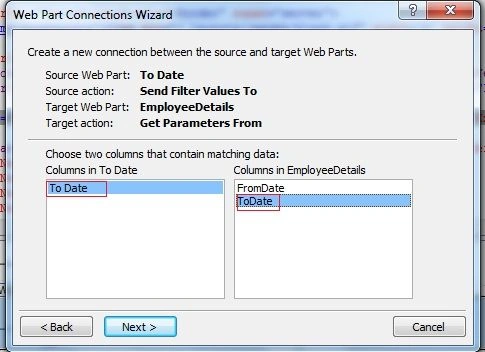
Step 11: Go through the same steps with the second date filter, To Date, and in the final step select “To Date” and “ToDate” from the boxes.
Step 12: Click anywhere on the List Web Part, then in the ribbon click on the List View tools then select "Options" -> "Filters" icon.
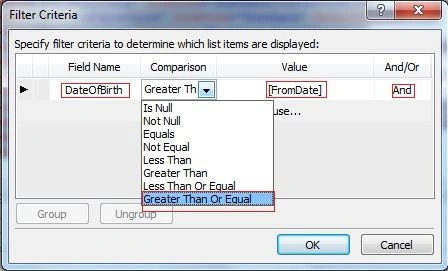
Step 13: The filter criteria box will popup. First add a rule “DateOfBirth -> Greater than or equal to -> [FromDate]”.
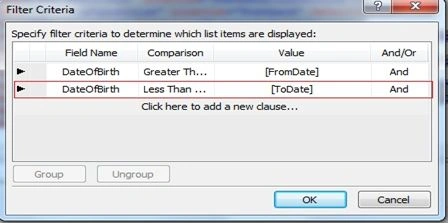
Step 14: Then add another criteria for “ToDate DateOfBirth -> Less than or equal to -> [Todate]”. Click "OK".
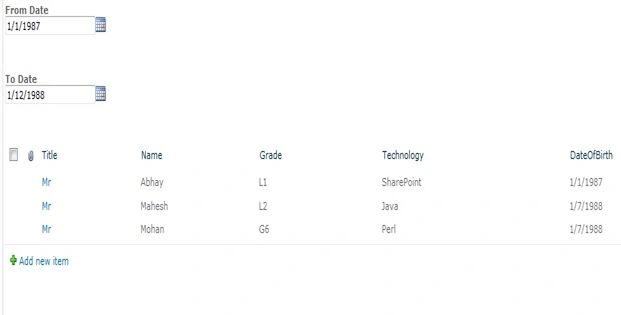
Step 15: Now save the page and open it back up in your browser.
Widura WeerasinghePosted Nov 18, 2018, 12:20 AM
Hi. I cannot see the "Options" -> "Filters" . I'm using SharePoint Designer 2013 with SharePoint Online
Macherla YesuPosted Apr 6, 2018, 4:50 AM
Hi,I have issue on this. On load all items are not displaying.If date filters are empty list should be display all items but it is not displaying. Please any one can help me how can i get it.
ShLarry GibsonPosted Dec 4, 2017, 3:43 PM
Boy would be nice if this SPDesigner 2013 bug was known before spending about two hours figuring out why the "Options" and "List View Tools" were not working for me when highlighting the webpartpages section! Check this out if you run into this issue (Step 4 is the image I am referencing): http://blog.pentalogic.net/2014/05/sharepoint-designer-2013-how-to-modify-list-view-filters-parameters/
daniel ramirezPosted Mar 6, 2015, 2:44 AM
you are not using sharepoint 2013, please change your tags for 2010