

Android Studio
- Gradle-based build support.
- Android-specific refactoring and quick fixes.
- Lint tools to catch performance, usability, version compatibility and other problems.
- ProGuard and app-signing capabilities.
- Template-based wizards to create common Android designs and components.
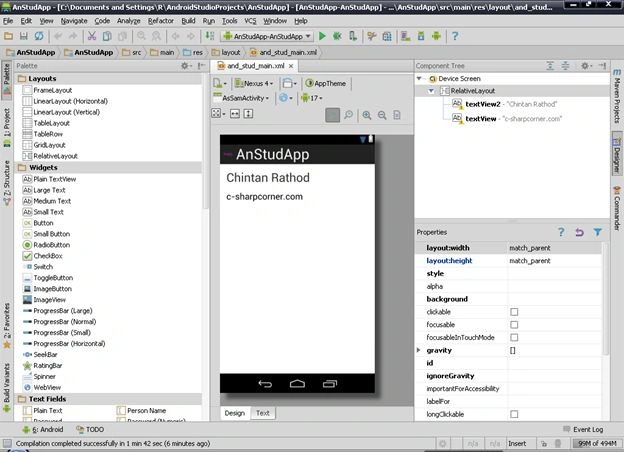
- A rich layout editor that allows you to drag-and-drop UI components, preview layouts on multiple screen configurations, and much more.
Android Studio Installation
You can download Android Studio from the following Google's Developer's site:
http://developer.android.com/sdk/installing/studio.html
To get the installation guide, visit Getting Started With Android Studio.
Have an Execution Problem?
After following all the necessary steps to install Android Studio, do you encounter a problem running it? I encountered a problem and found a solution that I wrote about that Android Studio was not Starting Up After Installation.
The first step towards Application
Open Android Studio. That will display the following after initialization.
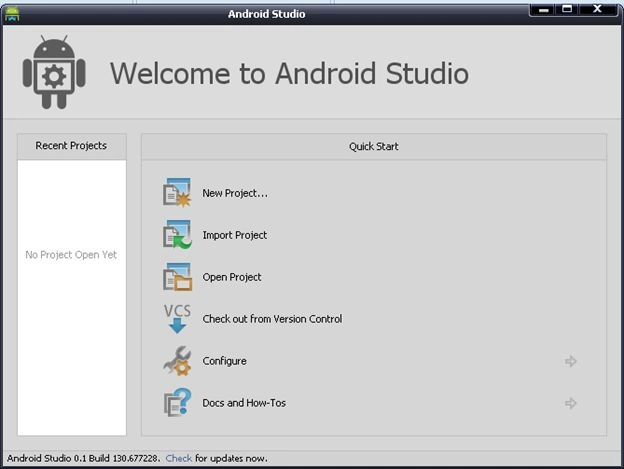 You will see there are 6 tabs there.
- New Project
Creates a new project with Android parameters.
- Import Project
Imports Android projects from the same or another workspace.
- Open ProjectOpen projects from a directory.
- Check out from Version Control
If your Android Studio was configured with Sub-version then you can check-out with it.
- Configure
Here you can do plug-ins settings, import-export settings and many more.
- Documentation and How-Tos
You will get help related to Android Studio, tips, keymap references etcetera.
Step 1: Click on "New Project"
This will open the following screen. I have filled it in with the required information. So do so.
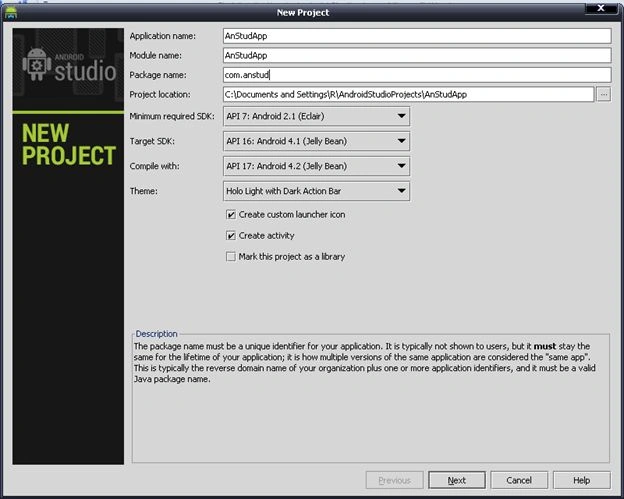 When you fill in your Application name, in your case the package name will be like "com.example.anstudapp", that I changed to "com.anstud". You can change the package name as you need to.
- Application NameThe application name is shown in the Play Store, as well as in the Manage Application list in settings.
- Module Name
The module name is only used by the Android Studio IDE. Generally, the module name is the same as the application name.
- Package name
The package name is a unique identifier of your application. Carefully choose the package name for real-time applications that will be uploaded to the Play Store. The Play Store will not accept another application with the same package name (that is defined in the AndroidManifest.xml file).
- Project locationSelect the workspace where you want to put this project.
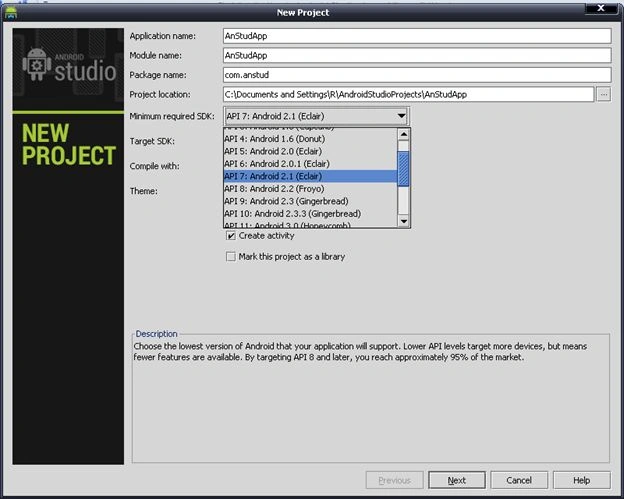
- Minimum SDK versionChoose the lowest version of the Android SDK that is supported by your application.
- Target SDK VersionChoose the highest version of Android SDK supported by your application. The Target version is that the Application is known to work with.
- Compile withChoose the API to compile your Target SDK.
- ThemeSelect the Base theme of your application.
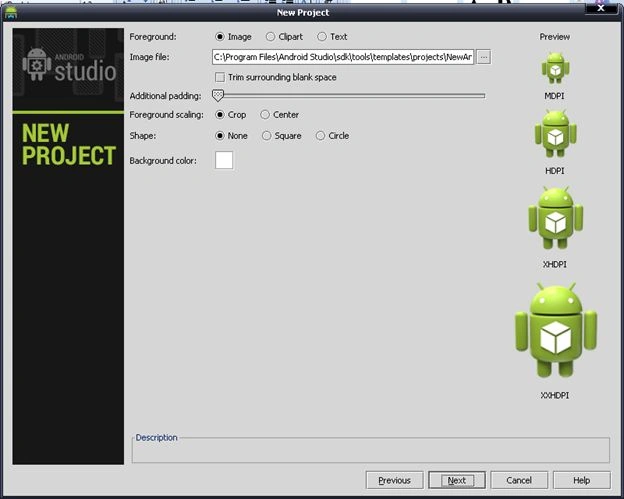
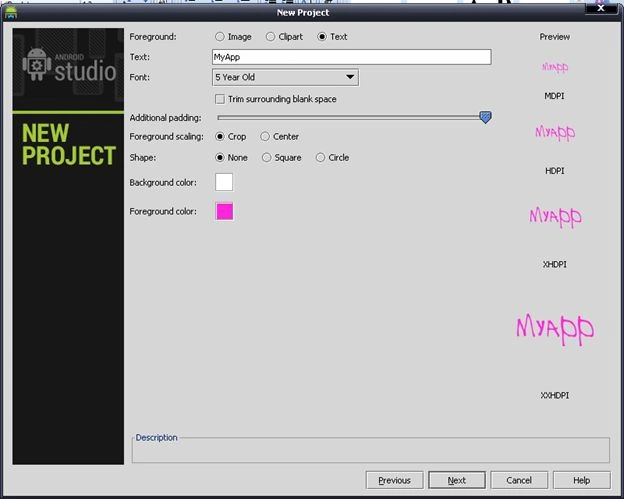
- Create Custom Launcher Icon
If you would like to define a custom launcher icon in this wizard, select this option.
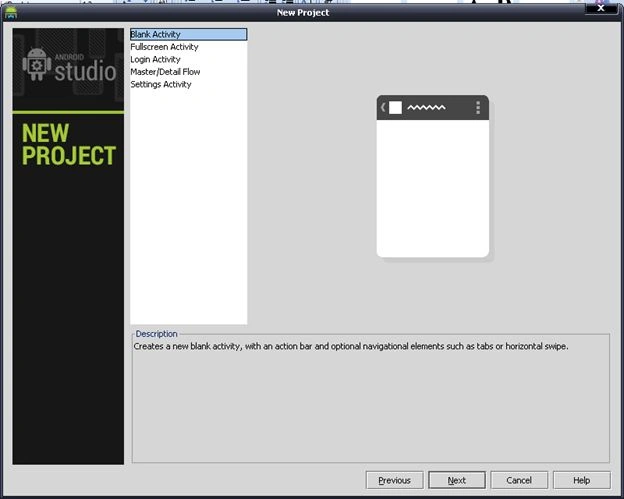
- Create an ActivityIf you would like to create an activity from the default selection then check this option.
- Mark this project as a LibraryIf you are creating a library then you need to select this option. This project will allow you to refer to another project.
Saravanakumar SekaranPosted Nov 30, 2014, 8:20 AM
So nice
Jogani HirenPosted Jan 22, 2014, 1:23 AM
Good Tutorial
Ahmed SaQeRPosted Oct 23, 2013, 6:47 PM
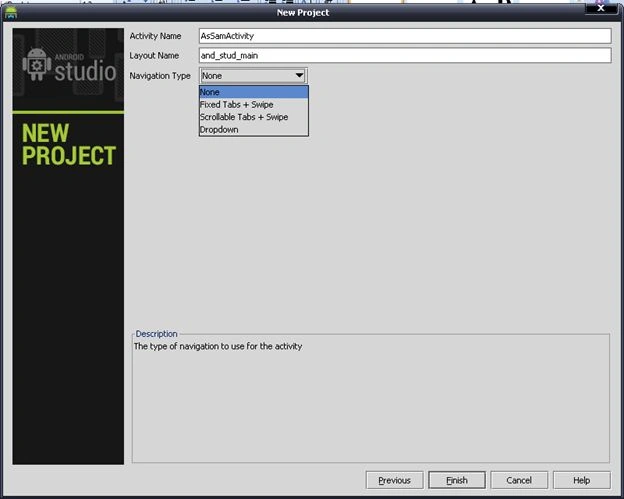
good work ,, but i got problem ,, i cannot change to Fixed Tab Swipe -----it say that require api level 11 ,,,,,,,,,, how to fix
taylan telerikPosted Oct 3, 2013, 4:39 PM
Thanks You...
felfoul kaisPosted Jun 29, 2013, 7:02 PM
nice work
Dinesh BeniwalPosted May 27, 2013, 10:53 AM
Good Start on Android Studio Chinton.
Naveed ZamanPosted May 25, 2013, 1:31 PM
Great work
Chintan RathodPosted May 25, 2013, 8:22 AM
@Jay, Thanks my friend. :)
Jay ParekhPosted May 25, 2013, 7:50 AM
Good Article Chintan,Keep it up...........