
Introduction
- onCreate()
- onResume()
- onPause()
- onDestroy()
- onSavedInstanceState() onLowMemory()
You can get Google Maps using the getMap() method of the MapView class. But the Map availability is totally dependent on the Google Play service APK. To use Google Maps you need to first install the Google Play service and get a Google Maps key from Google. Otherwise, the getMap() method returns null.
For a simpler method of displaying a map use MapFragments.
getMap()
This method is used to get Google Maps. This method returns null when the Google Maps is not available and this happens when the Google Play service is not available. If the Google Play service is available then it returns the Google Maps.
Generate Google Maps key
Now we will learn how we generate Google Maps for the Android application.
Step 1
First you need to install the Google Play service on clicking the Android SDK Manager.
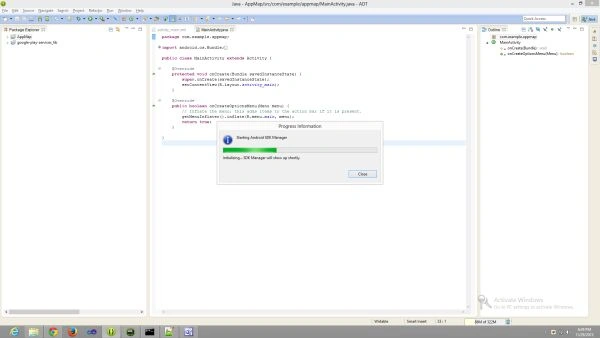 Step 2
After installing the Google Play service you need to import the Google Play "service_lib" like this:
Step 2
After installing the Google Play service you need to import the Google Play "service_lib" like this:
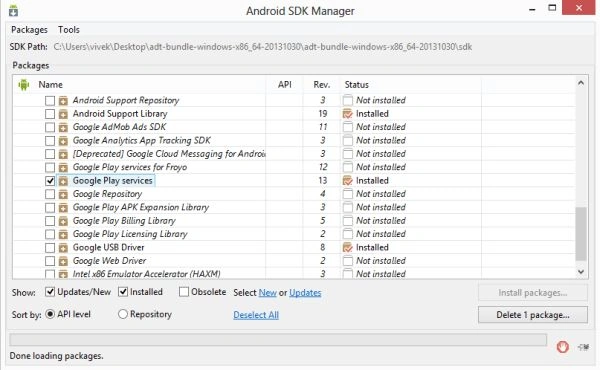 Step 3
Click "File" -> "Import".
Step 4
Click "Android" then click on the existing Android code in the workspace .
Step 3
Click "File" -> "Import".
Step 4
Click "Android" then click on the existing Android code in the workspace .
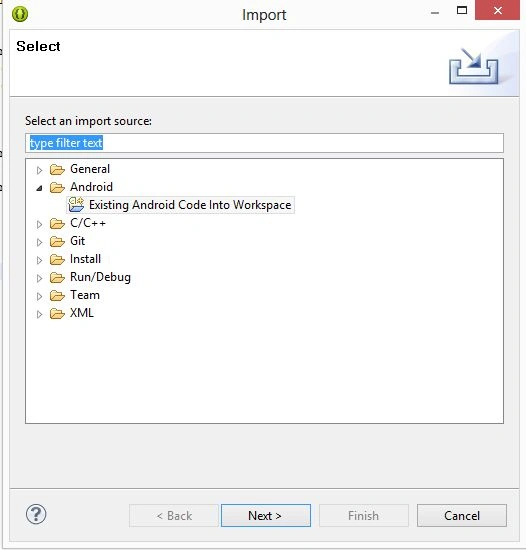 Step 5
Click on "Browse".
Step 5
Click on "Browse".
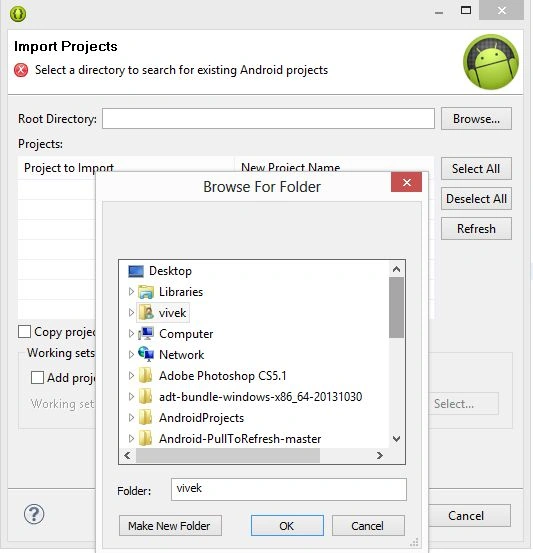 Step 6
Go to the SDK then select "Extras"-> "Google"-> "google_play_service" -> "libproject" then click "Ok" and "Finish". Now you can see in your project explorer list the "google_play_service_library" like this:
Step 6
Go to the SDK then select "Extras"-> "Google"-> "google_play_service" -> "libproject" then click "Ok" and "Finish". Now you can see in your project explorer list the "google_play_service_library" like this:
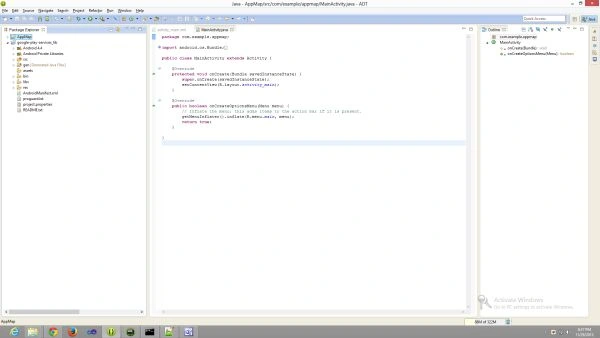 Step 7
Now add the library to your project like his:
Right-click on your project then select "Properties" -> "Android" then click on "Add".
Step 7
Now add the library to your project like his:
Right-click on your project then select "Properties" -> "Android" then click on "Add".
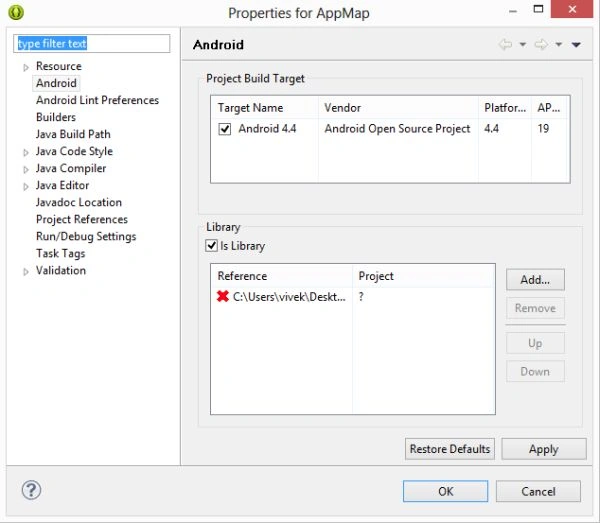 Click "Ok" then click "Apply" then click "Ok" again. Now your library will be added to your project.
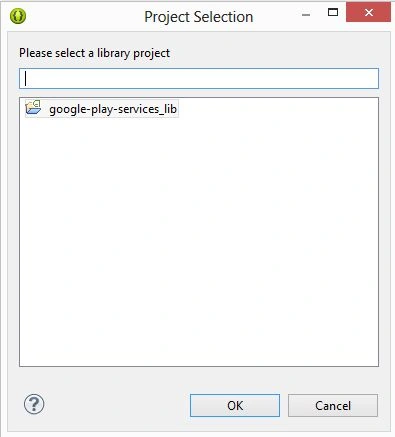 Step 8
Now go to the Google API console on your browser.
Step 8
Now go to the Google API console on your browser.
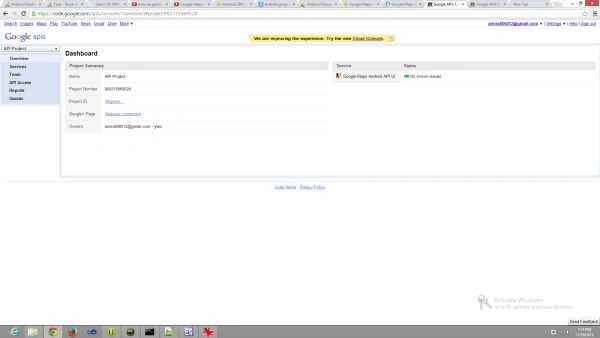 Step 9
Click on the services.
Step 9
Click on the services.
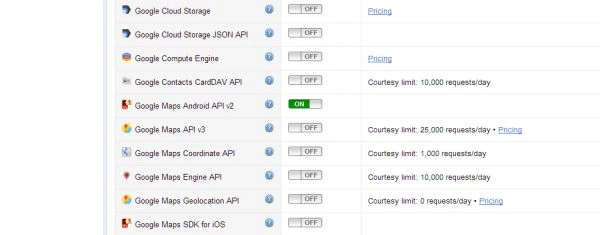
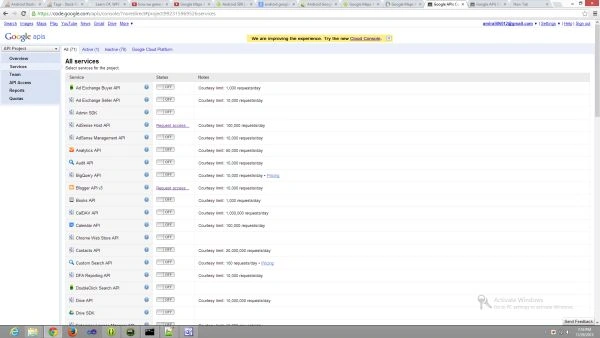 Step 10
Switch on the Google Maps API version 2 like this:
Step 10
Switch on the Google Maps API version 2 like this:
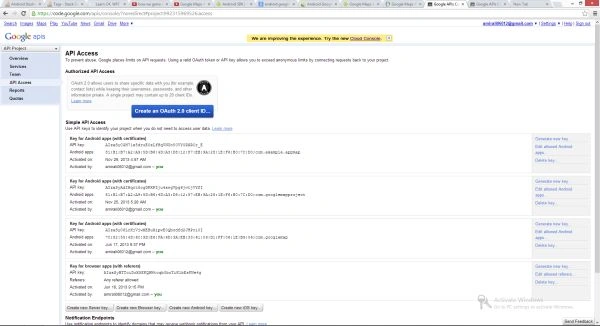
 Step 11
Now click on the API Access.
Step 11
Now click on the API Access.
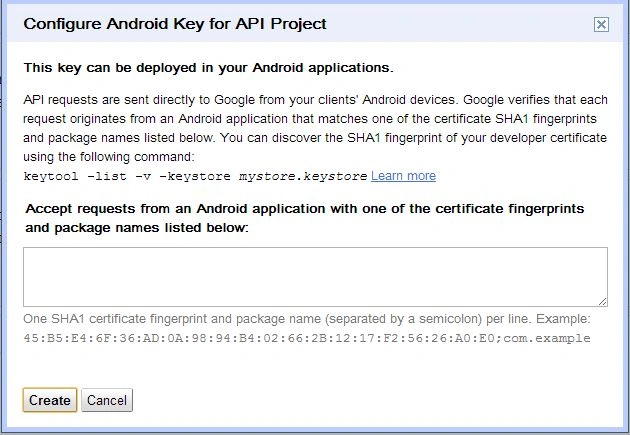
 Step 12
Click on the Create new Android key.
Step 12
Click on the Create new Android key.
 Step 13
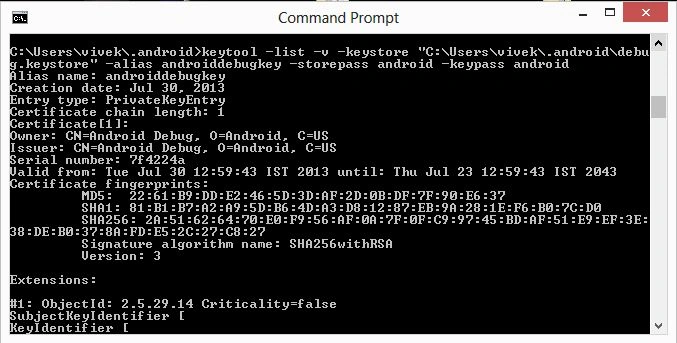
Now in your cmd write this:
Step 13
Now in your cmd write this:
keytool -list -v -keystore " path of your debug key store"-alias androiddebugkey -store android -key android
 Then click Enter. Your fingerprint is generated.
Step 14
Then click Enter. Your fingerprint is generated.
Step 14
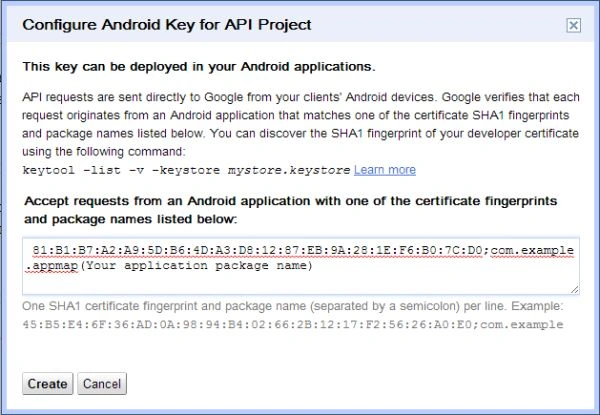
Now copy the SHA1 and paste it here.
Join the conversation! Your thoughts help the community grow.