This is a simple example for gensture handelling in Windows 8 Phone. This basic example will provide an idea to implement and use the gesture.
Please refer to the Microsoft detailed doumnentation for this topic:
https://msdn.microsoft.com/en-us/library/windows/apps/jj207076(v=vs.105).aspx
Requirement: Create a rectangle of Blue colour. It could be moved to anywhere on the screen and will change color to Yellow when moving and on a double-tap the size is increased.
1. Create a rectangle
Create a sample project and delete the default grid and make an empty screen. Then add the following code to draw a rectangle.
- <Canvas>
- <Rectangle Name="MyRectangle" Width="150" Height="150" Fill="Blue"></Rectangle>
- </Canvas>
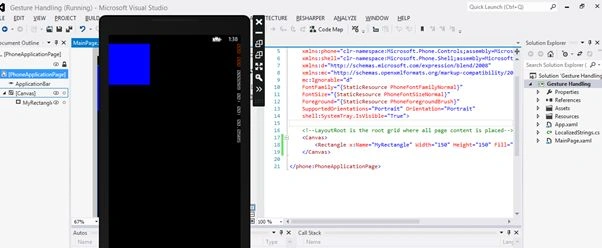 2.
2. This will not react to a gesture or action since we have not written any code for handling action/event.
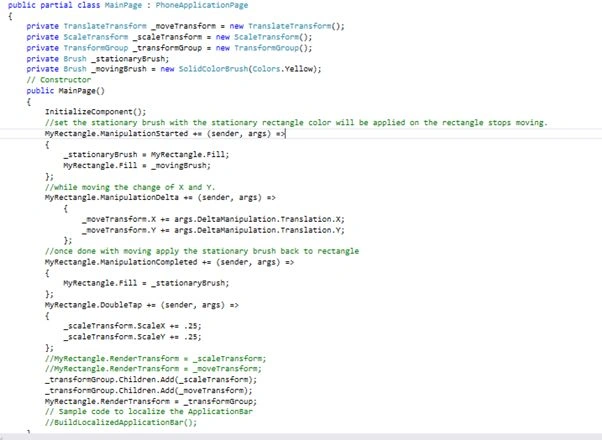
Now the following is the code for gesture handling:
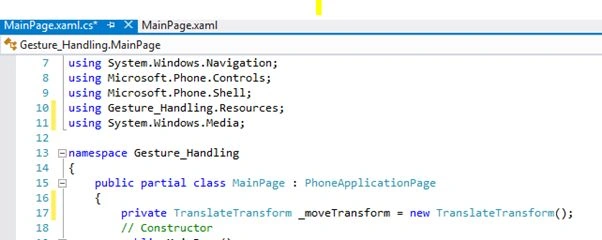
- private TranslateTransform _moveTransform = new TranslateTransform();
- //TranslateTransform : moves the object in 2D X-Y coordinate.
 3. Brush
 to paint the object and apply color.
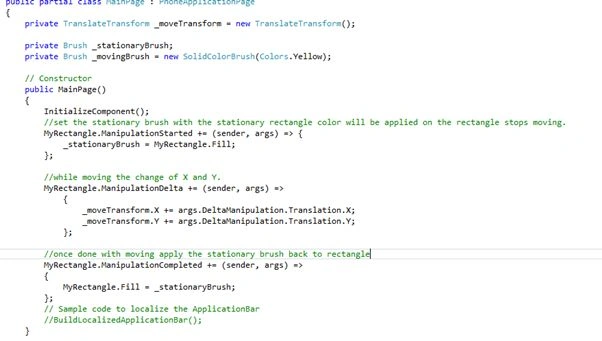
a) Stationary Brush: To apply color when the rectangle is stationary.
- private Brush _stationaryBrush;
b) Moving Brush: To apply the Yellow color when the rectangle is moving.
- private Brush _movingBrush = new SolidColorBrush(Colors.Yellow);
4. Now the Manipulation property of the rectangle that happens when some kind of event happens. The following are various types of Manipulation events:
ManipulationStarted: when it begins to fill the exiting fill to _stationaryBrush, it will be applied again once the movement is complete or stopped.
ManipulationDelta: use TranslateTransform for the change in X and Y to allow moving the object with the change of x and y.
ManipulationCompleted: when done with the moving, set the color as it was.
 5.
5. Now we need to associate the TranslateTransform with our rectangle. As you can see in the preceding it has not been associated until now.
- MyRectangle.RenderTransform = _moveTransform;
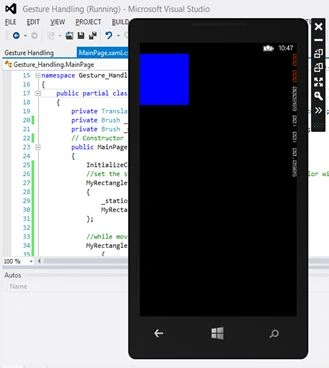
6. If you try running it, it will not run as expected, the rectangle will not be moving or changing color as expected. That's because we need to apply the ManipulationMode of the rectangle (UL Element) to All in the XAML file. Not in case using using System.Windows.Media namespace for the rectangle.
Yes, we have done it! We can make it fly.
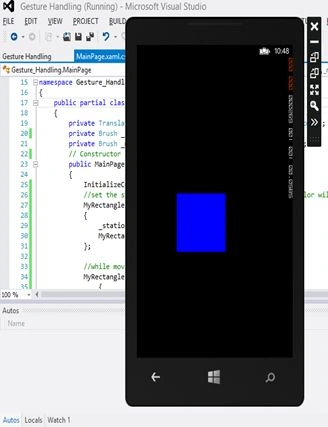
Now to do the second part of the requirements, the rectagle sholud grow on double tap.
- Since we will be scaling the Rectangle on double-tap, we need to add ScaleTransform for this:
- private ScaleTransform _scaleTransform = new ScaleTransform();
- Then, we will be setting the X and Y scale of _scaleTransform on double-tap:
- MyRectangle.DoubleTap += (sender, args) = > {
- _scaleTransform.ScaleX = .25;
- _scaleTransform.ScaleY = .25;
- };
- Now the problem here is, we can apply only one transform to the object/shape MyRectangle at a time.
- MyRectangle.RenderTransform = _scaleTransform;
- MyRectangle.RenderTransform = _moveTransform;
To solve this, we have a TransformGroup so that we can apply multiple transforms.
- private TransformGroup _transformGroup = new TransformGroup();
- _transformGroup.Children.Add(_scaleTransform);
- _transformGroup.Children.Add(_moveTransform);
the rectangle is moving as well as the size is increased.
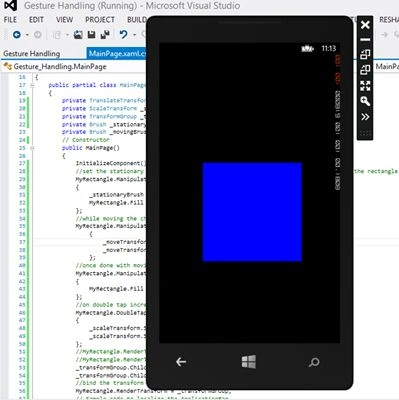
The preceding is a simple code to understand basic gesture handling.

RahulPosted Apr 23, 2015, 12:26 PM
Thanks Karthik
Karthik Muthu KaruppanPosted Apr 23, 2015, 11:20 AM
good one
Krishnanand SivarajPosted Apr 22, 2015, 4:35 PM
Thanks for sharing
RahulPosted Apr 22, 2015, 9:50 AM
Thanks Manoj
Manoj BhoirPosted Apr 22, 2015, 9:16 AM
Good start.....
RahulPosted Apr 22, 2015, 8:24 AM
Thanks Krishnanand
Krishnanand SivarajPosted Apr 22, 2015, 7:11 AM
good
RahulPosted Apr 22, 2015, 6:16 AM
Thanks Nitin
NitinPosted Apr 22, 2015, 5:28 AM
Good one
RahulPosted Apr 22, 2015, 1:02 AM
Thanks Rahul
Rahul BansalPosted Apr 22, 2015, 12:11 AM
Great start :)
RahulPosted Apr 21, 2015, 11:46 PM
Thanks Gowtham
Gowtham RajamanickamPosted Apr 21, 2015, 11:26 PM
good one
RahulPosted Apr 21, 2015, 10:45 PM
Thank you Santhakumar
Santhakumar MunuswamyPosted Apr 21, 2015, 10:34 PM
Welcome
Santhakumar MunuswamyPosted Apr 21, 2015, 10:34 PM
Good Start