

Gallery and Forms work with Common Data Service Entities data from Dynamics 365 like Accounts, Contacts, and Opportunities.
We can retrieve some common field-level metadata info like the MinValue, MaxValue, and MaxLength of a field.
We can leverage the DataSourceInfo function to enrich your Common Data Service form in a Canvas Power App by showing some metadata about fields. Something like the below screenshot.
DataSourceInfo function
DataSourceInfo is a function that provides some information about the DataSource itself or the columns present in the Data Source.
In this article, I'm trying to show some metadata field values from Dynamics 365 using CDS Data Source.
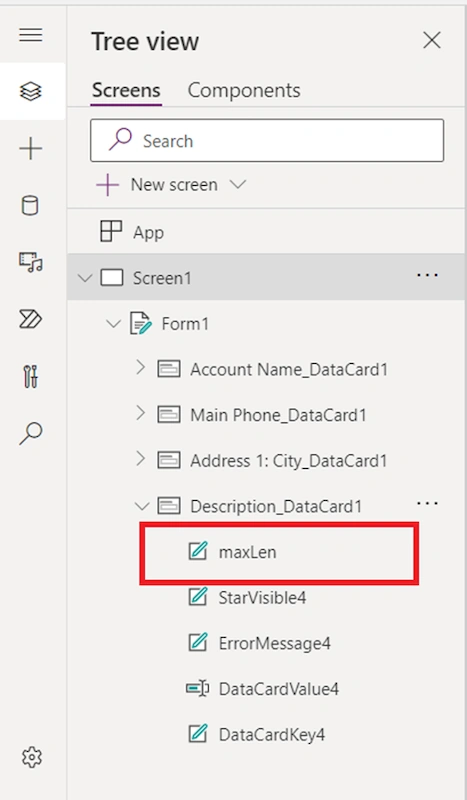
I have created a sample canvas app and added a few labels to show these values.
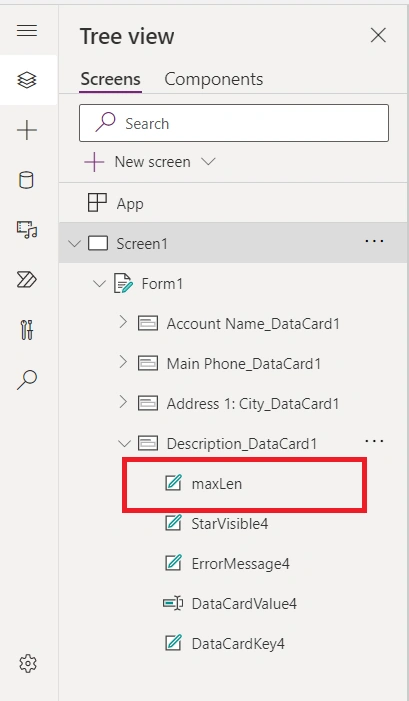
MaxLength
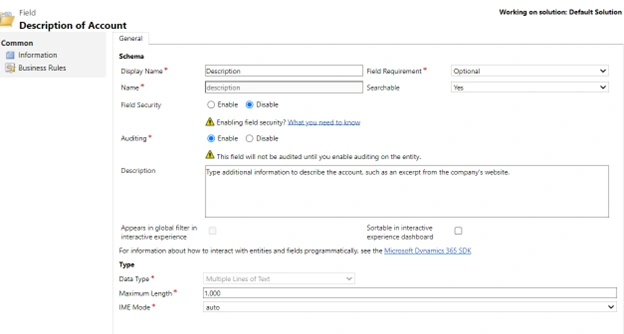
MaxLength is used to show the maximum allowed capacity of a field. Most useful to show the maximum length of fields, such as a Multi-line Text Field in Dynamics 365 CRM.
I placed the maxLen label below the Description field and added the formula in the Text() function.
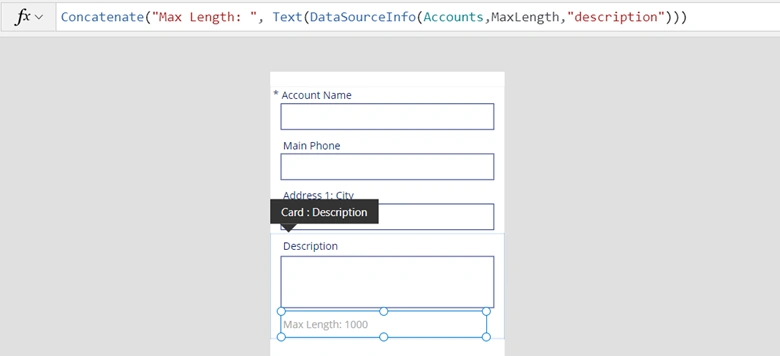
In the above formula, in the Text () function, I have written
- DataSourceInfo is the formula that will take arguments like Data Source and DataSourceInfo. <Function> & Column name.
- Accounts is the Data Source since it is connected to the Accounts entity in Dynamics 365.
- MaxLength is the attribute that will tell us the Maximum allowed length for the field we will enter next.
- "description" denotes the column's name in double quotes, of which we want to know the MaxLength.
MinValue & MaxValue
MaxValue & MinValue are used to show the minimum & maximum value allowed in the fields in Dynamics 365 CRM.
Let's have Shares Outstanding as a custom field which is Whole Number.

I have placed minVal and maxVal labels below the Shares Outstanding field in the Canvas Power App.

In the above formula, in the Text () function, I have written
- DataSourceInfo is the formula that will take arguments like Data Source and DataSourceInfo. <Function> & Column name.
- Accounts is the Data Source since it is connected to the Accounts entity in Dynamics 365.
- MinValue and MaxValue are the attributes that will tell us the Minimum & Maximum allowed data values for the field user can enter in the field in the next parameter.
- "Shares Outstanding" denotes the column's name in double quotes, of which we want to know the Minimum and Maximum allowed Value.
Join the conversation! Your thoughts help the community grow.