

Introduction
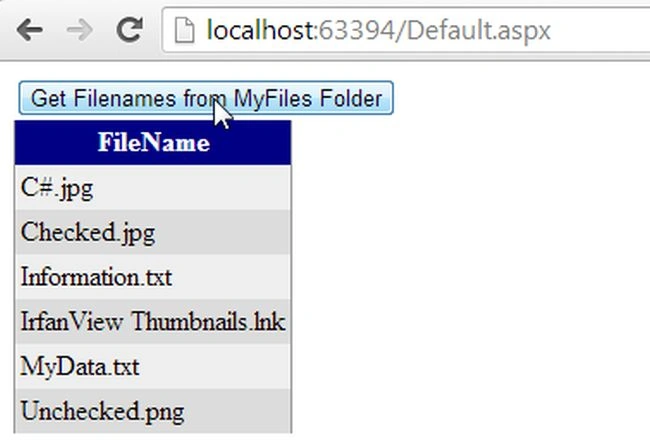
This article introduces the Directory class and shows how to get the file names from a folder into a GridView control.
Directory Class
The System.IO.Directory class in the .NET Framework class library provides static methods for creating, copying, moving, and deleting directories and subdirectories. For using the Directory class you need to use the System.IO namespace.
Directory.GetFiles method
The GetFiles method returns the names of files in a specified directory or returns a string array of file names.
Step 1
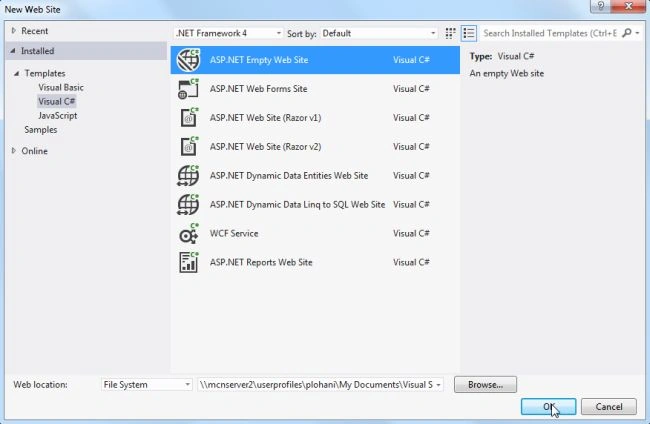
Open Visual Studio then seelct "Create New Website" --> "ASP.NET Web Site".
Step 2
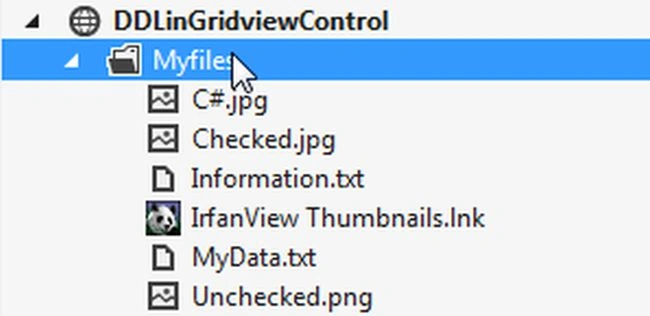
Now go to the Solution Explorer to the right side of the application and add a new folder named "MyFiles" that contains the file steps as in the following figure.
Step 3
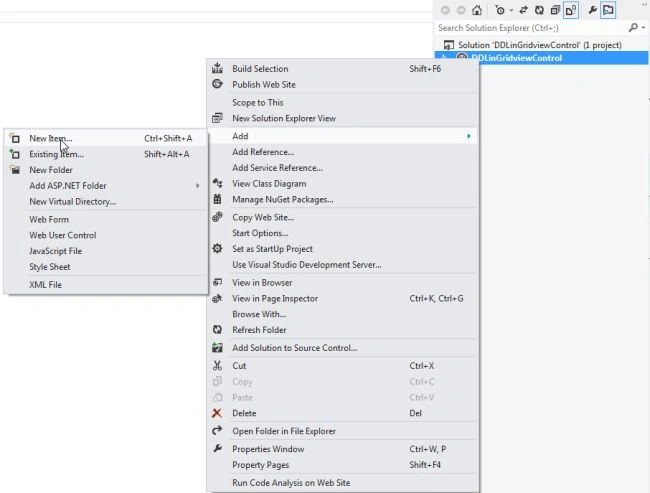
Now go to the Solution Explorer to the right side of the application and add a new item as in the following figure.
Step 4
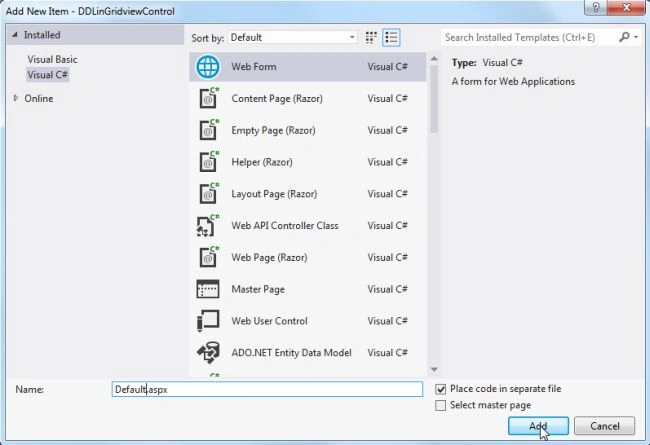
Now add a new web form to your website. as in the following figure.
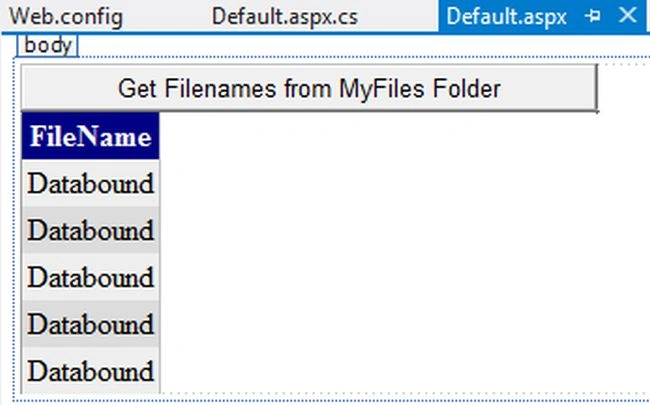
Write the following code in a Default.aspx page:
Step 5
- <%@ Page Language="C#" AutoEventWireup="true" CodeFile="Default.aspx.cs" Inherits="_Default" %>
- <!DOCTYPE html>
- <html xmlns="http://www.w3.org/1999/xhtml">
- <head>
- <title></title>
- </head>
- <body>
- <form id="form1" runat="server">
- <div>
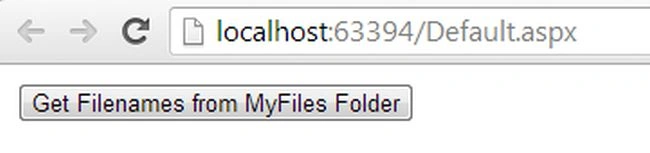
- <asp:Button ID="btnGetFiles" Text="Get Filenames from MyFiles Folder" runat="server" onclick="GetFiles" />
- <asp:GridView ID="gvFiles" CellPadding="3" runat="server" AutoGenerateColumns="False"
- BackColor="White" BorderColor="#999999" BorderStyle="None" BorderWidth="1px" GridLines="Vertical">
- <AlternatingRowStyle BackColor="#DCDCDC" />
- <Columns>
- <asp:BoundField DataField="Text" HeaderText="FileName" />
- </Columns>
- <FooterStyle BackColor="#CCCCCC" ForeColor="Black" />
- <HeaderStyle BackColor="#000084" Font-Bold="true" ForeColor="White" />
- <PagerStyle BackColor="#999999" ForeColor="Black" HorizontalAlign="Center" />
- <RowStyle BackColor="#EEEEEE" ForeColor="Black" />
- <SelectedRowStyle BackColor="#008A8C" Font-Bold="True" ForeColor="White" />
- <SortedAscendingCellStyle BackColor="#F1F1F1" />
- <SortedAscendingHeaderStyle BackColor="#0000A9" />
- <SortedDescendingCellStyle BackColor="#CAC9C9" />
- <SortedDescendingHeaderStyle BackColor="#000065" />
- </asp:GridView>
- </div>
- </form>
- </body>
- </html>
Saineshwar BageriPosted Feb 20, 2014, 11:22 PM
Nice