

Introduction
Navigation Pattern in Windows 10 is slightly different from other SDKs. Navigation in Windows 10 is more preferred using pivots and tabs. Tabs and pivots are used for navigating frequently accessed, distinct content categories. Pivot / Tab contains a header with respect to the header UI of application changes. At one time only one header is active and other headers are acting as passive headers.
Note
On the phone it is recommended not to use more than 5 pivots. This is a UX recommendation.
Pivot and Tab controls are both made on top of Pivot control. Here are few new enhancements made in Windows 10 pivot control. Let's discuss them one by one.
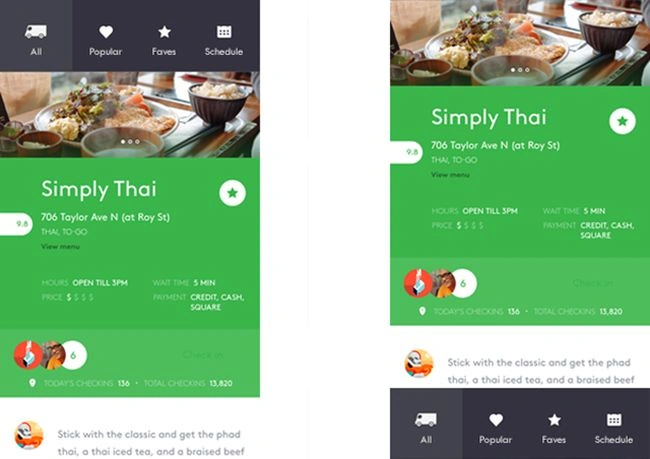
Previously headers of pivots were fixed to the top in design guidelines whereas it was possible by changing different templates to align it bottom. Now officially Microsoft Supports the pivot to be placed at the bottom.
Now developers have the option to use text headers, icons, and both text headers and icons.
The header can be left-justified or center-aligned now.
For devices that support touch gestures, you can use one of the two interaction sets to navigate between content categories.
Tap on a tab/pivot header to navigate to that category, or swipe on the content area to navigate to the adjacent category.
Tap on a tab/pivot header to navigate to that category (no swipe).
Here are a few examples are taken from MSDN related to pivots and tabs.
 Hope you have learned something from this blog, Happy Coding!
Header Placement
Header Labels
Header Alignment
Touch Gesture Support
Images Source: MSDN
Imran Javed ZiaPosted Dec 5, 2015, 6:49 AM
Nice Work
Santhakumar MunuswamyPosted Oct 25, 2015, 11:44 AM
Good one
Mukesh KumarPosted Oct 22, 2015, 2:49 PM
Great sir
Harshad PansuriyaPosted Oct 22, 2015, 12:51 AM
Nice one
Priyaranjan K SPosted Oct 21, 2015, 1:04 PM
Thanks for the share
Akash VarshneyPosted Oct 21, 2015, 11:15 AM
infromative!!
Nilesh JadavPosted Oct 21, 2015, 9:24 AM
Good share !!
Sibeesh VenuPosted Oct 21, 2015, 8:08 AM
Nice Share