Introduction
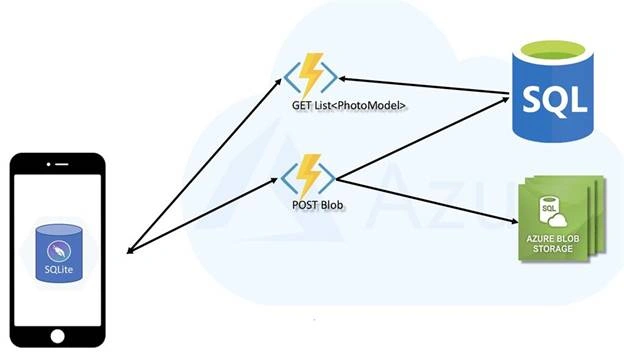
This article demonstrates the process of getting data from Azure in Android and Windows using Xamarin.Forms. Xamarin is a platform that allows us to create a multi-platform app for Android, Windows, or iOS through a single integrated development environment (IDE). And with Xamarin.Forms, the interface design for all three platforms can be accomplished within its XAML-based standard, native user- interfaces control.
Android Output
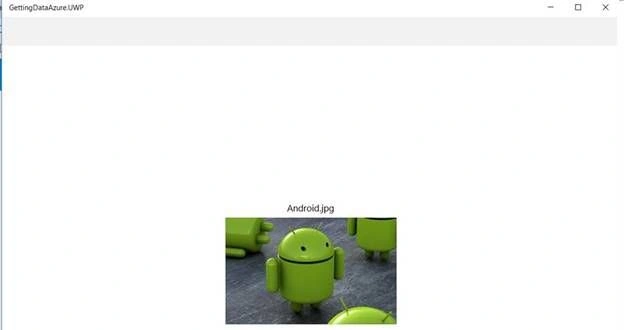
Windows Output
Step 1
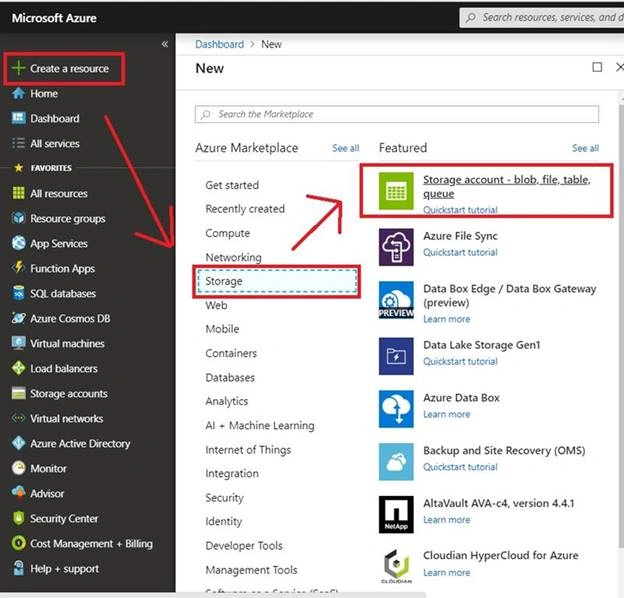
Log on to the Azure Portal and create a storage account.
Note - You must have an active Azure account.
Now, click on Create a resource << Storage << Click Storage account.
Step 2
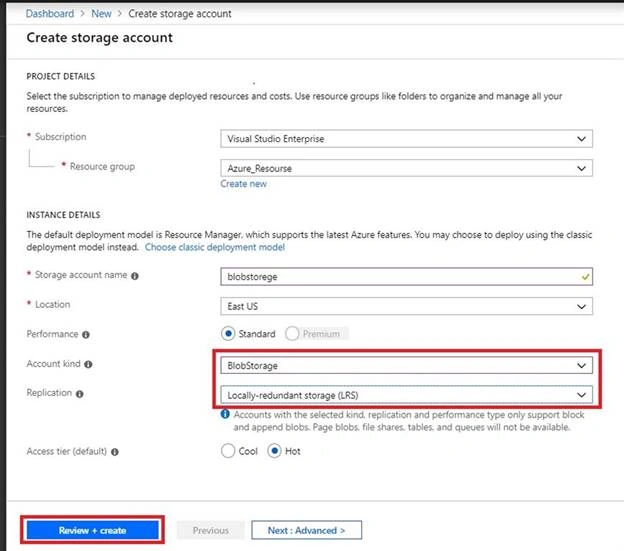
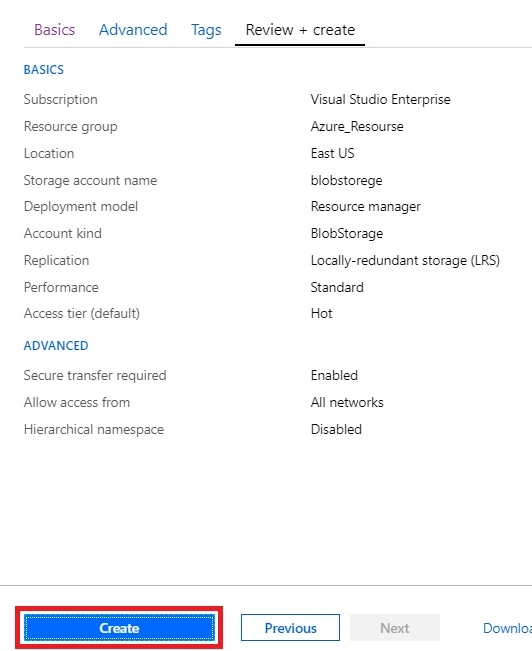
Now, give the storage account a name and location. Must choose the Account kind as "Blob Storage" and Replication is chosen as "Locally-redundant storage (LRS)". Click the "Review+Create" button.
Step 3
This page appears. The page is showing the storage account information. Check and click the "Create" button.
Step 3
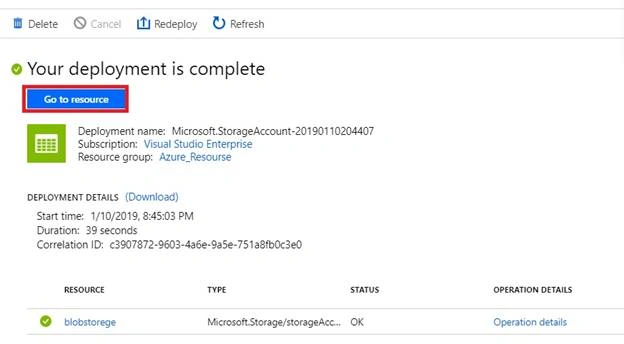
After a few seconds, your deployment is complete. The storage account is created; click the "Go to resource" button.
Step 4
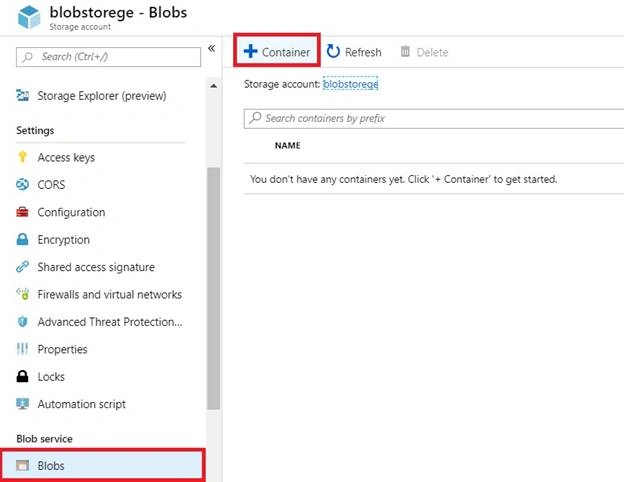
Now go to Blobs >> Container. This step is added to the container.
Step 5
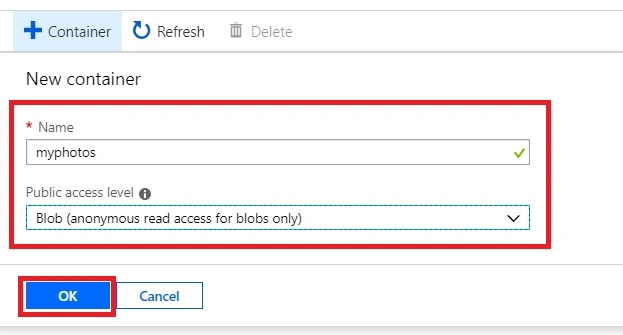
Now, give the name and choose the Public access level as "Blob (anonymous read access for blobs only)" and click the "OK" button.
Step 6
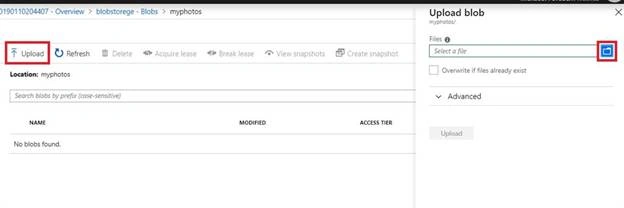
Click the "Upload" button that displays the "Upload blob" page. Select a file and click the "Upload" button.
Step 7
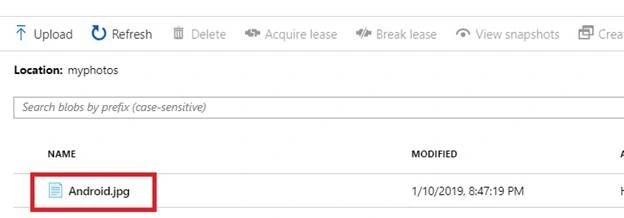
The image is added successfully. The image name is 'Android.jpg".
Step 8
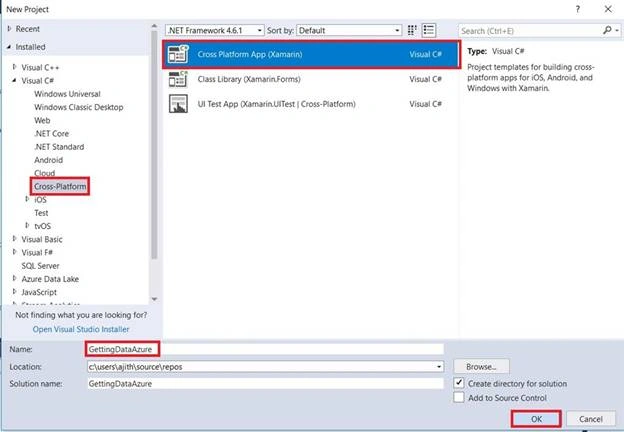
Open Visual Studio and go to New Project >> Installed >> Visual C# >> Cross-Platform. Select the cross-platform app, then give the project a name and location, and click the "OK" button.
Step 9
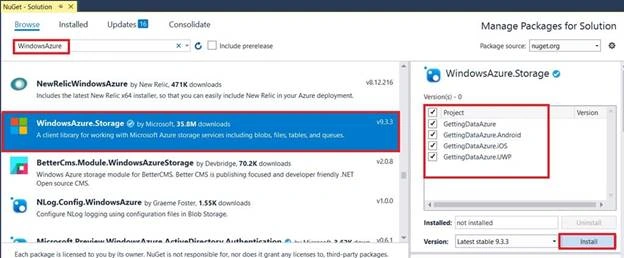
After project creation, add the following NuGet Packages to your project.
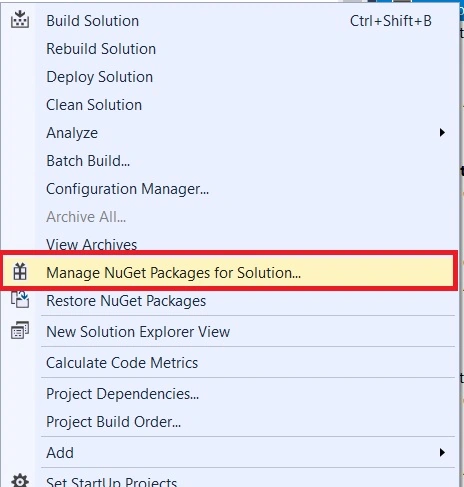
Go to Solution Explorer and select your solution. Right-click and select "Manage NuGet Packages for solution".
Now, select the following NuGet Packages and select your project to install it.
Step 10
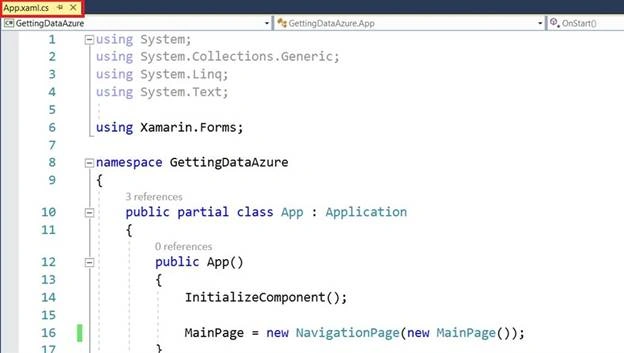
Open Solution Explorer >> Project Name (Portable) >>App.xaml.cs >> Double click. it will open the design view of this page.
The code is given below. Just copy it.
C# Code
- using System;
- using System.Collections.Generic;
- using System.Linq;
- using System.Text;
-
- using Xamarin.Forms;
-
- namespace GettingDataAzure
- {
- public partial class App : Application
- {
- public App()
- {
- InitializeComponent();
-
- MainPage = new NavigationPage(new MainPage());
- }
-
- protected override void OnStart()
- {
-
- }
-
- protected override void OnSleep()
- {
-
- }
-
- protected override void OnResume()
- {
-
- }
- }
- }
Step 11
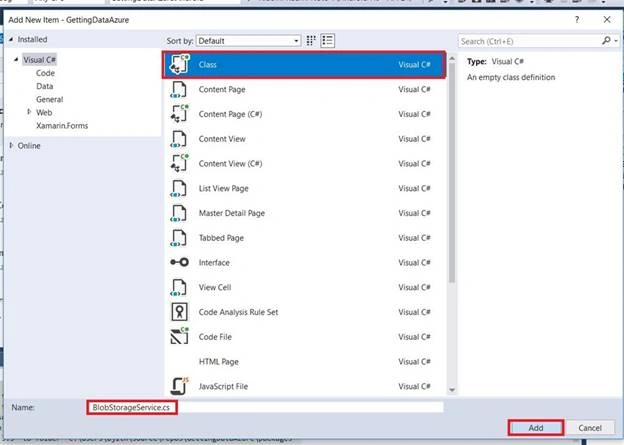
Now, Open the Solution Explorer >> Project Name (Portable) >> Right-click >> Class >> Double-Click. This shows a selection page. Give the name and click "ADD" button.
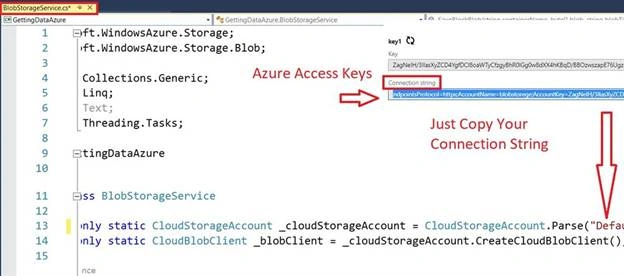
Just copy the "Connection String".
C# Code
- using Microsoft.WindowsAzure.Storage;
- using Microsoft.WindowsAzure.Storage.Blob;
- using System;
- using System.Collections.Generic;
- using System.Linq;
- using System.Text;
- using System.Threading.Tasks;
-
- namespace GettingDataAzure
- {
- public class BlobStorageService
- {
- readonly static CloudStorageAccount _cloudStorageAccount = CloudStorageAccount.Parse("DefaultEndpointsProtocol=https;AccountName=blobstorege;AccountKey=ZagNeIH/3IlasXyZCD4YgfDCI8oaWTyCfzgyBhR0lGg0w8dXX4hKBqD/BBOzwszapE76UgzCUQUFM3xBYOcGuQ==;EndpointSuffix=core.windows.net");
- readonly static CloudBlobClient _blobClient = _cloudStorageAccount.CreateCloudBlobClient();
-
- public static async Task<List<T>> GetBlobs<T>(string containerName, string prefix = "", int? maxresultsPerQuery = null, BlobListingDetails blobListingDetails = BlobListingDetails.None) where T : ICloudBlob
- {
- var blobContainer = _blobClient.GetContainerReference(containerName);
-
- var blobList = new List<T>();
- BlobContinuationToken continuationToken = null;
-
- try
- {
- do
- {
- var response = await blobContainer.ListBlobsSegmentedAsync(prefix, true, blobListingDetails, maxresultsPerQuery, continuationToken, null, null);
-
- continuationToken = response?.ContinuationToken;
-
- foreach (var blob in response?.Results?.OfType<T>())
- {
- blobList.Add(blob);
- }
-
- } while (continuationToken != null);
- }
- catch (Exception e)
- {
-
- }
-
- return blobList;
- }
-
- public static async Task<CloudBlockBlob> SaveBlockBlob(string containerName, byte[] blob, string blobTitle)
- {
- var blobContainer = _blobClient.GetContainerReference(containerName);
-
- var blockBlob = blobContainer.GetBlockBlobReference(blobTitle);
- await blockBlob.UploadFromByteArrayAsync(blob, 0, blob.Length);
-
- return blockBlob;
- }
- }
- }
Step 12
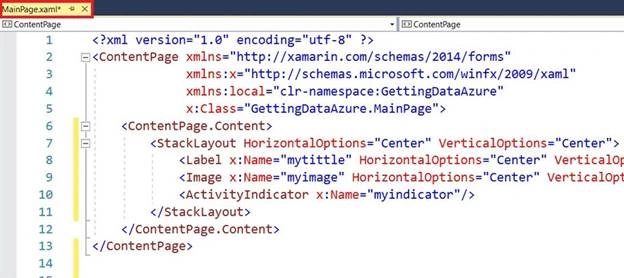
Open Solution Explorer >> Project Name (Portable) >> MainPage.xaml. Double click for opening the design view of this page.
The code is given below just copy it.
Xaml Code
- <?xml version="1.0" encoding="utf-8" ?>
- <ContentPage xmlns="http://xamarin.com/schemas/2014/forms"
- xmlns:x="http://schemas.microsoft.com/winfx/2009/xaml"
- xmlns:local="clr-namespace:GettingDataAzure"
- x:Class="GettingDataAzure.MainPage">
- <ContentPage.Content>
- <StackLayout HorizontalOptions="Center" VerticalOptions="Center">
- <Label x:Name="mytittle" HorizontalOptions="Center" VerticalOptions="Center"/>
- <Image x:Name="myimage" HorizontalOptions="Center" VerticalOptions="Center"/>
- <ActivityIndicator x:Name="myindicator"/>
- </StackLayout>
- </ContentPage.Content>
- </ContentPage>
Step
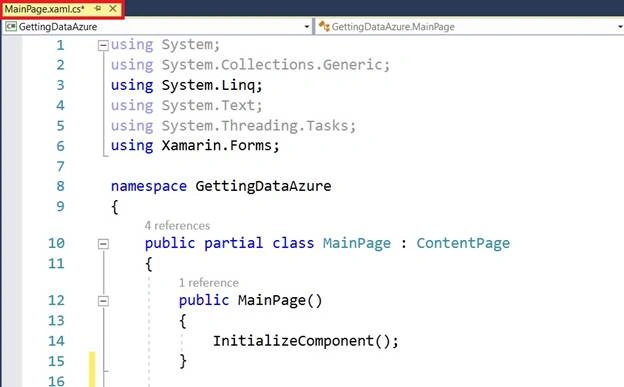
Open Solution Explorer >> Project name (Portabvle) >> mainPage.xaml.cs. Double click for openning the design view of this page.
The code is given below just copy it.
C# Code
- using Microsoft.WindowsAzure.Storage.Blob;
- using System;
- using System.Collections.Generic;
- using System.Linq;
- using System.Text;
- using System.Threading.Tasks;
- using Xamarin.Forms;
-
- namespace GettingDataAzure
- {
- public partial class MainPage : ContentPage
- {
- public MainPage()
- {
- InitializeComponent();
- }
-
- protected override async void OnAppearing()
- {
- base.OnAppearing();
-
- myindicator.IsRunning = true;
-
- var blobList = await BlobStorageService.GetBlobs<CloudBlockBlob>("myphotos");
-
- var firstBlob = blobList?.FirstOrDefault();
- var photo = new PhotoModel { Title = firstBlob?.Name, Uri = firstBlob?.Uri };
-
- mytittle.Text = photo?.Title;
- myimage.Source = ImageSource.FromUri(photo?.Uri);
-
- myindicator.IsRunning = false;
- myindicator.IsVisible = false;
- }
- }
- }
-
Step
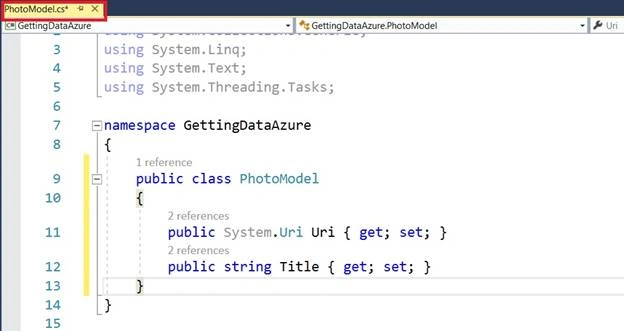
Now, Open the Solution Explorer >> Project Name (Portable) >> Right-click >> Class >> Double-Click appear the page. Then give the name and click "ADD" button.
The code is given below just copy it.
C# Code
- using System;
- using System.Collections.Generic;
- using System.Linq;
- using System.Text;
- using System.Threading.Tasks;
-
- namespace GettingDataAzure
- {
- public class PhotoModel
- {
- public System.Uri Uri { get; set; }
- public string Title { get; set; }
- }
- }
Step
Next, select the Build & deploy option followed by selecting from the list of Android Emulator. You can choose any API (Application program Interface) Level Emulator to run it.
Output
After a few seconds, you will see your app working.
Android Output
See the result first. The Activity Indicator runs and the data is accessed to retrieve the data.
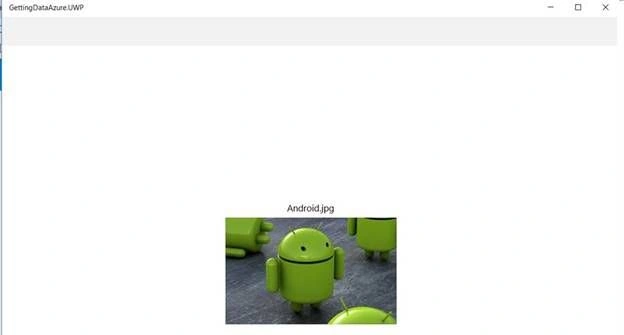
Windows Output
Finally, we have successfully created Xamarin.Forms application.
Conclusion
I hope you have learned how to get data from Azure in Android and Windows using Xamarin.Forms with Visual Studio and C#.



Logesh PalaniPosted Jan 14, 2019, 7:25 AM
Copied from https://blog.xamarin.com/xamarin-plus-azure-blob-cloud-storage/ :)