
Microsoft Azure Functions is a super-cool technology introduced by Microsoft. It brings together the code in an event based programming model. If you need to implement a simple integration between your On-Premise or Cloud resources, without having complete service, a simple Azure function would be the best choice to go for. You can respond to any event with a set of actions needed to be performed, by calling the code from any Azure solution or SaaS product.
With a given choice of using different languages like C#, Node.js , developing the code in the way with your portal experience, makes coding simply fun. It's way easy to integrate with DevOps. We will be seeing the example of this in this tutorial. More importantly, you have to pay only when the code actually runs. So, let’s get started with this cool Azure Functions Tech-dose.
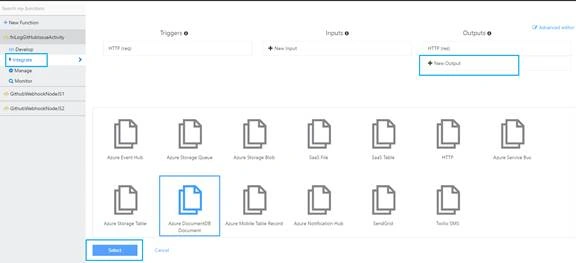
This article provides a quick and smart high-level overview of Microsoft Azure Functions with a practical example of how to start with creating an initial Azure Function using Node.js, integrating it with GitHub. Also, we will learn how to integrate an output for Azure Functions, with other Azure SaaS products, like DocumentDB (NoSQL).
For novice Cloud developers, aspiring Cloud architects, Pre-sales consultants, and all other IT professionals associated with the Cloud computing, especially with Microsoft Azure, this tutorial would explain importance and capabilities of Microsoft Azure Functions, fairly enough.
Quick High-level Overview
Azure Functions is a solution for running small pieces of the code or 'functions' in the Cloud seamlessly. Azure Functions can make development more productive, as the only area of concern is to code for handling specific use-case or problem in an application, without actually worrying about entire application or infrastructure it’s running on. Azure Functions can be developed in different languages, such as C#, Node.js, Python ,or PHP, making it more developer friendly.
Azure scales the code as needed, and you only need to pay for the times the code runs.
Key features like Choice of coding Language, pay as use model, supporting favorite dependency libraries using NuGet, integrated security with OAuth providers, such as Azure AD, Facebook, Google and other social channels, simplified integrations with Azure SaaS products, Continuous Integrations, and an open source runtime makes Microsoft Azure Functions smart Cloud technology to work with.
After praiseful sessions, let’s start with actually experiencing the same.
Here, let's assume that you have Azure Portal Account. If not, create your free Azure account (https://azure.microsoft.com/en-in/free/).
Once you’re done with creating Azure account, let’s start with creating our first Azure Function.
Create Azure Functions
As of now, there are two ways to create Azure Functions.
First way, to go https://functions.azure.com and create the Azure Function. It looks like the screen below.
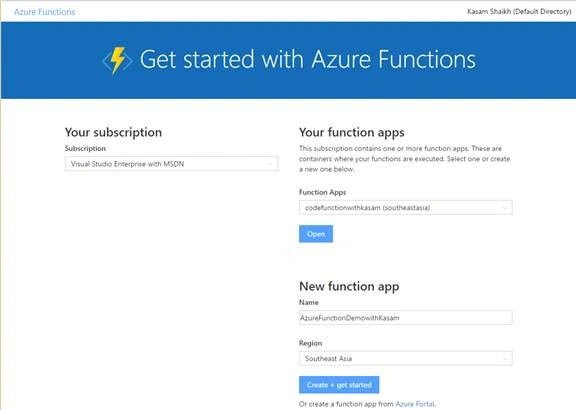
The second way, which I mostly prefer and would use in this tutorial, is from https://portal.azure.com.
Click on New => Web + Mobile => Function App, as shown in below image.
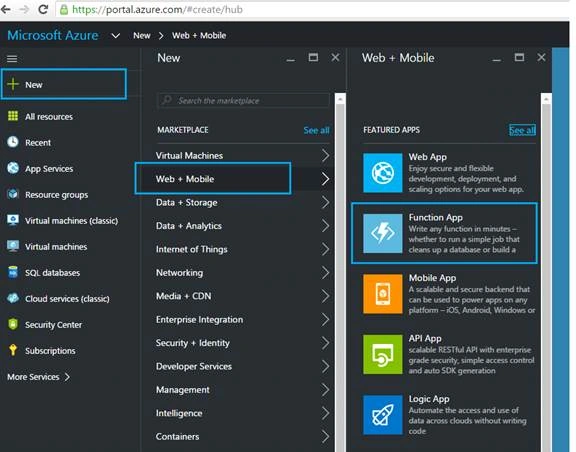
Enter the desired Function App name and other details. Select the storage account (or create a new one) and click on Create.
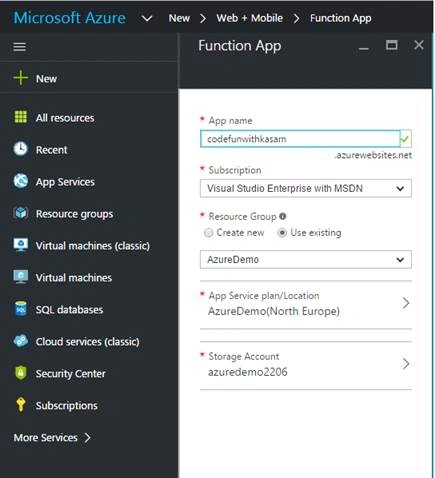
Now, you will be taken to the Get Started page where you can select to start based on some existing apps, or start from scratch, or you can import your code if you already have and start from.
Click on New Function to start with.
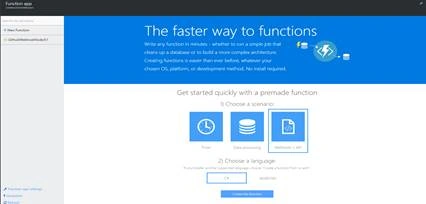
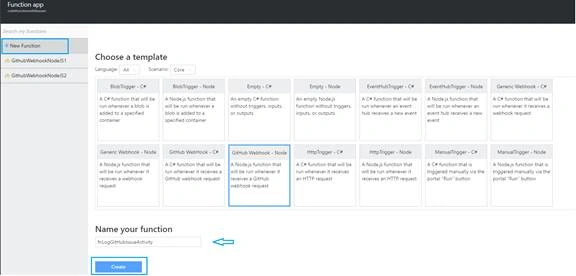
Now, you will be redirected to the below page with all different Azure Functions templates. As shown below, there is a dropdown for Language that you can pick from (Bash, Batch, C#, F#, JavaScript, PhP, Powershell, Python are the different language options available).
There is another dropdown for Scenario, namely - Core, API & webhooks, Data Processing, Experimental, and Samples, by which you can filter the templates.
Here, we will select 'GitHub Webhook - Node’ template which will be triggered as per the event over GitHub takes place. Give some appropriate name to this function and click Create.
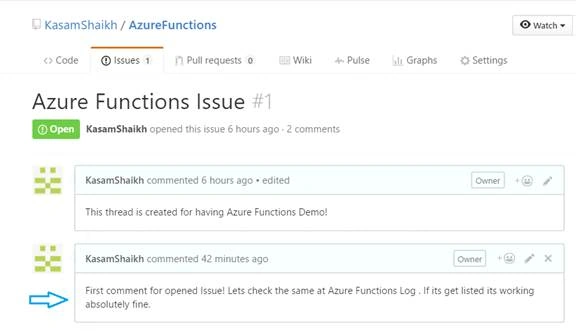
As seen in below image, here, I am giving it name as 'fnLogGitHubIssueActivity' as will be logging details, when there is any comment being entered to Issue section at GitHub.
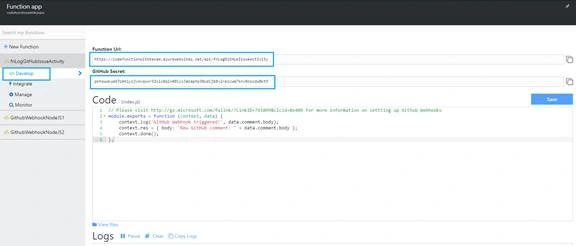
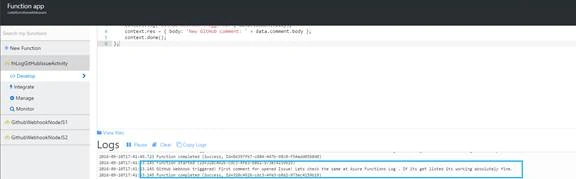
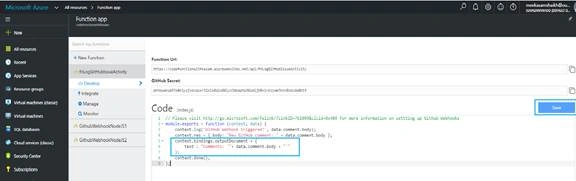
Once templates is selected, you will land up to the below page. As highlighted in below image, Develop section consists of Function URL & GitHub Secret key (For integrating with GitHub), Code where desired code needs to be written in. It would be populated with some Code which would log the comments and would be seen in Log window, as seen in the below Code Window.
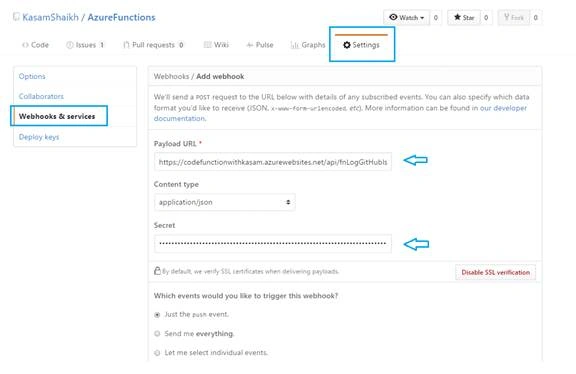
Assuming you have your GitHub account, go to GitHub and logon to your account.
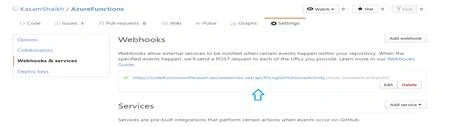
Navigate to Settings => Webhook & Services tab
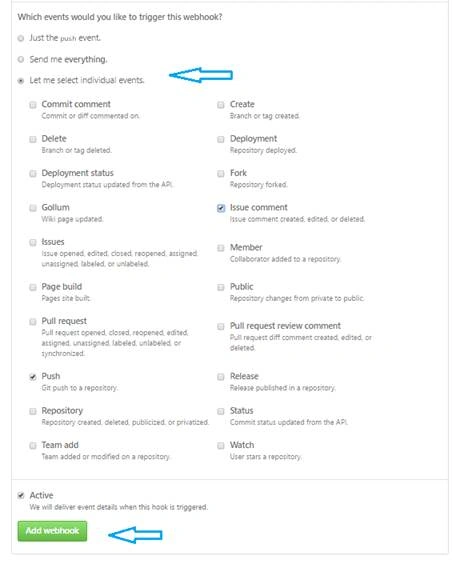
Enter Payload URL and Secret key, with Function URL and GitHub Secret key from portal’s Functions window, respectively.

Getting Started With Azure Functions
Join the conversation! Your thoughts help the community grow.
Sign in to leave a comment
It is the same account you read, post and publish with — and you will come straight back to this page.
Venkatesh RPosted Oct 18, 2019, 5:38 AM
// long-running tasks that you want to run in a background thread // This is true only when Azure Functions used on App Service Plan. But if Consumption plan is used then 5 minutes (10 Minutes after settings change) only the function will execute.
Prasanna MuraliPosted Sep 20, 2016, 9:38 PM
Nice share
Vignesh ManiPosted Sep 20, 2016, 6:14 PM
Nice one