

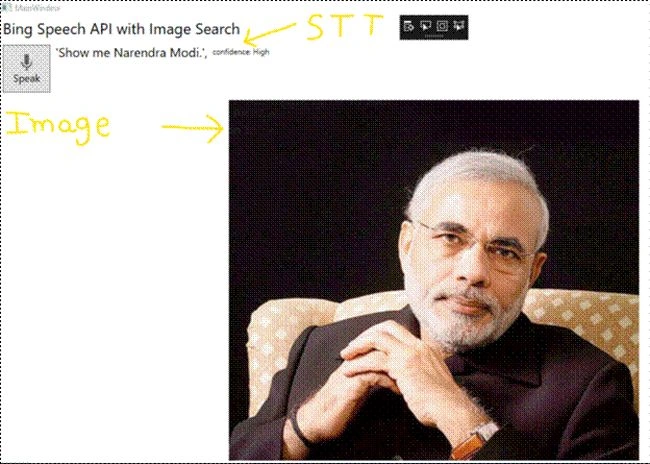
In this tutorial, we will learn how to use Bing Image Search API. Remember, in our first example of cognitive services, we had created a demo Bing Speech API. In this tutorial, we will extend the same demo to search images, i.e., we will pass the text result of Bing Speech API to Bing Image Search API. Yes, and we will call the cognitive service using HTTPS REST, like we are calling normal HTTPS Web Services. In our first example of Bing Speech API, we used .NET Client Library to make REST call of API for the ease in .NET. All the cognitive services are HTTPS REST APIs that can be called using any language which makes an HTTPS call. If you have missed part 1 of this series, you can find it here.
To register for Bing Image Search API follow these steps.
- Navigate to https://azure.microsoft.com/en-us/try/cognitive-services/
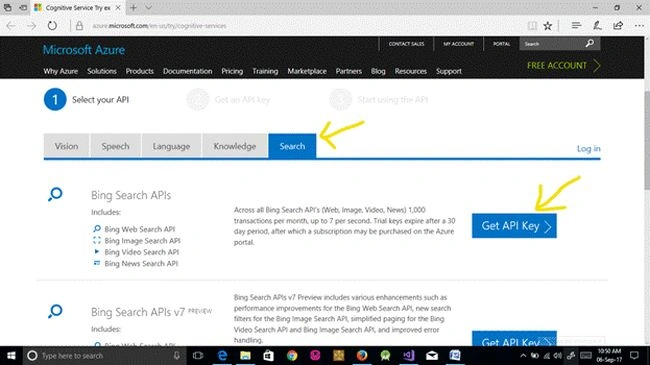
- Navigate to the "Search" tab and select Bing Search API. Then, press "Get API Key".
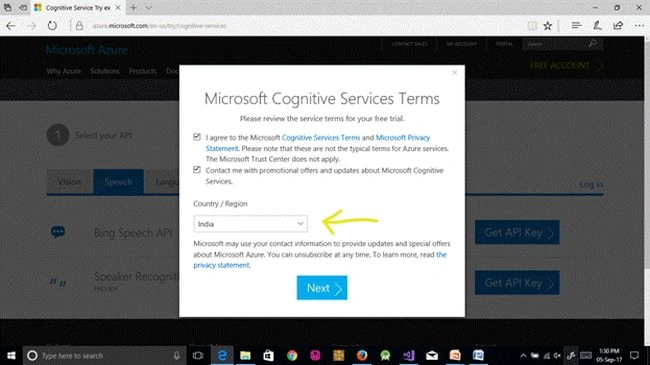
- Select "I agree" and your region, as shown in the following image.
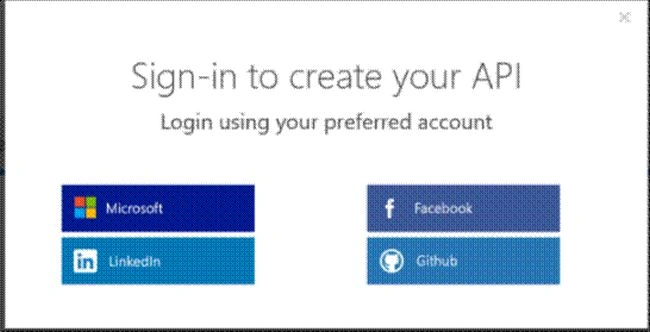
- Login with Microsoft account to get your API key.
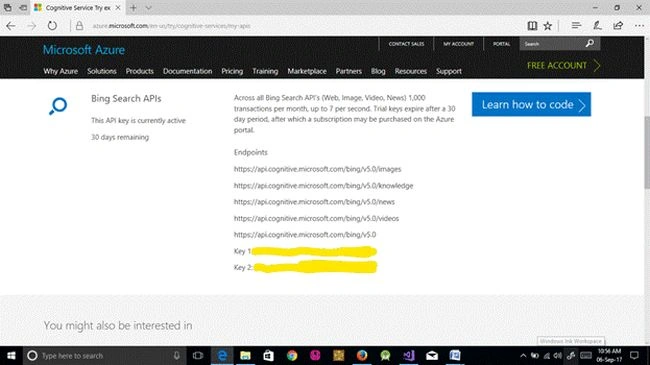
- Save your key.
Now, it’s time to recall part 1 in which we covered "Speech to Text" (STT) using Bing Speech API. We will simply use its result as input for Bing Image Search API.
- private async void MicClient_OnResponseReceived(object sender, SpeechResponseEventArgs e)
- {
- if (e.PhraseResponse.Results.Length > 0)
- {
- await Application.Current.Dispatcher.BeginInvoke(
- DispatcherPriority.Normal, new Action(() =>
- {
- this.MySpeechResponse.Text = $"'{e.PhraseResponse.Results[0].DisplayText}',";
- this.MySpeechResponseConfidence.Text = $"confidence: { e.PhraseResponse.Results[0].Confidence}";
- //this.Speak(this.MySpeechResponse.Text);
- }));
- this.SearchImage(e.PhraseResponse.Results[0].DisplayText);
- }
- }
Here, in "onResponseReceived" method, we will get the text of what we have spoken. Now, we will use that text as input for Bing Image Search API, as shown in the below code.
- private async void SearchImage(string SearchTerm)
- {
- var client = new HttpClient();
- var queryString = HttpUtility.ParseQueryString(string.Empty);
- // Request headers
- client.DefaultRequestHeaders.Add("Ocp-Apim-Subscription-Key", "Your_key_Bing_Image_Search_API");
- // Request parameters
- queryString["q"] = SearchTerm;
- queryString["count"] = "1";
- queryString["offset"] = "0";
- queryString["mkt"] = "en-us";
- queryString["safeSearch"] = "Moderate";
- var uri = "https://api.cognitive.microsoft.com/bing/v5.0/images/search?" + queryString;
- var response = await client.GetAsync(uri);
- var json = await response.Content.ReadAsStringAsync();
- // MessageBox.Show(json.ToString());
- BingImageSearchResponse bingImageSearchResponse = JsonConvert.DeserializeObject<BingImageSearchResponse>(json);
- var uriSource = new Uri(bingImageSearchResponse.value[0].contentUrl, UriKind.Absolute);
- await Application.Current.Dispatcher.BeginInvoke(
- DispatcherPriority.Normal, new Action(() =>
- {
- this.searchImage.Source = new BitmapImage(uriSource);
- }));
- }
The above method is simply making HTTPS REST request to API (that means it is not necessary for anyone to use Cognitive Services only in WPF application or by using C# language, one can use it with any other language too) and it will result in a JSON response.
Now, let’s perform the following steps to implement Bing Image Search API. First, download part 1 from here.
- First, add an Image tag in MainWindow.xaml or simply replace the code between <Grid></Grid> with the given code.
- <Grid>
- <Grid.RowDefinitions>
- <RowDefinition Height="Auto"></RowDefinition>
- <RowDefinition Height="Auto"></RowDefinition>
- <RowDefinition Height="Auto"></RowDefinition>
- <RowDefinition Height="Auto"></RowDefinition>
- <RowDefinition Height="*"></RowDefinition>
- </Grid.RowDefinitions>
- <Grid.ColumnDefinitions>
- <ColumnDefinition Width="Auto"></ColumnDefinition>
- <ColumnDefinition Width="*"></ColumnDefinition>
- <ColumnDefinition Width="3*"></ColumnDefinition>
- </Grid.ColumnDefinitions>
- <TextBlock FontSize="24" Grid.Row="0" Grid.Column="0" Grid.ColumnSpan="3" Margin="4">Bing Speech API with Image Search</TextBlock>
- <Button x:Name="button" HorizontalAlignment="Center" VerticalAlignment="Center" Width="75" Click="button_Click"
- Grid.Row="1" Grid.Column="0" Grid.RowSpan="3" Margin="4" Height="75">
- <Button.Content>
- <StackPanel Orientation="Vertical">
- <TextBlock FontSize="16">Speak</TextBlock>
- </StackPanel>
- </Button.Content>
- </Button>
- <TextBlock x:Name="status" TextWrapping="Wrap" Text="Not Listening" VerticalAlignment="Center" FontSize="16" Visibility="Collapsed"
- Grid.Row="1" Grid.Column="1" HorizontalAlignment="Center" Margin="4"/>
- <StackPanel Orientation="Horizontal" Grid.Row="1" Grid.Column="1" Grid.ColumnSpan="2">
- <TextBlock x:Name="MySpeechResponse" FontSize="20" Margin="4" TextWrapping="Wrap" VerticalAlignment="Center" />
- <TextBlock x:Name="MySpeechResponseConfidence" FontSize="12" Margin="4" TextWrapping="Wrap" VerticalAlignment="Center" />
- </StackPanel>
- <Image x:Name="searchImage" Margin="4" Stretch="Uniform"
- Grid.Row="4" Grid.Column="0" Grid.ColumnSpan="3"/>
- <StackPanel Orientation="Vertical" HorizontalAlignment="Center" VerticalAlignment="Center" x:Name="RecordingBar" Visibility="Collapsed"
- Grid.Row="0" Grid.Column="0" Grid.RowSpan="5" Grid.ColumnSpan="3">
- <ProgressBar HorizontalAlignment="Left" Width="207" Margin="0,16,0,0" IsIndeterminate="True" />
- </StackPanel>
- </Grid>
Tridip BhattacharjeePosted Sep 8, 2017, 5:07 AM
I have one question why do you use BeginInvoke because in winform template when we update UI component in separate thread then we use BeginInvoke but in your case you did not use function to run in separate thread. please share the reason for using BeginInvoke without worker thread.