


Introduction
In this article, let's see about CocosSharp for Windows phone. CocosSharp is a 2D Game engine for C#, F# and .NET developers, which is used to develop cross-platform games. For more details, check this link.
- Prerequisites and Installation steps.
- Creating first CocosSharp Project for Windows phone.
- First simple touch and fun game program.
Prerequisites and Installation Steps
- Visual Studio 2015: You can download it from here.
- CocosSharp Installation Steps.
To add the CocosSharp template in our Visual Studio, first, add the extensions in tools option.
Open Visual Studio 2015 and at the top from Tools menu, select Options.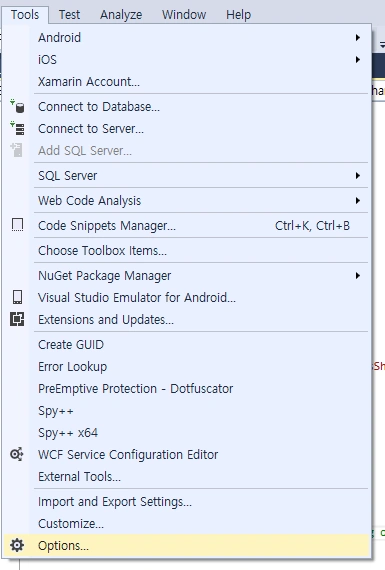
We can see our Options Window has been opened .Click “Extensions and Updates”. If Mobile Essential is not added, click Add, in name, we can give “Mobile Essential” and in URL, give the URL as http://gallery.mobileessentials.org/feed.atom. Click OK.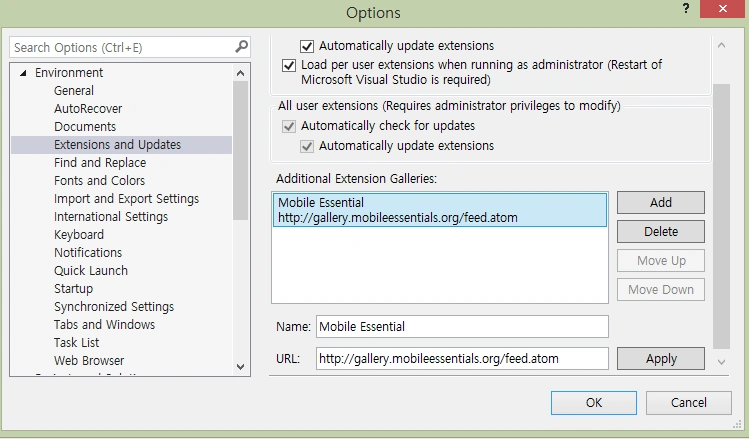
Next step is to download and install CoCosSharp Templates.
Click Tools, select Extensions and Updates from the menu.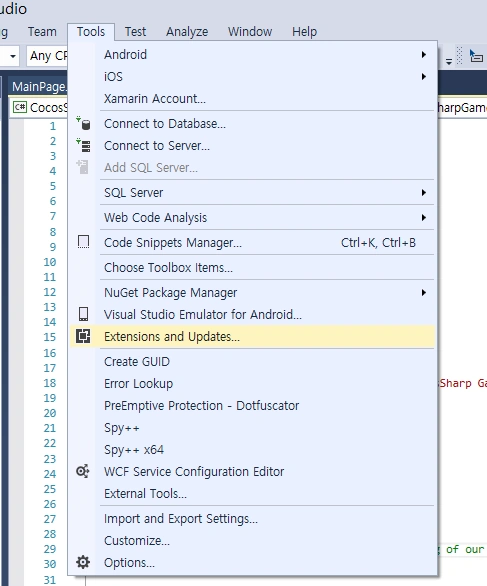
In the left side, select Online -> Mobile Essential.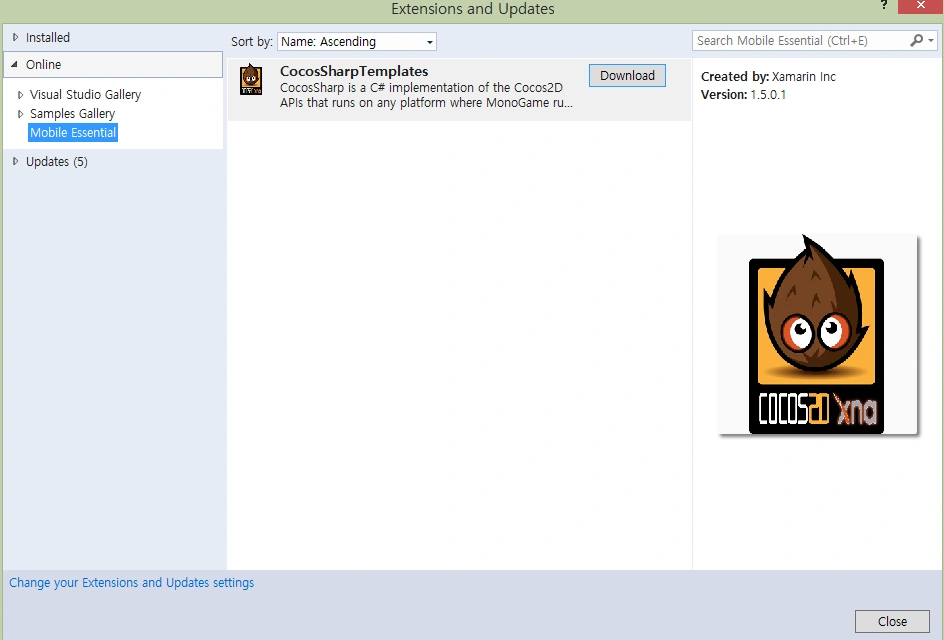
Now, we can see CocosSharp Templates. Click download button.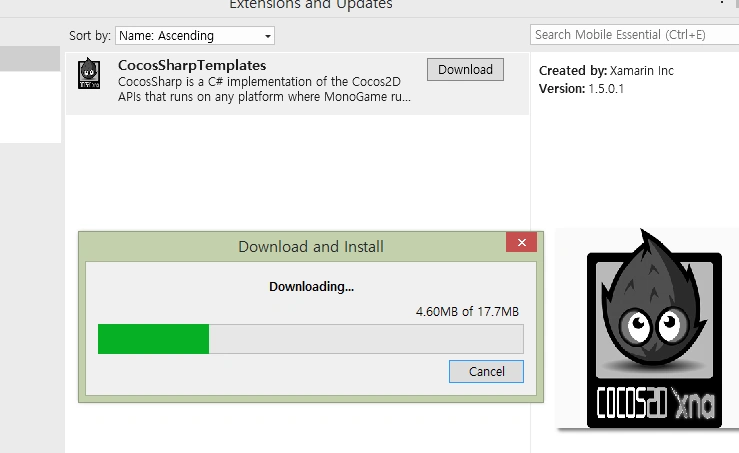
Install CocosSharp Templates.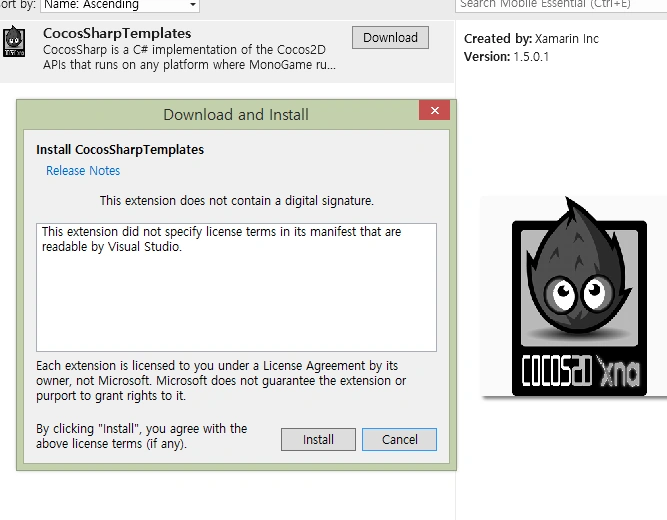
After Installation, open Visual Studio 2015, click create new project and select CoCosSharp from the left side templates. Select your CoCosSharp Development as Android, iOS or Windows. In our example, we will be using for Windows Phone.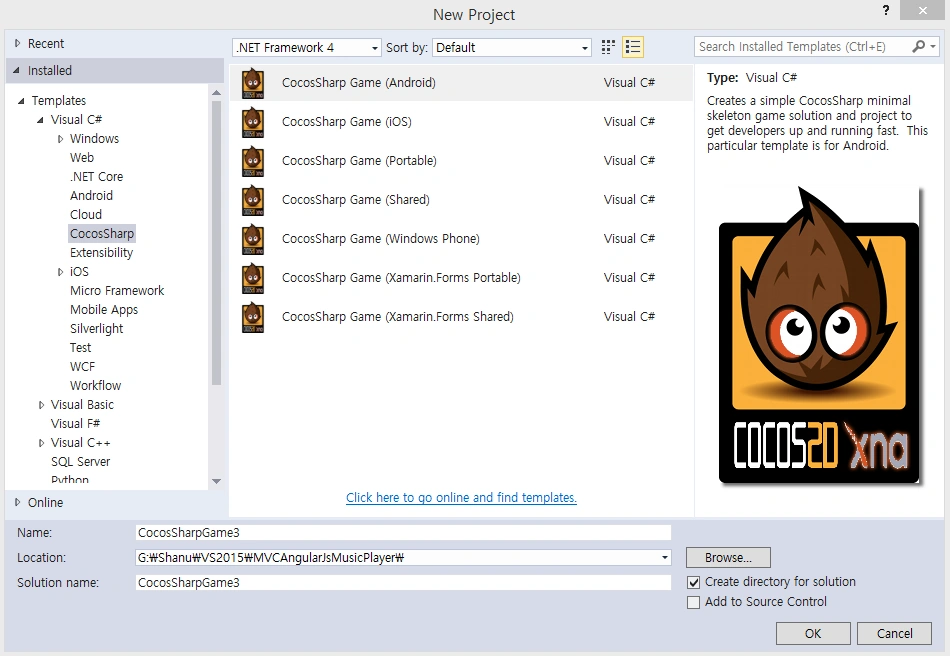
If Xamarin is not installed, install it by following the steps, given below-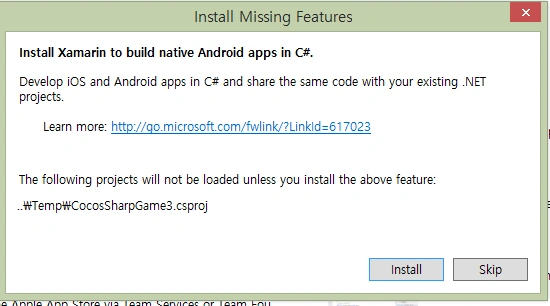
Code Part
Creating first CocosSharp Project for Windows Phone
After installing Visual Studio 2015 and CocosSharp templates, click Start >> Programs >> select Visual Studio 2015 >> click Visual Studio 2015. Click New >> Project >> select CocosSharp >> Select CocosSharp Game (Windows Phone).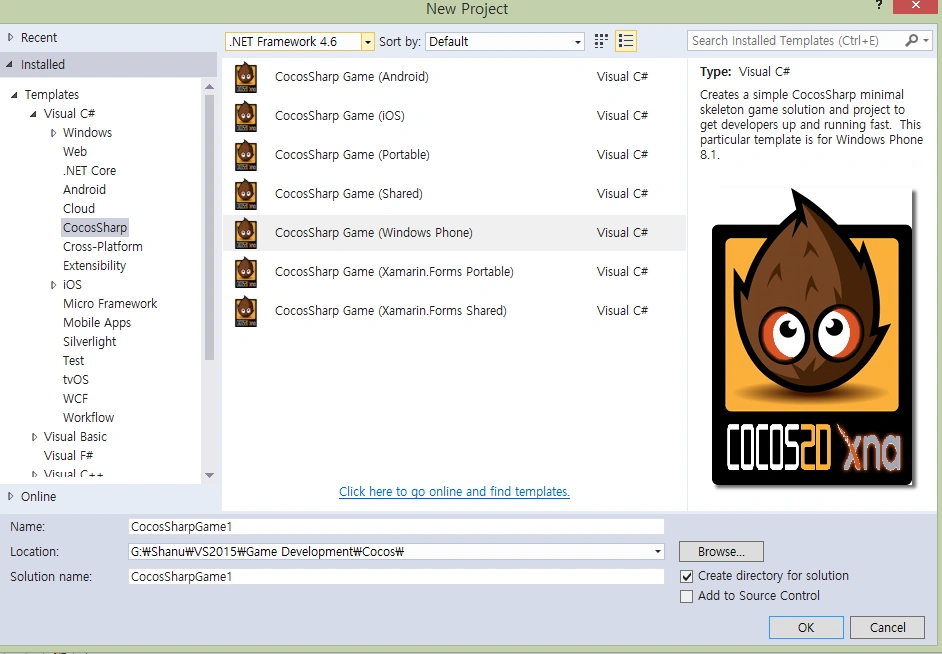
Select your project folder, give your project name and click OK.
Once our project has been created, we can see MainPage.Xaml and GameLayer.CS file in Solution Explorer.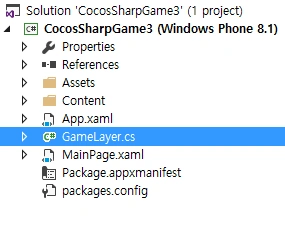
MainPage.Xaml
By default, the main screen name will be Mainpage.xaml.
Here, the design page extension will be Extensible Application Markup Language (XAML). If you have worked with WPF, it will be easy to work with Universal Application as in WPF, all form file will be as XAML.
GameLayer.CS
GameLayer is the main Ccass of CocosSharp. The program will begin from this class and this is similar to our program class in C# Console Application.
GameLayer() Method
This class has the contractor method GameLayer(). For the layer, default back color will be set in the GameLayer() method parameter. We can change it, as per our need. When we create our first Application, GameLayer() method will be added with a default backcolor and with one label, as given below. This method is similar to ASP.NET page Init Method. Here, we can see in the code, mentioned above, one label has been added.
- // Define a label variable
- CCLabel label;
- public GameLayer() : base(CCColor4B.Blue)
- {
- // create and initialize a Label
- label = new CCLabel("Hello CocosSharp", "MarkerFelt", 22, CCLabelFormat.SpriteFont);
- // add the label as a child to this Layer
- AddChild(label);
- }
AddedToScene() Method
This class has another override method AddedToScene(). In this method, we create events for our layer. For example, we can see, by default, this method will be initialized by an event for OnTouchesEnded mobile phone touch (in normal Emulator, it will be used as mouse click release event).
- protected override void AddedToScene()
- {
- base.AddedToScene();
- // Use the bounds to layout the positioning of our drawable assets
- var bounds = VisibleBoundsWorldspace;
- // position the label on the center of the screen
- label.Position = bounds.Center;
- // Register for touch events
- var touchListener = new CCEventListenerTouchAllAtOnce();
- touchListener.OnTouchesEnded = OnTouchesEnded;
- AddEventListener(touchListener, this);
- }
OnTouchesEnded() Event
This event will be triggered, whenever someone touches the mobile and takes the finger from the mobile. This is similar to MouseUp event.
- void OnTouchesEnded(List<CCTouch> touches, CCEvent touchEvent)
- {
- if (touches.Count > 0)
- {
- // Perform touch handling here
- }
- }
Here, the default GameLayer class will look like-
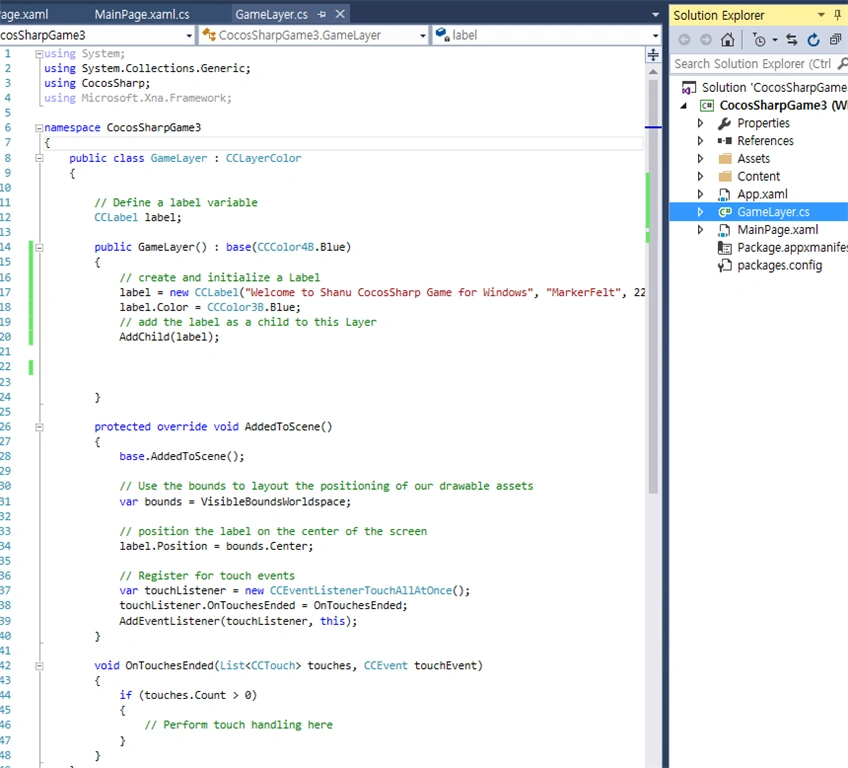
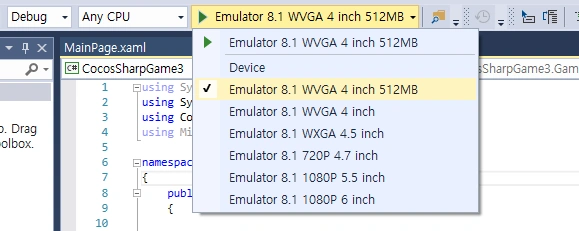
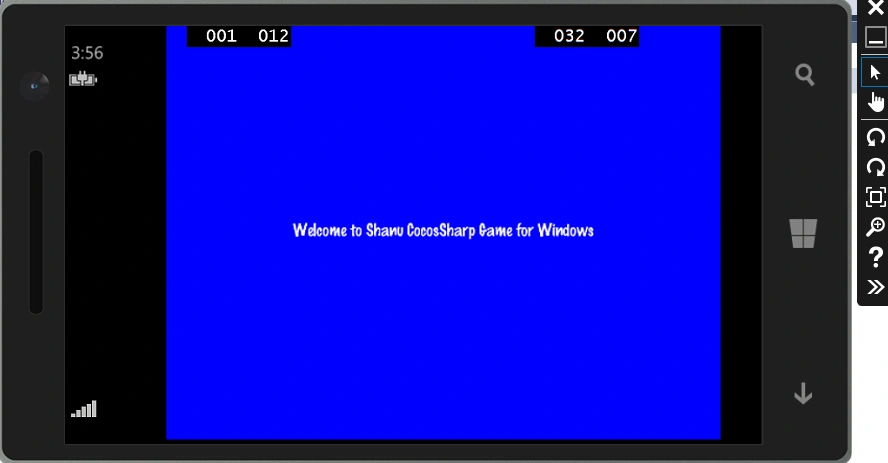
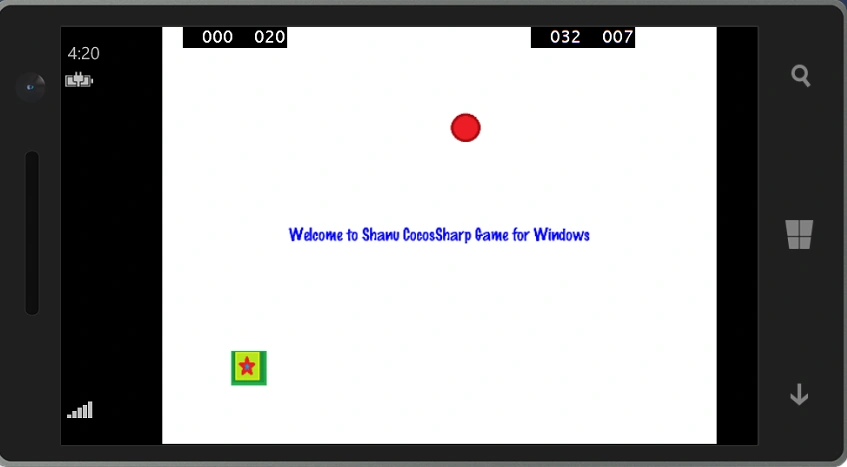
Run the Program
Anu VPosted Sep 9, 2016, 12:10 AM
Nice...
SubashPosted Sep 8, 2016, 4:17 AM
Nice one