
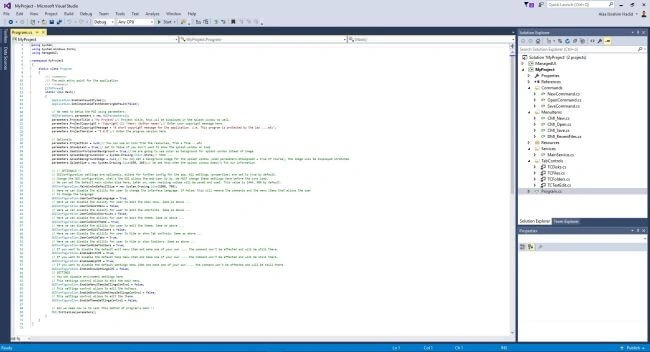
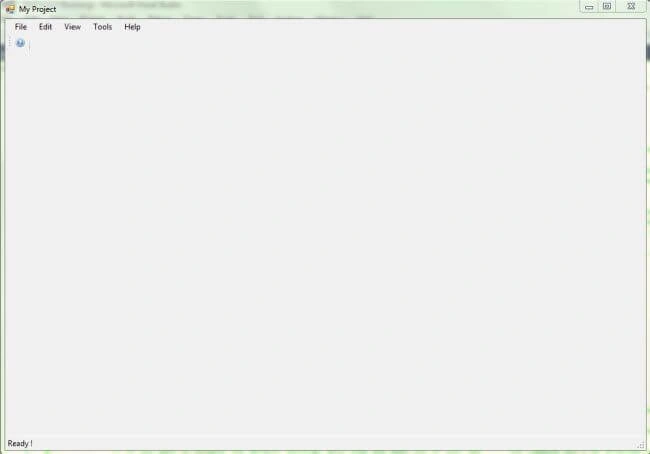
This code is from Program.cs, which includes the start-up parameters of the project.
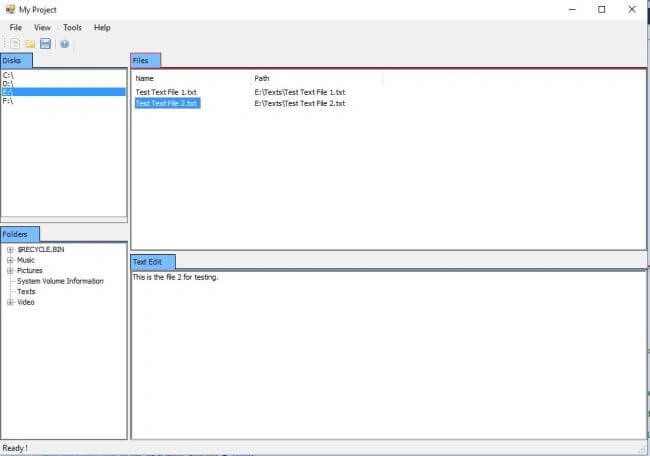
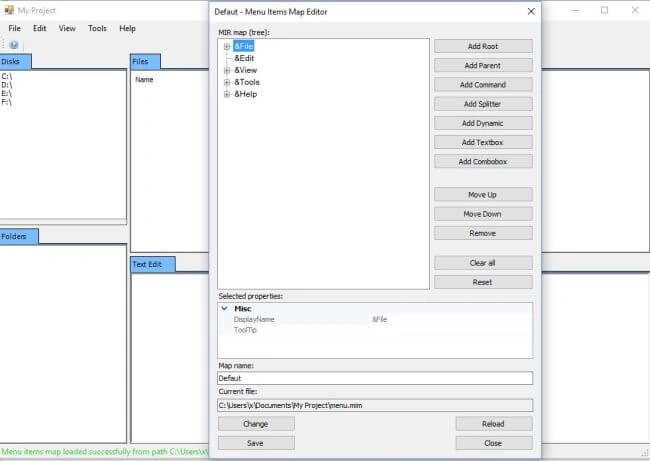
My Project is a tutorial project, which is created with MUI. Few source code files and lines are the ones, where we have Window, which is full of controls and abilities.
Introduction
ManagedUI (Managed User Interface) is a .NET framework library, which is written in C# can be considered as a getting-started library for creating a very advanced C# desktop Applications. The idea is that ManagedUI can be like an engine for .NET Windows desktop Applications.
I decided to write this library few years ago, when attempting to create new version for one of my projects AHD Subtitles Maker. The point is that I needed to rebuild my project because the old version doesn't allow for further updates and especially for add-ons support. I started with the project, which is rebuilt then the idea of MUI came to my head. In that point, I canceled the work on ASM and started with ManagedUI, so that ASM next version will be built, using MUI.
Let's say you need to make a simple Windows forms Application, which needs to do simple tasks, then you do it simply by creating Windows Forms Application in Visual Studio, add some controls, menu strip etc.
Handle some events (menu item click, button click ..etc) then your program is done and ready for use. When your program becomes more complicated and huge, many controls, many tasks then your Application requires more advanced build and design like
- Editable and dynamic menu items and toolbars. It can give end-user options to edit the main menu, toolbars, theme and shortcuts (hotkeys).
- Editable and dynamic tabs (control Windows in the main Window). Also, you can give the end-user option to edit the tabs layout easily.
- Dynamic built-in settings engine. It also allows the end-user to manage your Application configuration easily, easy to create setting pages as well.
- Add-on support, the project uses MEF (see here), use Services instead of just add-reference style.
- It uses commands and command combinations instead of just calling the methods and creating the instances.
- Multilingual interface support is built in. You can make your project multilingual or simply single language.
- An engine that can be used more than once to create more Applications.
- Easy to deal with and coding.
This is the basic idea of MUI (Managed User Interface). You just worry about your Services, commands, menu items, controls and the environment will order them all, thereby allowing you (and end-user, you can configure what's end-user can do) to edit and configure the environment.
With the binaries file, I included a Tutorials file that will explain step by step how to create a project, to get the code that is used in the tutorials, please download the file TutorialProjectCode_MyProject.zip.
Here, we will talk about how MUI works and how to get started with it.
How does it work ?
The main idea of MUI is given below.
We have the Services that were detected by the main core MUI.cs
When a Service is detected, the Initialize() method of it is called. (MEF needs to be import. Thus, Services can be anywhere).
ManagedUI has a main Service for GUI called GUIService. This Service is responsible to manage the main Window, main menu, toolbars and controls.
Also, there is another main Service called CommandsManager. This Service is responsible to manage the commands of the Application.
The commands are detected as well (MEF needs to be import. Thus, commands can be anywhere), but to use the command: the developer needs to use the CommandsManager Service to execute them, end-user can execute the commands, using menu items and/or commands combinations.
As a developer, you only need to
Create Services- The Services are not required but it would be better to use them. The best use for the Service is a core that holds the important information for your program. In the tutorials that are included in the binaries file, we use one Service that holds all the information. When an info is changed, an event is raised. Thus, all the components can act depending on that change.
Create commands, commands are the basic elements of MUI. A command is something, which can be executed, for example, you can make a command that opens a file and other saves that file etc. Full example of the commands can also be found at the tutorials that comes in the binaries file.
Create menu items, menu items can be used both in main menu and toolbars. Menu item can be a way to execute a command or simple to hold the commands. Full example of menu items can also be found at the tutorials that comes in the binaries file.
Create controls, controls can be TabControl or SettingsControl. Tab controls are displayed for the user in the main Window while the settings controls are used in settings only.
Once these elements are created, your Application will be ready for use. Also, MUI has a built-in engine that implements the localizing of Windows Forms. Thus, your project can be multilingual (see Localizing Windows Forms).
Installation
Installation of MUI is very easy,
- If you want to use binaries, just create a Windows Forms Application, followed by adding the reference for ManagedUI in your project. Start using ManagedUI by using ManagedUI namespace.
- If you want to use the source code (which is better, since you can debug and change the build configuration of your project), just add ManagedUI project into your solution, followed by adding the reference for it in the main project.
Simply create a new Windows Forms Application project.
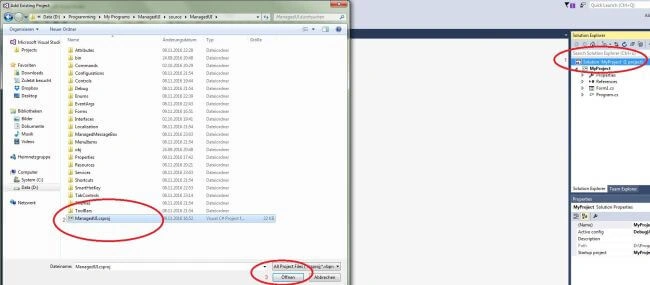
Right-click on the solution, followed by adding an existing project .
Now, it is the time to add some references for MUI and MEF. Right click on the references, followed by adding reference.
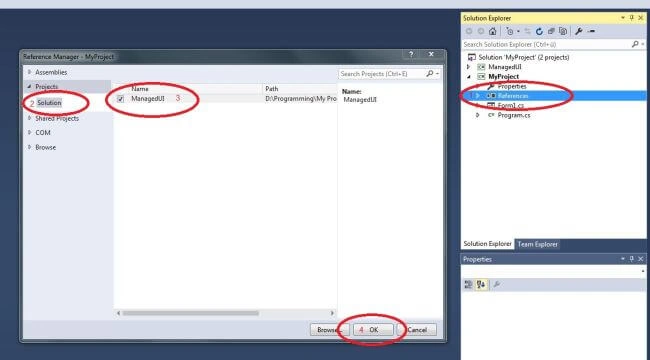
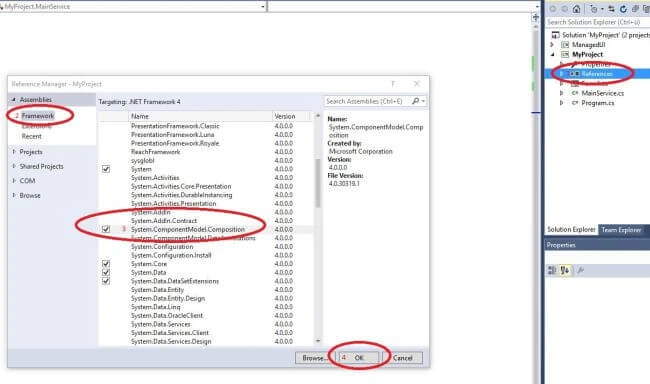
We are done. We can now start coding.
Using the code
Coding with MUI is very simple. For a quick start, just open the Program.cs file of the newly created Windows Forms Application, the code will be, as shown below.
- using System;
- using System.Collections.Generic;
- using System.Linq;
- using System.Windows.Forms;
- namespace MyProject {
- static class Program {
- /// <summary>
- /// The main entry point for the application.
- /// </summary>
- [STAThread]
- static void Main() {
- Application.EnableVisualStyles();
- Application.SetCompatibleTextRenderingDefault(false);
- Application.Run(new Form1());
- }
- }
- }
Just change the code, as shown below.
- using System;
- using System.Windows.Forms;
- using ManagedUI;
- namespace MyProject {
- static class Program {
- /// <summary>
- /// The main entry point for the application.
- /// </summary>
- [STAThread]
- static void Main() {
- Application.EnableVisualStyles();
- Application.SetCompatibleTextRenderingDefault(false);
- // We need to setup the MUI using parameters.
- MUIParameters parameters = new MUIParameters();
- parameters.ProjectTitle = "My Project"; // Project title, this wil be displayed in the splash window as well.
- parameters.ProjectCopyright = "Copyright (C) <Year> <Author name>"; // Enter your copyright message here.
- parameters.ProjectCopyrightMessage = "A short copyright message for the application. i.e. This program is protected by the law ....etc";
- parameters.ProjectVersion = "1.0.0"; // Enter the program version here
- // Optionals
- parameters.ProjectIcon = null; // You can use an icon from the resources, from a file ...etc
- parameters.ShowSplash = true; // Set to false if you don't want to show the splash window on load
- parameters.UseColorForSplashBackground = true; // We are going to use color as background for splash window istead of image.
- parameters.SplashBackgroundColor = System.Drawing.Color.White; // hmmm ...
- parameters.SplashBackgroundImage = null; // You can set a background image for the splash window (when parameters.ShowSplash = true of course), the image will be displayed stretched.
- parameters.SplashSize = new System.Drawing.Size(650, 260); // We set this when the splash window doesn't fit our information.
- // !! OPTIONALS !!
- // GUIConfiguration settings are optionals, allows for further config for the app. All settings (properties) are set to true by default.
- // Change the GUI configuration, what's the GUI allows the end-user to do. We MUST change these settings here before the core load.
- // We can set the default main window size here, later on, user resizing values will be saved and used. This value is 1444, 906 by default.
- GUIConfiguration.MainWindowDefaultSize = new System.Drawing.Size(1000, 700);
- // Here we can disable the alility for user to change the interface language. If false, this will remove the commands and the menu items that allows the user
- // to change the language.
- GUIConfiguration.UserCanChangeLanguage = true;
- // Here we can disable the alility for user to edit the main menu. Same as above ...
- GUIConfiguration.UserCanEditMenu = false;
- // Here we can disable the alility for user to edit the shortczts. Same as above ...
- GUIConfiguration.UserCanEditShortcuts = false;
- // Here we can disable the alility for user to edit the theme. Same as above ...
- GUIConfiguration.UserCanEditTheme = true;
- // Here we can disable the alility for user to edit the theme. Same as above ...
- GUIConfiguration.UserCanEditToolbars = false;
- // Here we can disable the alility for user to hide or show tab controls. Same as above ...
- GUIConfiguration.UserCanHideTabs = true;
- // Here we can disable the alility for user to hide or show toolbars. Same as above ...
- GUIConfiguration.UserCanHideToolbars = true;
- // If you want to disable the default exit menu item and make one of your own .... the command won't be affected and will be still there.
- GUIConfiguration.EnableExitCMI = true;
- // If you want to disable the default help menu item and make one of your own .... the command won't be affected and will be still there.
- GUIConfiguration.EnableHelpCMI = true;
- // If you want to disable the default settings menu item and make one of your own .... the command won't be affected and will be still there.
- GUIConfiguration.EnableShowSettingsCMI = false;
- // SETTINGS
- // You can disable enviroment settings here
- // This settings control allows to edit the main menu.
- GUIConfiguration.EnableMenuItemsSettingsControl = false;
- // This settings control allows to edit the hotkeys.
- GUIConfiguration.EnableShortcutsHotkeysSettingsControl = false;
- // This settings control allows to edit the theme.
- GUIConfiguration.EnableThemeSettingsControl = false;
- // All we need now is to call this method at program's main !!
- MUI.Initialize(parameters);
- }
- }
- }
Join the conversation! Your thoughts help the community grow.