

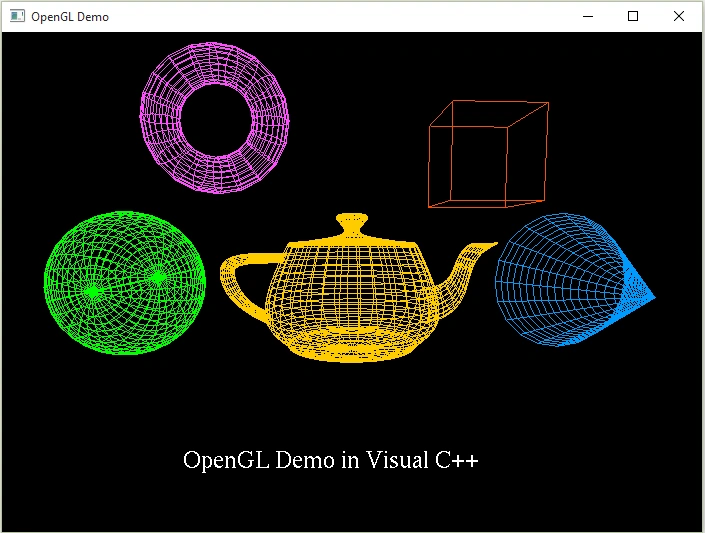
Introduction
I have been coding OpenGL in C++ from a year but I used other IDE's. In this article we will see about setting up the Visual Studio for OpenGL to run OpenGL programs using Visual C++. So what is OpenGL?
OpenGL is a software interface to graphics hardware. This interface consists of about 150 distinct commands that you use to specify the objects and operations needed to produce interactive three-dimensional applications.
OpenGL is designed as a streamlined, hardware-independent interface to be implemented on many different hardware platforms.
In essence, it is a 3D graphics and modeling library that is extremely portable and very fast. Using OpenGL, you can create elegant and beautiful 3D graphics with nearly the visual quality of a raytracer.
The greatest advantage to using OpenGL is that it is orders of magnitude faster than a ray-tracer. It uses algorithms carefully developed and optimized by Silicon Graphics, Inc. (SGI), an acknowledged world leader in computer graphics and animation.
To run OpenGL programs using VC++ you need OpenGL header files & libraries.
Most of the common OpenGL libraries are:
- gl (Graphics Library),
- glu (Graphics Library Utility) &
- glut (Graphics Library Utility Toolkit).
In this article we will also see some important methods.
The following are the articles for basics of OpenGL in C#.
The syntax is same as in C++ but in C++ there is no class.
Procedure
First you need freeglut libraries, otherwise you cannot run OpenGL program that contain glut functions.
Microsoft SDK provides gl & glu libraries but don't glut, so you must add it externally to your project.
Go to the following links for website of freeglut library.
Once you downloaded the freeglut libraries extract all files. Now,
- Copy freeglut.dll file from freeglut-MSVC-3.0.0-2.mp\freeglut\bin folder to C:\Windows folder.
- Create freeglut named folder in C:\Program Files\Common Files.
- Copy include & lib folders from freeglut-MSVC-3.0.0-2.mp\freeglut folder to C:\Program Files\Common Files\freeglut folder because you want to add these header files & libraries to your project. There is no restriction to copy these folders only in C:\Program Files\Common Files path. You can copy or can use these files from wherever you want in your project.
Once these all actions are completed then let's start setting up Visual Studio for glut.
- Start Visual Studio & click on New Project.
- Select Visual C++ & Win32 Console Application & enter your project name & click OK.
- Win32 Application Wizard - Click Next.
- Uncheck the Precompiled header checkbox. We don't need this.
- Click Finish.
Once project is created.
- Go to your Project Properties.
- Select VC++ Directories as in the following image.
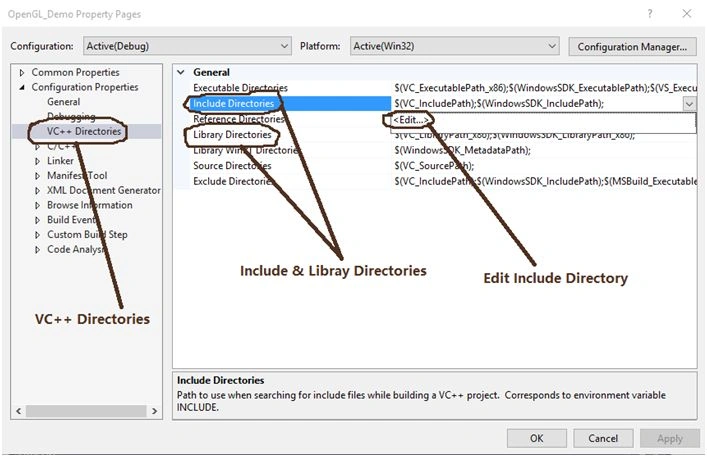
As you can see in the above image, Include Directories & Library Directories. In Include Directories we need to add the path of include folder which we have just copied to C:\Program Files\Common Files\freeglut path.
Same action for Library Directories for lib folder.
- So first let's add freeglut header files to Include Directories. Click on Edit as shown in above image.
Now, copy and paste path of include folder of freeglut folder to Include Directories as in the following image:
Here my path is C:\Program Files\Common Files\freeglut\include.
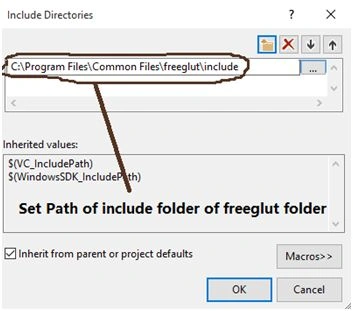
- Same action for Library Directories.
Copy and paste path of lib folder of freeglut folder to Library Directories as in the following image:
Here my path is C:\Program Files\Common Files\freeglut\lib.
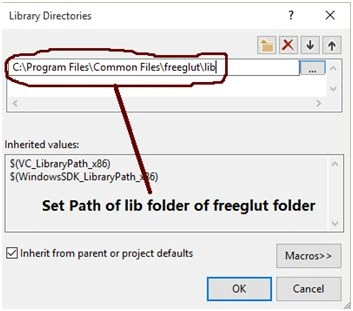
- Once it is completed Click Apply & OK.
Coding
First you must define the Windows.h header file before defining the OpenGL header files otherwise error will occur.
You need 4 header files,
- #include<Windows.h>
- #include<gl/GL.h>
- #include<gl/GLU.h>
- #include<gl/glut.h>
Read all comments in the code for better understanding.
Let's see some important functions:
- glClearColor(): This function clear the background with color RGB.
- glPushMatrix(): This function pushes the coordinates onto stack.
- glTranslatef(): This function set the position to the next object to be drawn for float.
- glColor3f(): It specify the color to the object & takes 3 float values of RGB.
- glutWireTeapot(); This function draws a wired Teapot. If you want to draw solid then useglutSolidTeapot().
Same for other objects. See in the following complete code.
You can see syntax when the mouse hovers on that specific function in Visual Studio.
As you know every C++ program has a main function, here it takes a command line argument.
Here's the main function that can be defined in OpenGL C++ to create a Window & set all methods for execute.
- int main(int argc, char** argv)
- {
- glutInit(&argc, argv);
- glutInitDisplayMode(GLUT_DOUBLE | GLUT_RGB);
- glutInitWindowSize(700, 500);
- glutInitWindowPosition(250, 50);
- glutCreateWindow("OpenGL Demo");
- Init_OpenGL();
- glutDisplayFunc(Display_Objects);
- glutReshapeFunc(Reshape);
- glutMainLoop();
- return 0;
- }
- glutInit(): This function initialize the glut & takes to parameters.
- glutInitDisplayMode(): This set's the mode of the display whether they are RGB or other.
- glutInitWindowSize(): This set's the size(width & height) to the created window.
- glutInitWindowPosition(): Set position to the created window.
- glutCreateWindow(): This creates a window with text.
- glutDisplayFunc(): This function displays all the objects on window that is drawn & takes a function name as a parameter.
- glutReshapeFunc(): This function is used when the drawn objects are to be resize automatically when window is resized.it also take function name as a parameter.
- glutMainLoop(): This function is used to redisplay the objects on the window when window is resize or maximize.
There are many functions provided by glut library like glutKeyboardFunc() & glutMouseFunc() etc.
Here's the complete code.
Copy & paste the following code to your created project code.
If everything is fine and there are no errors then run your project.
- #include<Windows.h>
- // first include Windows.h header file which is required
- #include<stdio.h>
- #include<gl/GL.h> // GL.h header file
- #include<gl/GLU.h> // GLU.h header file
- #include<gl/glut.h> // glut.h header file from freeglut\include\GL folder
- #include<conio.h>
- #include<stdio.h>
- #include<math.h>
- #include<string.h>
- // Init_OpenGL() function
- void Init_OpenGL()
- {
- // set background color to Black
- glClearColor(0.0, 0.0, 0.0, 0.0);
- // set shade model to Flat
- glShadeModel(GL_FLAT);
- }
- // Display_Objects() function
- void Display_Objects(void)
- {
- // clearing the window or remove all drawn objects
- glClear(GL_COLOR_BUFFER_BIT);
- /*glPushMatrix(), which copies the current matrix and adds
- the copy to the top of the stack, and
- glPopMatrix(), which discards the top matrix on the stack*/
- glPushMatrix();
- //the glTranslatef() routine in the display list alters the position of the next object to be drawn
- glTranslatef(0.0, 0.0, 0.0);
- // set color to object glColor3f(red,green,blue);
- glColor3f(1.0, 0.8, 0.0);
- // draw a wire tea pot
- glutWireTeapot(1.0);
- // draw a wire sphere
- glTranslatef(-2.5, 0.0, 0.0);
- glColor3f(0.0, 1.0, 0.0);
- glutWireSphere(0.8, 30, 30);
- // draw a wire cone
- glTranslatef(5.0, 0.0, 0.0);
- glColor3f(0.0, 0.6, 1.0);
- glutWireCone(0.8, 1.5, 20, 20);
- // draw a wire cube
- glTranslatef(-1.0, 1.4, 0.0);
- glColor3f(1.0, 0.3, 0.0);
- glutWireCube(1.0);
- // draw a wire torus
- glTranslatef(-3.0, 0.4, 0.0);
- glColor3f(1.0, 0.3, 1.0);
- glutWireTorus(0.2, 0.6, 20, 20);
- // draw a text
- glTranslatef(-2.5, -4.0, 0.0);
- char str[] = {"OpenGL Demo in Visual C++"};
- glColor3f(1.0, 1.0, 1.0);
- // set position to text
- glRasterPos2f(2.0, 0.0);
- for (int i = 0; i < strlen(str); i++)
- {
- // draw each character
- glutBitmapCharacter(GLUT_BITMAP_TIMES_ROMAN_24, str[i]);
- }
- //you can draw many objects here like polygons,lines,triangles etc
- glPopMatrix();
- glutSwapBuffers();
- }
- // Reshape() function
- void Reshape(int w, int h)
- {
- //adjusts the pixel rectangle for drawing to be the entire new window
- glViewport(0, 0, (GLsizei)w, (GLsizei)h);
- //matrix specifies the projection transformation
- glMatrixMode(GL_PROJECTION);
- // load the identity of matrix by clearing it.
- glLoadIdentity();
- gluPerspective(60.0, (GLfloat)w / (GLfloat)h, 1.0, 20.0);
- //matrix specifies the modelview transformation
- glMatrixMode(GL_MODELVIEW);
- // again load the identity of matrix
- glLoadIdentity();
- // gluLookAt() this function is used to specify the eye.
- // it is used to specify the coordinates to view objects from a specific position
- gluLookAt(-0.3, 0.5, 5.0, 0.0, 0.0, 0.0, 0.0, 1.0, 0.0);
- }
- // main function
- int main(int argc, char** argv)
- {
- // initialize glut
- glutInit(&argc, argv);
- glutInitDisplayMode(GLUT_DOUBLE | GLUT_RGB);
- // set window size
- glutInitWindowSize(700, 500);
- // set window location
- glutInitWindowPosition(250, 50);
- // create window with window text
- glutCreateWindow("OpenGL Demo");
- // call Init_OpenGL() function
- Init_OpenGL();
- // call glutDisplayFunc() function & pass parameter as Display_Objects() function
- glutDisplayFunc(Display_Objects);
- // call glutReshapeFunc() function & pass parameter as Reshape() function
- glutReshapeFunc(Reshape);
- //glutMainLoop() is used to redisplay the objects
- glutMainLoop();
- return 0;
- }
Join the conversation! Your thoughts help the community grow.
Sign in to leave a comment
It is the same account you read, post and publish with — and you will come straight back to this page.
Wim CossementPosted Oct 29, 2021, 7:21 PM
Thanks dude! I cannot understand that wanting to mess around in OpenGL can be such a PITA because it's not some obscure library or technology used by a few> I wasted a few hours in setting up MSYS2 but using Linux makefiles to compile something and it never found the OpenGL stuff...
Rui CarrasqueiraPosted Sep 30, 2021, 11:01 AM
Thank you for your time
Saif AlSuwaidiPosted Dec 9, 2020, 2:05 AM
I need help how to make Solid and the shine i tried to add but it dose not work
Sankarappan GPosted Jan 7, 2018, 9:33 PM
Thank you for sharing the sample code. I tried this in Visual Studio Community 2017 and it works as such. Nice job. In my case, I did not install freeglut or any other package from outside.. Instead, I installed NupenGL Core package, which is part of Visual Studio's NuGet Gallery. I got the instructions, on how to install NupenGL, from https://sites.google.com/site/gsucomputergraphics/educational/set-up-opengl.
Pritam ZopePosted Jan 31, 2017, 5:30 AM
Thanks.................................................
Thiruppathi RPosted May 3, 2016, 5:21 PM
Superb...
Sr KarthigaPosted Feb 10, 2016, 8:17 PM
Nice share
Pritam ZopePosted Feb 10, 2016, 7:05 AM
Thanks......
Santhakumar MunuswamyPosted Feb 3, 2016, 3:09 PM
Thanks for nice share
Shubham KumarPosted Feb 3, 2016, 1:28 AM
nice explain
Sibeesh VenuPosted Feb 3, 2016, 12:35 AM
Nice Share
Debasis SahaPosted Feb 2, 2016, 9:50 AM
Good One..
Ehsan SajjadPosted Feb 2, 2016, 9:21 AM
good one