

Introduction
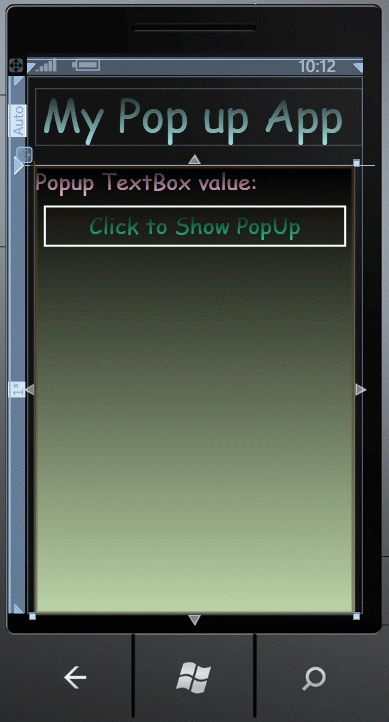
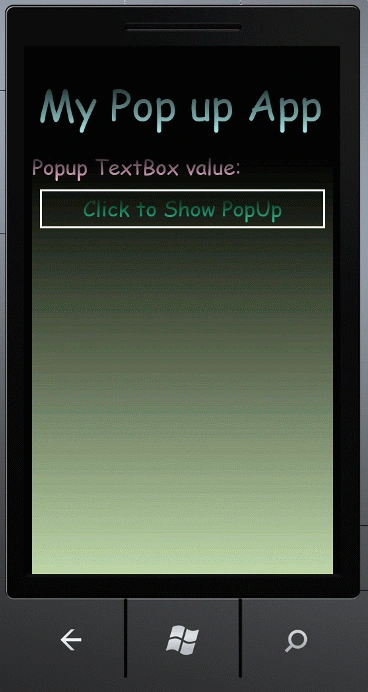
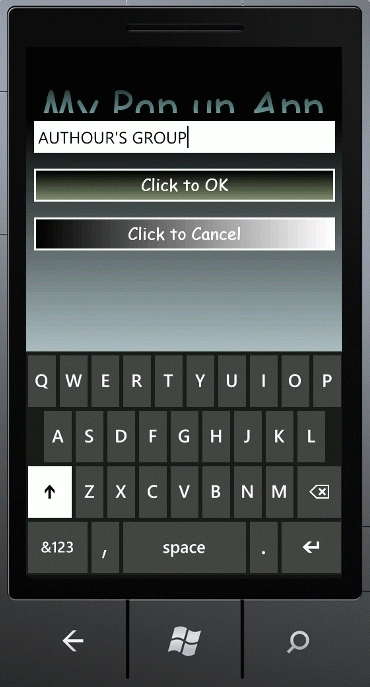
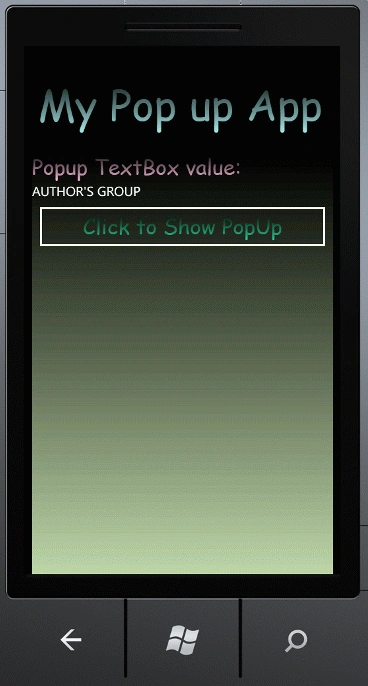
In this article we will explore how to get input using a popup in Windows Phone 7. Further in details we will discuss how to do that in Windows Phone 7. In this article first of all we use a Windows Phone user control to popup that control when a button is clicked. For this, whenever we click on the button, then a popup control will open in which there is a TextBox and two buttons; the first one is for clicking OK and the second one is Cancel. So when you enter some text in the TextBox and click on the OK button then the input value will be shown in the main page but it will be through popup user control. Further basically when talking about popups in Windows Phone you have two options; either to use the default Popup control and to handle the open/close functionality on your own or to use some of the advanced popups that come with free libraries like for example the Coding4Fun Toolkit. So to do that you have to follow the steps given below.
Step 1: First of all you have to download the toolkit from here named Coding4Fun toolkit. If you have already download the toolkit then you doesn't need to download it again.
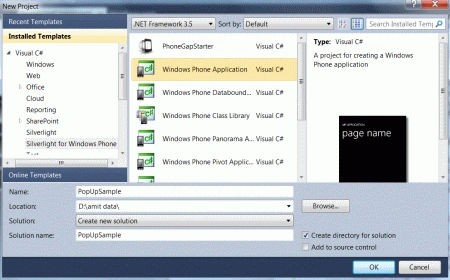
Step 2: In this step first of all we have to open a Windows Phone application let see how you will open it.
- Go to Visual Studio 2010
- File->New->Project
- Select the template named as silverlight for Windows Phone
- Select the Windows Phone application
- Give it a name as you want.

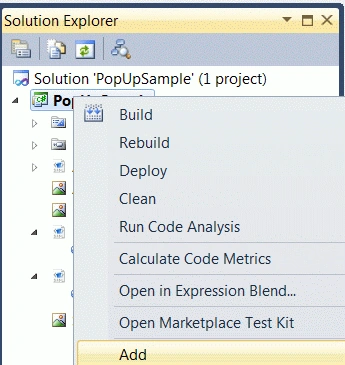
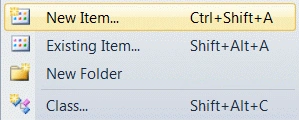
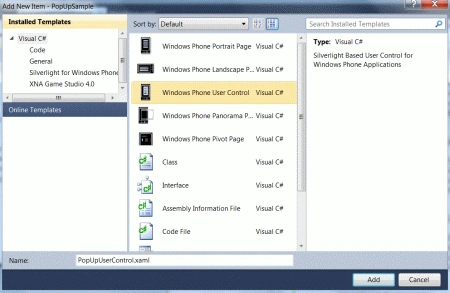
Step 3: Further you have to add a Windows Phone user control into your Windows Phone application; let's see the figure given below to add the user control.
Step 4: In this step we will see the code for the PopUpUserControl.xaml file which is given below.
Code:
<UserControl x:Class="PopUpSample.PopUpUserControl"
xmlns="http://schemas.microsoft.com/winfx/2006/xaml/presentation"
xmlns:x="http://schemas.microsoft.com/winfx/2006/xaml"
xmlns:d="http://schemas.microsoft.com/expression/blend/2008"
xmlns:mc="http://schemas.openxmlformats.org/markup-compatibility/2006"
mc:Ignorable="d"
FontFamily="{StaticResource PhoneFontFamilyNormal}"
FontSize="{StaticResource PhoneFontSizeNormal}"
Foreground="{StaticResource PhoneForegroundBrush}"
xmlns:toolkit="clr-namespace:Microsoft.Phone.Controls;assembly=Microsoft.Phone.Controls.Toolkit"
xmlns:c4f="clr-namespace:Coding4Fun.Phone.Controls.Toolkit;assembly=Coding4Fun.Phone.Controls.Toolkit">
<StackPanel x:Name="LayoutRoot" Width="480" Height="480">
<TextBox x:Name="tbx">
<TextBox.Background>
<LinearGradientBrush EndPoint="0.5,1" StartPoint="0.5,0">
<GradientStop Color="Black" Offset="0" />
<GradientStop Color="#FFFFDBBB" Offset="1" />
</LinearGradientBrush>
</TextBox.Background>
</TextBox>
<Button x:Name="btnOK" Content="Click to OK" FontFamily="Comic Sans MS">
<Button.Background>
<LinearGradientBrush EndPoint="0.5,1" StartPoint="0.5,0">
<GradientStop Color="Black" Offset="0" />
<GradientStop Color="#FF7E8D6E" Offset="1" />
</LinearGradientBrush>
</Button.Background>
</Button>
<Button x:Name="btnCancel" Content="Click to Cancel" FontFamily="Comic Sans MS">
<Button.Background>
<LinearGradientBrush EndPoint="1,0.5" StartPoint="0,0.5">
<GradientStop Color="Black" Offset="0" />
<GradientStop Color="White" Offset="1" />
</LinearGradientBrush>
</Button.Background>
</Button>
<StackPanel.Background>
<LinearGradientBrush EndPoint="0.5,1" StartPoint="0.5,0">
<GradientStop Color="Black" Offset="0" />
<GradientStop Color="#FFE2FBFF" Offset="1" />
</LinearGradientBrush>
</StackPanel.Background>
</StackPanel>
</UserControl>
Step 5: In this step we will see the design of the user control.
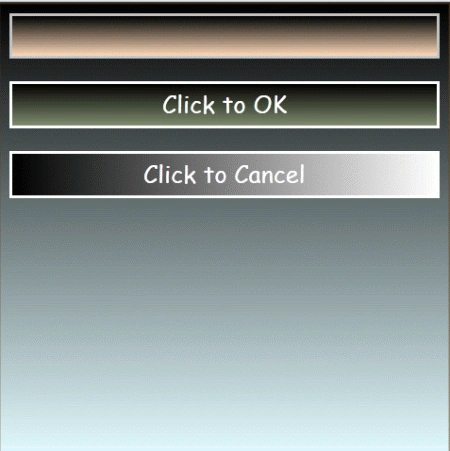
Step 6: In this step you will see what namespace reference you need to write on the above code given below.

Step 7: In this step we will see the code for the MainPage.xaml.cs file which is given below.
Code:
using System;
using System.Collections.Generic;
using System.Linq;
using System.Net;
using System.Windows;
using System.Windows.Controls;
using System.Windows.Documents;
using System.Windows.Input;
using System.Windows.Media;
using System.Windows.Media.Animation;
using System.Windows.Shapes;
using Microsoft.Phone.Controls;
using System.Windows.Controls.Primitives;
namespace PopUpSample
{
public partial class MainPage : PhoneApplicationPage
{
// Constructor
public MainPage()
{
InitializeComponent();
}
private void Button_Click(object sender, RoutedEventArgs e)
ChrisPosted Mar 6, 2013, 10:39 AM
Well, tried to make your example work for WP8 and VS2102. But unfortunaltly I get a mysterious error in the Popup constructor: "The name 'InitializeComponent' does not exist in the current context"
Vijay PrativadiPosted Mar 13, 2012, 12:54 PM
Great Stuff Amit!!!... Keep Posting More!!!