

Abstract
It is not possible to use VS2022 to create a single Git repository that contains multiple VS solutions. So, we turned to SourceTree and achieved this goal. The technical details are laid out in the article.
1. Problem
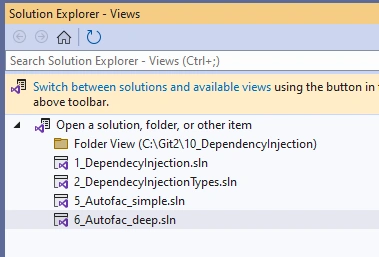
The problem I had was that I wanted to post the source code from one of my articles on GitHub so that users could easily download it. The problem with that was that the source code for one article is made of four Visual Studio C# solutions. I didn’t want to merge the four solutions into one. That would not be smart, since multiple VS solutions contained a project with the same name, the evolution of the code as I explained in the article. I wanted the user to get the whole source code for the article in “one clone”, easily. Here is my folder structure:
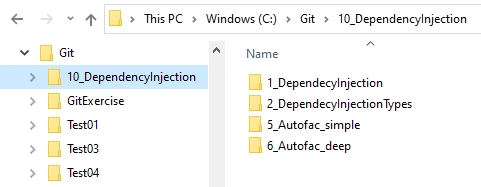
I opened VS2022 and I was stuck. VS2022 implies that the Git repository is per VS solution. I have multiple VS C# solutions that I want to package into one repository. What to do now?
2. Checking technology: Git Submodule or Git Subtree
For a moment I thought that part of Git technology, like Submodule or Subtree, would help. But, after carefully examining them, I discovered that they are not meant to be used for such purposes. I did not want to share a library code, and want to get everything down from GitHub in one shot. I did not see that you could create “a workplace” that would contain several repositories and treat them as one from the perspective of a “git clone” in Git.
3. Solution - Creating a Single repository in SourceTree
I figured that the best I can do is create Git repository on a higher lever directory, containing the four solutions I had. That way, I will fit four solutions into one Git repository. I knew immediately that I would have branches per repository, not per VS solution.
3.1 Creating repository
I checked Git options in VS2022 and figured out that they are limited, so I would need another Git tool. I decided to use Sourcetree to create a high-level directory repository.
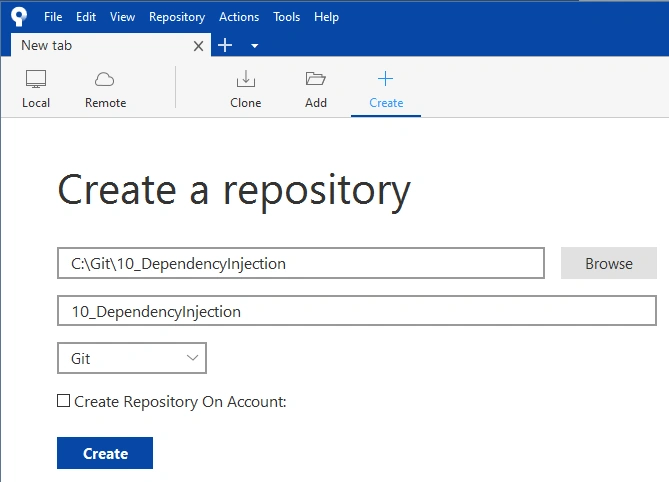
DO NOT COMMIT ANYTHING YET! We need to set .gitignore file first. If you do not set .gitignore file first, all your project files, like binaries and intermediate build files, will be checked into the repository, and we do not want that.
3.2 Setting .gitignore
In order to emulate the work of VS2022, I copied two files generated by VS2022: files .gitignore and .gitattributes. These were created in another C# project, and I copied them into the root of my repository and checked them in.
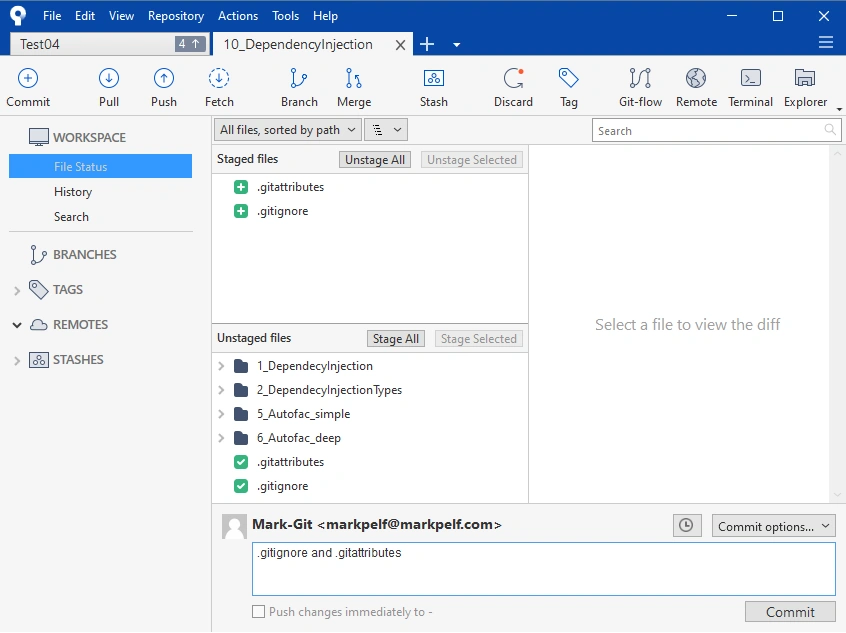
We did this manually because we didn't use VS2022 to create the Git repository. In this case, VS2022 would automatically create .gitignore according to the project type you select. Since we took over the responsibility of creating the repository on ourselves by SourceTree, it was our responsibility to create the correct .gitignore file.
3.3 Checking in C# VS solutions files
Then, I committed all the Visual Studio solutions files into the repository. Because .gitignore is set, the commit will ignore binaries, etc.
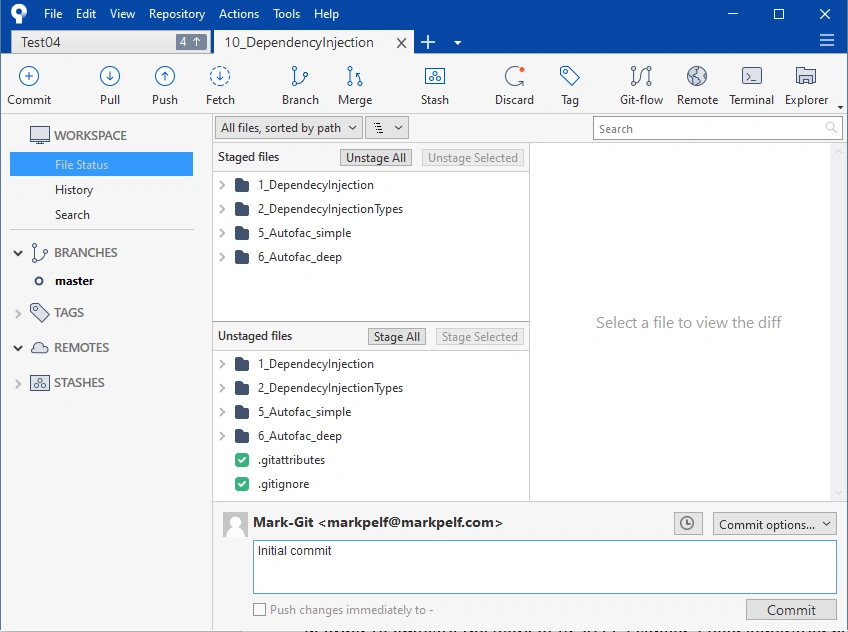
3.4 Create GitHub repository
Next, I created my remote repository account on GitHub and pushed the files.
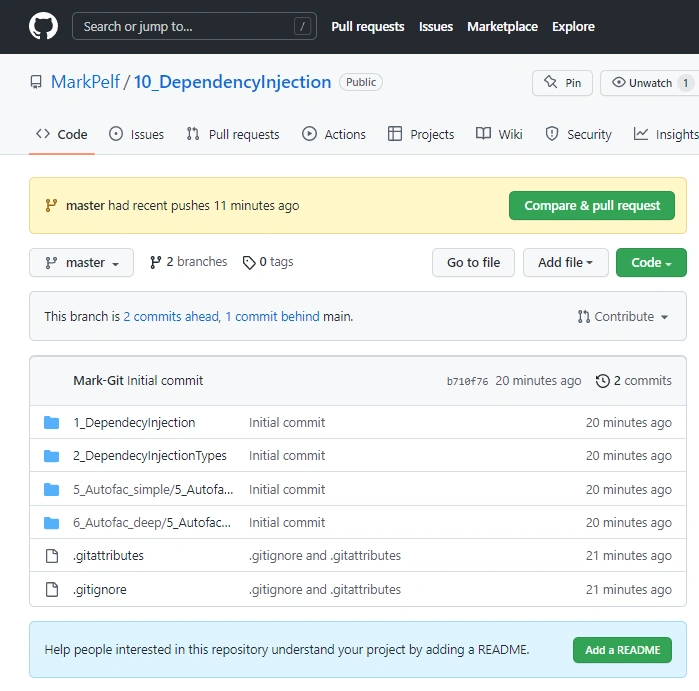
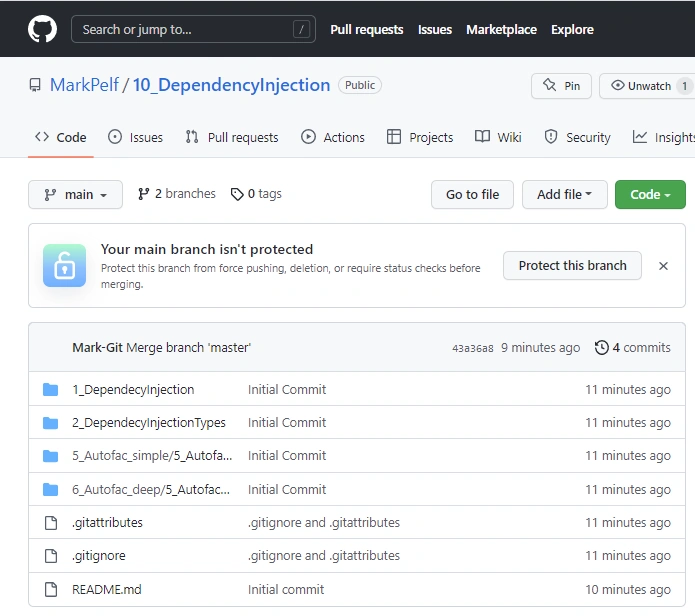
You can browse the repository on the remote side and verify that no binaries or other project files have been checked into the repository. If that has happened, something is wrong with your .gitignore file.
3.5 Merging unmergeable branches
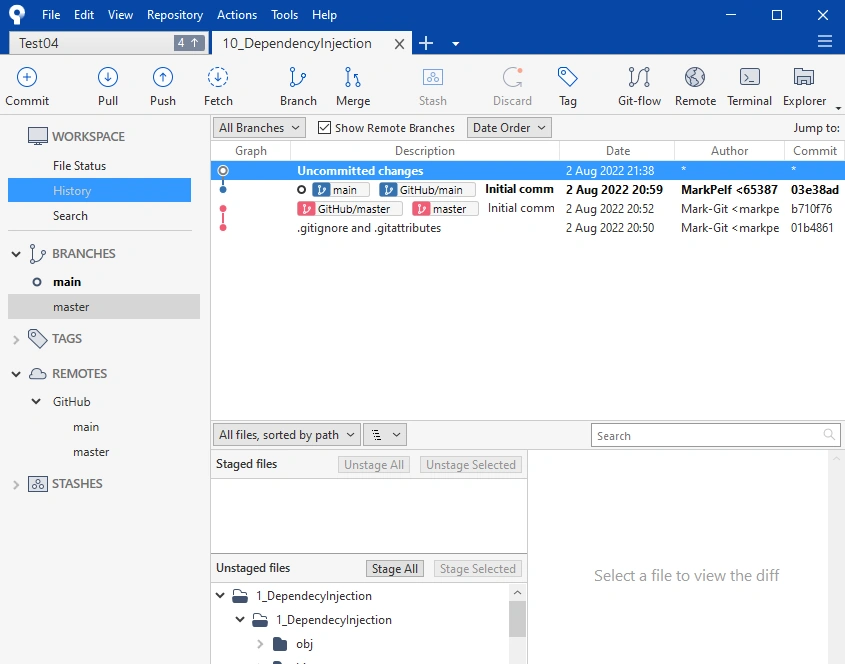
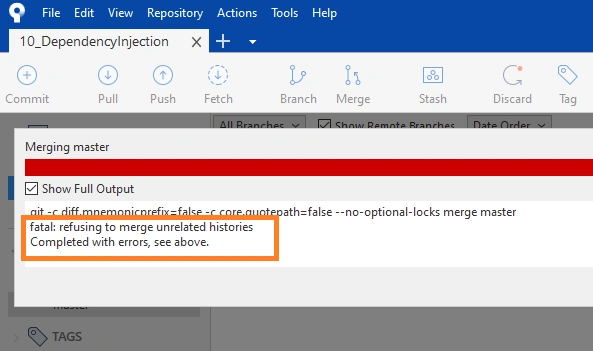
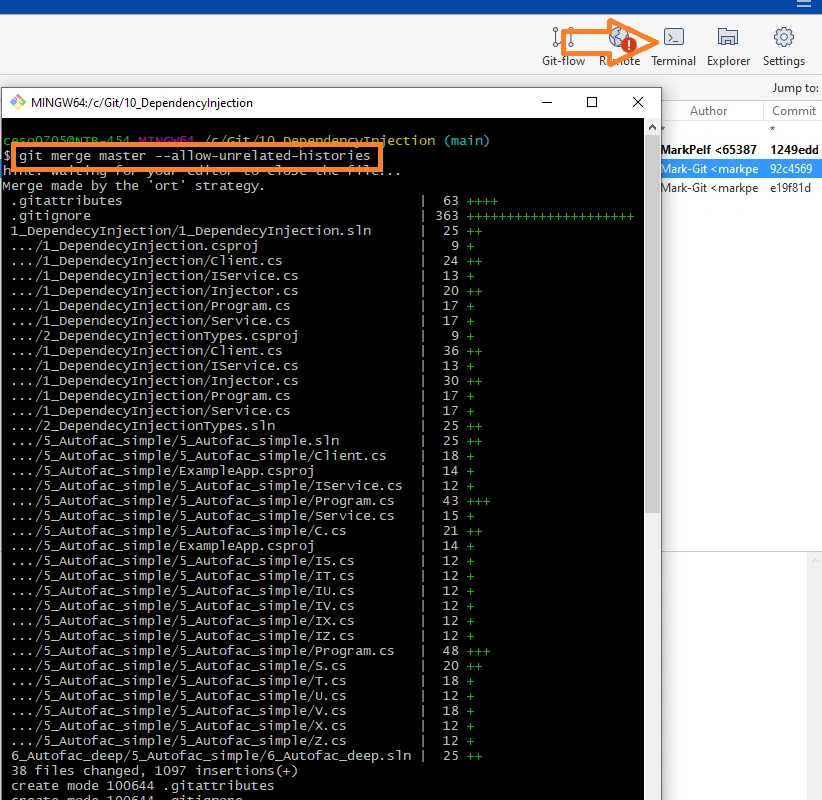
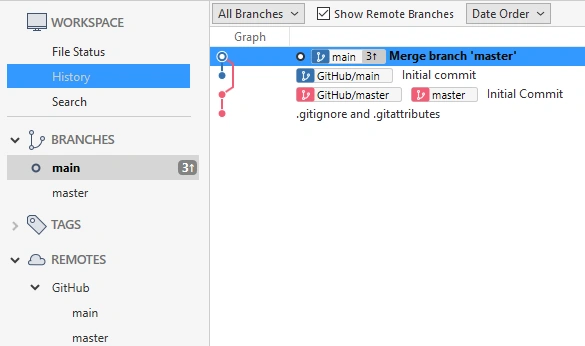
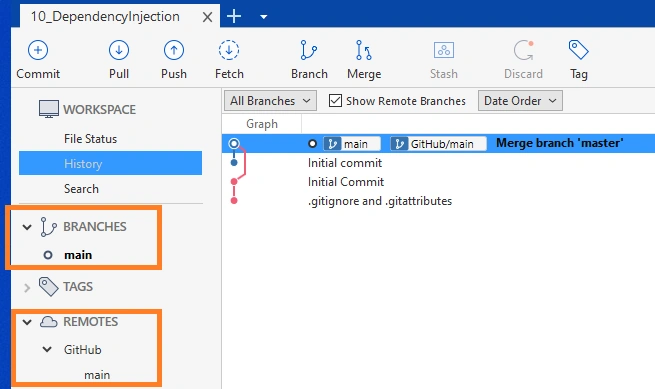
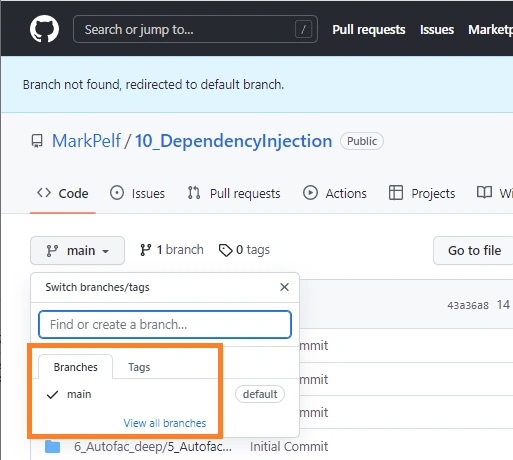
The problem that I had that I am sure will happen again to me and to other people, was that I finished with two branches: main and master. The “main” branch is created by GitHub by default and there is a readme file there. The branch “master” is created by SourceTree by default, and my code (my four VS solutions) is in it.
Ganesh ChikhalikarPosted Aug 16, 2022, 6:51 AM
Thanks for sharing