Introduction
In Silverlight 3 we have normal Button control. For some site or project requirements it needed to be a glassy look. In this article I am going to show you how easy it is to make Glassy Buttons.
Creating a Simple Silverlight Application
Open up Blend 3 and Create a new Silverlight Application.
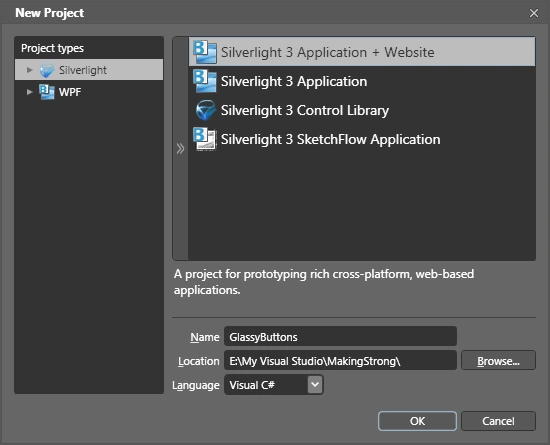
-
Select the Rectangle tool from the Tools Pane and draw a Rectangle of your desired size.
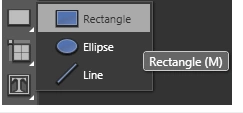
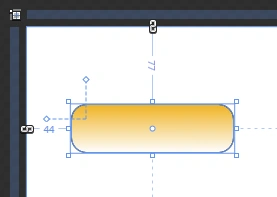
I have just changed the Rectangle's Fill Property as Gradient Fill and Changed the RadiusX and RadiusY properties of Value 15 each. And the StrokeThickness to Value 3.
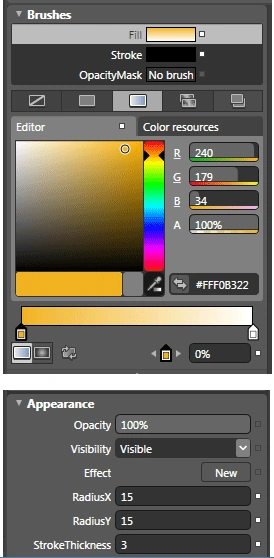
-
Now copy the Rectangle and Paste it over the Rectangle. (We will call the Copied Rectangle as Old Rectangle and the newly pasted as New Rectangle)
-
Transform the New Rectangle to a smaller size.
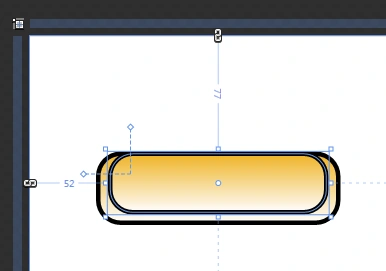
-
Remove the Stroke from the New Rectangle.
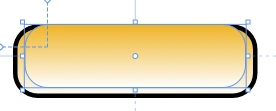
-
Change the Gradient to White on both sides for the New Rectangle.
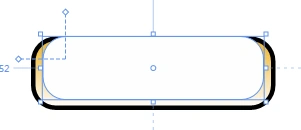
-
On the Right side of the Gradient Brush change the Alpha to Value 0.
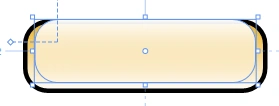
-
Now resize the New Rectangle to fit to the Old Rectangle.
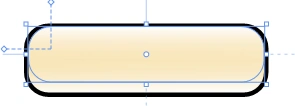
-
Now select both the Rectangles and group it into Grid from the selected Menu.
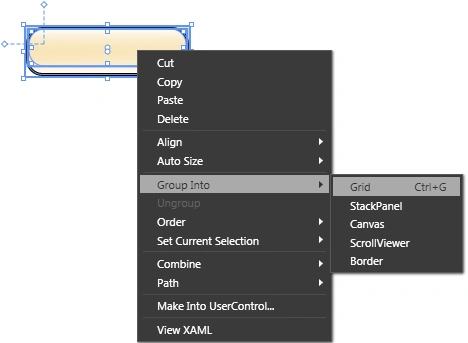
-
Now select the Grid and Right Click on it and select Make it Into Control from the menu Selected.
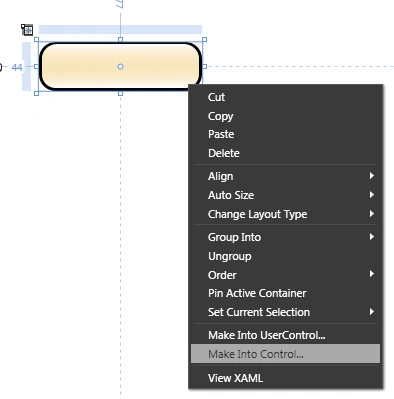
-
Now Choose Button from the Asset Gallery and name it as MyButtonStyle.
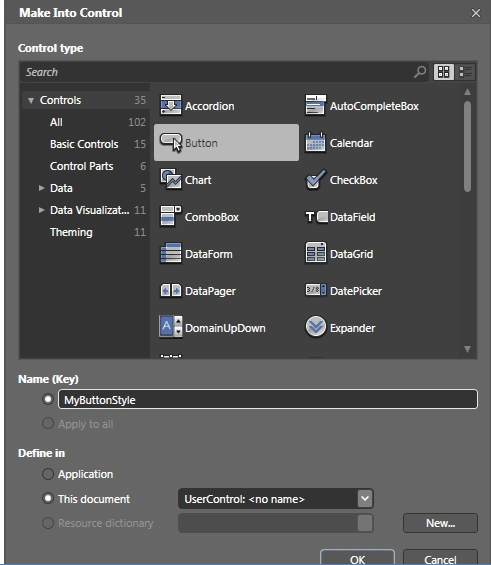
Now you have created the Button, a Content Presenter is added.

Now you can go through my article States Animation In Silverlight 3 to change the states of this Glassy Button.
Enjoy Animating.


Join the conversation! Your thoughts help the community grow.