

We already know what Google Glass is and what it can do, so we can start by a simple program to show one of its features.
This program will show the current time and will start on a voice command. So we will need an immersion type of application and a voice command to start that application.
Let's start with the application.
Requirements
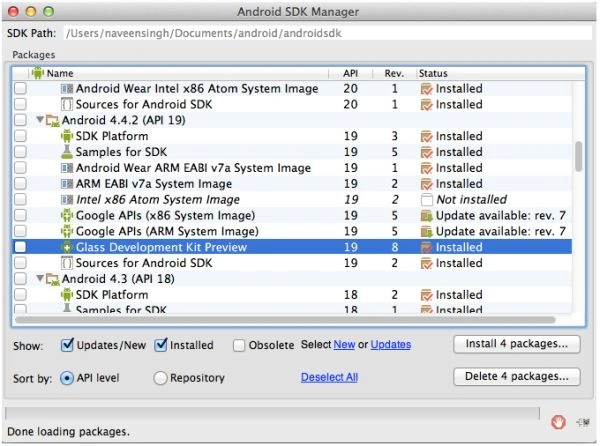
- Download the Android 4.4.2 (API 19) -> Glass Development Kit Preview in the Android SDK Manager.
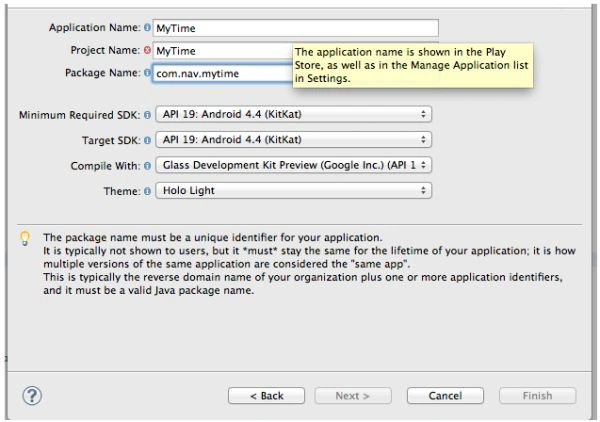
- Create a new project and set its minimum and target SDK to API 19 and set the compile target to Glass Development Kit preview. Now complete the process and you will have a basic structure of a Glass application.
- First of all to start the application we will need a Voice trigger that will show up in the home screen.
Let's make it "show time".
- Create a string in res/values/strings.xml.
- <string name="glass_voice_trigger">show time</string>
- Create a XML file res/xml/voice_show_time.xml.
- Add <trigger keyword="@string/glass_voice_trigger" /> to the voice_show_time.xml.
This is the out voice trigger, in other words when we say "OK Glass" in the home screen then we will get this as an option to open our application.
We need to include this in the menifest file before we can start using it.
- Create a string in res/values/strings.xml.
- Create an activity named TimerActivity.java, we will modify this later. Now open the AndroidManifest.xml file and modify it withthe following.
- <?xml version="1.0" encoding="utf-8"?>
- <manifest xmlns:android="http://schemas.android.com/apk/res/android"
- package="com.nav.mytime"
- android:versionCode="1"
- android:versionName="1.0" >
- <uses-sdk
- android:minSdkVersion="19"
- android:targetSdkVersion="19" />
- <uses-permission android:name="com.google.android.glass.permission.DEVELOPMENT" />
- <application
- android:allowBackup="true"
- android:icon="@drawable/ic_launcher"
- android:label="@string/app_name" >
- <activity
- android:name="com.nav.mytime.TimerActivity"
- android:label="@string/title_activity_timer" >
- <intent-filter>
- <action android:name="com.google.android.glass.action.VOICE_TRIGGER" />
- </intent-filter>
- <meta-data
- android:name="com.google.android.glass.VoiceTrigger"
- android:resource="@xml/voice_show_time"
- />
- </activity>
- </application>
- </manifest>
- ------
- Here we need to include a permission <uses-permission android:name="com.google.android.glass.permission.DEVELOPMENT" /> so that we can have that voice trigger in our application.
- Include the intent filter in our <activity> tag so that the glass knows that our application will open using a voice trigger.
- <intent-filter>
- <action android:name="com.google.android.glass.action.VOICE_TRIGGER" />
- </intent-filter>
- Include the meta data for our voice trigger as in the following:
- <meta-data
- android:name="com.google.android.glass.VoiceTrigger"
- android:resource="@xml/voice_show_time"
- />
- Create activity_timer.xml in the res/layout folder with the following code:
Here we have a simple layout with a TextView here that will show the time we need to show.- <RelativeLayout xmlns:android="http://schemas.android.com/apk/res/android"
- xmlns:tools="http://schemas.android.com/tools"
- android:layout_width="match_parent"
- android:layout_height="match_parent"
- tools:context="${packageName}.${activityClass}" >
- <TextView
- android:id="@+id/timerTextView"
- android:layout_width="wrap_content"
- android:layout_height="wrap_content"
- android:text="@string/hello_world"
- android:layout_centerInParent="true"
- android:textAppearance="?android:attr/textAppearanceLarge"
- />
- </RelativeLayout>
- Now open the TimerActivity.java file and write this code:
- package com.nav.mytime;
- import java.util.Calendar;
- import com.google.android.glass.media.Sounds;
- import com.google.android.glass.touchpad.Gesture;
- import com.google.android.glass.touchpad.GestureDetector;
- import android.app.Activity;
- import android.os.Bundle;
- import android.os.Handler;
- import android.text.format.DateFormat;
- import android.view.Menu;
- import android.view.MotionEvent;
- import android.widget.TextView;
- public class TimerActivity extends Activity {
- private TextView timerTextView;
- private Handler tickerHandler;
- private Runnable tickerRunnable;
- /** Listener that displays the options menu when the touchpad is tapped. */
- private final GestureDetector.BaseListener mBaseListener = new GestureDetector.BaseListener() {
- @Override
- public boolean onGesture(Gesture gesture) {
- if (gesture == Gesture.TAP) {
- openOptionsMenu();
- return true;
- } else {
- return false;
- }
- }
- };
- /** Gesture detector used to present the options menu. */
- private GestureDetector mGestureDetector;
- @Override
- protected void onCreate(Bundle savedInstanceState) {
- super.onCreate(savedInstanceState);
- setContentView(R.layout.activity_timer);
- timerTextView = (TextView)findViewById(R.id.timerTextView);
- mGestureDetector = new GestureDetector(this).setBaseListener(mBaseListener);
- }
- @Override
- public boolean onGenericMotionEvent(MotionEvent event) {
- return mGestureDetector.onMotionEvent(event);
- }
- @Override
- protected void onPause() {
- // TODO Auto-generated method stub
- super.onPause();
- stopClock();
- }
- @Override
- protected void onResume() {
- // TODO Auto-generated method stub
- super.onResume();
- startClock();
- }
- @Override
- public boolean onCreateOptionsMenu(Menu menu) {
- // TODO Auto-generated method stub
- getMenuInflater().inflate(R.menu.timer_options, menu);
- return true;
- }
- /** Handler and Runnable which will run every one second and show the current time on textview*/
- private void startClock()
- {
- tickerHandler=new Handler();
- tickerRunnable = new Runnable()
- {
- public void run()
- {
- updated();
- tickerHandler.postDelayed(tickerRunnable, 1000);
- }
- };
- tickerRunnable.run();
- }
- /**Stop the timer - called when the application is paused*/
- private void stopClock(){
- if (tickerHandler!=null) {
- tickerHandler.removeCallbacks(tickerRunnable);
- }
- }
- /** We get the current time */
- private void updated(){
- timerTextView.setText(DateFormat.format("h:mm:ss aa", Calendar.getInstance().getTimeInMillis()).toString());
- }
- }
Now just connect the glass and run your application as in the following: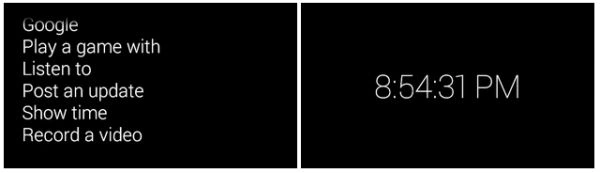
This is what you will get.
SubashPosted Sep 29, 2016, 6:04 AM
Good one
Chintan RathodPosted Dec 30, 2014, 7:16 AM
Nice article.. :)
Ajay PatelPosted Aug 13, 2014, 5:59 AM
very good !
Guest UserPosted Aug 12, 2014, 1:59 AM
thanks!
Naveen SinghPosted Aug 12, 2014, 12:42 AM
As of now Google has not provided any emulator for Google glass so you need Google glass to test your glassware but till then if you want to do something different I will suggest you to make applications for android wear as its emulator is available.
Guest UserPosted Aug 11, 2014, 11:38 PM
good. for this do we need to have Device or we can use any emulator.
Mahesh ChandPosted Aug 11, 2014, 4:12 PM
Nice.