In this article, we will discuss how to integrate Google Maps in Xamarin Forms Projects. The steps are, as follows:
In Visual Studio, create a Xamarin Portable Project. Go to New Project -> Cross-Platform -> Blank App (Xamarin.Form.Portable).
Add NuGet package Xamarin.Forms.Maps for each project. You can do this by right clicking on Solution Explorer and clicking Manage NuGet Package for Solution.
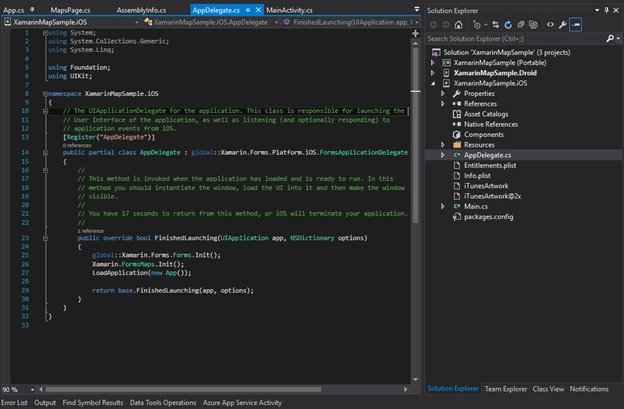
In iOS project, double click the AppDelegate.cs file and Add Xamarin.FormsMaps.Init(); in FinishedLauching Function.
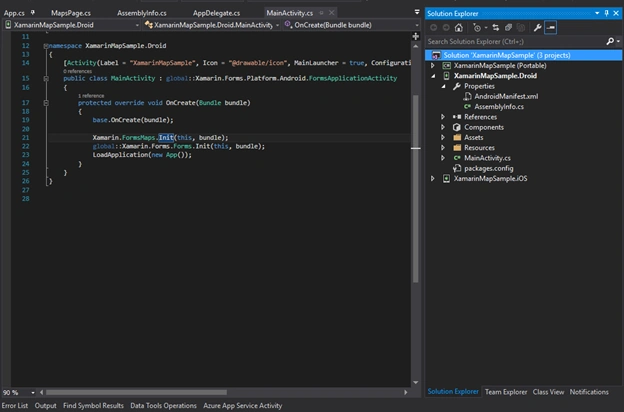
In Android project, double click the MainActivity.cs file and Xamarin.FormsMaps.Init(); in Oncreate Function.
In Windows Runtime Project and Universal Windows Platform(UWP) project, double click the MainPage.xaml.cs and add Xamarin.FormsMaps.Init("INSERT_AUTHENTICATION_TOKEN_HERE");. The Token is discussed in further Points.
In Android project, we need to create an API key. To create the API key, go to C:\Users\Admin\AppData\Local\Xamarin\Mono and then copy debug.keystore file.
Now, go to C:\Program Files\Java\jre1.8.0_73\bin and paste the copied debug.keystore file.
Open Command Prompt – go C:\Program Files\Java\jre1.8.0_73\bin and run the command:
keytool -list -v -keystore debug.keystore -alias androiddebugkey -storepass android -keypass android 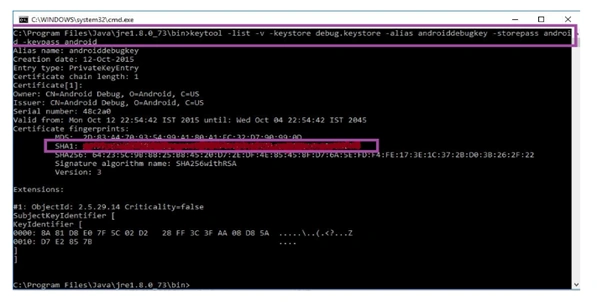
Your SHA1 Key is created. Store the SHA1 key which is further required for creating the API Key.
Now, create project, as shown in the below screen shot, by going to the link as https://console.developers.google.com/ and signing in with your Google account.
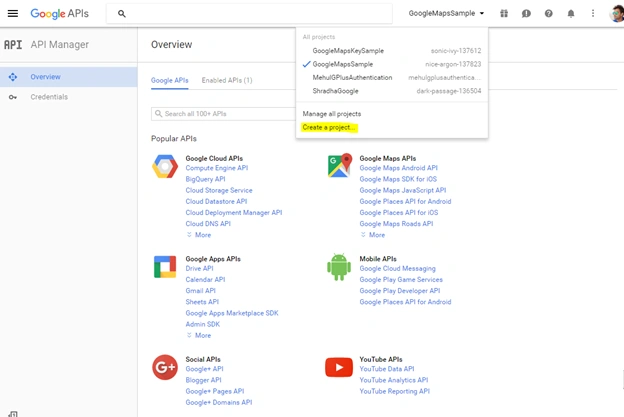
Next, it's showing New Project popup window; here, give your Project Name to create a new project.
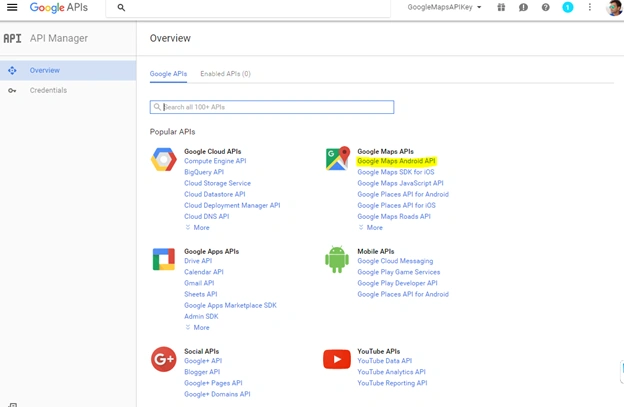
Then, go for Google APIs and select Google Maps Android API.
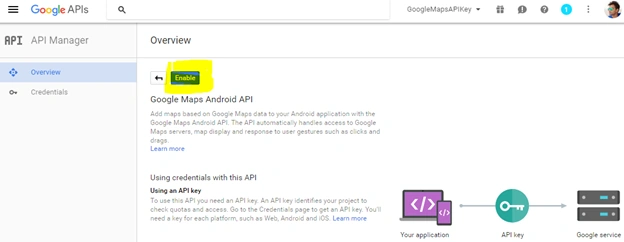
Enable Google Android API.
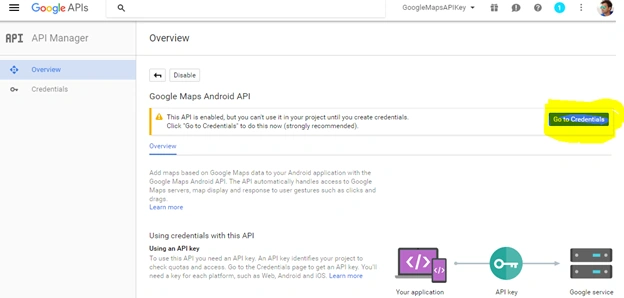
After enabling Google API, go to Google API credentials page.
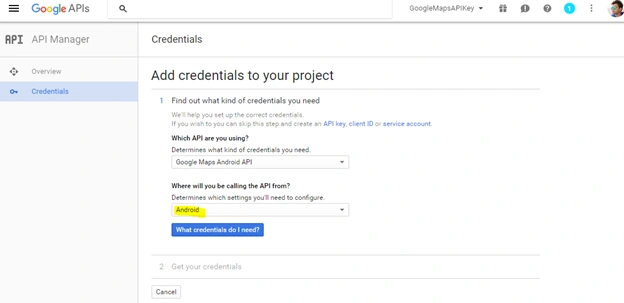
Then, select configure and select the value to Android in the dropdown. Next, click
What credentials do I need? button.
Windows is showing. Create as API Key to give your project a name and click Add Package name and fingerprint button. Then, give package name as google.maps.key. Now, copy and paste the SHA1 Key here.
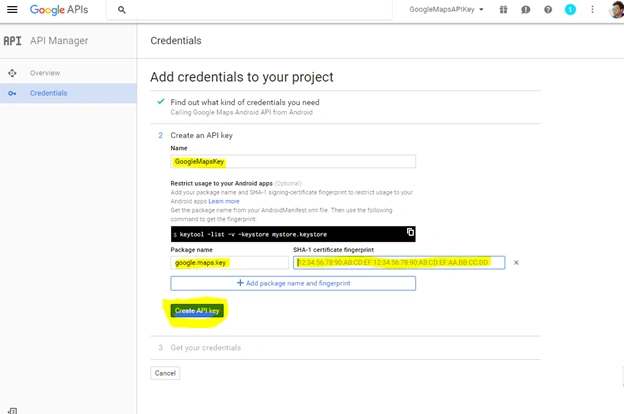
Then, click
Create API Key button. It returns APIs Page. It will be showing API key.
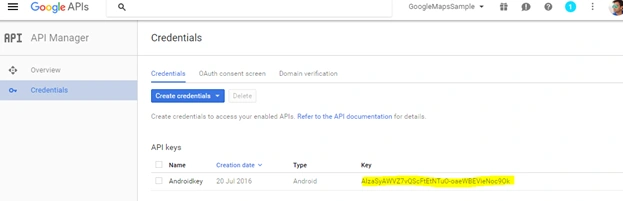
Then, in this API, a key is added to the AndroidManifest.XML file of a Xamarin Android application. Add the following code, and give package name as google.maps.key in manifest file.

Now, You'll also need to enable appropriate permissions by right-clicking on the Android project and selecting Properties -> Android Manifest, as shown in the below screen.
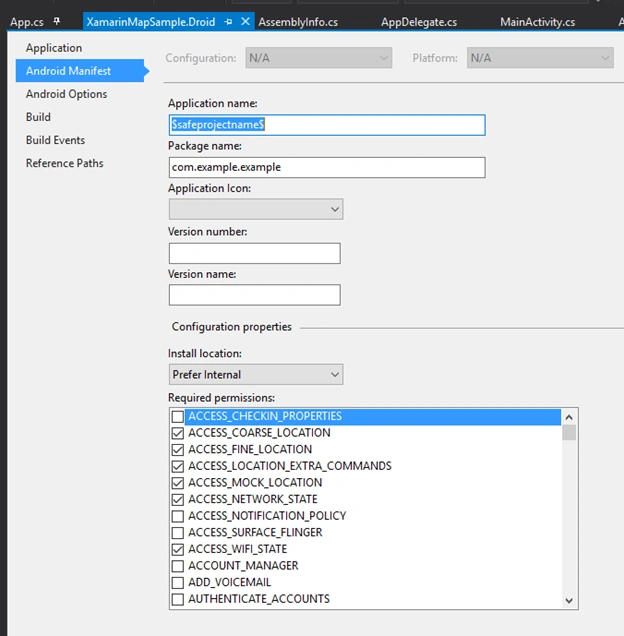
In Portable project, add page as “Mapspage.cs” and write the code, as given below.
- using System;
- using Xamarin.Forms;
- using Xamarin.Forms.Maps;
- using System.Diagnostics;
- namespace XamarinMapSample {
- public class MapPage: ContentPage {
- Map map;
- public MapPage() {
- map = new Map {
- IsShowingUser = true,
- HeightRequest = 100,
- WidthRequest = 960,
- VerticalOptions = LayoutOptions.FillAndExpand
- };
-
- map.MoveToRegion(MapSpan.FromCenterAndRadius(new Position(37, -122), Distance.FromMiles(0.3)));
-
-
-
- var slider = new Slider(1, 18, 1);
- slider.ValueChanged += (sender, e) => {
- var zoomLevel = e.NewValue;
- var latlongdegrees = 360 / (Math.Pow(2, zoomLevel));
- Debug.WriteLine(zoomLevel + " -> " + latlongdegrees);
- if (map.VisibleRegion != null) map.MoveToRegion(new MapSpan(map.VisibleRegion.Center, latlongdegrees, latlongdegrees));
- };
-
- var street = new Button {
- Text = "Street"
- };
- var hybrid = new Button {
- Text = "Hybrid"
- };
- var satellite = new Button {
- Text = "Satellite"
- };
- street.Clicked += HandleClicked;
- hybrid.Clicked += HandleClicked;
- satellite.Clicked += HandleClicked;
- var segments = new StackLayout {
- Spacing = 30,
- HorizontalOptions = LayoutOptions.CenterAndExpand,
- Orientation = StackOrientation.Horizontal,
- Children = {
- street,
- hybrid,
- satellite
- }
- };
-
- var stack = new StackLayout {
- Spacing = 0
- };
- stack.Children.Add(map);
- stack.Children.Add(slider);
- stack.Children.Add(segments);
- Content = stack;
-
- map.PropertyChanged += (sender, e) => {
- Debug.WriteLine(e.PropertyName + " just changed!");
- if (e.PropertyName == "VisibleRegion" && map.VisibleRegion != null) CalculateBoundingCoordinates(map.VisibleRegion);
- };
- }
- void HandleClicked(object sender, EventArgs e) {
- var b = sender as Button;
- switch (b.Text) {
- case "Street":
- map.MapType = MapType.Street;
- break;
- case "Hybrid":
- map.MapType = MapType.Hybrid;
- break;
- case "Satellite":
- map.MapType = MapType.Satellite;
- break;
- }
- }
-
-
-
-
-
- static void CalculateBoundingCoordinates(MapSpan region) {
-
- var center = region.Center;
- var halfheightDegrees = region.LatitudeDegrees / 2;
- var halfwidthDegrees = region.LongitudeDegrees / 2;
- var left = center.Longitude - halfwidthDegrees;
- var right = center.Longitude + halfwidthDegrees;
- var top = center.Latitude + halfheightDegrees;
- var bottom = center.Latitude - halfheightDegrees;
-
- if (left < -180) left = 180 + (180 + left);
- if (right > 180) right = (right - 180) - 180;
-
- Debug.WriteLine("Bounding box:");
- Debug.WriteLine(" " + top);
- Debug.WriteLine(" " + left + " " + right);
- Debug.WriteLine(" " + bottom);
- }
- }
- }
In App.cs file, change the code, as shown in the screenshot.
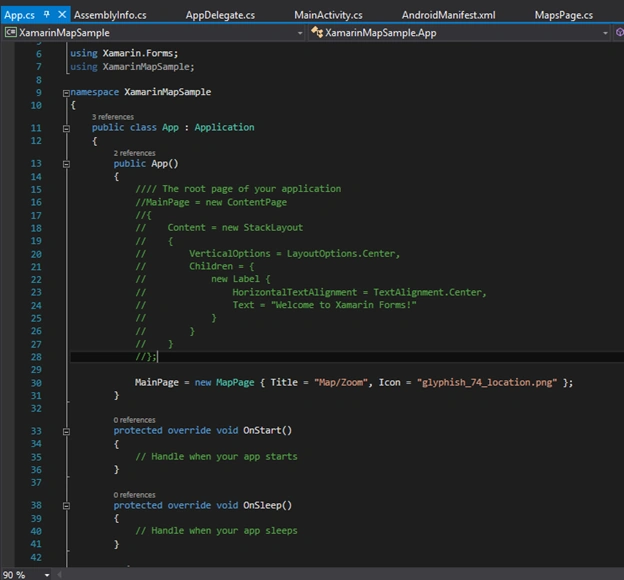
You can run the Android & iOS Project to check the output.


nhat viet trinhPosted Oct 4, 2018, 11:05 AM
How to create the API key 2018?
Aishwarya ShettyPosted Sep 27, 2018, 12:00 AM
How to create the API key on Mac? you have only described for Android....
PrAdeep TrivediPosted Sep 21, 2017, 2:20 AM
How to use in shared project cross plateform
Vignesh ManiPosted Jul 28, 2016, 6:39 AM
Nice
Asfend YarPosted Jul 28, 2016, 6:09 AM
Where's the snapshots of this work done
Humayun Kabir MamunPosted Jul 28, 2016, 3:52 AM
Nice...
Prasanna MuraliPosted Jul 27, 2016, 9:38 PM
Nice share