

If you want to extend your ABP. IO application with a custom module, like Vineforce.Test—this guide is for you. Whether you’re building a new feature or organizing your code into reusable parts, creating a custom module helps keep your application clean, scalable, and maintainable.
In this guide, we’ll walk through the full integration process step by step, covering both the backend and the Angular frontend. You’ll learn how to properly register the module, configure dependencies, and connect the UI layer to your logic. By the end, you’ll have a working module that’s fully integrated into your ABP.IO solution, following best practices.
No guesswork, no skipping steps, just a clear path to getting your custom module up and running.
Prerequisites
Step 1. Install ABP CLI.
If not already installed, run the following command.
dotnet tool install -g Volo.Abp.Cli
Step 2. Create the main Apb.io application with the name “Vineforce.Admin”
abp new Vineforce.Admin -t app -u angular -m none --separate-auth-server --database-provider ef -csf
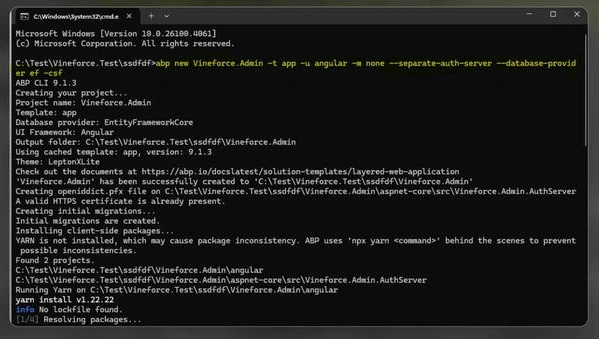
It creates the structure of the backend of the main ABP application as follows.
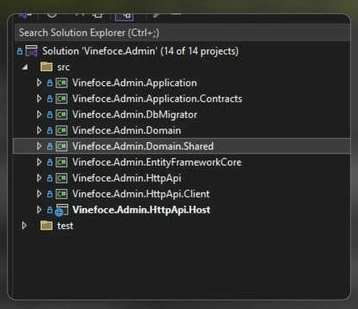
Step 3. Configure appsettings.json of the main ABP.IO
Edit the appsettings.json files in the two projects below to include the correct connection strings.
Projects
- Vineforce.Admin.HttpApi.Host
- Vineforce.Admin.DbMigrator
Step 4. Create the Module folder in the main application as Follow the official guide to create your module.
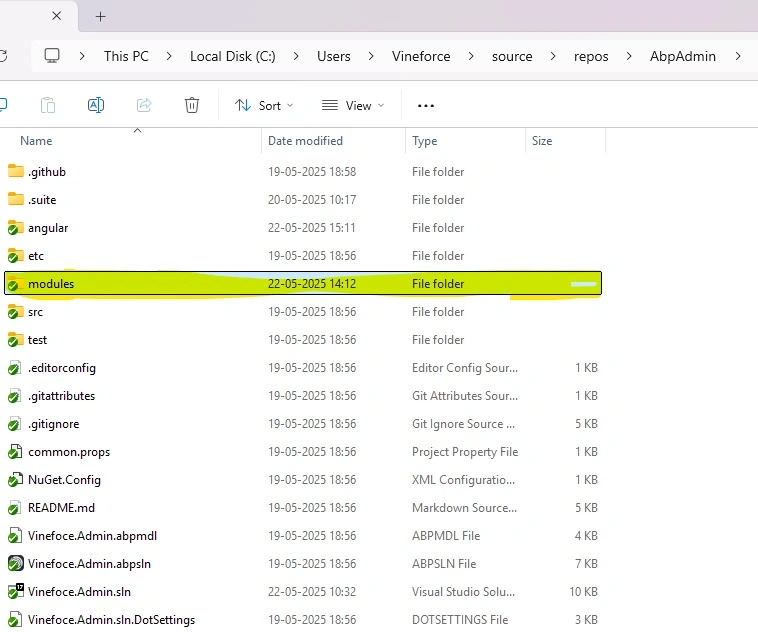
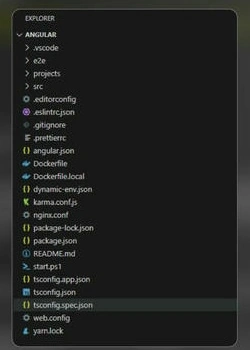
If you choose Angular as the UI framework (by using the -u angular option), the generated solution will include a folder named angular. This folder contains all the client-side code for the application.
Example: A module named Vineforce.Test was created using the Angular UI option.
Step 1. When you open the Angular folder in an IDE, the folder structure will appear as follows.
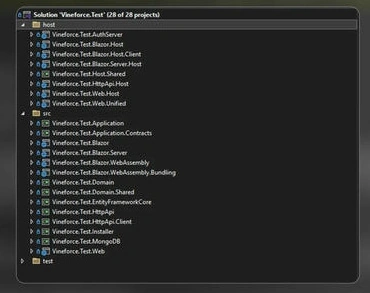
Step 2. And the backend structure is as follows.
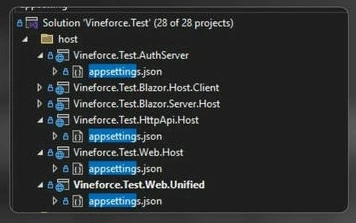
Step 3. Configure appsettings.json.
Edit the appsettings.json file in the Host projects to include the correct connection strings.
Projects
- Vineforce.Test.AuthServer
- Vineforce.Test.HttpApi.Host
- Vineforce.Test.Web.Unified
"ConnectionStrings": { "Default": "Server=servername;Database=Test_Main;Trusted_Connection=True;TrustServerCertificate=True", "Test": "Server=VINEFORCE-SHIVA;Database=Test_Module;Trusted_Connection=True;TrustServerCertificate=True" }
Make sure the server names and database details match your development environment.
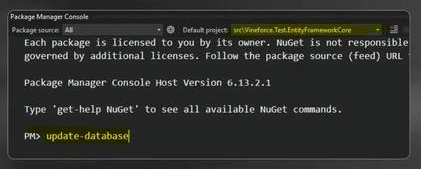
Step 4. Apply Database Update.
In the Package Manager Console (under the EntityFrameworkCore project), run.
Update-Database
Step 5. Run the Application.
Set Vineforce.Test.Web.Unified as the startup project and launch the application using the default credentials.
- Username: admin
- Password: 1q2w3E*
Step 6. Ensure Redis Is Running.
Redis is used for distributed caching. Make sure Redis is installed and running before starting the application.
Step 7. Application Startup Order.
Run the following projects in order
*.AuthServer or *.IdentityServer
*.HttpApi.Host
*.Web.Unified
Step 8. Adding a Module to the Backend of the Main Application.
cd C:\Users\Vineforce\source\repos\AbpAdmin
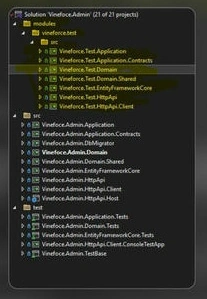
Step 9. Add All Required Projects of the module to the Main ABP.IO Solution.

To include various parts of your module (such as Domain, Application, EntityFrameworkCore, and HttpApi) in the main ABP solution, run the following commands.
dotnet sln add modules\vineforce.test\src\Vineforce.Test.Domain\Vineforce.Test.Domain.csproj
dotnet sln add modules\vineforce.test\src\Vineforce.Test.Application\Vineforce.Test.Application.csproj
dotnet sln add modules\vineforce.test\src\Vineforce.Test.EntityFrameworkCore\Vineforce.Test.EntityFrameworkCore.csproj
dotnet sln add modules\vineforce.test\src\Vineforce.Test.HttpApi\Vineforce.Test.HttpApi.csproj
Projects are added as follows.
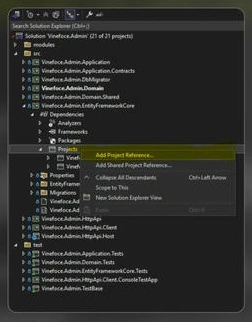
Add Project References Using Visual Studio
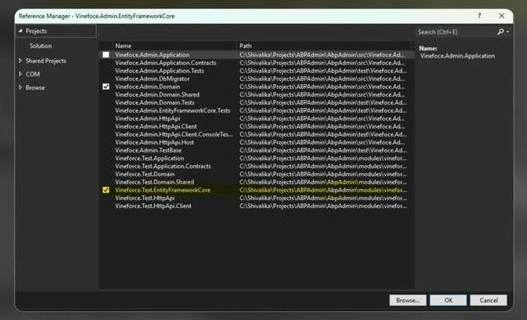
In the Vineforce.Admin.HttpApi.Host project: Right-click the project and select “Add” → “Project Reference”.
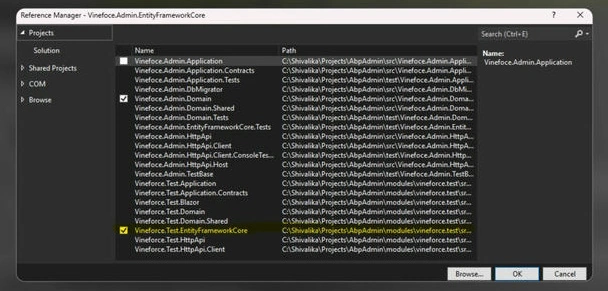
Step 1. In the dialog that appears, check the following projects.
- Vineforce.Test.Application
- Vineforce.Test.EntityFrameworkCore
- Vineforce.Test.HttpApi
Step 2. Click OK to confirm and add the references.
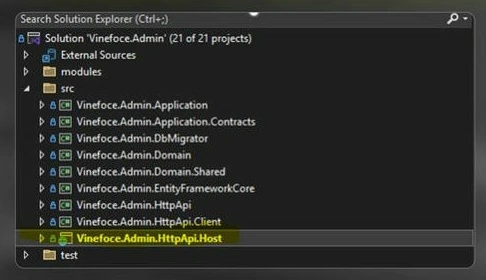
Step 3. After adding the project > reference, here you can add all module references you want.
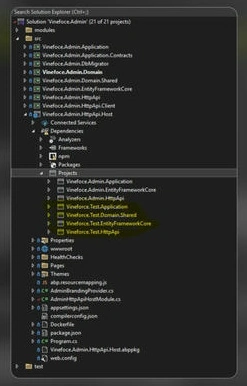
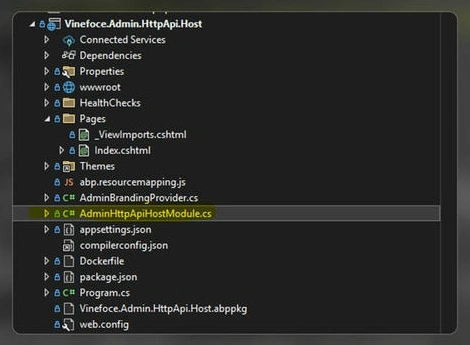
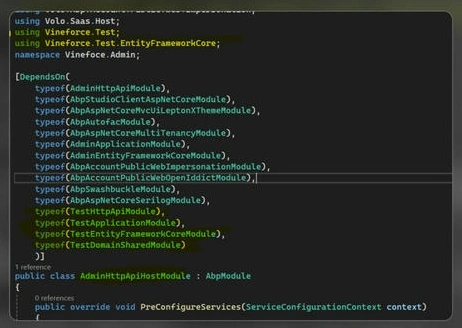
Register Module Dependencies in AdminHttpApiHostModule.cs.
In AdminHttpApiHostModule.cs, update the [DependsOn(...)] attribute:.
typeof(TestHttpApiModule),
typeof(TestApplicationModule),
typeof(TestEntityFrameworkCoreModule),
typeof(TestDomainSharedModule)
Also, add the necessary using statements.








Join the conversation! Your thoughts help the community grow.