

Introduction
The Arduino Web Editor allows you to write the code and upload sketches to any Arduino and Genuino board from your Web Browser (Chrome, Firefox, Safari, and Edge) after installing a plugin. It works with any official Arduino & Genuino board.
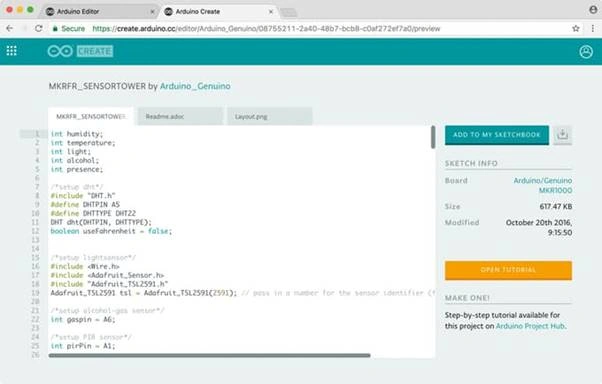
This IDE (Integrated Development Environment) is a part of Arduino Create, which is an online platform that enables the makers to write the code, access tutorials, configure boards, and share the projects. Designed to provide users with a continuous Workflow, Arduino Create connects the dots between each part of a maker’s journey from inspiration to implementation, which means, you now have an ability to manage every aspect of your project right from a single dashboard.
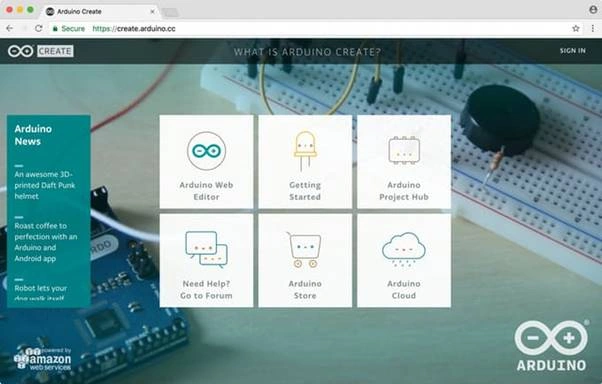 Arduino Web Editor is hosted online. Therefore, it will always be up-to-date with the latest features and support for new boards.
This IDE lets you write the code and save it to Cloud, always backing it up and making it accessible from any device. It automatically recognizes any Arduino and Genuino board connected to your PC and configures itself accordingly.
An Arduino account is all you need to get started.
Sign up to Arduino
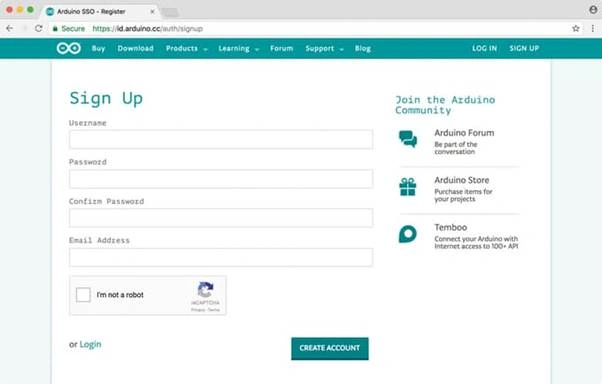
Go to arduino.cc and click the ‘Sign Up’ link in the upper right corner of the page. Complete the registration form, hit the ‘Create Account’ button. You will receive an e-mail with a link to activate your account. Select the link and a new page will open with your confirmed account information.
Note, you can also use this account to write the posts on Arduino’s official Forum, buy products on the online stores, add comments on the blog, as well as create tutorials on the Arduino Project Hub (YAY!).
Arduino Web Editor is hosted online. Therefore, it will always be up-to-date with the latest features and support for new boards.
This IDE lets you write the code and save it to Cloud, always backing it up and making it accessible from any device. It automatically recognizes any Arduino and Genuino board connected to your PC and configures itself accordingly.
An Arduino account is all you need to get started.
Sign up to Arduino
Go to arduino.cc and click the ‘Sign Up’ link in the upper right corner of the page. Complete the registration form, hit the ‘Create Account’ button. You will receive an e-mail with a link to activate your account. Select the link and a new page will open with your confirmed account information.
Note, you can also use this account to write the posts on Arduino’s official Forum, buy products on the online stores, add comments on the blog, as well as create tutorials on the Arduino Project Hub (YAY!).
 Log in to Arduino Web Editor
Once you have successfully registered Farduino, create an Arduino account, go to create.arduino.cc/editor. After accepting the term and conditions, you will receive an e-mail with a link to the forum, where you can report any bugs, which you may encounter and share your feedback.
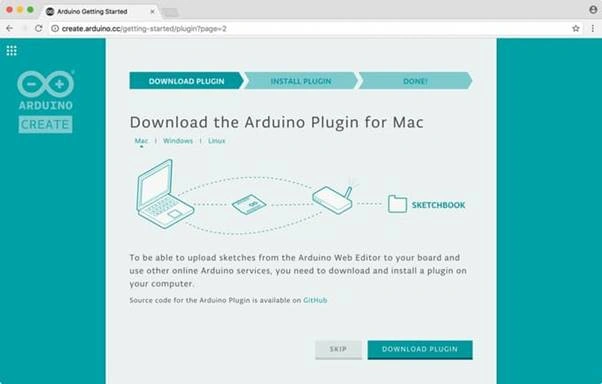
Follow a simple flow to install the Arduino Web Editor plugin, which permits you to upload the sketches from the Browser onto your boards. At the end of the plugin installation flow, you will be redirected to the Arduino login page— it’s time to use your credentials.
Log in to Arduino Web Editor
Once you have successfully registered Farduino, create an Arduino account, go to create.arduino.cc/editor. After accepting the term and conditions, you will receive an e-mail with a link to the forum, where you can report any bugs, which you may encounter and share your feedback.
Follow a simple flow to install the Arduino Web Editor plugin, which permits you to upload the sketches from the Browser onto your boards. At the end of the plugin installation flow, you will be redirected to the Arduino login page— it’s time to use your credentials.
 Arduino Web Editor anatomy
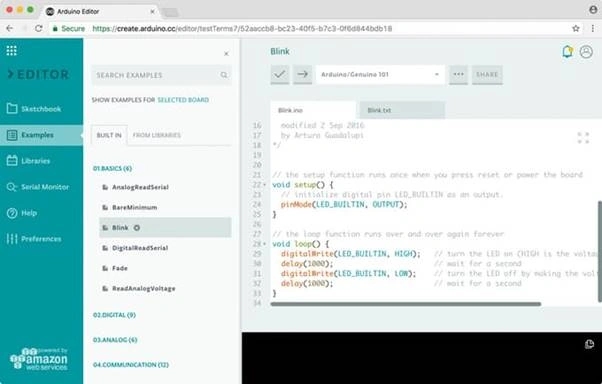
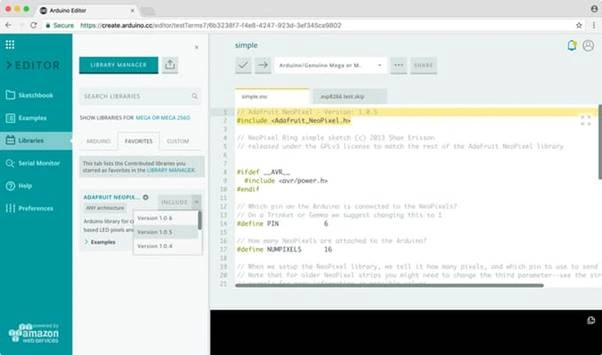
After logging in, you are ready to start using the Arduino Web Editor. The Web app is divided into three main columns.
Arduino Web Editor anatomy
After logging in, you are ready to start using the Arduino Web Editor. The Web app is divided into three main columns.
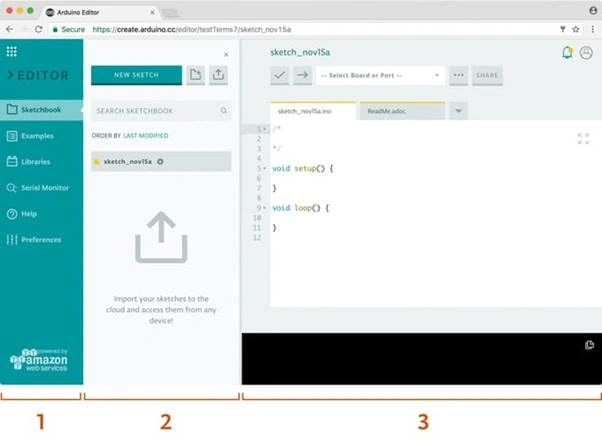 The first column lets you navigate between
- Your Sketchbook: a collection of all your sketches (’sketch’ is what the programs you upload on your board are called).
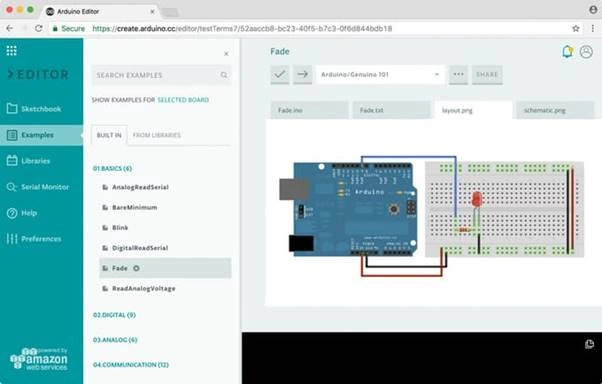
- Examples: Read-only sketches that demonstrate all the basic Arduino commands (built-in tab) and the behavior of your libraries (from the libraries tab).
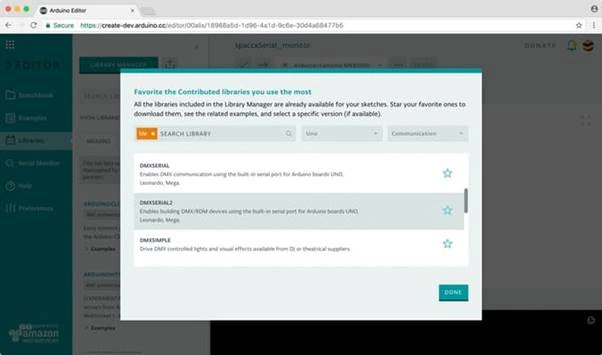
- Libraries- It comprises of the packages that can be included in your sketch to provide extra functionalities.
- Serial monitor- a feature that enables you to receive and send the data to your board via USB cable.
- Help: It provides helpful links and a glossary about Arduino terms.
- Preferences: Options to customize the look and behavior of your editors, such as text size and color theme
When selected, every menu item shows its options in a side panel (second column).
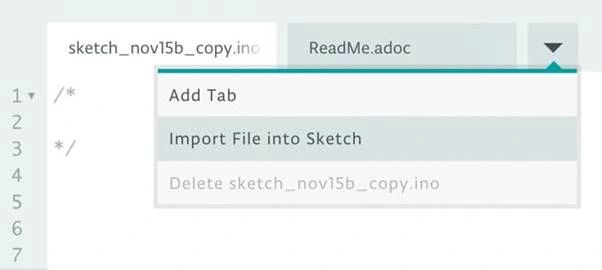
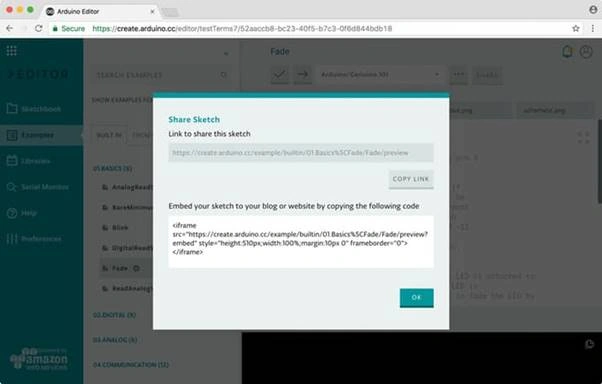
In the third column, the code area is the one you will use the most. Here, you can write the code, verify it and upload it to your boards, save your sketches on the Cloud and share them with anyone you want.
Make your board blink from the browser
So far, you’ve set up your online IDE. Let’s make sure your computer can talk to the board; it’s time to make sure that you can upload a program.
Join the conversation! Your thoughts help the community grow.