

HierarchialDataTemplate is a special subclass of DataTemplate that exists for working with hierarchical data, such as XML or a file system. It not only enables you to change the presentation of such data, but enables you to directly bind a hierarchy of objects to an element that intrinsically understands hierarchies, such as a TreeView or Menu control.
Hierarchical binding is able to display a sequence of items and each item may have child items. HierachialDataTemplate works just like a normal data template, but with one additional feature. It has an ItemsSource property that selects the children for the item the template represtents.
Syntax:
- <TreeView>
- <TreeView.ItemTemplate>
- <HierarchicalDataTemplate ItemsSource="{Binding Path=Children}">
- <TextBlock Text="{Binding Path=Property}"/>
- </HierarchicalDataTemplate>
- </TreeView.ItemTemplate>
- </TreeView>
Here is an example with TreeView:
- <Grid.Resources>
- <XmlDataProvider x:Key="xmldata" XPath="/hierarchialData/item">
- <x:XData>
- <hierarchialData
- xmlns="">
- <item title ="Parent1">
- <item title="Child1">
- <item title="Child2">
- <item title="Child3">
- <item title="Child4">
- <item title="Child5">
- <item title="Child6"></item>
- </item>
- </item>
- </item>
- <item title="Child2-2"></item>
- </item>
- </item>
- <item title="Parent2">
- <item title="Child1"></item>
- </item>
- <item title="Parent3"/></item>
- </hierarchialData>
- </x:XData>
- </XmlDataProvider>
- </Grid.Resources>
I have added XmlDataProvider inside the Grid.Resource. This item is the item source of my tree view. Inside XData I have created a hierarchial data.
You can see the TreeView in the following XAML code:
- <TreeView DataContext="{StaticResource xmldata}" ItemsSource="{Binding}">
- <TreeView.ItemTemplate>
- <HierarchicalDataTemplate ItemsSource="{Binding XPath=item}">
- <TextBlock Text="{Binding XPath=@title}"/>
- </HierarchicalDataTemplate>
- </TreeView.ItemTemplate>
- </TreeView>
Here I have given the DataContex as xmldata and the item is the ItemsSource of the HierarchialDataTemplate. I have one TexBlock control insided HierchialDataTemplate that will show the title of each element in a hierarchical manner. Let me run this program.
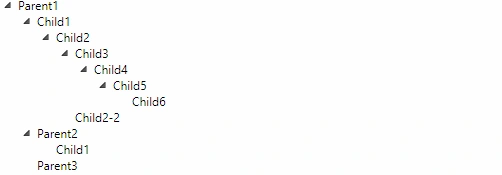
You can see the hierarchial TreeView in the preceding picture.
Let me try the HierarchialDataTemplate in a menu.
- xmlns:d="http://schemas.microsoft.com/expression/blend/2008"
- mc:Ignorable="d"
- d:DesignHeight="300" d:DesignWidth="300">
- <Grid>
- <Grid.Resources>
- <XmlDataProvider x:Key="xmldata" XPath="/hierarchialData/item">
- <x:XData>
- <hierarchialData
- xmlns="">
- <item title ="Main Menu">
- <item title="Menu1">
- <item title="SubMenu1">
- <item title="SubMenu2"></item>
- <item title="SubMenu1-2"></item>
- </item>
- </item>
- <item title="Menu 2">
- <item title="SubMenu 1"></item>
- </item>
- <item title="Menu 3"/></item>
- </hierarchialData>
- </x:XData>
- </XmlDataProvider>
- </Grid.Resources>
- <Menu DataContext="{StaticResource xmldata}" ItemsSource="{Binding}">
- <Menu.ItemTemplate>
- <HierarchicalDataTemplate ItemsSource="{Binding XPath=item}">
- <TextBlock Text="{Binding XPath=@title}"/>
- </HierarchicalDataTemplate>
- </Menu.ItemTemplate>
- </Menu>
- </Grid>
- </UserControl>
Menu hierarchical binding is nearly similar to a TreeView Binding. In the following picture you can see that here.
Conclusion
In this article you learned about hierarchical binding using HierarchialDataTemplate. You got a brief idea of the TreeView and Menu control in WPF. I hope you like this article. Thanks for reading.
Tom MohanPosted Mar 26, 2015, 9:36 PM
Thanks Vithal Wadje
Vithal WadjePosted Mar 26, 2015, 2:21 PM
nice one