

This article shows how to programmatically add a list item to a SharePoint List using a Visual Web Part.
Design
- <%@ Assembly Name="$SharePoint.Project.AssemblyFullName$" %><%@ Assembly Name="Microsoft.Web.CommandUI, Version=15.0.0.0, Culture=neutral, PublicKeyToken=71e9bce111e9429c" %><%@ Register TagPrefix="SharePoint" Namespace="Microsoft.SharePoint.WebControls" Assembly="Microsoft.SharePoint, Version=15.0.0.0, Culture=neutral, PublicKeyToken=71e9bce111e9429c" %><%@ Register TagPrefix="Utilities" Namespace="Microsoft.SharePoint.Utilities" Assembly="Microsoft.SharePoint, Version=15.0.0.0, Culture=neutral, PublicKeyToken=71e9bce111e9429c" %><%@ Register TagPrefix="asp" Namespace="System.Web.UI" Assembly="System.Web.Extensions, Version=4.0.0.0, Culture=neutral, PublicKeyToken=31bf3856ad364e35" %><%@ Import Namespace="Microsoft.SharePoint" %><%@ Register TagPrefix="WebPartPages" Namespace="Microsoft.SharePoint.WebPartPages" Assembly="Microsoft.SharePoint, Version=15.0.0.0, Culture=neutral, PublicKeyToken=71e9bce111e9429c" %><%@ Control Language="C#" AutoEventWireup="true" CodeBehind="MyFirstWebPartUserControl.ascx.cs" Inherits="MyFirstWebPartSolution.MyFirstWebPart.MyFirstWebPartUserControl" %>
- <div>
- <asp:Label ID="lblEmployeeId" runat="server" Text="Employee ID" Width="100px" Height="50px"></asp:Label>
- <asp:TextBox ID="txtEmployeeId" runat="server" Width="150px"></asp:TextBox>
- <br />
- <asp:Label ID="lblState" runat="server" Text="State" Width="100px" Height="50px"></asp:Label>
- <asp:TextBox ID="txtState" runat="server" Width="150px"></asp:TextBox>
- <br />
- <asp:Label ID="lblCity" runat="server" Text="City" Width="100px" Height="50px"></asp:Label>
- <asp:TextBox ID="txtCity" runat="server" Width="150px"></asp:TextBox>
- <br />
- <asp:Label ID="lblFirstName" runat="server" Text="First Name" Width="100px" Height="50px"></asp:Label>
- <asp:TextBox ID="txtFirstName" runat="server" Width="150px"></asp:TextBox>
- <br />
- <asp:Label ID="lblLastName" runat="server" Text="Last Name" Width="100px" Height="50px"></asp:Label>
- <asp:TextBox ID="txtLastName" runat="server" Width="150px"></asp:TextBox>
- </div>
- <asp:Button ID="btnSave" runat="server" Text="Save" OnClick="btnSave_Click" />
- <asp:Button ID="btnCancel" runat="server" Text="Cancel" OnClick="btnCancel_Click" />
Create a Web Part using Visual Studio 2013.

Figure 1: Visual Studio
Step 2
Open the ascx (MyFirstWebPartUserControl.ascx) and design your UI. Here I have created Employee details information.

Figure 2: User Control
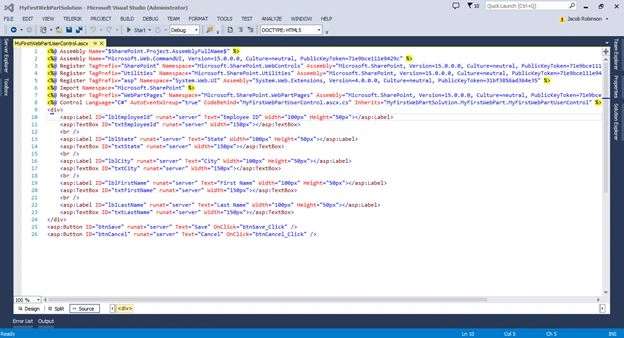
Figure 3: User Control2
Step 3
Open the C# file (MyFirstWebPartUserControl.ascx.cs) and write your functionality. Once entering the Employee information, click the Save button; the employee details information is then added to the SharePoint list.
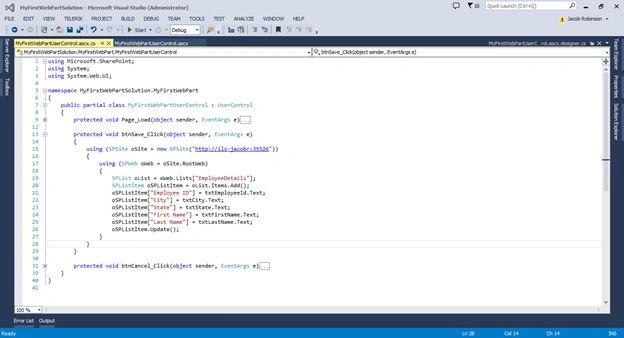
Figure 4: .CS
Step 4
Build and deploy your solution.
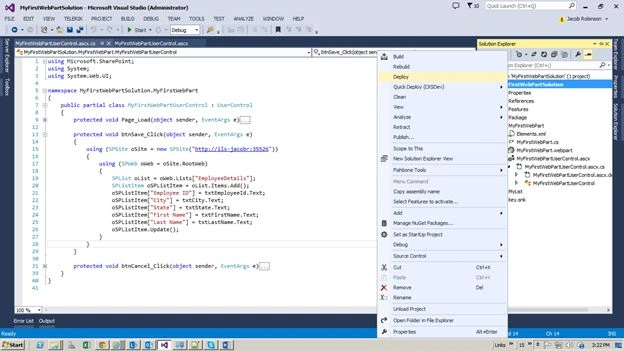
Figure 5: Build
Step 5
Go to your SharePoint site and create one page under site pages. Add your web part to that page.
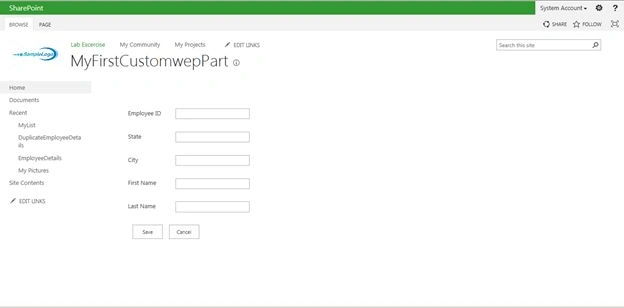
Figure 6: Web Part
Step 6
Enter the Employee details and click the Save button.
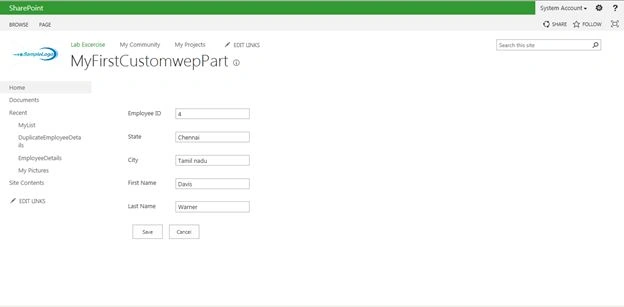
Figure 7: Enter employee detail
Step 7
Display the items.
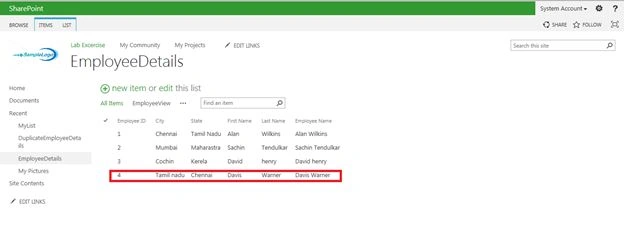
Figure 8: Item will display
Code
- using Microsoft.SharePoint;
- using System;
- using System.Web.UI;
- namespace MyFirstWebPartSolution.MyFirstWebPart
- {
- public partial class MyFirstWebPartUserControl: UserControl
- {
- protected void Page_Load(object sender, EventArgs e) {}
- protected void btnSave_Click(object sender, EventArgs e)
- {
- using(SPSite oSite = new SPSite("http://ils-jacobr:35526")) {
- using(SPWeb oWeb = oSite.RootWeb)
- {
- SPList oList = oWeb.Lists["EmployeeDetails"];
- SPListItem oSPListItem = oList.Items.Add();
- oSPListItem["Employee ID"] = txtEmployeeId.Text;
- oSPListItem["City"] = txtCity.Text;
- oSPListItem["State"] = txtState.Text;
- oSPListItem["First Name"] = txtFirstName.Text;
- oSPListItem["Last Name"] = txtLastName.Text;
- oSPListItem.Update();
- }
- }
- }
- protected void btnCancel_Click(object sender, EventArgs e)
- {
- txtEmployeeId.Text = string.Empty;
- txtCity.Text = string.Empty;
- txtState.Text = string.Empty;
- txtFirstName.Text = string.Empty;
- txtLastName.Text = string.Empty;
- }
- }
- }
In this article we have explored how to programmatically add a list item to a SharePoint List using a Visual Web Part.
Nvd StarkPosted Jul 10, 2018, 1:58 PM
How to edit , update and delete using same process ??
Sibeesh VenuPosted Jul 11, 2015, 8:24 AM
Nice share.
Narasimha Reddy ChennupalliPosted Jul 11, 2015, 4:48 AM
Thanks for sharing..
Santhakumar MunuswamyPosted Jul 11, 2015, 2:54 AM
Nice article! Thanks for sharing
Neeraj KumarPosted Jul 10, 2015, 12:40 PM
Nice
Nilesh JadavPosted Jul 10, 2015, 8:33 AM
Nice one sir