

Introduction
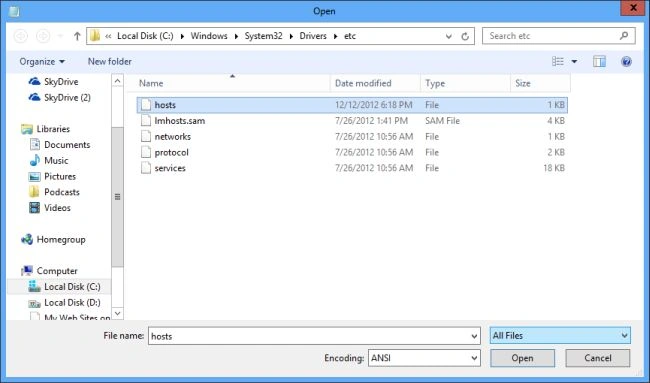
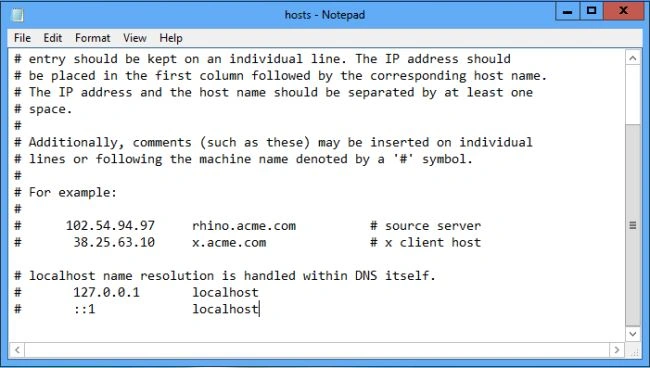
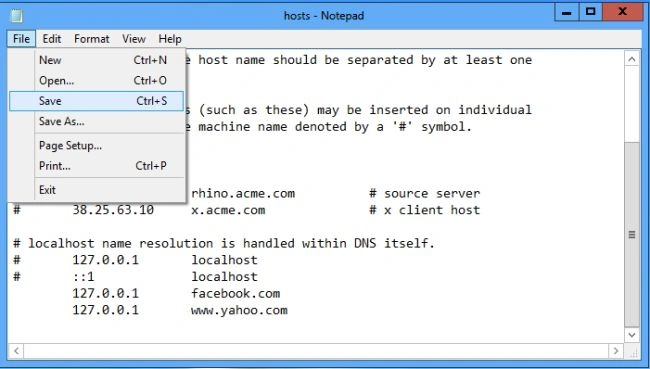
In this article, we are explaining how to block any website in Windows 8. There may be times when it is necessary to block a website for privacy, due to any website content or simply to avoid websites that use a large amount of bandwidth. In the previous version of windows when you want to block a website then we can simply modify the HOSTS file. But in Windows 8 you can't modify the HOSTS file directly. Windows 8 takes a new approach to the host file by default. It won't allow us to block a website by modifying the HOSTS file.
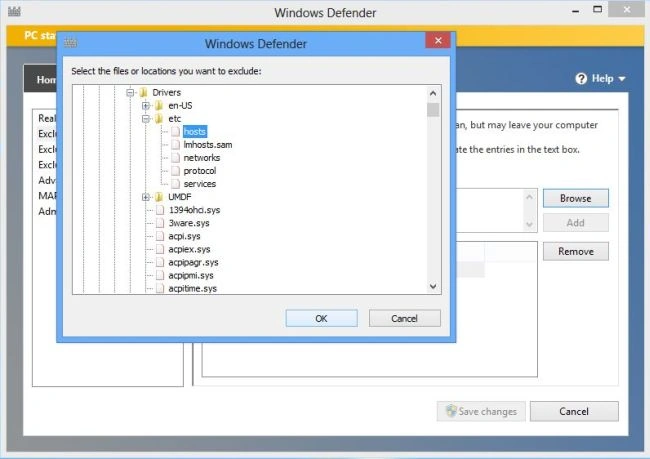
In Windows 8 one of many changes Microsoft has provided is a native anti-virus program called Windows Defender. One of the things this security program does is protect the HOSTS file from modification. For most users this protection by Windows Defender is a good thing; it prevents malware from hijacking your HOSTS file without your knowledge. For users that want to modify the HOSTS file, however, this is a roadblock in blocking websites with the HOSTS file. If you want to modify the host file to block a website you first have to exclude the HOSTS file from Windows Defender security.
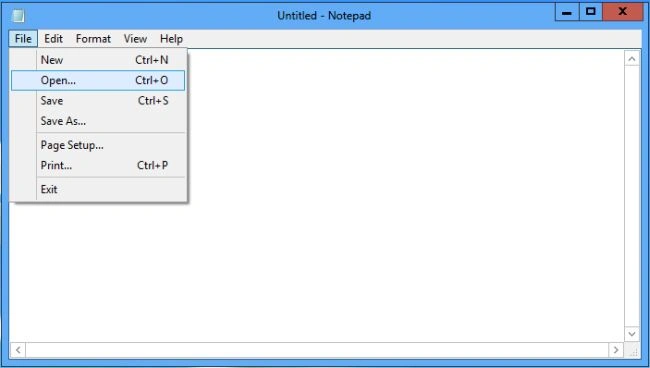
If you are using Windows 7, Vista or XP then you do not need to exclude the HOSTS file from Windows Defender. You can directly modify the HOSTS file using Notepad.
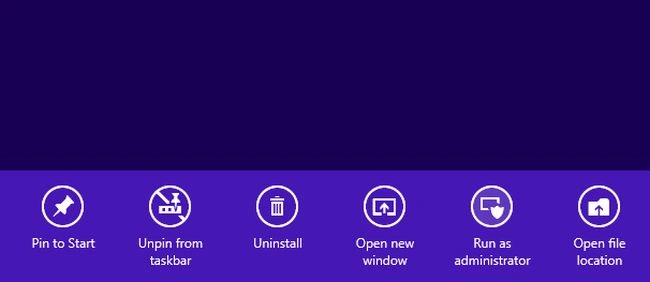
Notepad must be run as an Administrator.
How to block a website in Windows 8?
Step 1
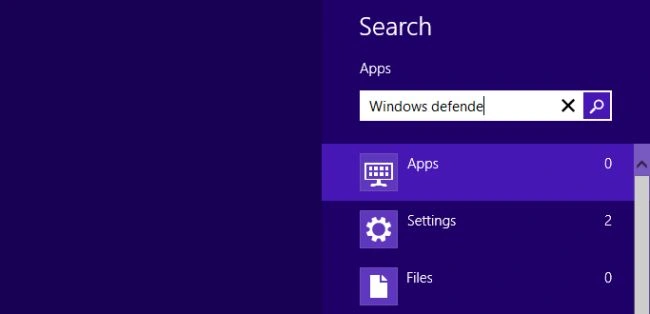
Go to the search box and enter "Windows Defender" and click on the application that appears.
Step 2
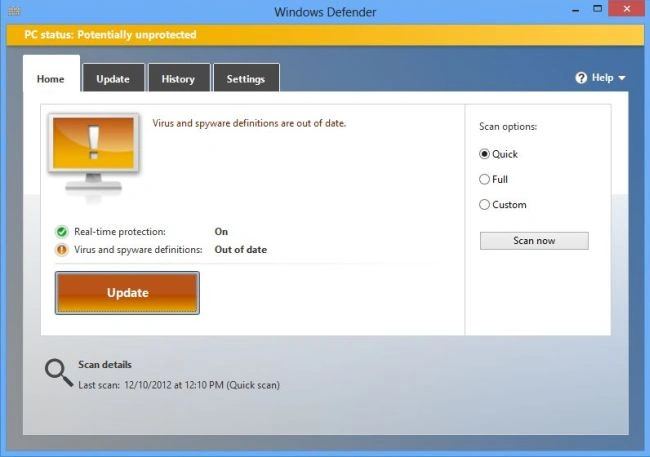
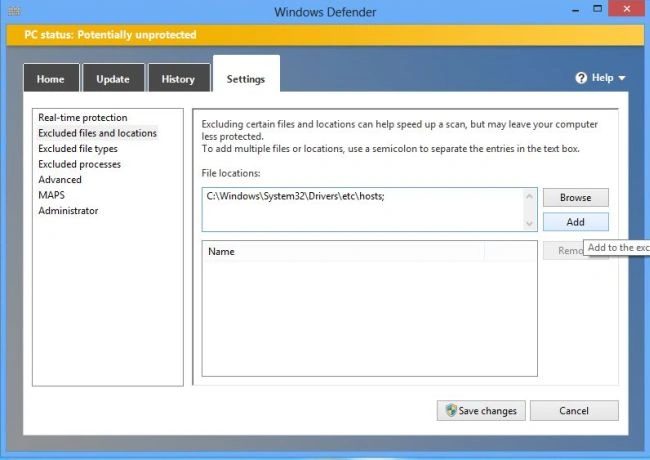
Windows Defender will be opened. In Windows Defender go to the "Settings" tab.
Step 3
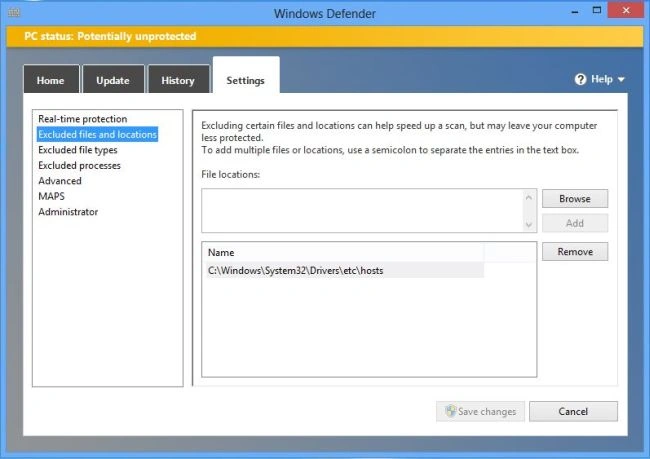
In the Settings tab click on "Excluded files and Locations".
Step 4
Shormili NaskarPosted Sep 8, 2020, 3:53 AM
Sir, I have follow all of your instruction, that you have told but problem is that the website till open..!