

Introduction
When you are going to work with the Powerapps Multilingual, first of all, one thing that will come to your mind is what this Multilingual means.
Multilingual means many or several languages. Similarly, PowerApps Multilingual defines many languages that PowerApps localize. Like our systems (suppose Computer, Mobile) support some different types of languages, PowerApps also has some multi-languages.
For example, if we set any browser (Chrome) language to Spanish, then we will see the authoring Studio only in that language.
Use of multilingual in PowerApps
The most important thing is where you can use this Multilingual feature in the PowerApps app. Let’s take a simple scenario.
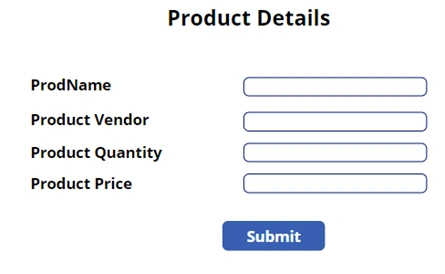
Suppose you have created a PowerApps app that will be used in Germany or Italy. In that case, you can use PowerApps Multilingual to display German or Italian to users in those different locations. Simply, those users can select a specific language and use the app.
How to build multilingual app in PowerApps
To use this Powerapps Multilingual, We can easily build a multilingual app in PowerApps. Using this app, we can provide multiple language options to the users (those who will use the app) so that the user can select their language and efficiently use the app.
To create a PowerApps Multilingual app, you need to follow the below steps:
- First, Create an Excel spreadsheet containing the Language, Key, and Value columns.
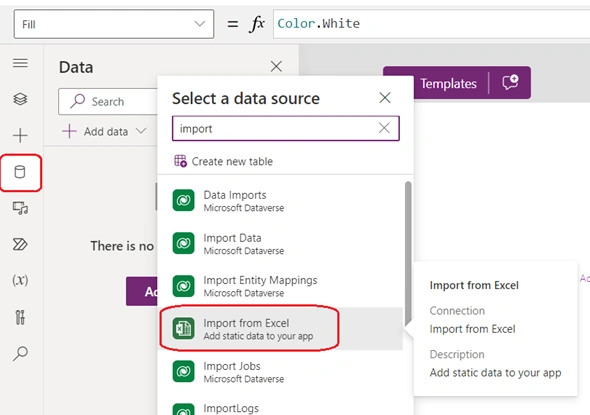
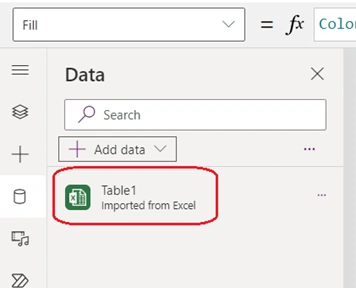
- After creating all these columns, Do not forget to add datasource to this Excel spreadsheet in powerapps.
- In the PowerApps app, Use a Lookup to the Excel item based on the Key.
Step 1. Create an Excel Spreadsheet and Format as Table
Below, you can see the Excel spreadsheet (named Multilanguages) that I have created:
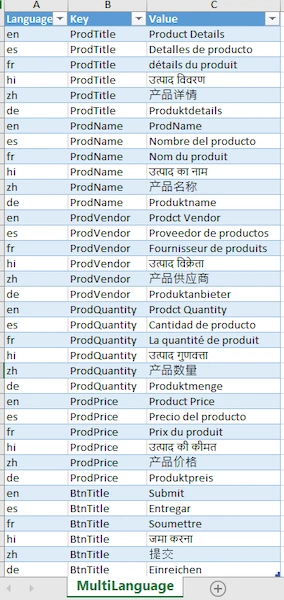
Always remember one thing: In the Powerapps Multilingue, the resource files expect only two things, i.e., one is Key, and the other one is Value.
NOTE:
- Not only can you use Microsoft Excel as a Resource file, but you can also use the SharePoint Online List, where you can store the Key and Value to build a Powerapps Multilingue app.
- You need to ensure that your records are present inside a Table in Excel. Otherwise, Powerapps will not allow the normal Excel file.
Step 2. Now Navigate to https://make.powerapps.com.




Muzaffar Ur RahmanPosted Mar 25, 2024, 6:24 AM
Nice article.! At present, your apps have fewer fields, making it easy to rename them. What approach would you take if there were more than 500 fields?