

Microsoft Flow is a cloud-based service. It allows us to react to an event in one service and do something with the data from that event into another service. The users can build workflows that automatically do some business tasks and processes across applications and services.
It helps us to monitor all our workflow with the help of a great cloud solution called “Microsoft Flow”. Before reading this article, please go through some important articles mentioned below.
- Deep Dive Into Microsoft Flow
- How To Connect OneDrive To Google Drive With Microsoft Flow
- How To Connect Facebook to Twitter With Microsoft Flow
- How To Save Email Attachment From Outlook To Dropbox With Microsoft Flow
- How To Send Notification Via SMS When Dropbox Is Modified With Microsoft Flow
- How To Connect The Outlook Mail To Excel With Microsoft Flow
- How To Save Office 365 Email Attachment To OneDrive With Microsoft Flow
- How To Track Facebook Wall Messages In An Excel Table Using Microsoft Flow
- How To Notify A User Of Newly Submitted Microsoft Forms Response Via Email
- How To Generate Audio For My Facebook Post Using Microsoft Flow
Connect Facebook to Microsoft Translator
Facebook is a social networking website and service where users can post comments, share photographs and links to news or other interesting content on the web, play games, chat live, and even stream live videos. Shared content can be made publicly accessible, or it can be shared only among a select group of friends or family, or with a single person. Login here.
How to create a Microsoft Flow for converting the Facebook post into another language
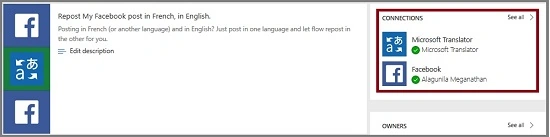
Here, we will connect Facebook and Microsoft Translator.
Prerequisites
- Microsoft Account – Corporate ID.
- Facebook Account.
Follow the below steps to build a Flow using a template.
Step 1
Login to www.flow.microsoft.com.
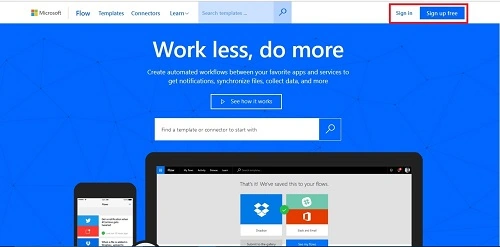
Here is the dashboard.
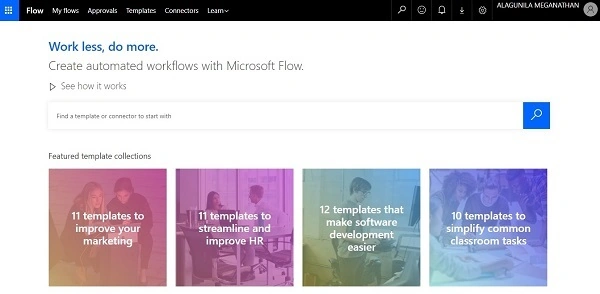
Step 2
Choose the Templates menu from the menu bar.

Search "Facebook" in the search bar and choose "Repost My Facebook post in French, in English" template.
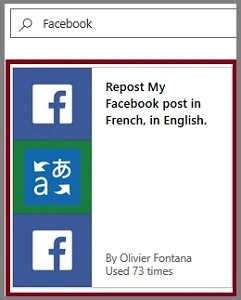
Now, click on the "Use this template" button.
Step 3
Sign into Facebook and give it permission to access your account.

Step 4
Sign into Microsoft Translator.

Step 5
After all these settings get configured, click on the "Continue" button.
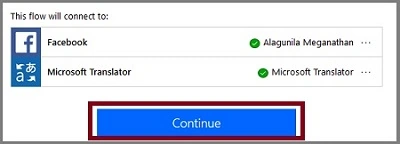
Step 6
Next, let us configure Facebook and Microsoft Translator.
- Get a post from your Facebook wall.
- Detect Language in that Post.
- Compare Facebook post language with Language code.
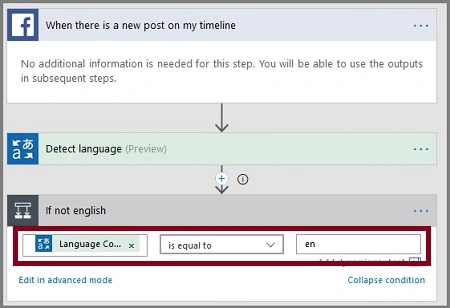
If yes, choose the Translate Target Language to Your Language (Eg.Tamil).
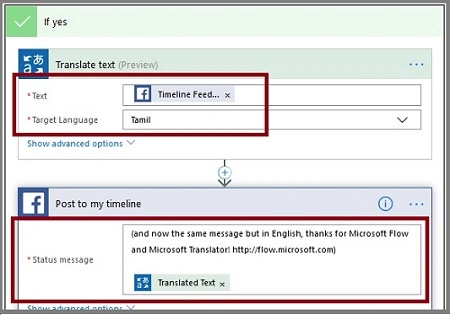
The final Flow should be like this. Click "Save Flow".
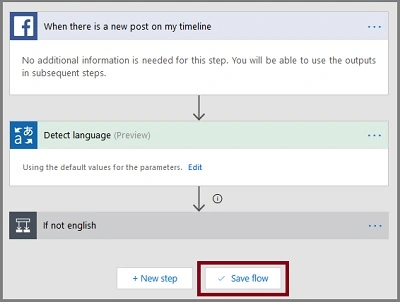
The Flow is created.
Output
Post on Facebook.

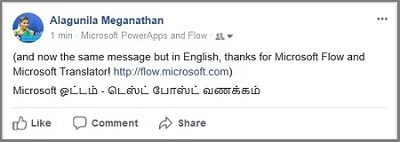
Now, It's translated to your target language.
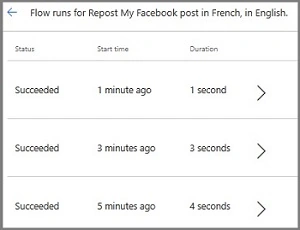
The history of the flow.
Summary
I hope you understood how to change your Facebook post in one language to repost in another language automatically and how to run that. Stay tuned for more Flow articles.
Sriram HariharanPosted Nov 25, 2017, 1:28 PM
Interesting to see the language support with Microsoft Flow. Thanks for sharing.