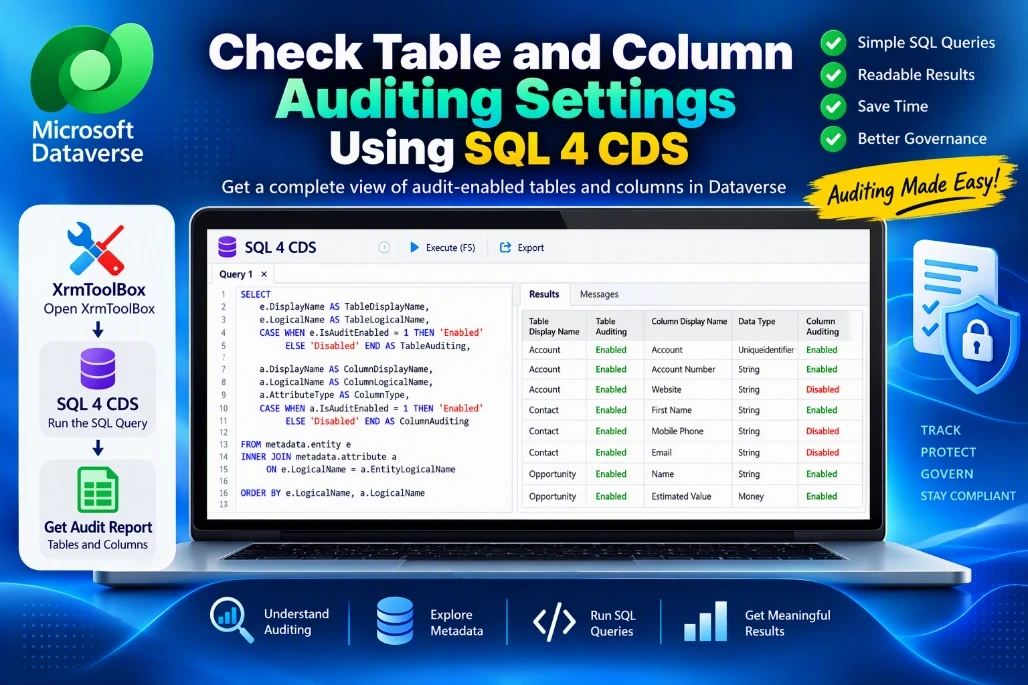
Auditing is an important feature in Microsoft Dataverse that helps organizations track changes made to records.
When working with a large Dataverse implementation, checking the auditing configuration manually for multiple tables and columns can be cumbersome.
In this article, we will see how to use XrmToolBox and SQL 4 CDS to quickly retrieve Dataverse table and column metadata and identify whether auditing is enabled or disabled.
Microsoft documents auditing configuration at the environment, table, and column levels. When environment auditing is enabled, audit data is recorded for enabled tables, and enabled columns are included in the audit data when changes occur.
Prerequisites
For this example, you need:
A Microsoft Dataverse environment
XrmToolBox
SQL 4 CDS Tool installed in XrmToolBox
System Admin or System Customizer access to the Dataverse environment
Note: This article focuses on inspecting the table and column auditing configuration, not retrieving the actual audit-history records.
Microsoft notes that audit history itself isn't available through the Dataverse TDS SQL endpoint. Audit history can instead be retrieved using supported Dataverse APIs/messages.
Step 1: Open XrmToolBox
Launch XrmToolBox and connect to the required Microsoft Dataverse environment.
Once connected, open:
SQL 4 CDS
We will use SQL 4 CDS to query the Dataverse metadata.

Step 2: Understand Dataverse Auditing Levels
Before querying the metadata, it is useful to understand how Dataverse auditing is configured.
There are three important levels:
Environment level:
Auditing first needs to be enabled at the environment level. The Dataverse Organization table contains auditing-related settings including isauditenabled.
Table level:
Individual tables can then be configured for auditing.
Column level:
Individual columns within an audited table can also be enabled or disabled for auditing.
Microsoft specifically states that Dataverse APIs can query table and column definitions to determine which tables and columns are enabled for auditing.
So, when reviewing your configuration, it is useful to check both.
Step 3: Copy and paste the below query and execute in SQL 4 CDS.
SELECT
e.DisplayName AS TableDisplayName,
e.LogicalName AS TableLogicalName,
CASE
WHEN e.IsAuditEnabled = 1 THEN 'Enabled'
WHEN e.IsAuditEnabled = 0 THEN 'Disabled'
ELSE 'Not Set'
END AS TableAuditing,
a.DisplayName AS ColumnDisplayName,
a.LogicalName AS ColumnLogicalName,
a.SchemaName AS ColumnSchemaName,
a.AttributeType AS ColumnType,
CASE
WHEN a.IsAuditEnabled = 1 THEN 'Enabled'
WHEN a.IsAuditEnabled = 0 THEN 'Disabled'
ELSE 'Not Set'
END AS ColumnAuditing
FROM metadata.entity e
INNER JOIN metadata.attribute a
ON e.LogicalName = a.EntityLogicalName
ORDER BY
e.LogicalName,
a.LogicalName
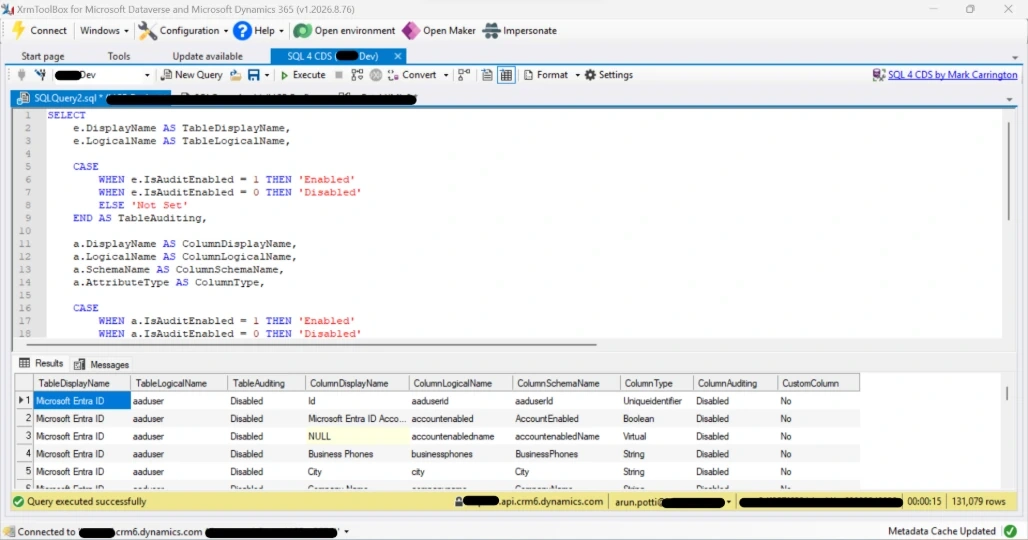
Step 4: Filter Condition
For a production environment containing many tables, the output can naturally be large, so filtering to the tables relevant to your audit review will generally make the report easier to consume.
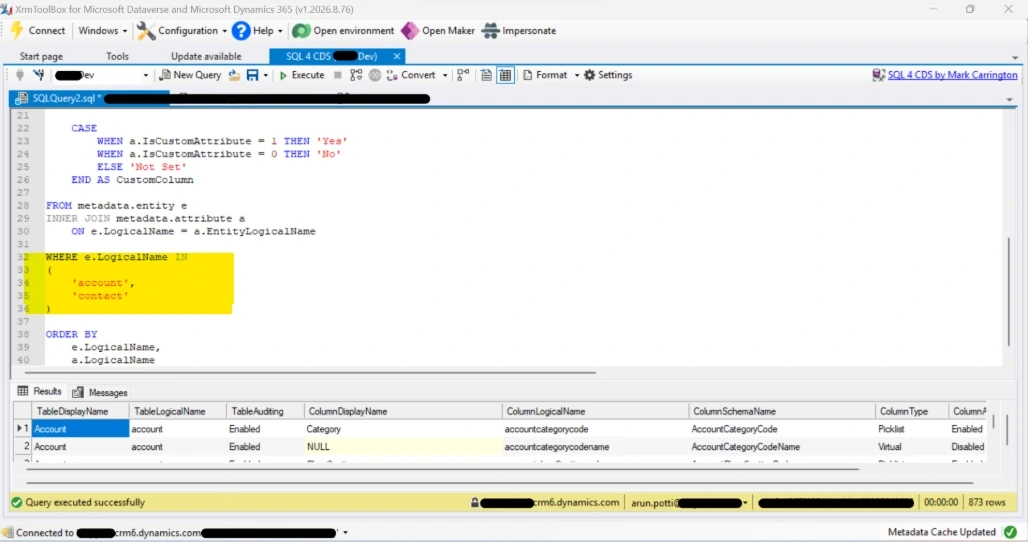
Use the below filter to retrieve only required Tables and corresponding columns metadata.
WHERE e.LogicalName IN
(
'account',
'contact'
)
Then the final query looks like the below,
SELECT
e.DisplayName AS TableDisplayName,
e.LogicalName AS TableLogicalName,
CASE
WHEN e.IsAuditEnabled = 1 THEN 'Enabled'
WHEN e.IsAuditEnabled = 0 THEN 'Disabled'
ELSE 'Not Set'
END AS TableAuditing,
a.DisplayName AS ColumnDisplayName,
a.LogicalName AS ColumnLogicalName,
a.SchemaName AS ColumnSchemaName,
a.AttributeType AS ColumnType,
CASE
WHEN a.IsAuditEnabled = 1 THEN 'Enabled'
WHEN a.IsAuditEnabled = 0 THEN 'Disabled'
ELSE 'Not Set'
END AS ColumnAuditing,
CASE
WHEN a.IsCustomAttribute = 1 THEN 'Yes'
WHEN a.IsCustomAttribute = 0 THEN 'No'
ELSE 'Not Set'
END AS CustomColumn
FROM metadata.entity e
INNER JOIN metadata.attribute a
ON e.LogicalName = a.EntityLogicalName
WHERE e.LogicalName IN
(
'account',
'contact'
)
ORDER BY
e.LogicalName,
a.LogicalName
Practical Use Cases
This query can be useful when:
Reviewing auditing configuration across multiple Dataverse tables
Identifying columns where auditing is disabled
Comparing audit configuration between environments
Performing governance or configuration reviews
Documenting the current auditing setup
Preparing an audit configuration report before making changes
Also keep in mind that Dataverse audit logs consume log storage capacity, so auditing configuration should be considered alongside your environment's auditing and retention strategy.
Conclusion
Microsoft Dataverse provides auditing configuration at the environment, table, and column levels. Instead of manually opening each table and reviewing individual column settings, metadata queries can help make the configuration easier to inspect.
Using XrmToolBox with SQL 4 CDS, we can create a readable report containing:
This can be particularly useful when working with environments containing a large number of Dataverse tables and columns.


Join the conversation! Your thoughts help the community grow.