

To ensure smooth execution of this demo, we should ensure the following prerequisites are in place-
Prerequisites:
- Secure Store Service Application should be created and configured properly.
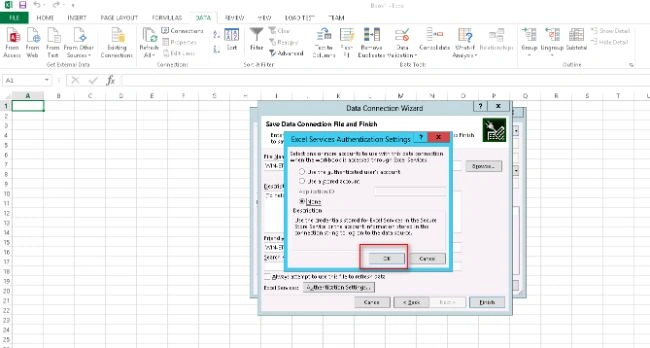
- Required Application ID should be created in Secure Store Service that can allow authentication for Excel Service over SQL Server Databases.
- Excel Service Application should be created and configured properly.
- There must be at least one database present in SQL Server which is having data to consume.
Before proceeding any further, we need to ensure that all the prerequisites are in place.
- Validate Secure Store Service & Application ID
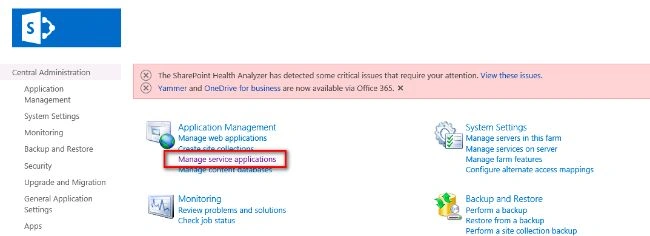
Go to Central Admin => Manage Service Application.
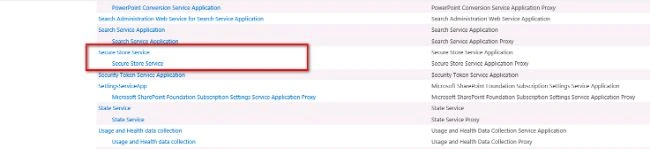
Click on “Secure Store Service”.
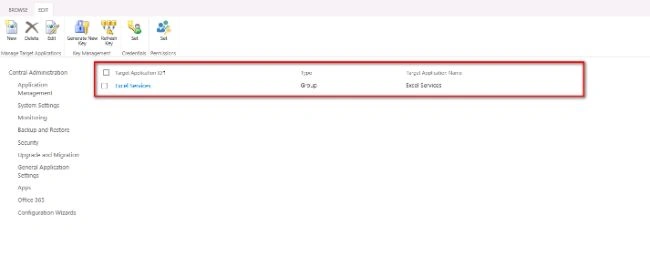
Check for Application ID that we use for Excel Services.
In this case, we have created Application ID by the name “Excel Services”.
- Validate Excel Service Application
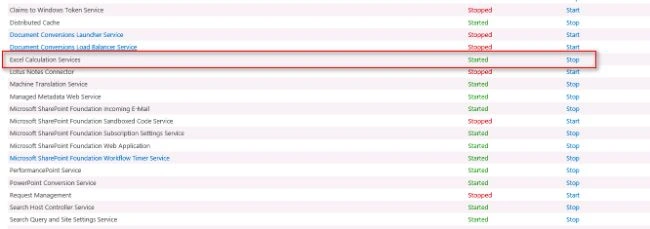
Now, go to Central Admin => Manage Services on Server.
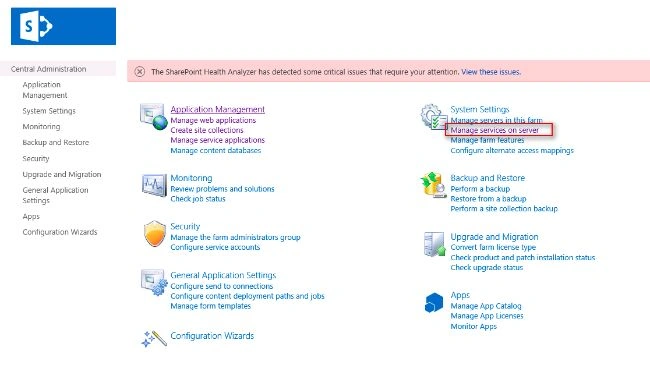
Look for “Excel Calculation Services” and make sure it is in started mode.
Again, go to Central Admin = > Manage Service Application.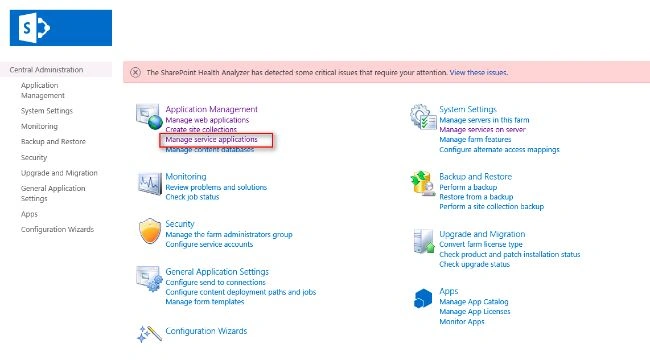
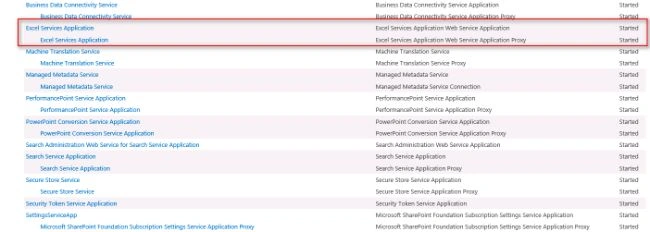
Look for “Excel Services Application” and make sure that it is in Started mode.
Click on Excel Services Application.
Then, click on Global Settings.
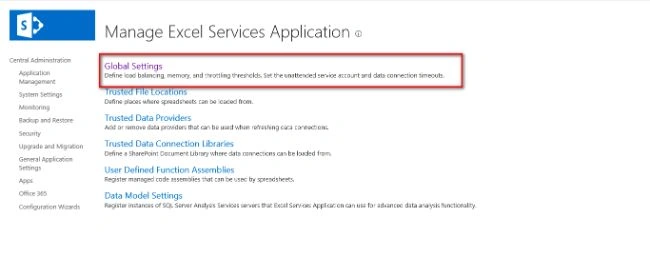
Scroll Down to the bottom and look for Target Application ID. It should be set to the same Secure Store Application ID (Excel Services) that we created in earlier steps.
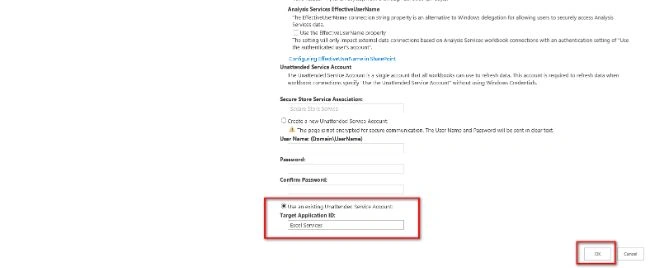
- Validate SQL Server Database
Login to SQL Server Database instance and make sure that we have at least one SQL Database that can serve the data to Excel Service. It is better to prefer any database that is not in use by SharePoint for Content, or Service Applications, or Configuration.
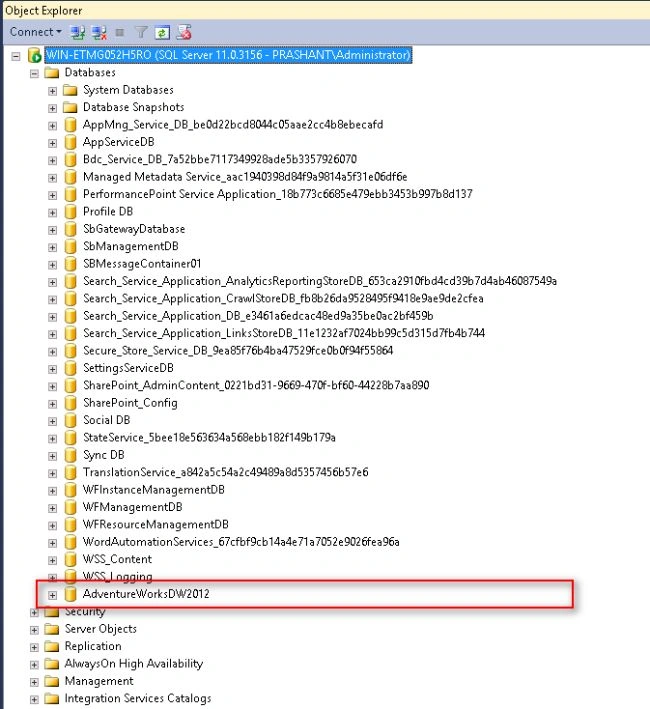
Once we are done with the Validation of Prerequisites, we can proceed with the demo on SQL Data Access via Excel Services.
Demo:
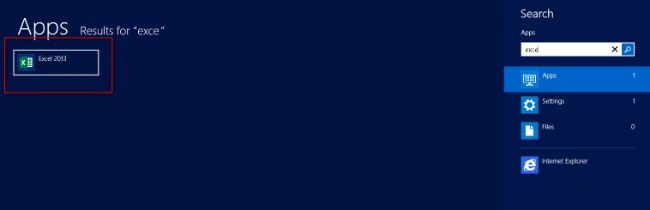
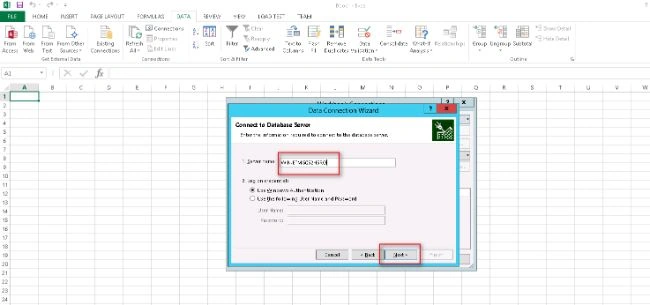
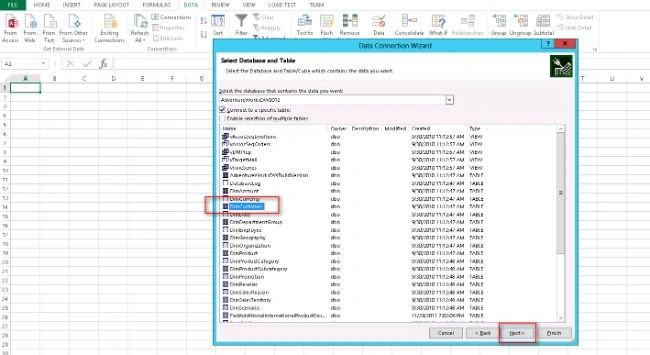
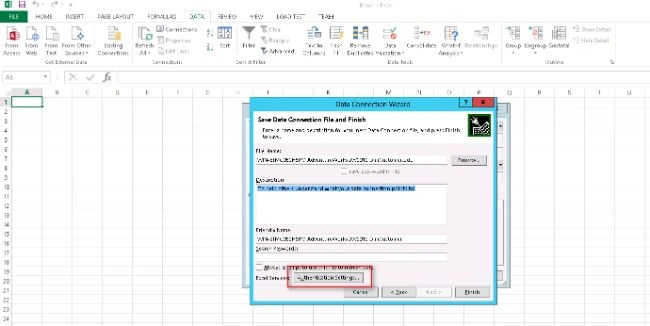
Launch Excel Client Application.
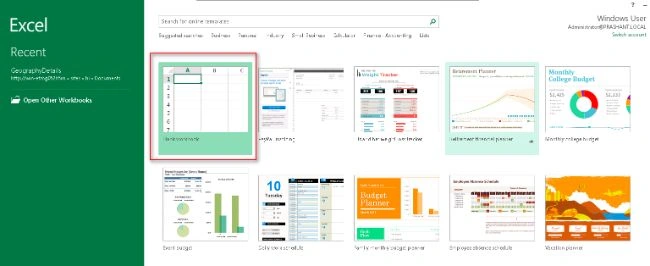
Choose Blank Workbook.
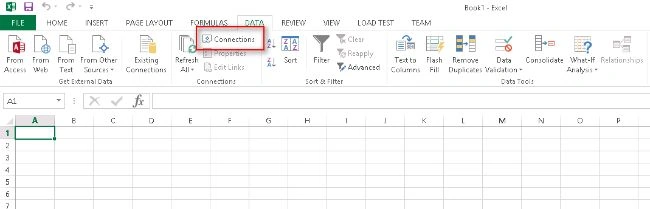
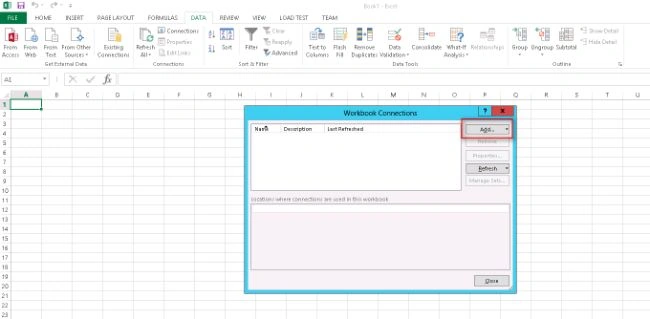
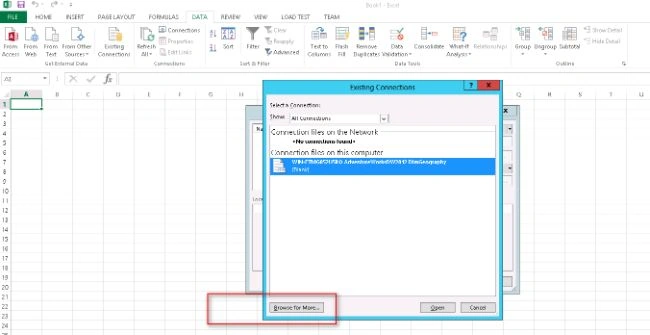
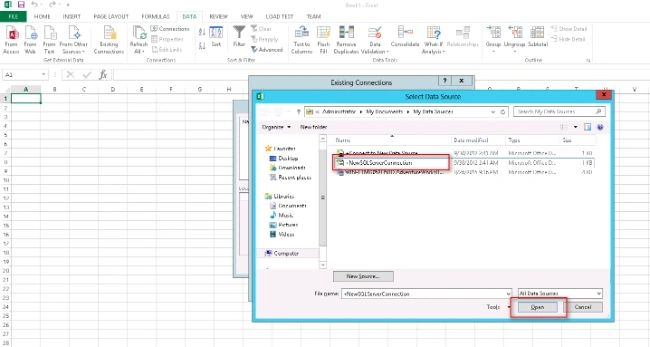
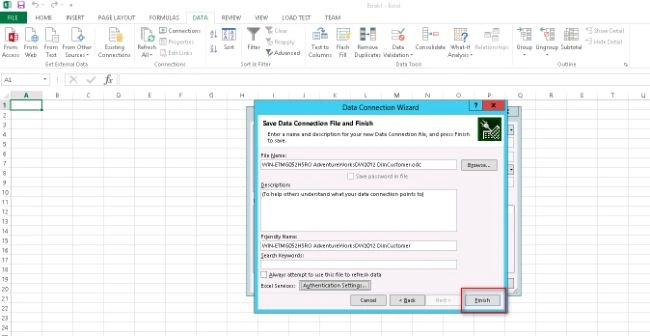
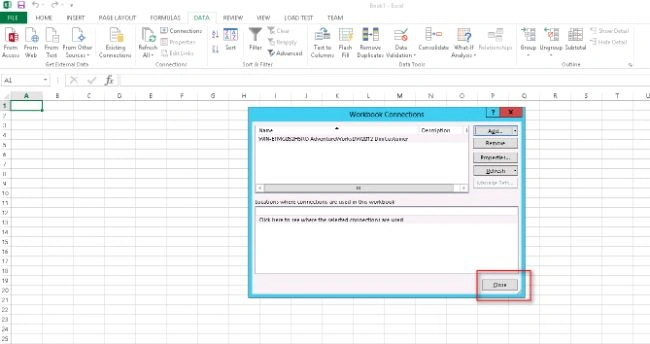
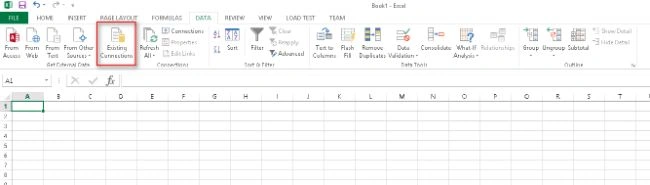
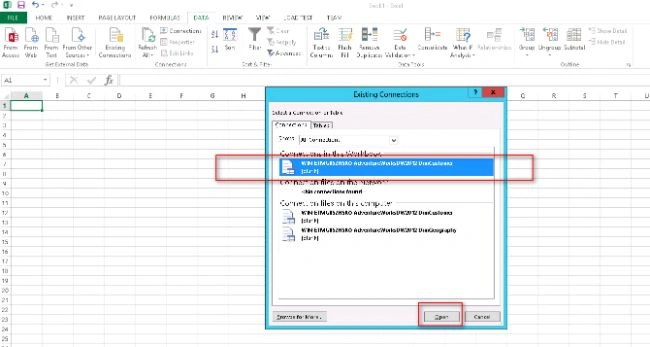
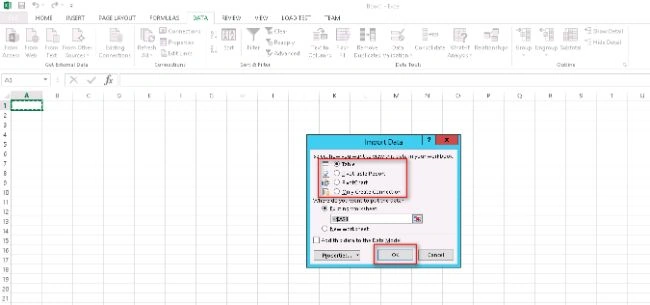
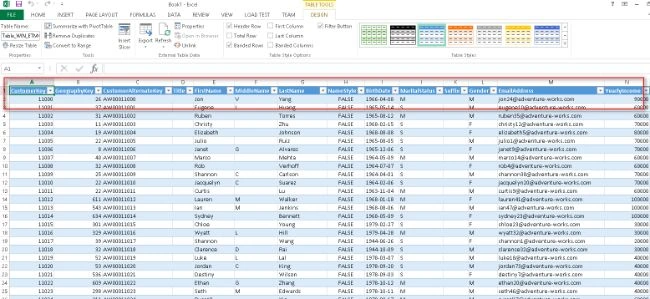
Under Data Tab, click on Connections.
Humayun Kabir MamunPosted Jul 25, 2016, 9:29 AM
Thanks for this article...
kalu singh raoPosted Jul 25, 2016, 1:41 AM
Nice one