

Introduction
How do we configure Git Version Control in Visual Studio Team Explorer? In this article, we will understand how to commit code in the remote repository.
Step 1
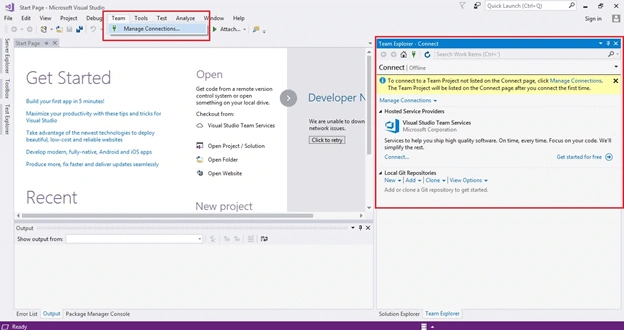
Open Visual Studio and go to menu Team =>Manage Connections, and click on manage connections then you will find Team Explorer at the right panel as shown in the below screen.
Step 2
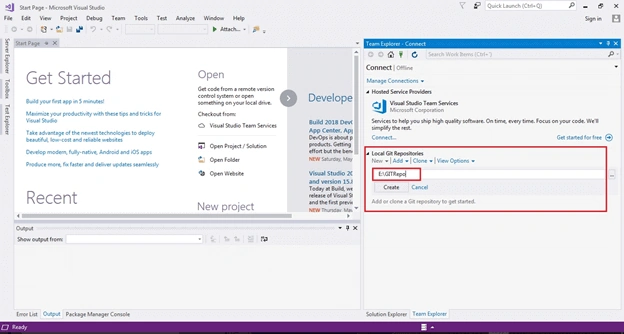
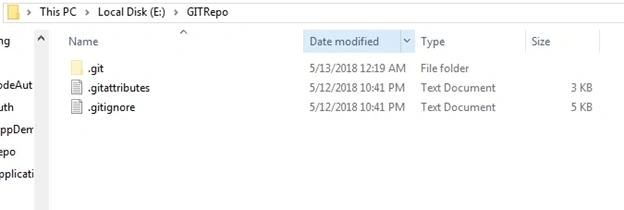
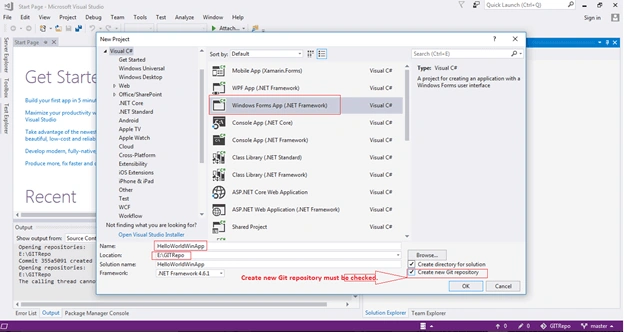
You can see in Team Explorer there are two Visual Studio Version Control providers, one is Visual Studio Team Services; i.e., TFS, and the second is Git. But none of them are connected in the Team Explorer. It is showing offline. Now create a local Git Repository. Once you click on “New” label you would get one input field, so enter your local repository path, for example (“E:\GITRepo”), and click on the “Create” button as in the below screen.
Step 3
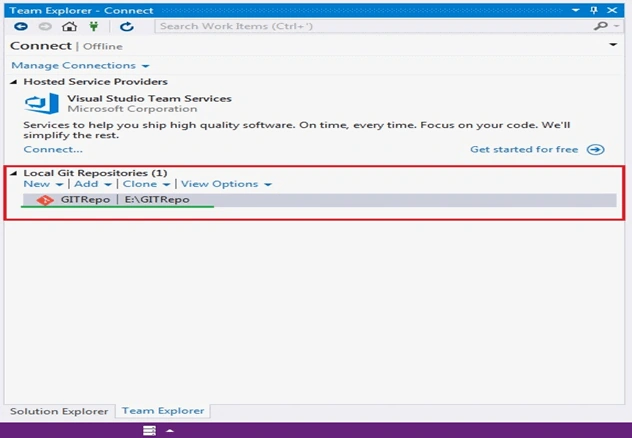
Once you click on the “Create” button then you will see created local Git repository (“GITRepo”):
Step 4
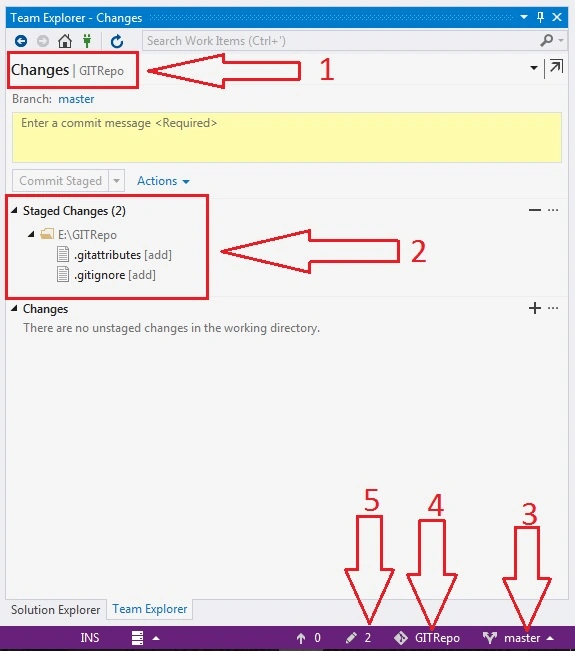
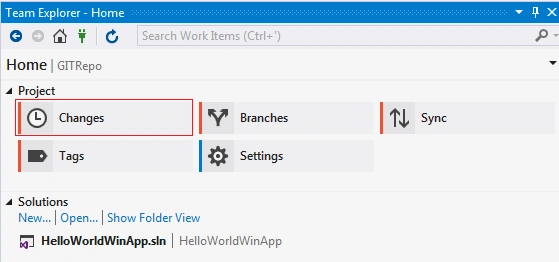
Now double click on the created local Git repository “GITRepo”:
Step 5
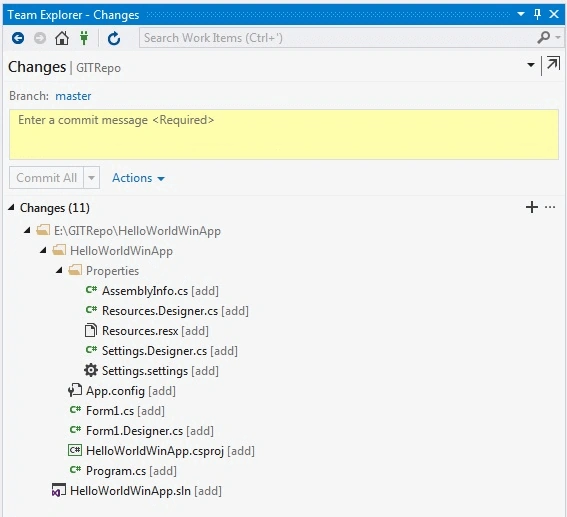
Now you can see local Git repository (“GITRepo”) has been connected from arrow 1 & 4, and by default master branch is selected from arrow 3 and two files have been added (staged changes) by Git utility from arrows 2 & 5. You can see “Commit Staged” button is disabled if you enter commit message then this button will be enabled, and you can commit your changes in the local Git repository as in the below screen.
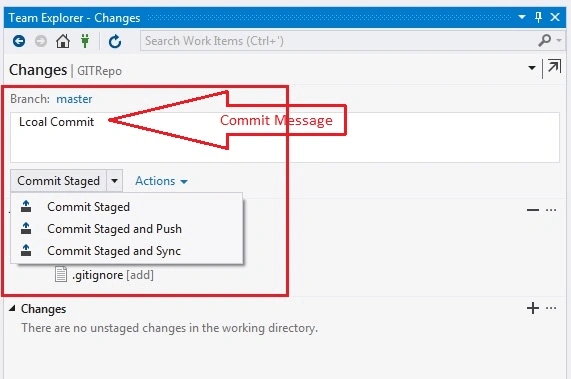
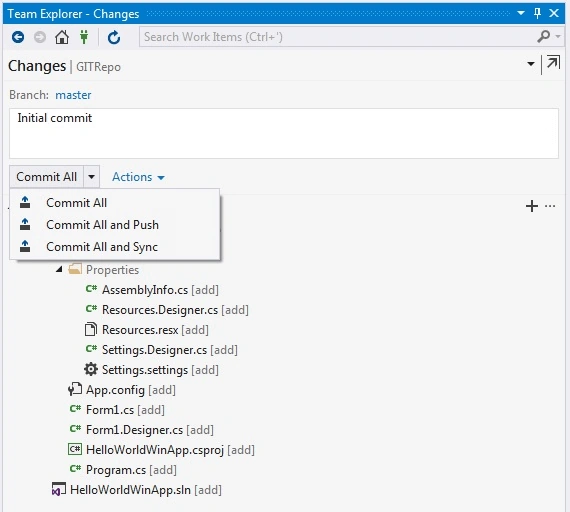
Once I entered commit message “Commit Staged” button has been enabled with options “Commit Staged”, “Commit Staged and Push” and “Commit staged and Sync”.
- "Commit Staged” will commit changes in local Git repository.
- “Commit Staged and Push” will commit in local as well as remote Git repository.
- "Commit staged and Sync” will commit in local as well as remote Git repository and update local Git repository from remote Git Repository i.e. pull all pending incoming changes from the remote.
The first option, “Commit Staged,” will work at this stage but the other two options will not work because we have not configured remote Git repository yet.
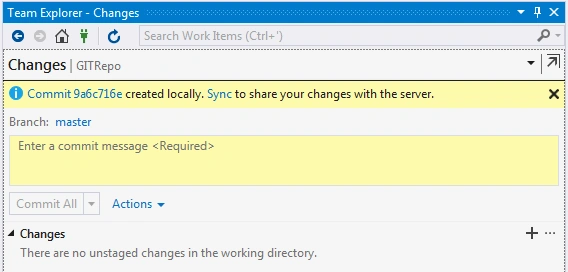
Once you click “Commit Staged” you will get commit id from arrow 1 as in the below screen. You can see it is saying commit 355a5091 created locally. Sync to share your changes with the server.
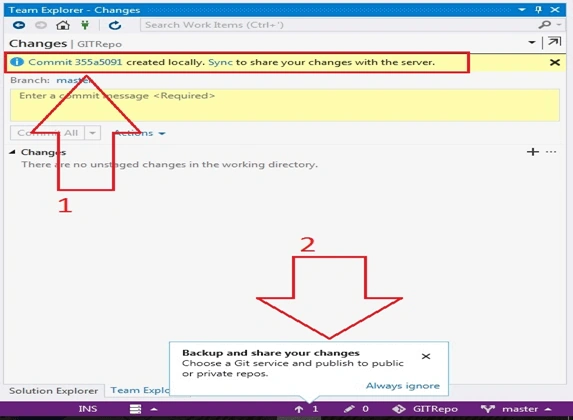
Step 6
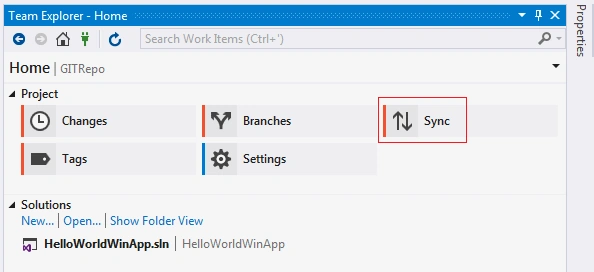
Once you click on “Sync” link to share your changes with the server.
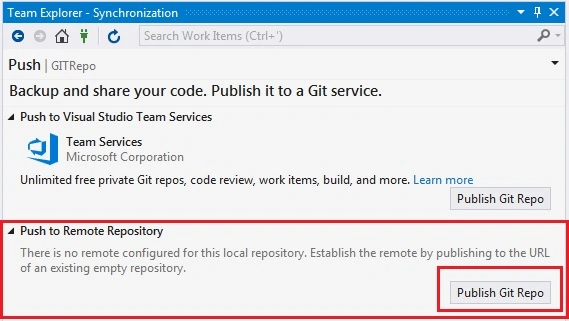
Step 7
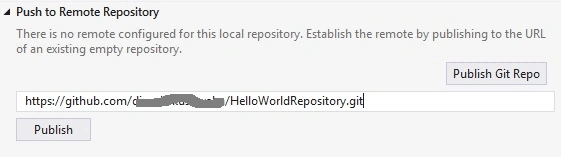
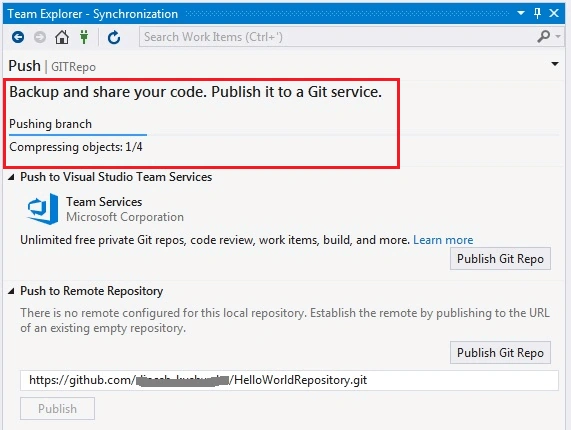
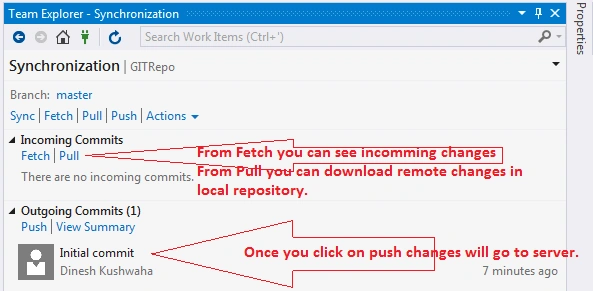
To share your changes with the server, click on Publish Git Repo.
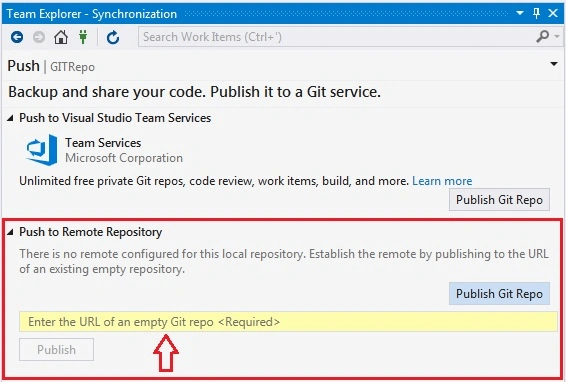
If you see the above screen it is clearly mentioned that there is no remote configured for this local repository. Establish the remote by publishing to the URL of an existing empty repository.
Step 8
So now you must have Git remote repository. To get Git remote repository you must have a Git account for either personal or commercial use. To create Git account, you can simply go to Git official website: https://github.com/
If you have any existing Git account, you can login, otherwise you can create a new Git account.
I have an existing Git account and I have already logged-in and I am on my Git dashboard.
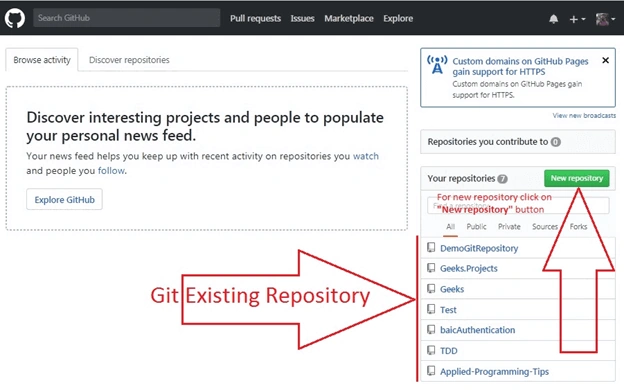
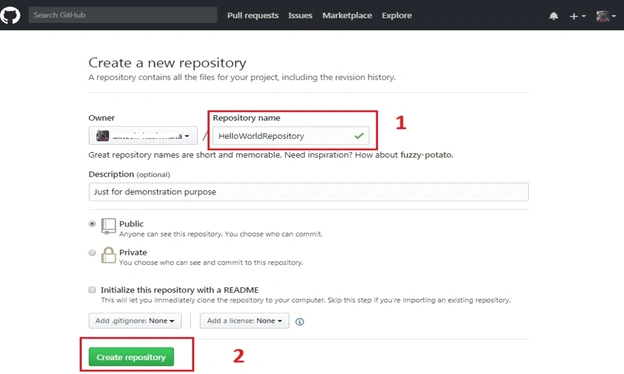
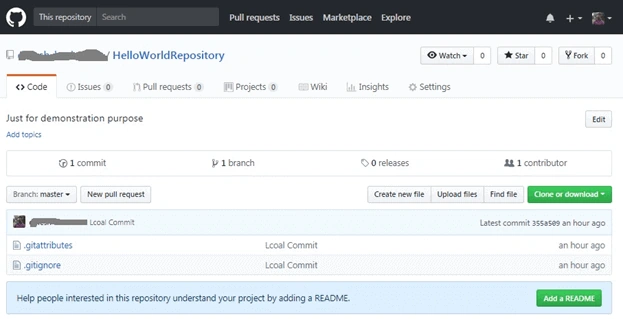
To create a new Git remote repository, click on “New repository” button and once you click on this button you will find a new screen for creating a Git new remote repository. Let’s create “HelloWorldRepository” for demonstration purpose only.
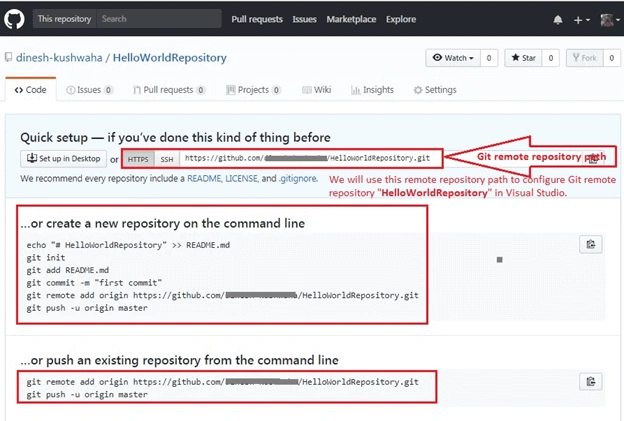
Once you click on “Create repository” button in the above screen you will see a repository created.

heba adelPosted Apr 25, 2019, 7:48 AM
I can not sync to my git hub it gives me an error says < An error occurred. Detailed message: An error occurred while sending the request. >
Rishi TrivediPosted Aug 12, 2018, 7:12 AM
Very useful article. Suggestion : Please also include about feature branches which we are creating using local Dev branch and how sync process will be done for features branches.
Shailesh TiwariPosted Jun 25, 2018, 10:03 PM
Nice artice