

Introduction
Integrating Gmail with OpenClaw allows developers and automation engineers to send and receive emails programmatically through AI agents, scripts, or bots. This setup is particularly useful for workflows such as automated notifications, customer communication, monitoring inbox events, or triggering AI tasks from emails.
This technical guide explains how to integrate Gmail with OpenClaw using the Gmail API and OAuth authentication, including steps for environments like Linux, Ubuntu, and WSL on Windows 11.
The process involves:
Creating a Google Cloud project
Enabling the Gmail API
Generating OAuth credentials
Authenticating Gmail access
Using the Gmail API to send emails from scripts or bots
Prerequisites
Before starting, make sure the following are ready:
OpenClaw installed
Python installed (3.8+)
Google account
Access to Google Cloud Console
WSL / Linux terminal environment
Step 1: Create a Google Cloud Project
Open the Google Cloud Console:
https://console.cloud.google.comClick Select Project
Click New Project
Enter a project name (example:
openclaw-gmail)Click Create
Once the project is created, ensure it is selected in the top project selector.
Step 2: Enable the Gmail API
Inside the same project:
Navigate to
APIs & Services → LibrarySearch for
Gmail APIClick Enable
This allows your application to interact with Gmail programmatically.
Step 3: Configure OAuth Consent Screen
Go to:
APIs & Services → OAuth Consent ScreenSelect External
Click Create
Fill the required fields:
App name (example: OpenClaw Mail Agent)
Support email
Developer contact email
Click Save and Continue.
Step 4: Add Test Users
Because the app is not verified yet, Google requires adding test users.
In the Test Users section:
Click Add Users
Add your Gmail address
Save
Without this step, authentication will fail with a 403 access_denied error.
Step 5: Create OAuth Credentials
Go to:
APIs & Services → CredentialsClick:
Create Credentials → OAuth Client IDSelect:
Desktop ApplicationAfter creation, download the JSON file.
Example filename:
client_secret_XXXXXXXX.apps.googleusercontent.com.jsonStep 6: Move the OAuth File to the OpenClaw Extension Folder
Inside the OpenClaw directory, create the Gmail extension folder:
mkdir -p ~/.openclaw/extensions/gmailIf you are using WSL with Windows 11, downloaded files are typically located at:
/mnt/c/Users/<windows_username>/DownloadsMove the OAuth file:
mv /mnt/c/Users/<windows_username>/Downloads/client_secret*.json ~/.openclaw/extensions/gmail/Rename the file:
mv ~/.openclaw/extensions/gmail/client_secret*.json ~/.openclaw/extensions/gmail/client_secret.jsonStep 7: Install Required Python Libraries
Install the Gmail API libraries:
pip install google-api-python-client google-auth google-auth-oauthlib google-auth-httplib2These libraries allow Python scripts to authenticate and communicate with Gmail.
Step 8: Create the Gmail Authentication Script
Inside the Gmail extension folder, create a Python script:
nano auth_gmail.pyAdd the following code:
from google_auth_oauthlib.flow import InstalledAppFlow
import pickle

SCOPES = ['https://www.googleapis.com/auth/gmail.modify']

flow = InstalledAppFlow.from_client_secrets_file(
    'client_secret.json',
    SCOPES
)

creds = flow.run_local_server(port=0)

with open("token.pickle", "wb") as token:
    pickle.dump(creds, token)

print("Authentication successful")
Save the file.
Step 9: Authenticate Gmail Access
Run the authentication script:
python auth_gmail.pyThe terminal will display a Google authorization URL.
Open that URL in your browser and log in with your Gmail account.
Approve the requested permissions.
After authorization, a file named token.pickle will be created.
Verify:
ls ~/.openclaw/extensions/gmailExpected output:
auth_gmail.py
client_secret.json
token.pickle
Step 10: Send Email Using Gmail API
Create another script:
nano send_email.pyAdd the following code:
import base64
import pickle
from email.mime.text import MIMEText
from googleapiclient.discovery import build

with open("token.pickle", "rb") as token:
    creds = pickle.load(token)

service = build("gmail", "v1", credentials=creds)

def send_email(to, subject, message_text):
    message = MIMEText(message_text)
    message["to"] = to
    message["subject"] = subject

    raw = base64.urlsafe_b64encode(message.as_bytes()).decode()

    service.users().messages().send(
        userId="me",
        body={"raw": raw}
    ).execute()

send_email(
    "[email protected]",
    "Test from OpenClaw",
    "Email sent using Gmail API and OpenClaw integration."
)
Run the script:
python send_email.pyIf configured correctly, the email will be delivered via Gmail.
Step 11: Install Telegram Bot Library
Install the Telegram bot Python library:
pip install python-telegram-bot --upgradeVerify installation:
pip show python-telegram-botStep 12: Create a Telegram Bot
Open Telegram and start a conversation with
BotFather
Follow these steps:
Send:
/startCreate a new bot:
/newbotProvide a bot name
Provide a bot username ending with
bot
Example:
openclaw_mail_botAfter creation, BotFather will return a Bot Token.
Example format:
123456789:AAHxxxxxxxxxxxxxxxxxxxxSave this token securely.
Step 13: Create Telegram Email Bot Script
Navigate to the Gmail extension directory:
cd ~/.openclaw/extensions/gmailCreate the bot script:
nano telegram_mail_bot.pyAdd the following code:
import base64
import pickle
from email.mime.text import MIMEText
from googleapiclient.discovery import build

from telegram import Update
from telegram.ext import ApplicationBuilder, CommandHandler, ContextTypes

BOT_TOKEN = "YOUR_TELEGRAM_BOT_TOKEN"

# Load Gmail credentials
with open("token.pickle", "rb") as token:
    creds = pickle.load(token)

service = build("gmail", "v1", credentials=creds)

def send_email(to, subject, body):
    message = MIMEText(body)
    message["to"] = to
    message["subject"] = subject

    raw = base64.urlsafe_b64encode(message.as_bytes()).decode()

    service.users().messages().send(
        userId="me",
        body={"raw": raw}
    ).execute()

async def sendmail(update: Update, context: ContextTypes.DEFAULT_TYPE):

    if len(context.args) < 3:
        await update.message.reply_text(
            "Usage:\n/sendmail email subject message"
        )
        return

    to = context.args[0]
    subject = context.args[1]
    body = " ".join(context.args[2:])

    send_email(to, subject, body)

    await update.message.reply_text("Email sent successfully")

app = ApplicationBuilder().token(BOT_TOKEN).build()

app.add_handler(CommandHandler("sendmail", sendmail))

print("Telegram Gmail bot running...")

app.run_polling()
Replace YOUR_TELEGRAM_BOT_TOKEN with the token received from BotFather.
Step 14: Start the Telegram Email Bot
Run the bot script:
python telegram_mail_bot.pyIf successful, the terminal will display:
Telegram Gmail bot running...The bot is now listening for Telegram commands.
Step 15: Send Email From Telegram Prompt
Open Telegram and send a command to your bot.
Example command:
/sendmail [email protected] Hello Test message from TelegramCommand structure:
/sendmail recipient_email subject message_bodyExample:
/sendmail [email protected] Meeting Reminder Our meeting is tomorrow at 3 PMAfter the command is sent:
Telegram bot receives the message
Python script processes the prompt
Gmail API sends the email
The bot will respond with:
Email sent successfully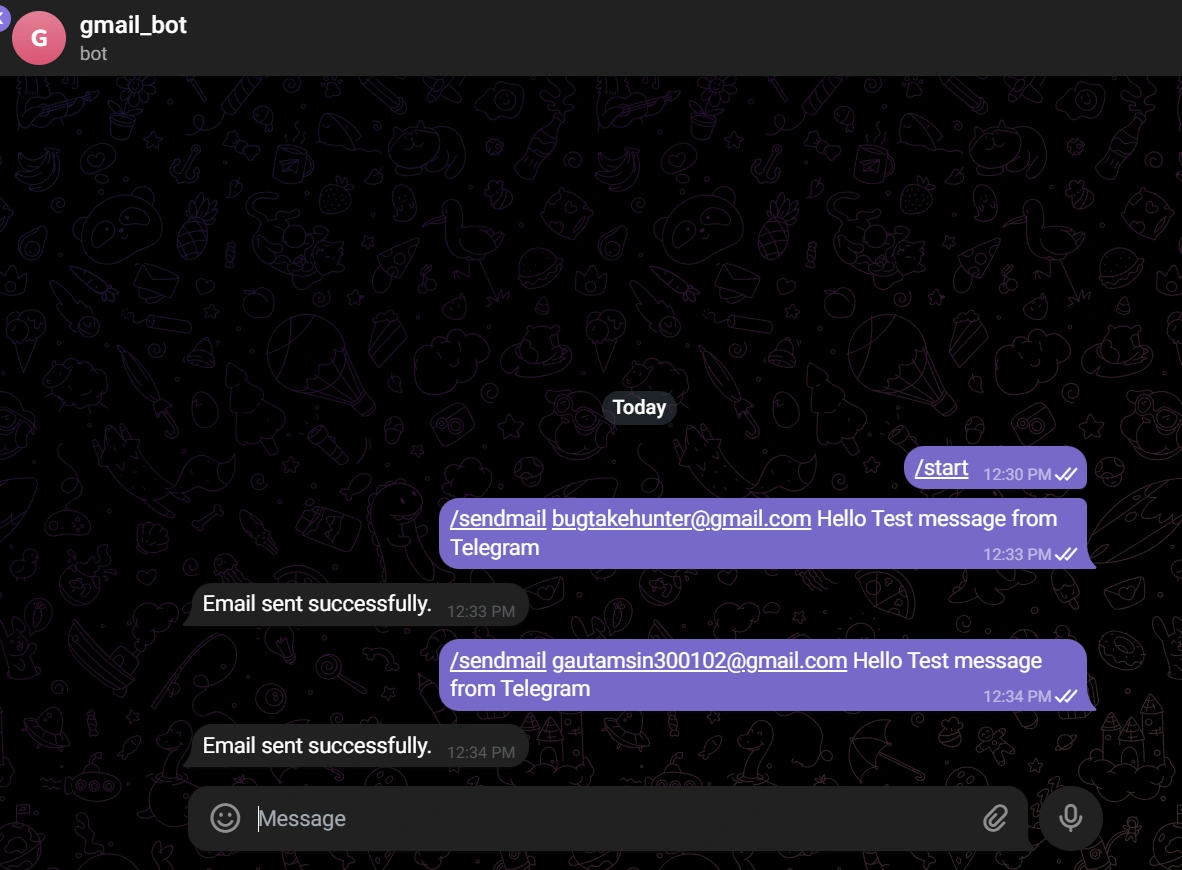
Step 16: Verify Email Delivery
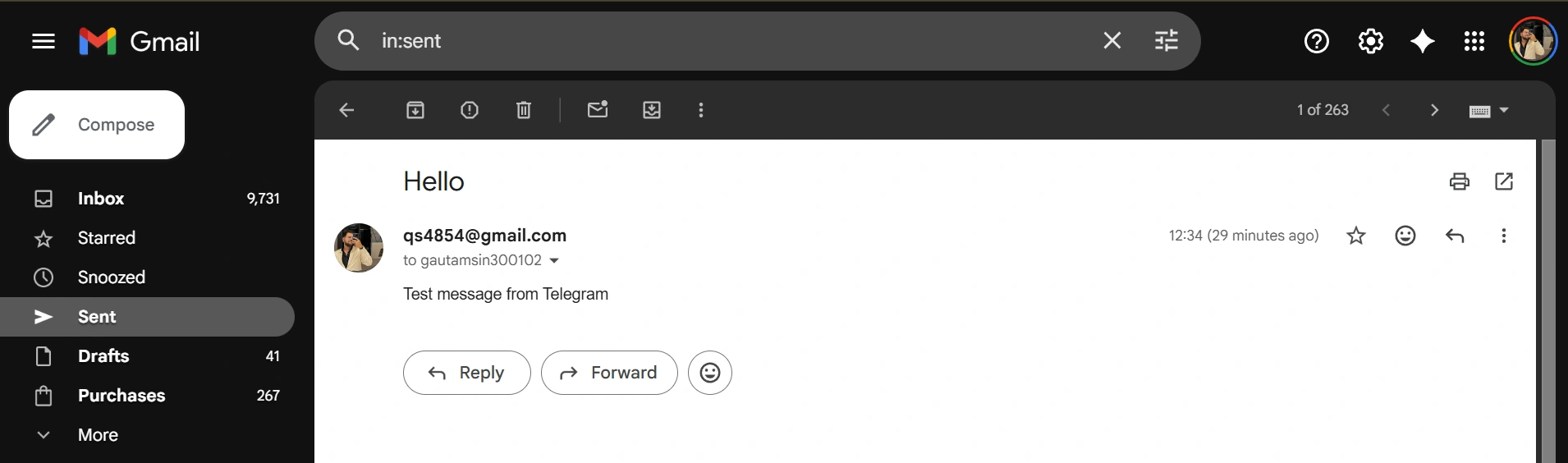
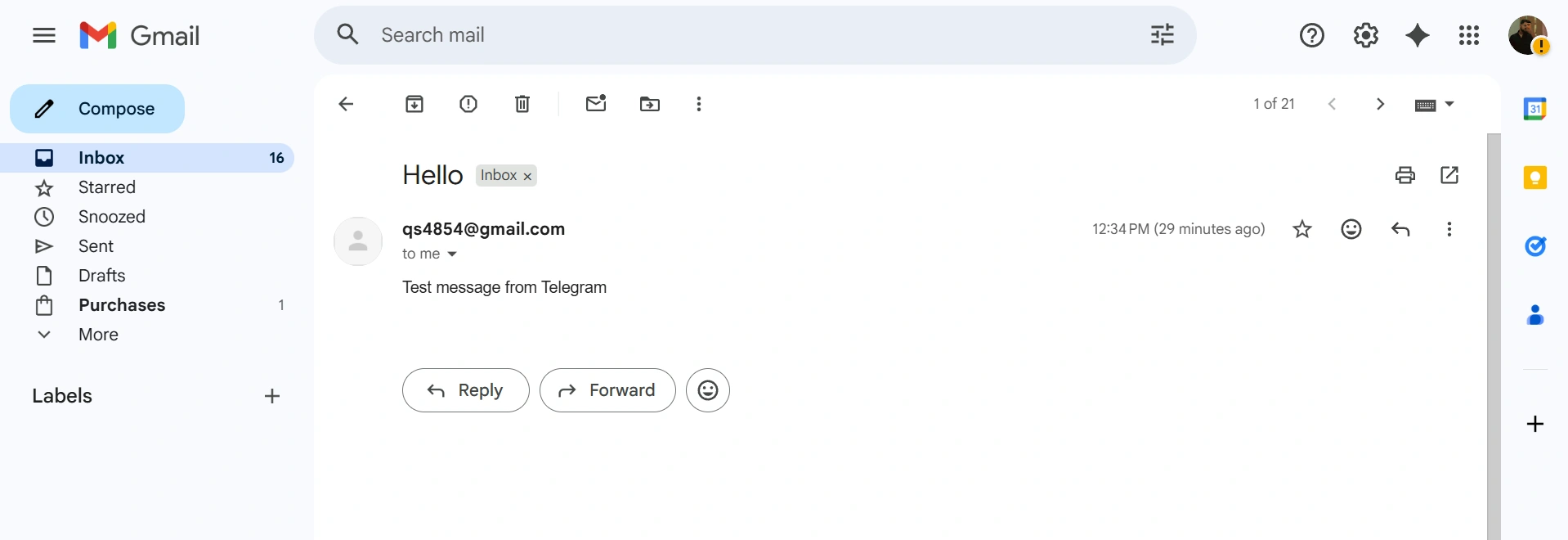
Check the following:
Recipient inbox
Gmail Sent Mail folder
The email should appear immediately after the command is executed.
Common Issues and Fixes
403 Access Denied
Cause: OAuth consent screen missing test user.
Fix: Add your Gmail address under OAuth Consent Screen → Test Users.
Browser Not Opening in WSL
WSL environments often lack GUI browsers.
Solution:
Copy the authorization URL from the terminal and open it manually in a Windows browser.
Module Not Found Errors
Install missing libraries using:
pip install <package_name>Use Cases for Gmail + OpenClaw Integration
Integrating Gmail with OpenClaw enables several automation scenarios:
Sending automated alerts from AI agents
Email notifications from monitoring systems
Customer communication bots
Triggering AI workflows from incomzing emails
Integrating Gmail with Telegram or Teams bots
Conclusion
Integrating Gmail with OpenClaw using the Gmail API enables powerful automation workflows across email systems and AI-driven agents. By configuring OAuth authentication, enabling the Gmail API, and implementing simple Python scripts, developers can send and manage emails programmatically.
For teams building automation pipelines, AI assistants, or DevOps alerting systems, this integration significantly improves communication workflows while maintaining secure access through Google's OAuth system.
Join the conversation! Your thoughts help the community grow.