

In this article, we’ll learn how to connect virtual machines and connect them through Azure Bastion. We’ll first learn about virtual machines then go through a hands-on tutorial to create a Windows Server DataCenter Virtual Machine in Azure. We’ll then create a second virtual machine and then use Azure Bastion to connect these two virtual machines. For this process, we first need to create a virtual network with a Subnet. To learn a thorough process to create a virtual network, check out the previous article, How to create a virtual network and a bastion host.
Microsoft Azure
Azure is a cloud computing service developed by Microsoft which enables organizations and individuals to build, test, deploy and manage their applications in high availability and rapidly scalable platform with unparalleled security offerings and benefits in comparison to the traditional on-premises infrastructure.
Virtual Machines in Azure
A virtual machine is the emulation or virtualization of an entire computer system. The Virtual Machines (VM) performs like a physical computer system altogether. Software such as VMware has enabled virtual machines since 1998. Today, in order to fulfill the needs of organizations to set up databases and increase computer power from virtual machines, Azure Portal provides browser-based easy to use platforms to create and use Virtual Machines in Azure. With cloud computing like Microsoft Azure, it has never been this easier to deploy various copies of the same virtual machines to improve load handling. It is flexible and easier than having to take care of a physical server and installing OS on our own. Let us create a Virtual Machine (VM) using Azure Portal.
Azure Bastion
Azure Bastion is a service that enables developers to connect to the virtual machine through Azure Portal using a web browser. The Secure Shell Protocol (SSH) and Remote Desktop Protocol (RDP) can be accessed seamlessly with high security to virtual machines (VM) without using public IP addresses mitigating the possibility of any exposure.
Creating a Windows Server DataCenter Virtual Machine
Step 1
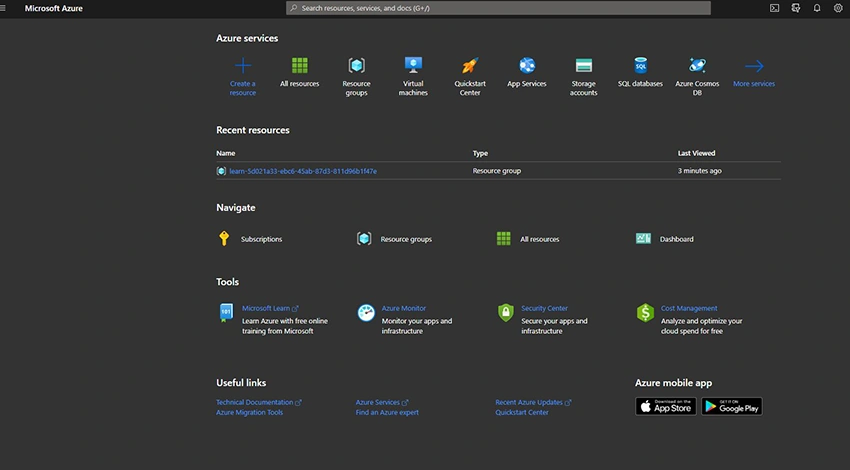
First of all, please sign in to the Azure Portal. You’ll land on this page once you sign up.
Step 2
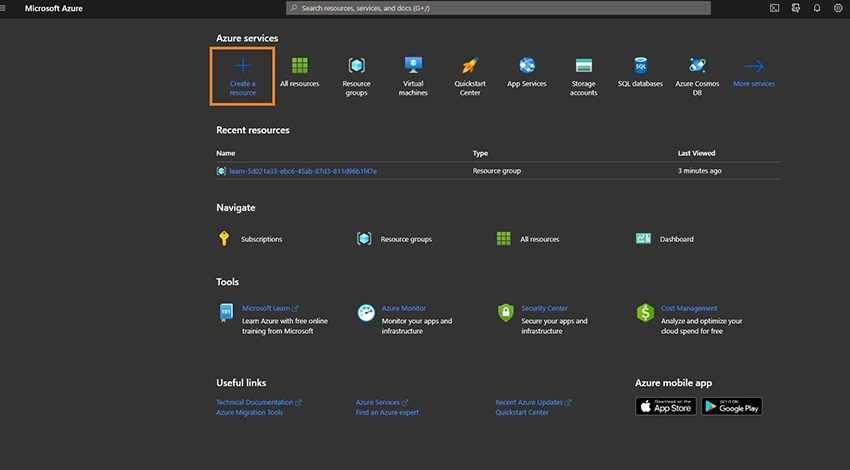
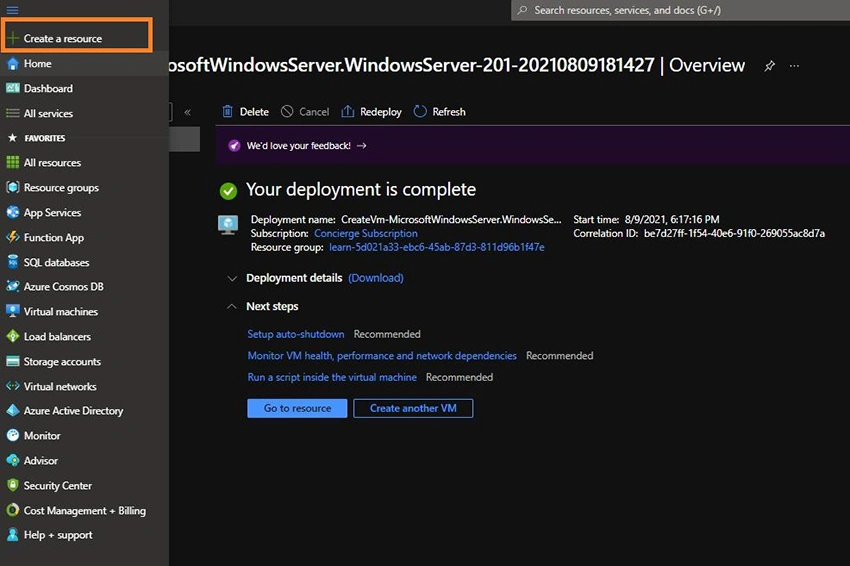
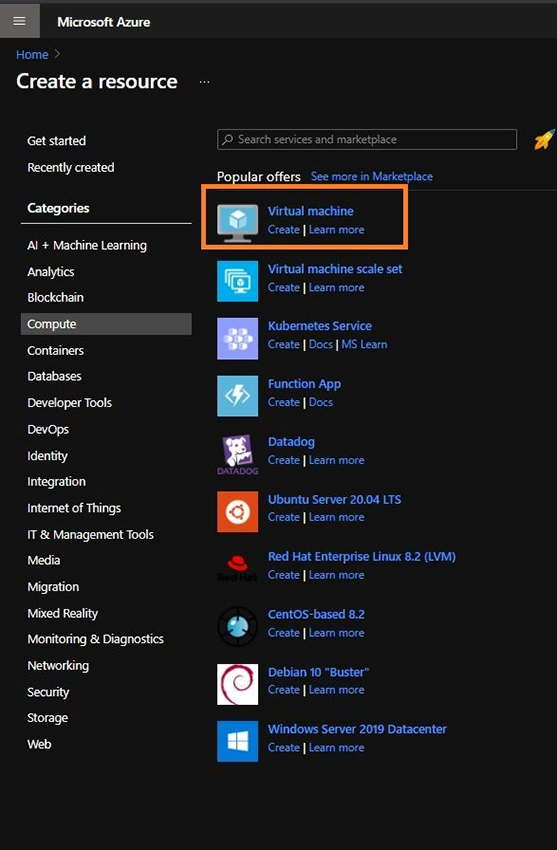
Click on Create a Resource.
Step 3
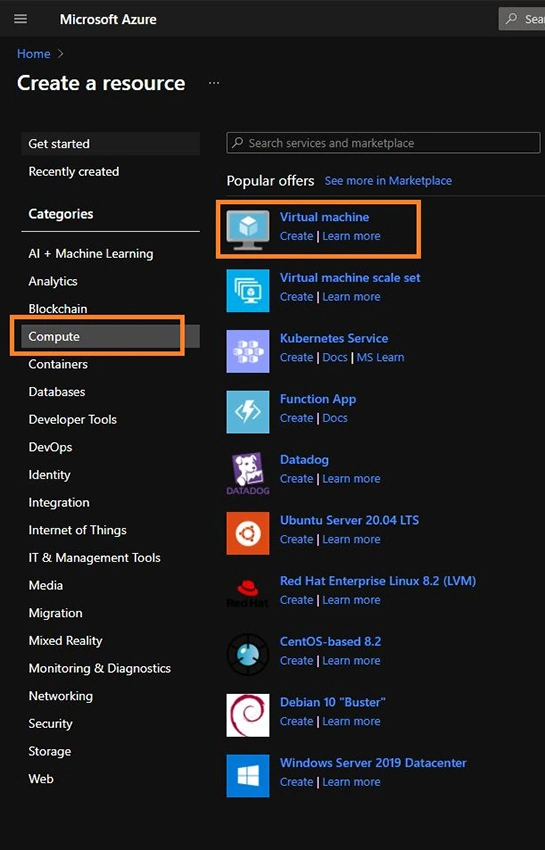
Now, Select the Compute under the Categories section. You’ll see Virtual Machine on the Popular offers. You can also just search Virtual Machine in the tab.
Step 4
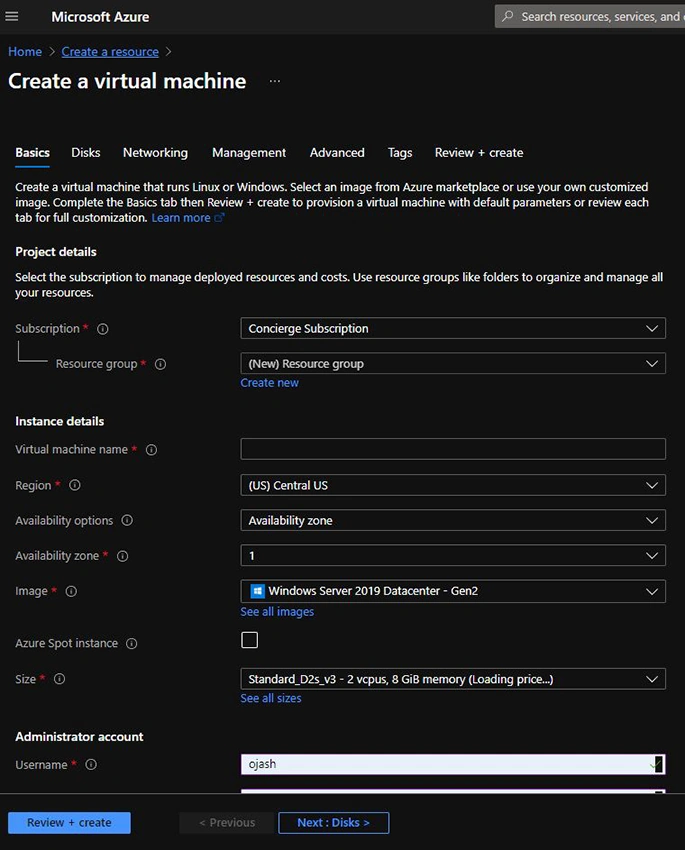
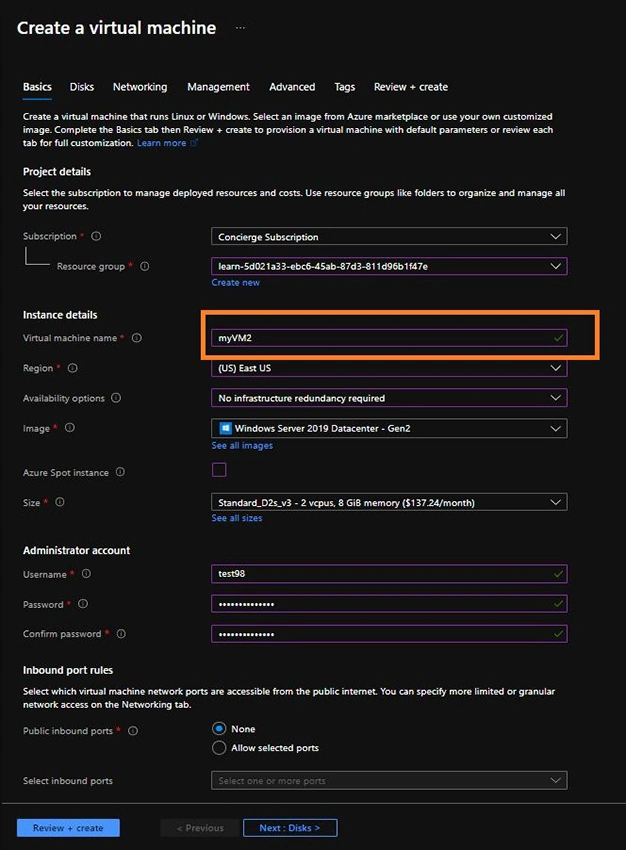
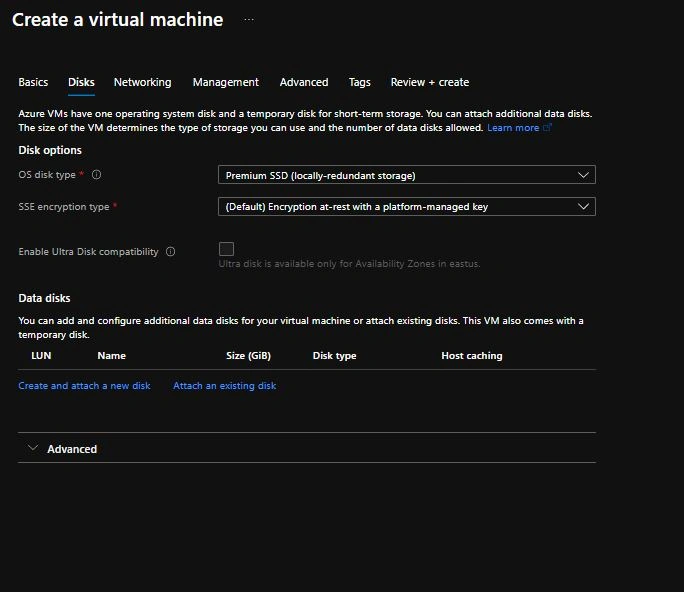
You’ll be prompted to fill up the form as follows.
Step 5
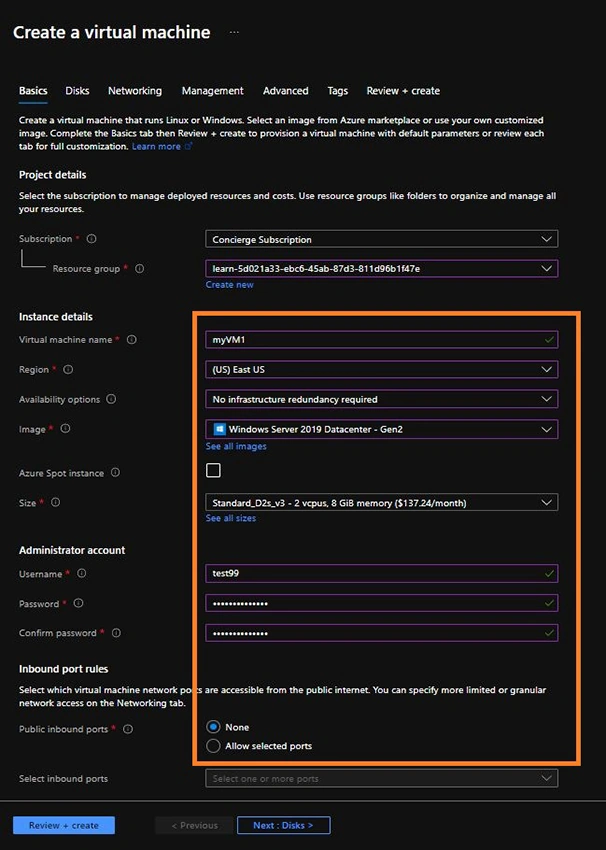
Fill up the details on the Basics to create a virtual machine as shown in the image below. Select the specific Subscription you are using. Name the Virtual Machine Name as myVM1. Select East US as the Region with Availability Options set as – No infrastructure redundancy required. Thereafter, select the Windows Server 2019 Datacenter – Gen2 as the Image. The Azure Spot instance should be deselected. Choose the Default Size and fill up the Administrator account details for username and password as your desire. Make sure to note it down, for it should be used later on. Finally, Public Inbound Ports should be set to None.
Step 6
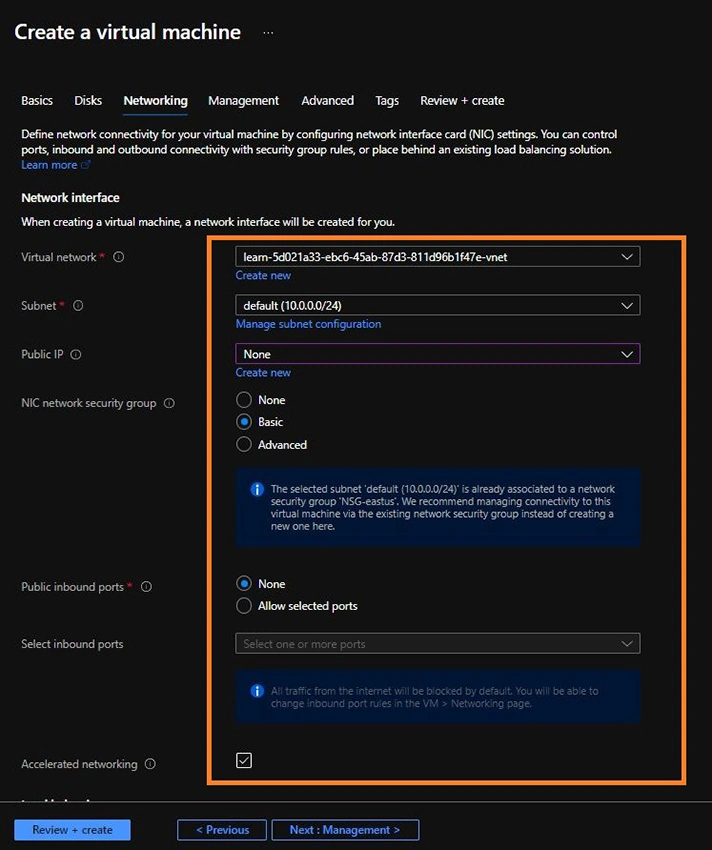
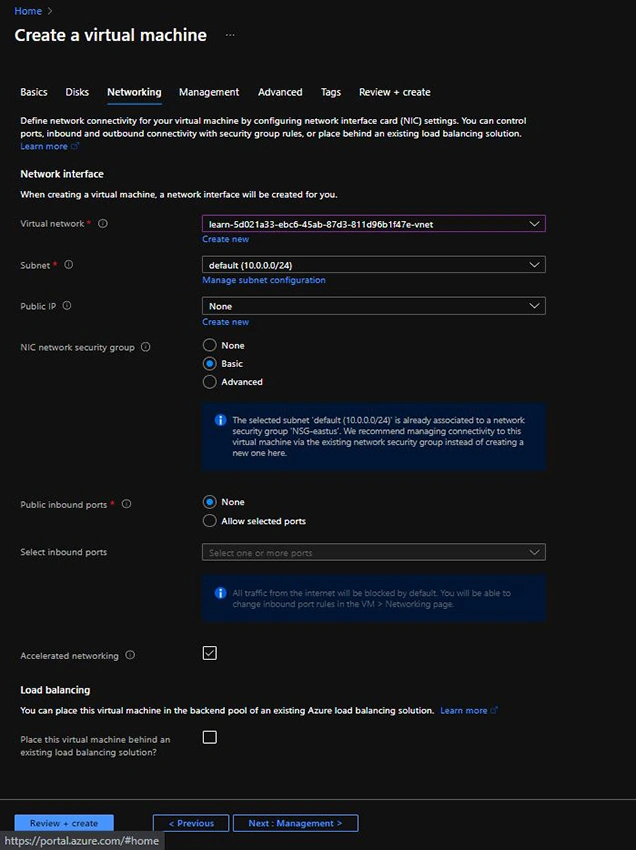
Go to Networking Tab and choose Next or the Topline head bar. Choose the Subnet you created following the article, How to create a virtual network and a bastion host. Set the Public IP to None and NIC Network Security Group as Basic. The Public Inbound Ports should be set to None.
Step 7
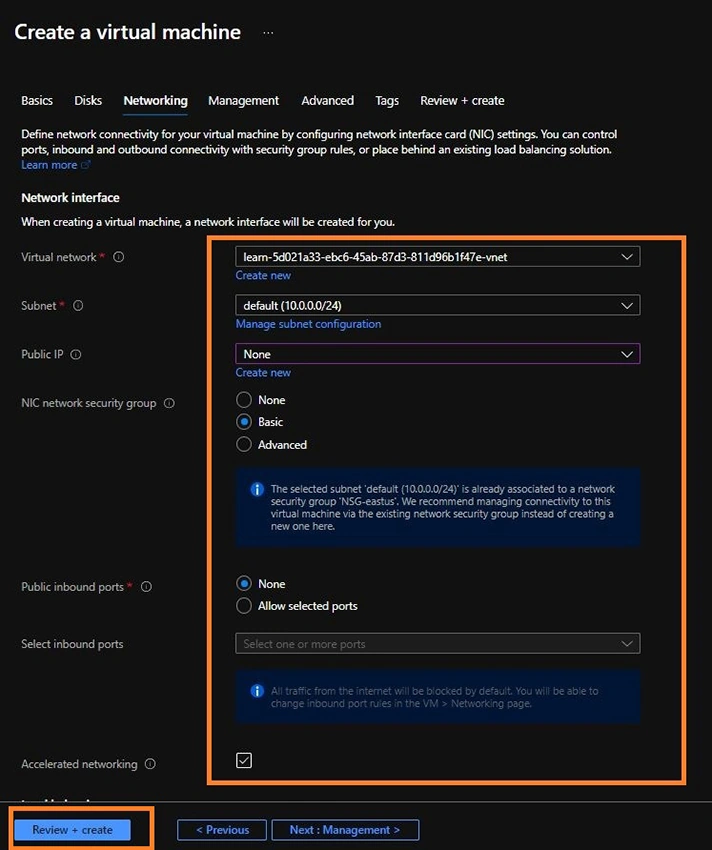
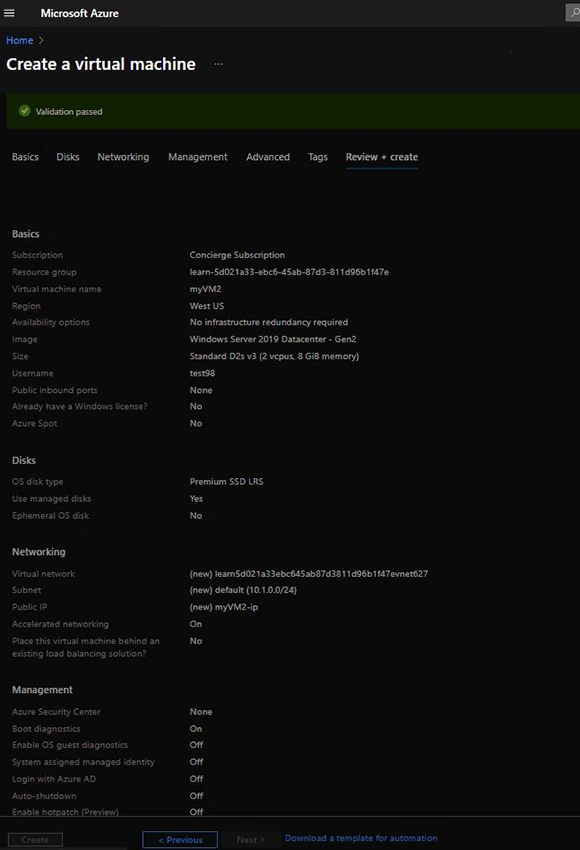
Click on Review + Create.
Step 8
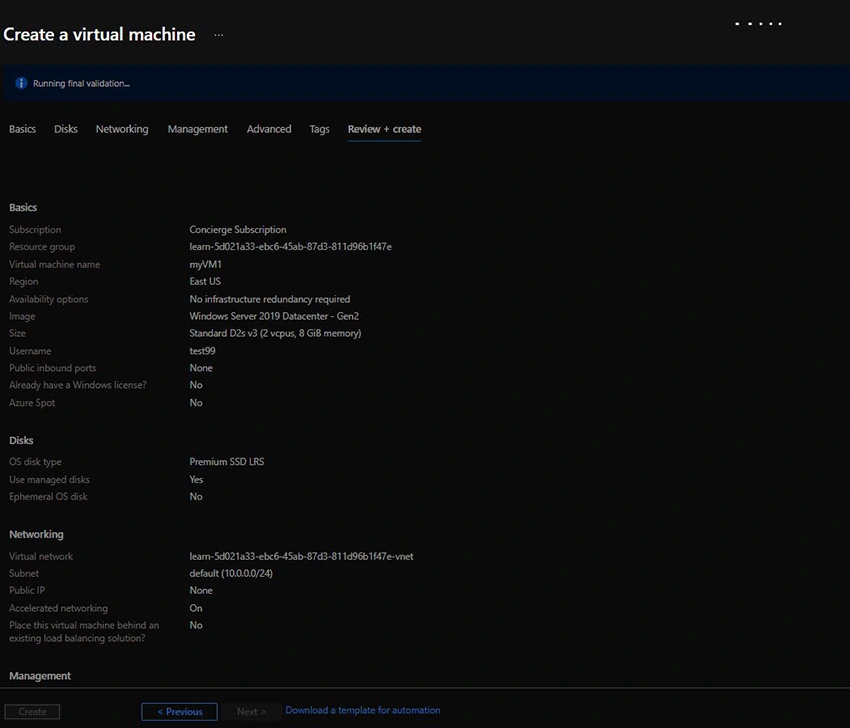
Azure will start to run validations and result with a green bar as the validation is passed.
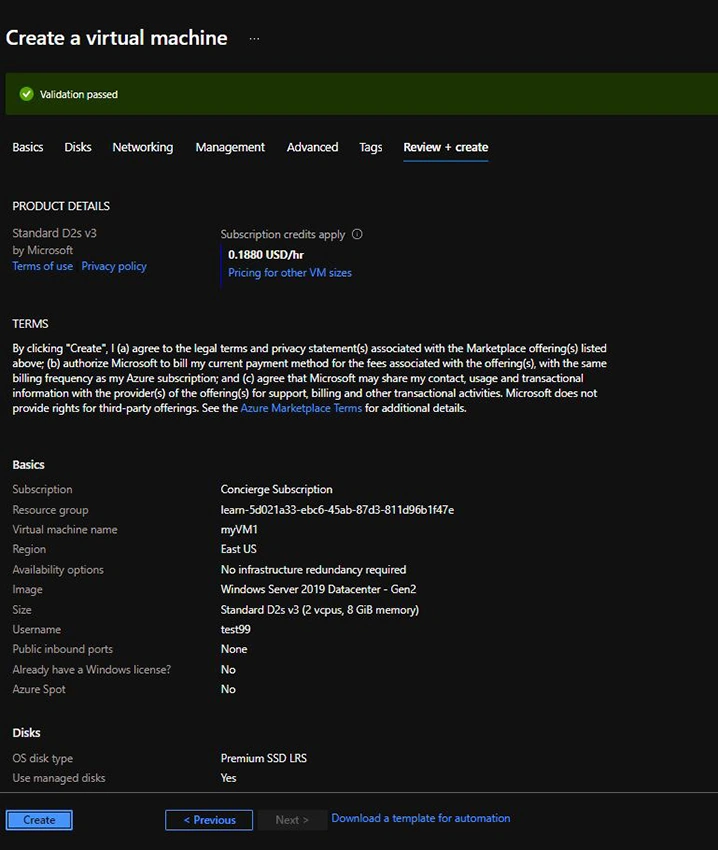
Step 9
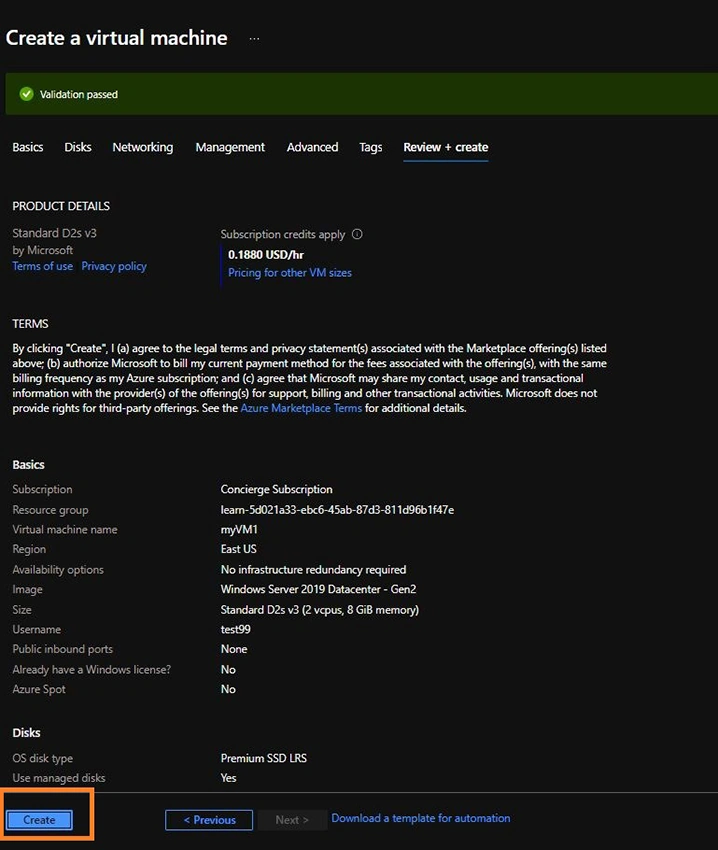
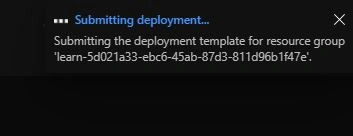
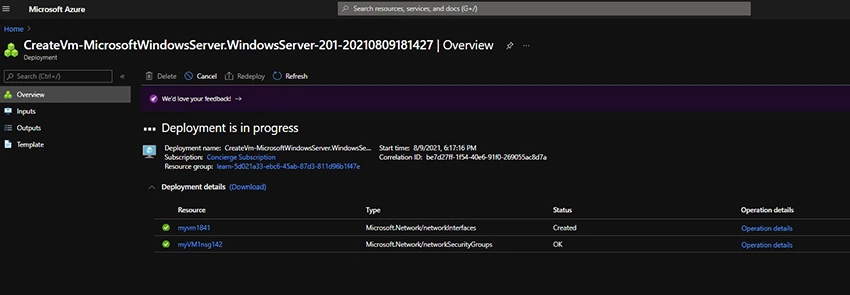
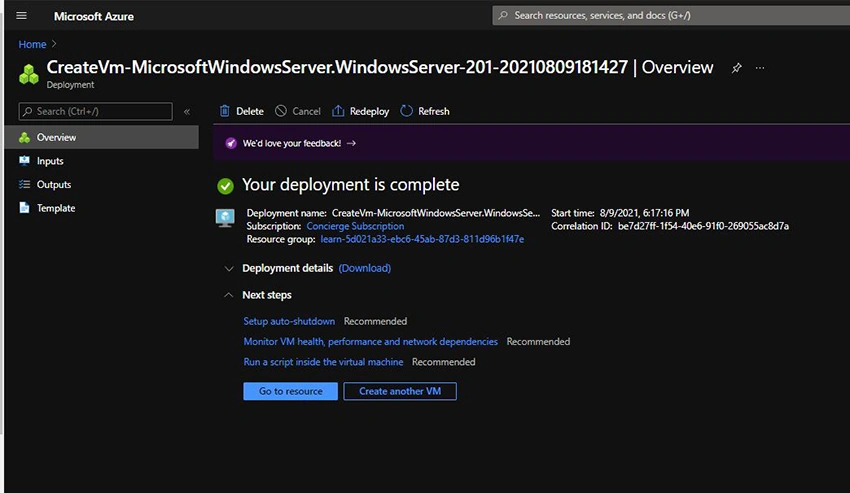
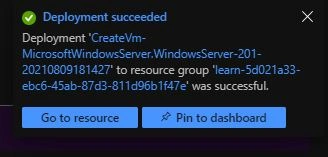
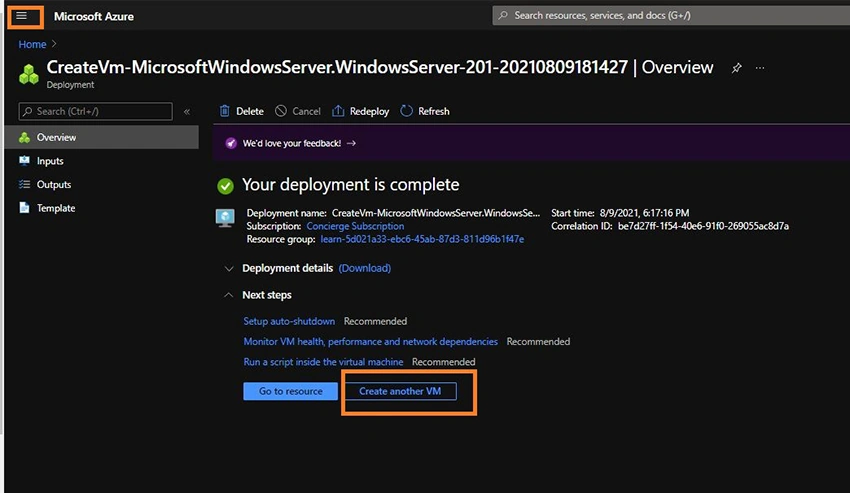
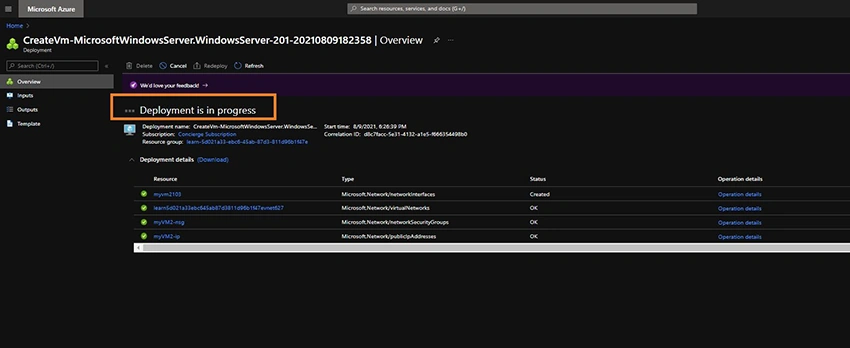
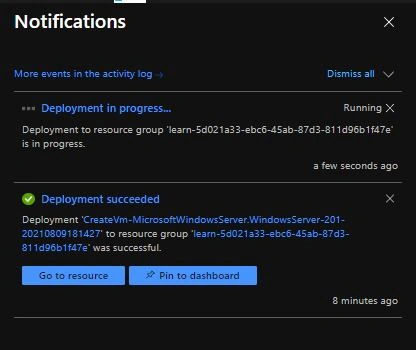
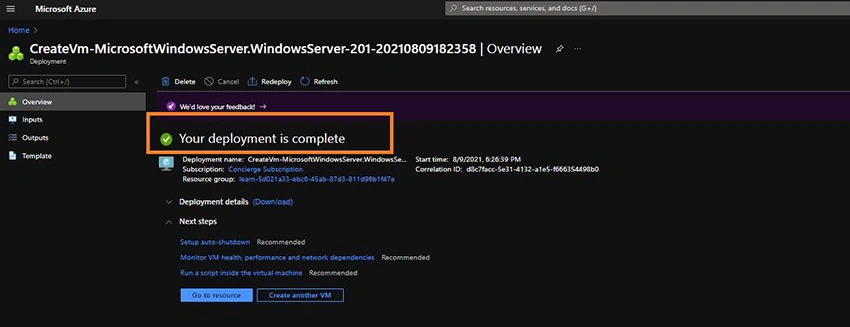
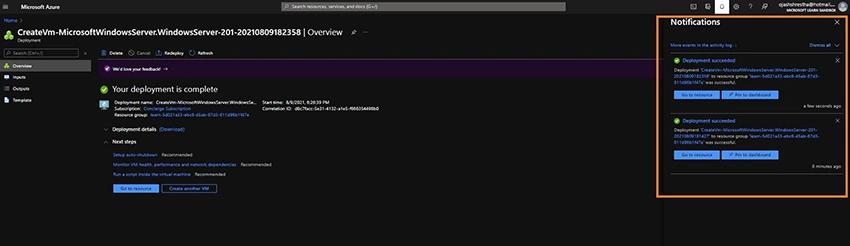
Click on Create to Submit your deployment. The notification will pop up as shown below.
Venkatasubbarao PolisettyPosted Aug 11, 2021, 12:19 PM
Informative!