Introduction
Recently, I worked on the development of a Windows Forms application where one of the core requirements was a localized date picker that adapts dynamically to the user's selected application UI language. For instance, if a user selects English as the UI language, the date picker calendar should display fully translated English names for days and months.
I initially tried using the native DateTimePicker control from the Visual Studio toolbox. However, I realized that this control relies entirely on the operating system's regional and language settings. Aside from setting a custom display format string, it is impossible to force the control to display Japanese month and day names and date formats if the Windows system region is set to, for example, Serbian Latin. Across many developer articles and forums, the consensus answer is often that this is simply not possible using the standard control.
Driven by this limitation, I decided to build a custom, lightweight date picker control that gives us full control over localization, rendering, and behavior.
Prerequisites and Source Code
Before diving into the code implementation and architecture details, you can access the complete open-source project and the ready-to-use NuGet package:
Source Code Repository:
NuGet Package:
Requirements
To build, run, or integrate this custom control into your own solutions, ensure you have:
Microsoft Visual Studio 2026
Basic familiarity with Windows Forms control lifecycle, user controls, and component rendering.
Custom Control Architecture
To achieve full independence from the operating system's regional settings,
the solution is designed as a composite custom user control UserControl consisting of:
A Read-Only Textbox _textBox :
A Dropdown Button _dropDownButton :
A Calendar Host ToolStripDropDown & ToolStripControlHost :
Key Advantages of This Approach:
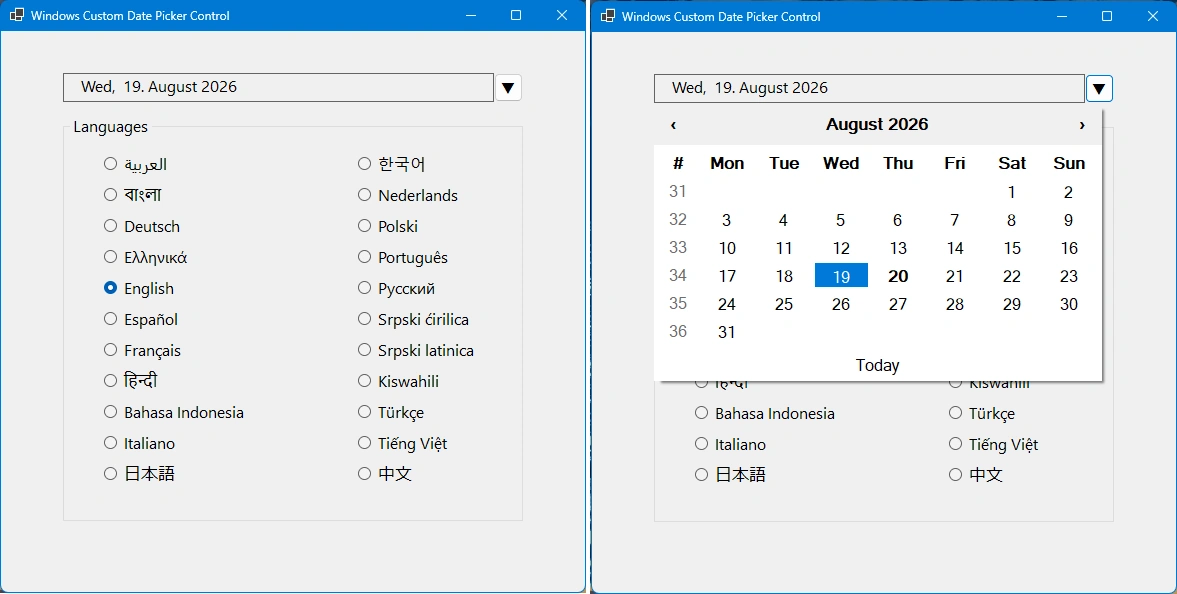
Application Demonstration & Multi-Language Support
To test the multi-language capabilities and see how the custom date picker adapts to different cultures in real time, the accompanying sample project includes a comprehensive panel with radio buttons for various languages such as Japanese, Bengali, Arabic, German, and Serbian.
A key architectural highlight of this custom control is that the size of the calendar grid dynamically resizes based on the length of the abbreviated day names for the selected language. Because some languages have wider character representations or longer localized text headers, the control automatically measures the text using TextRenderer and recalculates the column widths and overall minimum size on the fly.
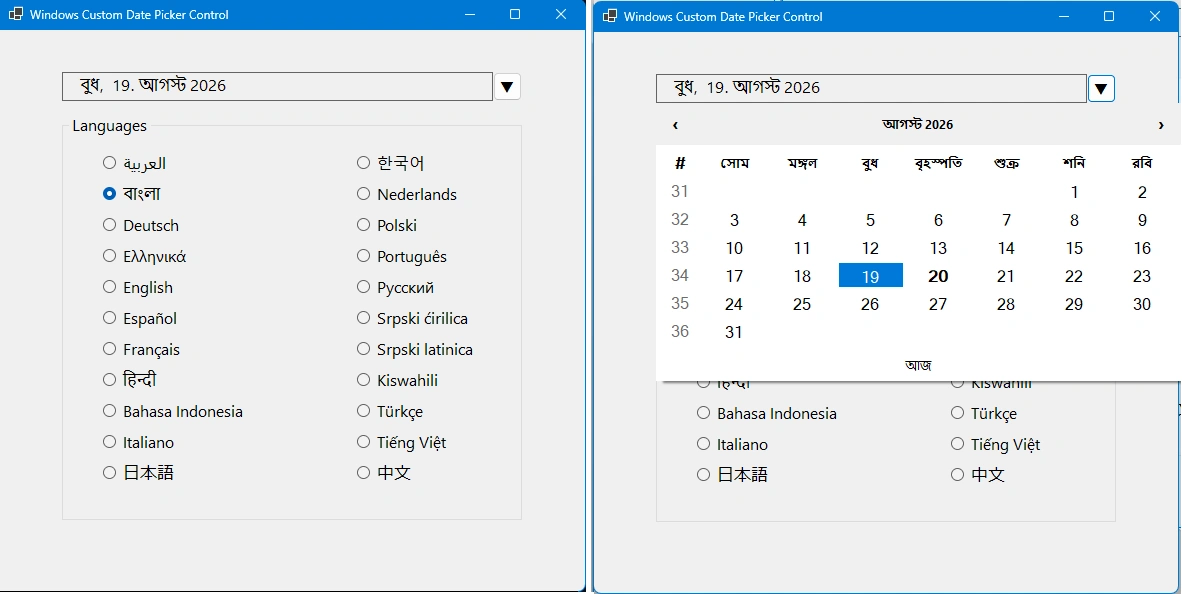
1. Bengali Localization Example
When the user selects Bengali from the application interface, both the text box format and the internal calendar headers, days of the week, and the "Today" button update dynamically, completely independently of the Windows system regional settings:
Image on the left - Main View - Bengali: Shows the application with Bengali localization active.
Image on the right - Calendar Dropdown - Bengali: Demonstrates the open popup calendar displaying Bengali day names and the localized Today button, with column widths adjusted to fit the Bengali font metrics.
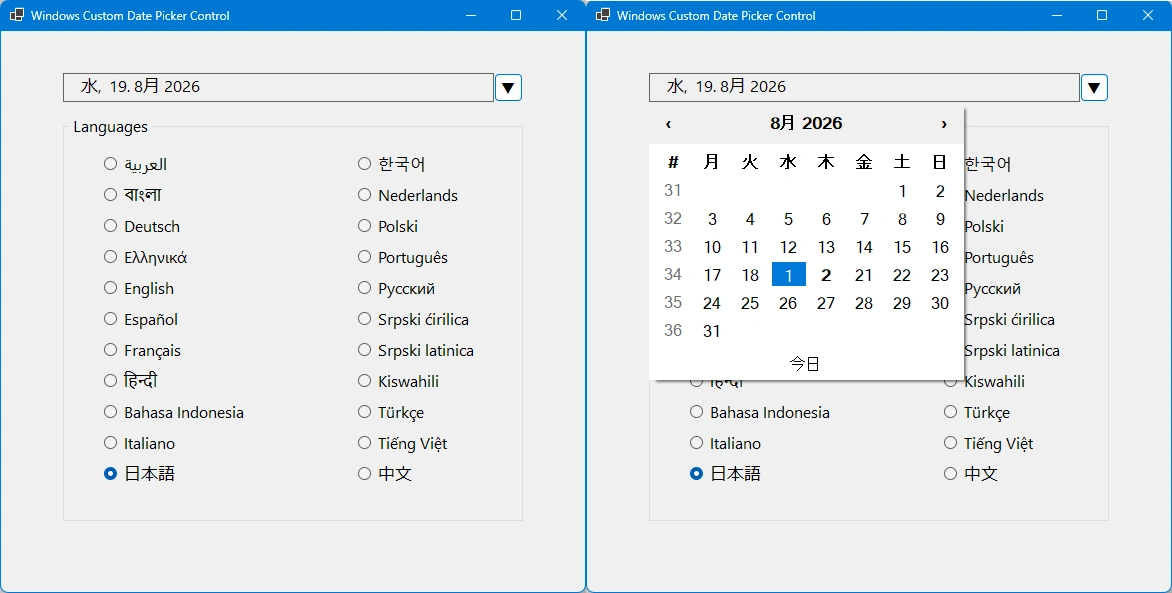
2. Japanese Localization Example
Similarly, switching the application language to Japanese forces the control to format the date and render the calendar using Japanese month/day standards (e.g., displaying 水, 19.8月 2026 in the text box and Japanese day headers in the popup grid):
Image on the left - Language Selection Panel: Shows the radio button selection for Japanese ( 日本語 ).
Image on the right - Popup Calendar View: Highlights the fully rendered Japanese calendar popup with the localized "Today" button ( 今日 ), perfectly sizing the control's dimensions to accommodate the layout.
Core Component Implementation: Windows_Forms_Custom_Date_Picker_Control
The main entry point for developers using this component is Windows_Forms_Custom_Date_Picker_Control , which inherits from UserControl.
It acts as a composite control, combining a read-only text box for displaying the formatted date, a dropdown button, and a floating calendar popup.
Constructor and Component Initialization
In the constructor, we optimize rendering styles using double buffering to prevent UI flickering, initialize the child controls, and wrap the custom month calendar inside a ToolStripDropDown using a ToolStripControlHost.
[DefaultProperty(nameof(Value))]
[DefaultEvent(nameof(ValueChanged))]
public partial class Windows_Forms_Custom_Date_Picker_Control : UserControl
{
    private readonly TextBox _textBox;
    private readonly Button _dropDownButton;
    private readonly Windows_Forms_Custom_Month_Calendar_Control _calendar;
    private readonly ToolStripDropDown _popup;

    public Windows_Forms_Custom_Date_Picker_Control()
    {
        InitializeComponent();

        // Optimize rendering performance and prevent flickering
        SetStyle(ControlStyles.AllPaintingInWmPaint
            | ControlStyles.UserPaint
            | ControlStyles.OptimizedDoubleBuffer,
            true);

        MinimumSize = new Size(120, 23);
        Size = new Size(200, 29);

        // Text box to display the formatted date (read-only to enforce calendar selection)
        _textBox = new TextBox
        {
            BorderStyle = BorderStyle.FixedSingle,
            ReadOnly = true,
            TabStop = true,
            Dock = DockStyle.Fill
        };

        // Dropdown button triggering the calendar view
        _dropDownButton = new Button
        {
            Text = "▼",
            Dock = DockStyle.Right,
            Width = 30,
            TabStop = false,
            FlatStyle = FlatStyle.System
        };

        // Instance of the custom month calendar
        _calendar = new Windows_Forms_Custom_Month_Calendar_Control();

        // Popup container holding the calendar control
        _popup = new ToolStripDropDown
        {
            AutoClose = true,
            AutoSize = true,
            Padding = Padding.Empty
        };

        var host = new ToolStripControlHost(_calendar)
        {
            Padding = Padding.Empty,
            Margin = Padding.Empty,
            AutoSize = false,
            Size = _calendar.Size
        };

        _popup.Items.Add(host);

        Controls.Add(_textBox);
        Controls.Add(_dropDownButton);

        // Wire up event handlers
        _dropDownButton.Click += DropDownButton_Click;
        _calendar.ValueChanged += Calendar_ValueChanged;
        _textBox.KeyDown += TextBox_KeyDown;

        UpdateText();
    }
}
Key Architectural Highlights:
Composite UI Layout: The control uses standard dock styles DockStyle.Fill for the text box and DockStyle.Right for the dropdown button so that it scales cleanly when resized on a Windows Form.
Popup Management via ToolStripDropDown: Instead of a complex custom form, hosting the calendar inside a ToolStripDropDown provides native popup behaviors out-of-the-box—such as automatic dismissal AutoClose = true when the user clicks anywhere outside the calendar bounds.
Keyboard Navigation: The text box intercepts key down events Enter, Space, or Down, allowing users to trigger the calendar popup directly via keyboard interaction for better accessibility.
Localization and Dynamic Sizing in Windows_Forms_Custom_Month_Calendar_Control
To completely decouple the date picker from the operating system's regional settings, the internal calendar component Windows_Forms_Custom_Month_Calendar_Control handles culture and text rendering explicitly.
1. Managing Culture and "Today" Button Translations
The control exposes a Culture property. When this property is updated, the calendar recalculates day names, month headers, and the localized text for the "Today" button. Because standard operating system controls often rely on system locale for these UI strings, an internal dictionary Today Translations is utilized to map ISO language codes directly to their localized equivalents (e.g., mapping "ja" to "今日", "bn" to "আজ", or handling specific variants like Serbian Latin and Cyrillic).
private static readonly Dictionary<string, string> TodayTranslations =
new(StringComparer.OrdinalIgnoreCase)
{
    ["en"] = "Today",
    ["ja"] = "今日",
    ["bn"] = "আজ",
    ["sr"] = "Danas",
    // ... extensive multi-language dictionary mapping
};

private string GetLocalizedTodayText()
{
    string cultureName = _culture.Name.ToLowerInvariant();
    if (cultureName.Contains("sr-latn") || cultureName == "sr-latn")
        return SerbianLatinToday;
    if (cultureName.Contains("sr-cyrl") || cultureName == "sr-cyrl")
        return SerbianCyrillicToday;

    string languageCode = _culture.TwoLetterISOLanguageName.ToLowerInvariant();
    if (TodayTranslations.TryGetValue(languageCode, out string? translation))
    {
        return translation;
    }

    return !string.IsNullOrEmpty(_todayButtonFallbackString)
        ? _todayButtonFallbackString
        : DefaultTodayButtonFallback;
}
2. Dynamic Column Sizing and Typography Handling
Different languages have vastly different character widths and string metrics for abbreviated day names. To ensure that text is never clipped or distorted, the calendar dynamically measures the longest abbreviated day name using TextRenderer.MeasureText and recalculates column widths and overall control dimensions on the fly:
private void AdjustDayColumnWidths()
    {
        string[] dayNames = GetDayNames();

        using Font headerFont =
            new Font(
                _dayFont.FontFamily,
                _dayFont.Size,
                FontStyle.Bold);

        // Find the widest abbreviated day name.
        int maxWidth = 0;

        foreach (string dayName in dayNames)
        {
            Size measuredSize =
                TextRenderer.MeasureText(
                    dayName,
                    headerFont);

            maxWidth = Math.Max(
                maxWidth,
                measuredSize.Width);
        }

        // Add horizontal space around the text.
        int minimumDayColumnWidth =
            maxWidth + 12;

        // Calculates required width and applies column styles dynamically...
    }
This ensures that whether a user selects English, Japanese 日本語, or Bengali বাংলা, the calendar grid and popup container adapt seamlessly to the specific font metrics and text length of that language.
Usage Examples
Once you have installed the NuGet package or referenced the control in your project, using the custom date picker is straightforward. You can either drag and drop it from the Visual Studio Toolbox onto your form or initialize it programmatically.
1. Initializing and Configuring the Control in Code
You can set up the control's culture, minimum/maximum date boundaries, custom date format, and subscribe to the ValueChanged event directly in your form's code:
using System;
using System.Globalization;
using System.Windows.Forms;
using Windows_Forms_Custom_Date_Picker;

namespace MyApp
{
    public partial class MainForm : Form
    {
        private Windows_Forms_Custom_Date_Picker_Control _customDatePicker;

        public MainForm()
        {
            InitializeComponent();

            // Instantiate the custom date picker control
            _customDatePicker = new Windows_Forms_Custom_Date_Picker_Control
            {
                Location = new Point(50, 50),
                Size = new Size(250, 30),

                // Configure custom date display format
                CustomFormat = "dddd, dd. MMMM yyyy",

                // Set initial value and date range boundaries
                Value = DateTime.Today,
                MinDate = new DateTime(2020, 1, 1),
                MaxDate = new DateTime(2030, 12, 31),

                // Enable optional features
                CalendarTodayButtonVisible = true,
                CalendarShowWeekNumbers = true
            };

            // Subscribe to the date change event
            _customDatePicker.ValueChanged += CustomDatePicker_ValueChanged;

            Controls.Add(_customDatePicker);
        }

        private void CustomDatePicker_ValueChanged(object? sender, EventArgs e)
        {
            // Retrieve the selected date
            DateTime selectedDate = _customDatePicker.Value;
            MessageBox.Show($"Selected date: {_customDatePicker.ValueText}");
        }
    }
}
2. Changing the Culture Dynamically at Runtime
To switch the language and culture of the date picker dynamically for example, when a user selects a language option from a settings menu or radio button group, simply assign a new CultureInfo instance to the Culture property:
private void ChangeLanguageToJapanese()
{
    // Force the control to use Japanese culture, updating day names, headers, and the Today button ("今日")
    _customDatePicker.Culture = new CultureInfo("ja-JP");
}

private void ChangeLanguageToSerbian()
{
    // Switch to Serbian Latin culture
    _customDatePicker.Culture = new CultureInfo("sr-Latn-RS");
}
Conclusion
Building custom controls in Windows Forms gives developers the ultimate freedom to overcome the rigid limitations of standard toolbox components. By developing our own composite date picker and fully localized month calendar control, we successfully bypassed operating system regional restrictions, enabling seamless multi-language support such as Japanese, Bengali, Serbian, and many others driven entirely by the application's UI language configuration.
Combined with features like dynamic font sizing, automatic column width calculation using text metrics, and robust popup management via ToolStripDropDown, this solution provides a lightweight, flexible, and professional component ready for modern desktop applications.
You can download, explore, or contribute to the complete open-source solution directly from the GitHub Repository or integrate it via its NuGet Package.


Join the conversation! Your thoughts help the community grow.