

Introduction
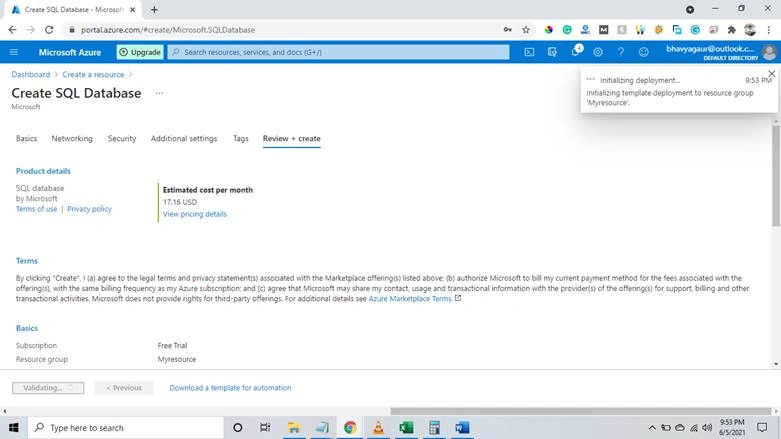
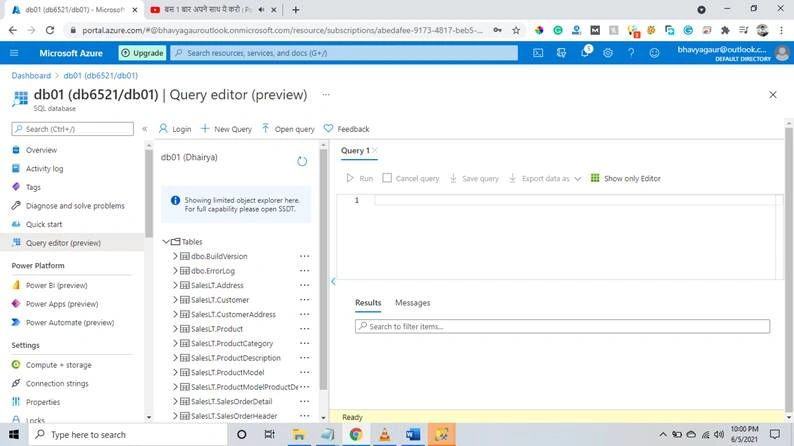
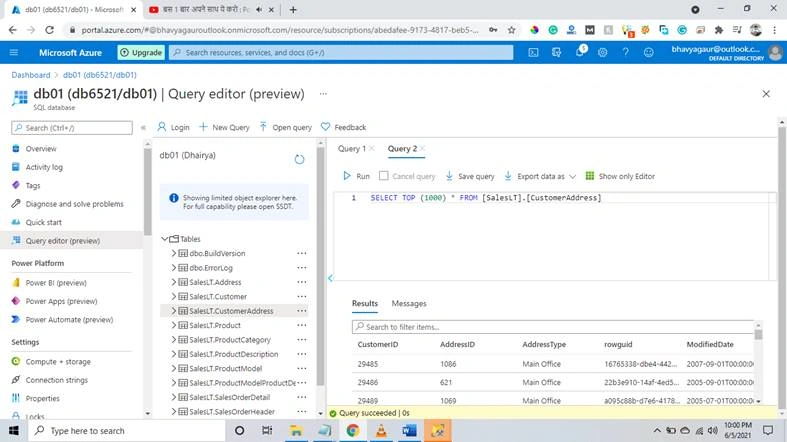
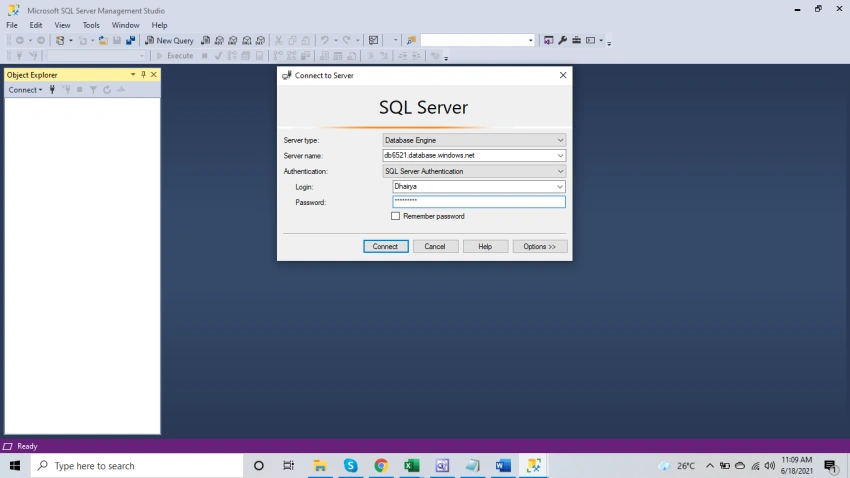
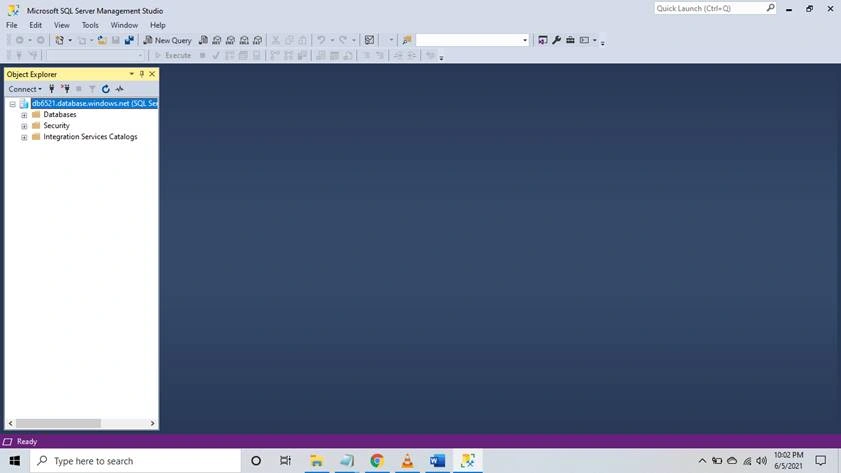
In this article, we will learn how to create a single database in Azure SQL Database using either the Azure portal or an Azure CLI script. Then we will query the database using the Query editor in the Azure portal and also in our system installed SSMS.
What is Single database?
The single database resource type creates a database in Azure SQL Database with its own set of resources and is managed via a server. With a single database, each database is isolated and portable. Each has its own service tier within the DTU-based purchasing model or vCore-based purchasing model and a guaranteed compute size.
How to create a single database
Step 1
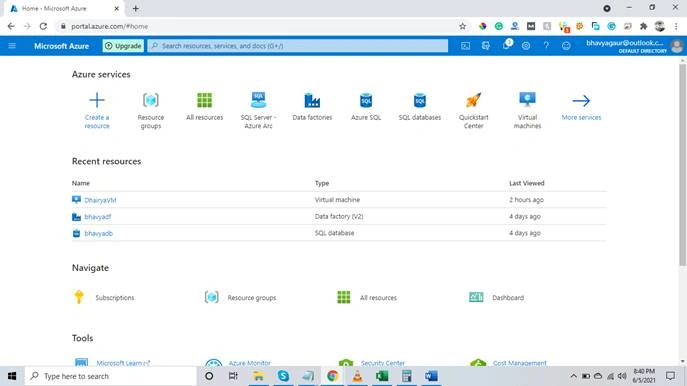
Login to portal.azure.com. Here you will see this homepage as shown below,
Step 2
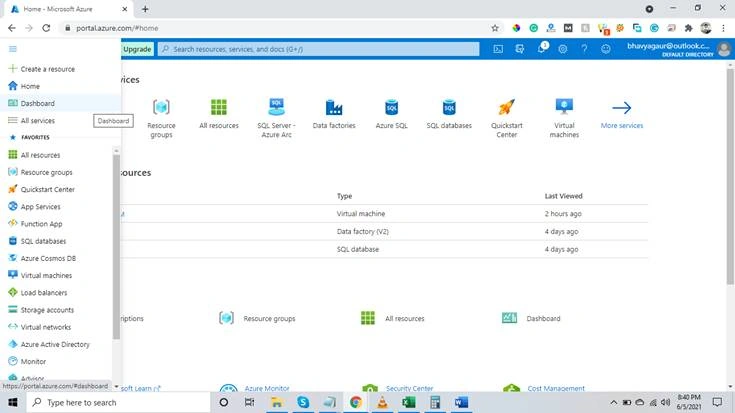
Click on the three lines on the left side and click on the dashboard.
Step 3 - Create a resource
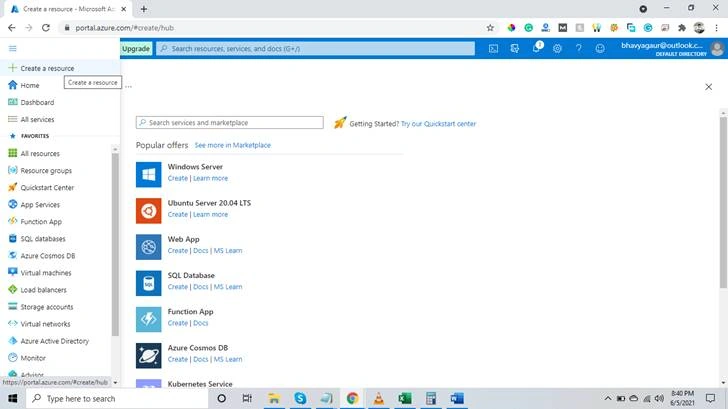
Now we need to create a resource from here for doing that click on the “create a resource”.
Step 4
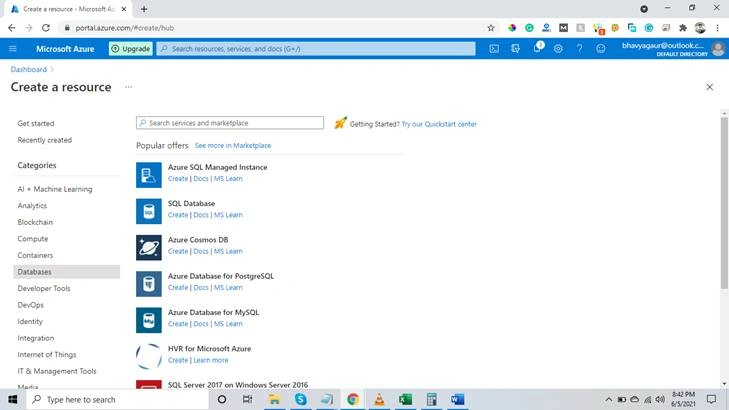
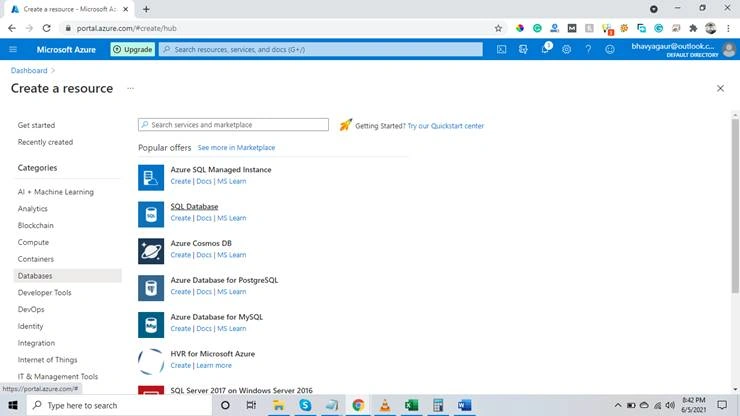
In resources you can check in the below image there is an option category where you can click on the database and you will see the result on the right side.
Step 5
Here you can see we have the option “SQL database”. Click on the “SQL database”.
Step 6 - Create SQL database
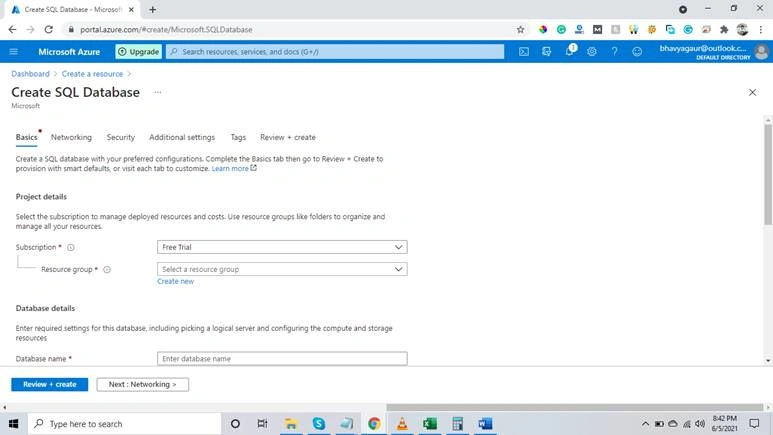
Here you can see we moved to that window from where we can create our SQL database. In this first screen, we need to select our subscription. Because I am working with a free subscription so I selected that then you need to select a resource group. If you do not have any resource group then you can create that easily by clicking on the create a new button in a resource group.
Step 7 - Create a new server
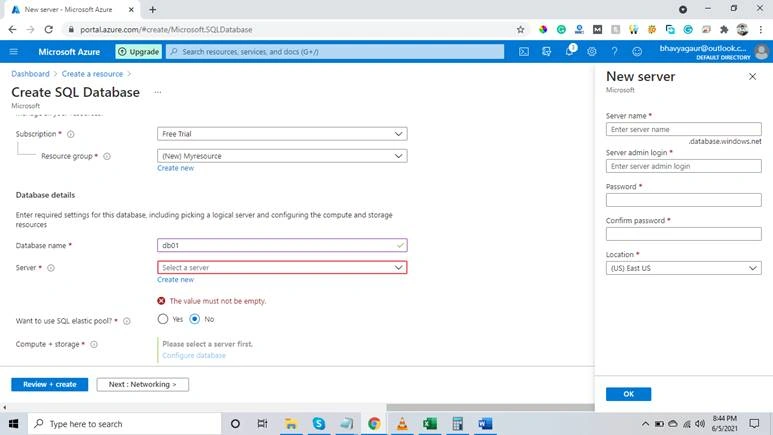
Here you can see that in the database details area we need to enter a database name and also select a server. We do not have any servers so I click on create new and you can see on the right side a new window will come up for a new server in that window you need to enter some details like server name, server admin login, and password. After entering all the required information we need to click on the ok button to save it. Here you can see a new option is there which is saying want to use SQL elastic pool which we will leave no as default. We will discuss SQL elastic pool in our upcoming articles in detail. For now, you can understand that by using SQL elastic pool we can save a lot of money. Now we click on the next button.
Step 7 – Networking
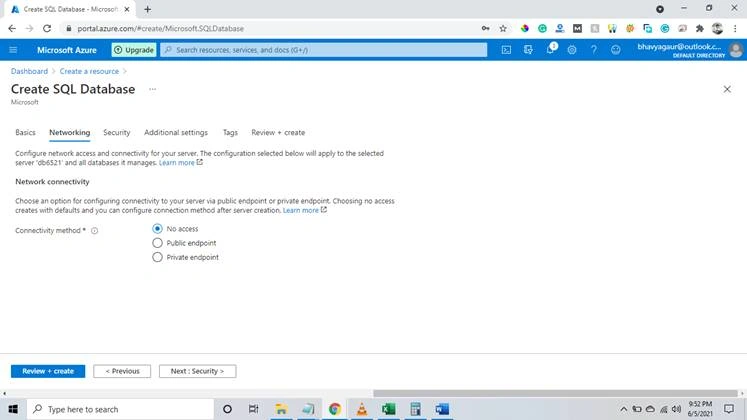
In this option, we do not make any changes and leave everything as it is.
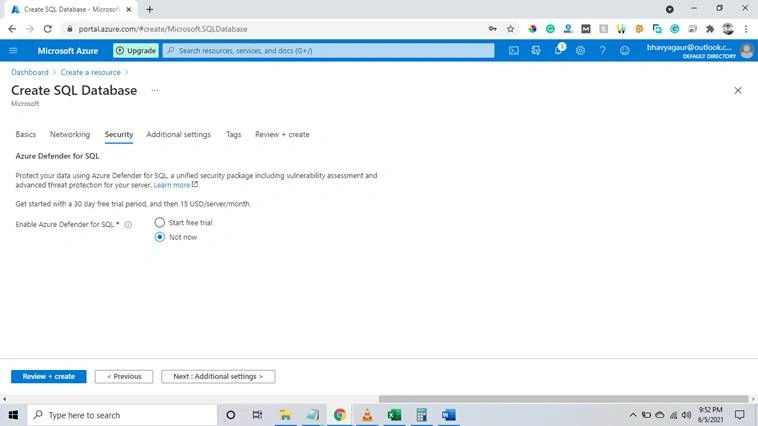
Step 8 – Security
In this screen, we do not select anything only for this demo project. But when you will work on other projects you need to check it for security purposes.
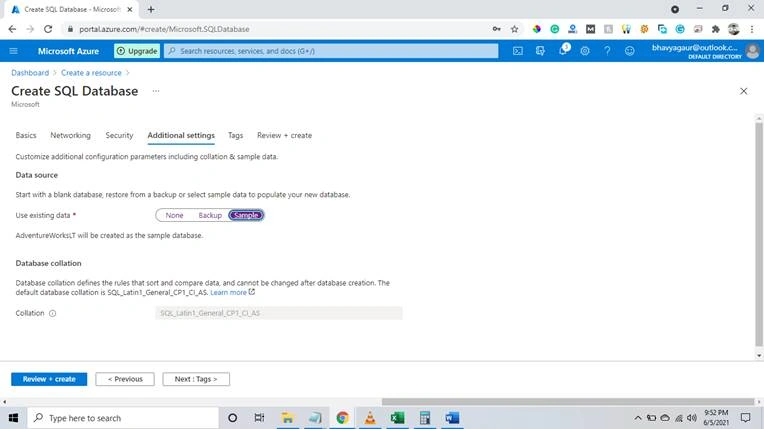
Step 9 – Additional Setting
In this screen, as you can see below in the data source we have an option to select existing data, for now, we will click on the sample to load a sample database if you have any database backup you can select that as well.
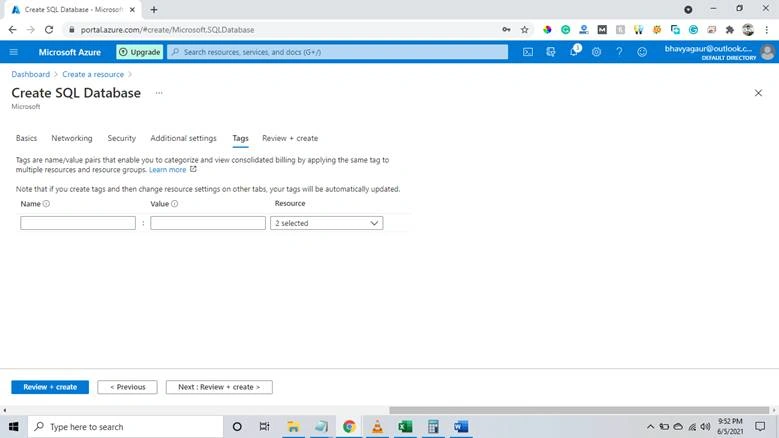
Step 10 -Tags
On this screen, we do not change anything. But tags are really good for our projects. It can be used in the pricing and another manner where you can use your project you can use tags to differentiate that.
Join the conversation! Your thoughts help the community grow.