

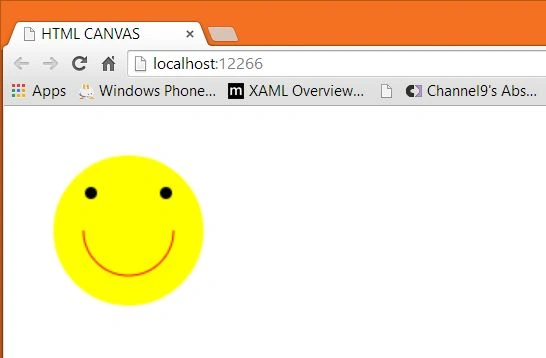
Step 1
Create an HTML file Index.html and inside that add a canvas, give it a width of 400 and height of 200.
- <!DOCTYPE html>
- <html>
- <head>
- <title>
- HTML CANVAS
- </title> <!—a reference to the an external js file-->
- <script src="script.js"></script>
- </head>
- <body onload="bodyLoad()">
- <canvas id="mycanvas" width="400" height="200" onmousewheel="myfunction2();"></canvas>
- </body>
- </html>
To get the element reference of Canvas we can use its Id “myCanvas”. Pass it in the GetElementById function as a parameter that is present in the global variable document.
- function myFace() {
- var c = document.getElementById("mycanvas");
- //to draw a surface on canvas element pass 2d as an argument in the getContext function
- var draw = c.getContext("2d");
- //to start a new path invoke BeginPath function.
- //Call this function when you want to create a new path
- draw.beginPath();
- //to specify a color or style for your canvas use fillStyle property
- draw.fillStyle = "yellow";
- //to create a full circle invoke the arc method and in that method
- //pass the value for x and y, radius, start point,
- draw.arc(75, 75, 50, 0, Math.PI * 2, true);
- //to close the path invoke the closePath function
- draw.closePath();
- //invoke fill function to fill the canvas with a circle and in that circle a color of yellow
- draw.fill();
- }
Call this function when the body content loads, in other words on:
- <body onload="myfunction()">
- <body onload="myFace()">
- <p>Scroll your mouse over my face</p>
- <canvas id="mycanvas" width="400" height="200"></canvas>
- </body>
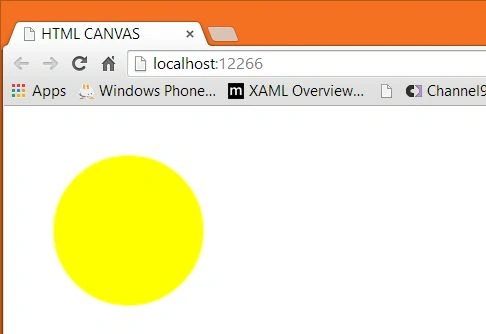
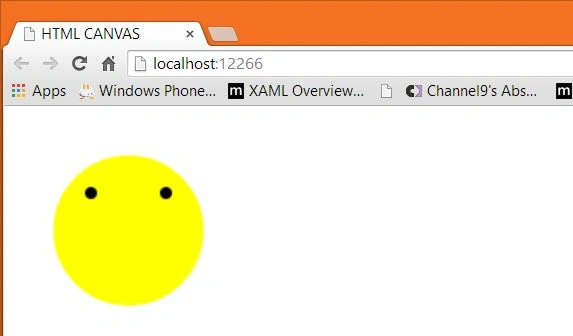
The next thing we need to do is to add eyes to this face.
Harpreet SinghPosted Mar 4, 2015, 12:34 PM
Vithal Wadje thank you sir
Vithal WadjePosted Mar 4, 2015, 12:24 PM
nice
Humayun Kabir MamunPosted Mar 4, 2015, 2:47 AM
Great Work...
Harpreet SinghPosted Mar 4, 2015, 2:16 AM
Mahmoud Algoul thank you
Harpreet SinghPosted Mar 4, 2015, 2:16 AM
Shaili Dashora thank you
Mahmoud AlgoulPosted Mar 4, 2015, 12:02 AM
Nice
Shaili DashoraPosted Mar 2, 2015, 2:04 PM
Nice one Harpreet Singh
Harpreet SinghPosted Mar 2, 2015, 2:12 AM
Tom Mohan you too mate and thank you
Harpreet SinghPosted Mar 2, 2015, 2:12 AM
Sibeesh Venu thank you
Harpreet SinghPosted Mar 2, 2015, 2:12 AM
Rahul Saxena thank you mate
Harpreet SinghPosted Mar 2, 2015, 2:11 AM
Khargesh Rajput thank you
Tom MohanPosted Mar 1, 2015, 6:05 AM
keep smiling..... good work :)
Sibeesh VenuPosted Mar 1, 2015, 3:06 AM
Nice...
Rahul Kumar SaxenaPosted Feb 28, 2015, 10:46 PM
Good show bro... :)
Khargesh RajputPosted Feb 28, 2015, 10:19 PM
Nice