

Introduction
Imagine you run a business and you have information about your customers in different places - some in Excel, some in emails, some in flat files, and some in your website's database. SSIS can help you combine all of that into one place, clean it up so it's accurate and organized, and then use it to make smart decisions about your business.
What is SSIS?
SSIS stands for SQL Server Integration Services. It is a part of Microsoft SQL Server, a powerful database management system. It is highly used for handling data. But SSIS is not just about storing data; it's about making sure data flows smoothly from one place to another. It is a robust component within Microsoft SQL Server, designed specifically to tackle complex data integration and transformation tasks. At its core, SSIS is a platform for building enterprise-level solutions related to data movement, cleansing, and loading. It is an upgraded version of DTS (Data Transformation Services), which was an old data transformation solution included with SQL Server.
To read more check my previous article- What is SSIS?
How to Create an SQL Server Integration Services Package?
To create an SQL Server Integration Services package, follow the below steps -
Step 1. Install SQL Server Data Tools (SSDT)
You may already have SQL Server Data Tools installed in your Visual Studio. If you are not sure whether you have it already installed or not, follow the below steps to check-
- Open Visual Studio ( I am using Visual Studio 2022) and click 'Extensions'.
- Select 'Manage Extensions'. A popup window will open.
- In this window, click 'Installed Extensions', all the installed extensions will appear here.
- Check if SQL Server Data Tools is present in this list. If it is present, then, your installation step is already done, else, you can search for 'SQL Server Data Tools' and install this extension.

Step 2. Create a new SQL Server Integration Services Project
Once the installation part is done, follow the below steps to create a new SQL Server Integration Services project-
- In Visual Studio, go to the "File" menu, then "New", and select "Project".
- In the "New Project" dialog, search "Integration Services Project".
- Select "Integration Services Project" and Click "Next".
- In the "Configure your new project" window, name your project, and click "Create".
- Your project will be created. Below is the image of how your solution explorer will look like.
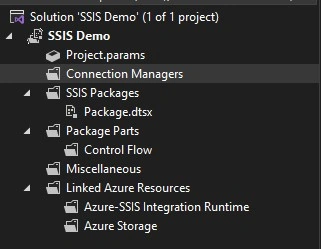
You can see here we have a connection manager, packages, control flow, and all, which I have already explained in my previous article which is What Is In SSIS ToolBox. You can read here- What Is In SSIS Toolbox?
Now, for this article, I will be creating a package to move data from a flat file to the database.
Step 3. Create a flat file
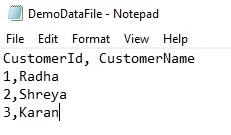
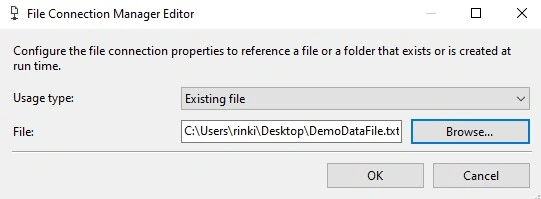
If you already have a flat file where you have some data stored, then you may skip this. Otherwise, create a text file and add some data to it. Here, I have created a file named DemoDataFile.txt and added some data to it.



Join the conversation! Your thoughts help the community grow.