

What are Azure Container instances?
- Azure Container Instances are used for Developing apps fast without managing virtual machines.
- By running our workloads in Azure Container Instances (ACI), we can focus on designing and building our applications instead of managing the infrastructure that runs them.
- A Container offers significant startup benefits over a Virtual Machine.
- It also supports executing a command in a running container by providing an interactive shell to help with application development and troubleshooting.
- Azure Container Instances can schedule both Windows and Linux containers with the same API.
- It even supports the scheduling of multi-container groups that share a host machine, local network, storage, and lifecycle. This enables you to combine your main application container with other supporting role containers.
- You pay based on what you need and get billed by the second, so you can fine-tune your spending based on actual need.
Architecture Diagram
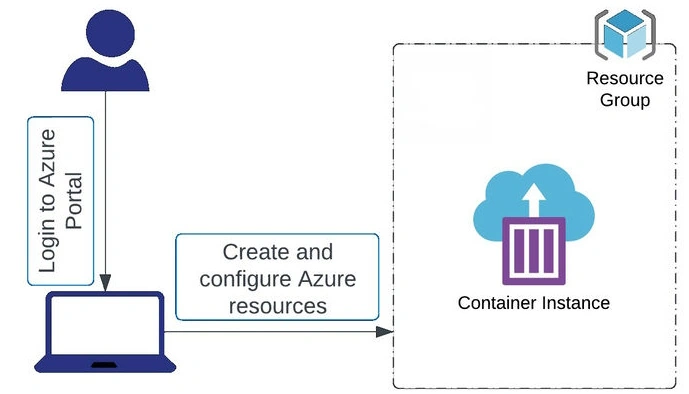
Sign up for Azure Portal
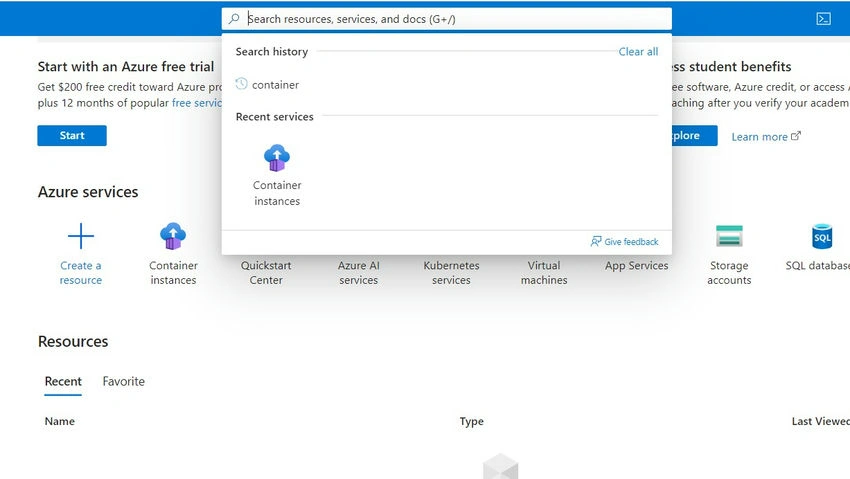
From the All services blade, search for Container instances and select it
Click on +Create and enter the following values in the Basics tab.
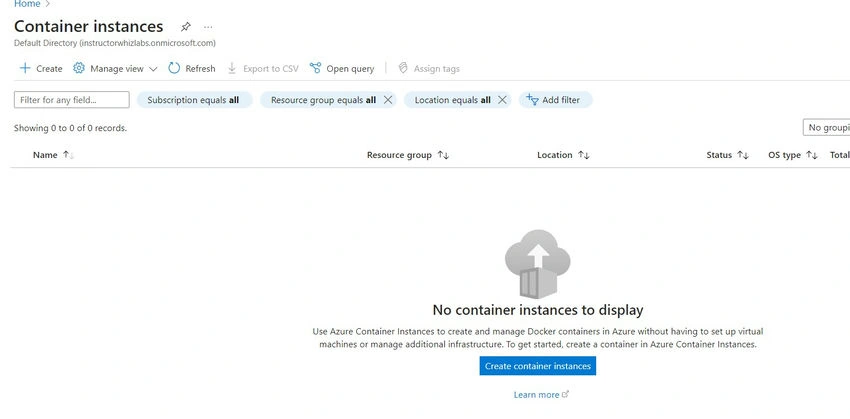
Enter the Information in the Basic tab Below.

Click on the Networking tab and enter the following values.
- Networking Type: Select Public
- DNS name label: Enter a globally unique name

Click on Review + Create and then select Create. Please wait for the deployment to complete.

In the Overview page of the container instance, ensure your container Status is Running. Locate the Fully Qualified Domain Name (FQDN) and copy it.

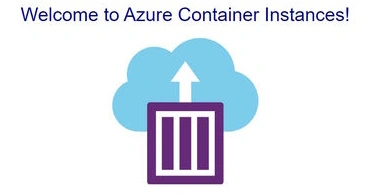
Open FQDN as a new URL tab in the web browser and press Enter. You will be able to see a welcome page as shown below
Conclusion
This series has provided a comprehensive understanding of creating Azure Container Instances. From setting up environments to deploying containerized applications, you've gained valuable insights into Azure's capabilities. By following these steps, you're now equipped to efficiently deploy and manage container instances in Microsoft Azure, empowering your projects with scalability and flexibility.
Join the conversation! Your thoughts help the community grow.