

Article Overview
Background
Azure Cosmos DB
Azure Cosmos DB Items
Create Azure Cosmos DB account
Create Data Resources and Items using .NET console app
Create console application
Configure application
Starter code
Complete code
Create a cosmos DB client
Create a database
Create a container
Define typed item
Add item to a container
Build application
Run application and verify result
Clean up resources
Summary
This article describes a complete process of how to create a Azure Cosmos DB account and build .NET console application. In this example Microsoft Azure Cosmos DB SDK is used to create Database, Container, and Item. Authentication is configured and database operations are performed through programming. Results are verified in the Azure Portal. Following activities are performed one by one:
Create Azure Cosmos DB account.
Create Database, Container, and Item through console application.
Verify result in Azure Portal.
Clean up resources.
1. Background
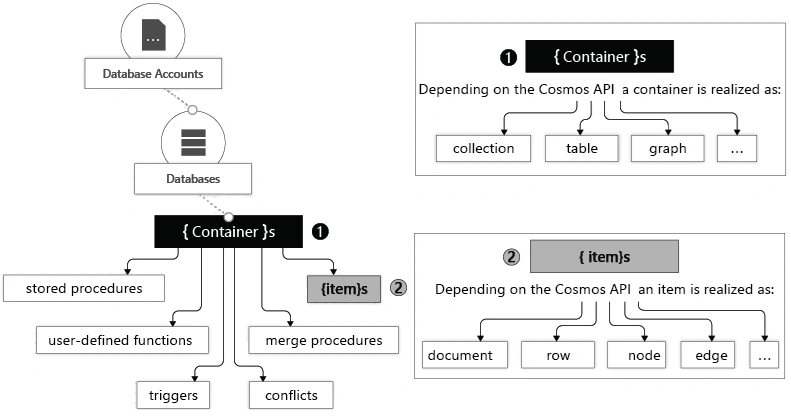
A complete description and background about Azure Cosmos DB and Azure Cosmos DB Items is given in previous article How to Create Azure Cosmos DB Resources by using the Azure Portal?. Hence, same is not repeated here and one can refer it from it. Hierarchy of Azure Cosmos DB account entities is depicted in below figure:
2. Create Azure Cosmos DB account
Let’s first create Resource Group and Azure Cosmos DB account using Azure Cloud Shell (Azure CLI). One can also create it from Azure Portal, PowerShell, Azure CLI (Azure Cloud Shell), Bicep, Template, Azure Developer CLI, or Terraform. Resource Group and Azure Cosmos DB account using Azure Portal in article How to Create Azure Cosmos DB Resources by using the Azure Portal?
Use Azure Cloud Shell (Azure CLI)
It is a free Bash shell which can be run directly within the Azure portal. It is preinstalled and configured within an account.
Click Cloud Shell button on the menu bar at the top right side of the Azure portal.

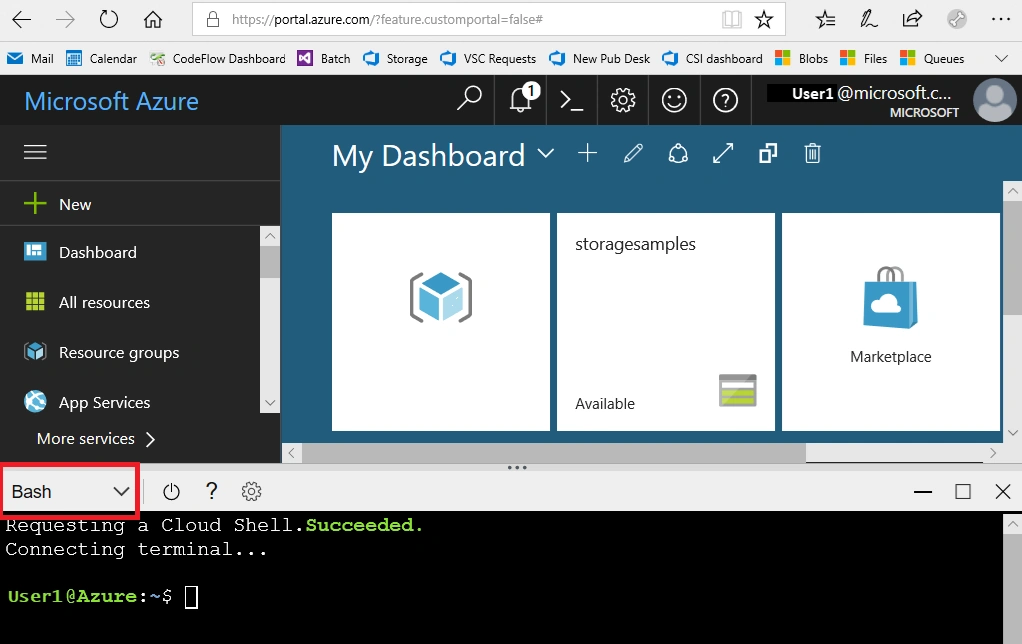
It will launch an interactive shell which can be used to run the steps outlined in this article. Select a Bash environment. To use code editor In cloud shell toolbar go to Settings menu and than select Go to Classic version.
Create Resource Group - Resource group is a logical container used to hold related resources. In it include the resources which you want to manage as a group. Azure storage account must belongs to a resource group. Create it using az group create command.
Syntax:
az group create \
     --name <resource-group> \
     --location <location>
Example:
az group create \
     --name myResourceGroup \
     --location eastus2
eastus2 is location code instead of it one can use their nearest region location.
az account list-locations command gives complete list of available locations.
az account list-locations
az account list-locations --query "[*].name"
az account list-locations --query "[*].name" --out tsv | sort
Create Azure Cosmos DB account - Azure Cosmos DB is a fully managed and globally distributed NoSQL database service. It is specially designed for applications which requires high availability and low latency. It provides elastic scalability across multiple regions and it contains all Azure Cosmos DB resources such as databases, containers, or items. Let’s create it using az cosmosdb create command. Using this cosmos db account all the activities will be performed in below console application section.
Syntax:
az cosmosdb create \
     --name <db-account-name> \
     --resource-group <resource-group>
Example:
az cosmosdb create \
     --name cosmosExercise1\
     --resource-group myResourceGroup
Retrieve documentEndpoint of Azure Cosmos DB account. This will be used later on in this example. az cosmosdb show command shows document end point.
Example:
az cosmosdb show \
     --name cosmosExercise1\
     --resource-group myResourceGroup
     --query "documentEndpoint"
     --output tsv
Retrieve primary key of Azure Cosmos DB account. This will be used later on in this example. az cosmosdb keys list command shows account keys.
Example:
az cosmosdb keys list \
     --name cosmosExercise1\
     --resource-group myResourceGroup
     --query "primaryMasterKey"
     --output tsv
Below command list out all account keys of an Azure Cosmos DB account.
az cosmosdb keys list \
     --name cosmosExercise1\
     --resource-group myResourceGroup
Now basic things are done and next task is to create a console application for further process.
3. Create Data Resources and Items using .NET console app
Let’s create data resources and items through .NET console application using . Open Cloud Shell and perform the following steps one by one:
3.1. Create console application
Set up the console application to create data resources and items.
Create project directory and change to that directory.
mkdir cosmosdb1
cd cosmosdb1
Create .NET console application to create resources and items using it. dotnet new console command used to create .NET console application.
dotnet new console3.2. Configure application
First add packaged and after that create and update .env file. env file holds the secrets.
Add packages - add Microsoft.Azure.Cosmos, Newtonsoft.Json, and dotenv.net packages into the project using following commands.
dotnet add package Microsoft.Azure.Cosmos --version 3.*
dotnet add package Newtonsoft.Json --version 13.*
dotnet add package dotenv.net
Create .env file - create .env file using following commands to hold secrets and open it into code editor to update it’s content.
touch .env
code .env
Update .env file - Into .env file add the below code. Replace actual values with YOUR_DOCUMENT_ENDPOINT and YOUR_ACCOUNT_KEY. Actual values are recorded earlier in previous above section. To save file press ctrl + s and then to exit editor press ctrl + q.
DOCUMENT_ENDPOINT="YOUR_DOCUMENT_ENDPOINT"
ACCOUNT_KEY="YOUR_ACCOUNT_KEY"
3.3. Starter code
Add the following starter code into the application. Let’s replace template code in Program.cs file by using editor in Cloud Shell.
Application editing - open Program.cs file to edit it in the Cloud Shell using below command.
code Program.csReplace code - replace existing code of Program.cs with the following code.
using Microsoft.Azure.Cosmos;
using dotenv.net;

string databaseName = "db1"; // this named database will be created to use it
string containerName = "container1"; // this named container will be cerated to use it

// From .env file - load environment variables
DotEnv.Load();
var envVars = DotEnv.Read();
string cosmosDbAccountUrl = envVars["DOCUMENT_ENDPOINT"];
string accountKey = envVars["ACCOUNT_KEY"];

if (string.IsNullOrEmpty(cosmosDbAccountUrl) || string.IsNullOrEmpty(accountKey))
{
    Console.WriteLine("Set DOCUMENT_ENDPOINT and ACCOUNT_KEY environment variables. Press any key to continue!");
    Console.ReadLine();
    return;
}

// CREATE COSMOS DB CLIENT

try
{
    // CREATE DATABASE

    // CREATE CONTAINER

    // DEFINE PRODUCT TYPE ITEM

    // ADD ITEM INTO CONTAINER
}
catch (CosmosException ex)
{
    // Cosmos DB-specific exception's handeling
    Console.WriteLine($"Cosmos DB Error: {ex.StatusCode} - {ex.Message}. Press any key to continue!");
    Console.ReadLine();
}
catch (Exception ex)
{
    // General exception's handeling
    Console.WriteLine($"Error: {ex.Message}. Press any key to continue!");
    Console.ReadLine();
}

// Class represents product in Cosmos DB container
public class Product
{
    public string? id { get; set; }
    public string? name { get; set; }
    public string? description { get; set; }
}
Save & close - Press ctrl + s to save changes and continue.
3.4. Complete code
Add following code one by one at mentioned commented section to complete the application. Let’s update the code fore commented lines for specific operations one by one with description to create client, database, container, and add items into container.
3.4.1. Create cosmos DB client through account URL and key
First create an instance of CosmosClient class to connect API for NoSQL of Azure Cosmos DB. This class is main starting point to perform all the operations against the database. It is a best practice to use the DefaultAzureCredential from Azure Identity library which require couple of additional configurations in Azure this is used in previous one article How to Create Azure Blob Storage Resources by using .NET Client Library? Locate // CREATE COSMOS DB CLIENT comment, then add following code directly beneath comment.
CosmosClient client = new(
    accountEndpoint: cosmosDbAccountUrl,
    authKeyOrResourceToken: accountKey
);
3.4.2. Create a database only if it doesn’t exists
CreateDatabaseIfNotExistsAsync command will create a database if it doesn’t exists. Locate // CREATE DATABASE comment, then add following code directly beneath comment.
Database database = await client.CreateDatabaseIfNotExistsAsync(databaseName);
Console.WriteLine($"Database - Created or Retrieved : {database.Id}. Press any key to continue!");
Console.ReadLine();
3.4.3. Create container using specified partition key
CreateContainerIfNotExistsAsync command will create a container if it doesn’t exists. Locate // CREATE CONTAINER comment, then add following code directly beneath comment.
Container container = await database.CreateContainerIfNotExistsAsync(
    id: containerName,
    partitionKeyPath: "/id"
);
Console.WriteLine($"Container - Created or Retrieved : {container.Id}. Press any key to continue!");
Console.ReadLine();
3.4.4. Define typed item i.e. product to add into the container
This is simple Product class with three basic information. Locate // DEFINE PRODUCT TYPE ITEM comment, then add following code directly beneath comment.
Product newItem = new Product
{
    id = Guid.NewGuid().ToString(), // Generate an unique ID for the product
    name = "Desktop Computer",
    description = "HP All-in-One Desktop PC 54.5 cm"
};
3.4.5. Add item to a container
CreateItemAsync will mentioned item to given container. Locate // ADD ITEM INTO CONTAINER comment, then add following code directly beneath comment.
ItemResponse<Product> createResponse = await container.CreateItemAsync(
    item: newItem,
    partitionKey: new PartitionKey(newItem.id)
);

Console.WriteLine($"Created item with ID: {createResponse.Resource.id}. Press any key to continue!");
Console.ReadLine();
Now it’s time to save and close the file to build the application. Press ctrl + s to save file and then ctrl + q to exit the editor. Here, by with this article a complete code is attached in Program.cs file.
3.4.6. Build application
Run dotnet build command in Cloud Shell to test any error in project.
dotnet buildNow, console application is completed and tested for any build time error. Next task is to run the application from Cloud Shell and than use the Azure Portal to verify the results.
4. Run application and verify result
Run application - In Cloud Shell execute dotnet run command and it will provides various prompts one by one sequentially. Output will be something similar like following:
Database - Created or Retrieved : db1. Press any key to continue!
Container - Created or Retrieved : container1. Press any key to continue!
Created item with ID: 2B518442-4CDE-4C0E-BB58-48A3E1E5EB71. Press any key to continue!
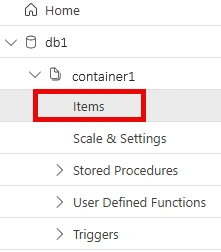
Verify result - In Azure Portal navigate to Azure Cosmos DB resource created. From left navigation bar select Data Explorer. In Data Explorer, select db1 and then expand container1 option. Select Items to view the created items.
5. Clean up resources
Once finished the exercise it’s recommended to delete cloud resources are being created to avoid the unnecessary resource usage and any future costs. Deleting a resource group will delete all resources contained within it. Perform following steps one by one in to Azure Portal to achieve this:
Navigate to resource group which is being created here and view it’s contents.
Delete resource group selection from the toolbar.
Choose resource group name and then follow next directions to delete resource group and all the resources it contains.
6. Summary
Here, a complete process flow is described to manage various tasks on an Azure Cosmos DB account by using .NET Client Library from Azure Cloud Shell (Azure CLI). A console application is created using Microsoft Azure Cosmos DB SDK to create Database, Container, and Item. Azure Portal is used to verify results. At the end resources are being cleaned up.
Join the conversation! Your thoughts help the community grow.