

Steps Involved:
I. Open Visual Studio 2010.
ii. Go to File => New =>Project.
iii. Select Empty SharePoint project template from the installed template SharePoint => 2010.
iv. Enter the Name and click OK.
v. Check the option "Deploy as a Sandbox solution".
vi. Click Ok.
vii. Right click on the solution and select "Add a new item".
viii. Select Empty Element template, enter the Name and click Ok.
ix. In the Elements.xml replace the code with the following.
<?xml version="1.0" encoding="utf-8"?>
<Elements xmlns="http://schemas.microsoft.com/sharepoint/">
<CustomAction
Id="Demo_CustomButton"
RegistrationType="List"
RegistrationId="101"
Location="CommandUI.Ribbon">
<CommandUIExtension>
<CommandUIDefinitions>
<CommandUIDefinition
Location="Ribbon.Documents.New.Controls._children">
<Button
Id="Ribbon.Documents.New.Controls.Demo_CustomButton"
Alt="Demo_CustomButton"
Sequence="10"
Image32by32="/_layouts/images/PPEOPLE.GIF"
Command="Demo_CustomButton"
LabelText="My Custom Button"
TemplateAlias="o2"/>
</CommandUIDefinition>
</CommandUIDefinitions>
<CommandUIHandlers>
<CommandUIHandler
Command="Demo_CustomButton"
CommandAction="javascript:alert('My custom button!');" />
</CommandUIHandlers>
</CommandUIExtension>
</CustomAction>
</Elements>
x. Go to the SharePoint site where you have deployed your solution.
xi. Go to Shared Documents =>Library Tools => Documents.
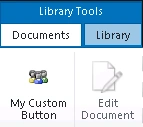
xii. You will see My Custom Button in the Ribbon User Interface.
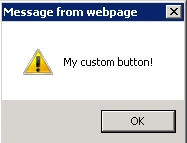
xiii. Click on the button and you will see an alert message.
Join the conversation! Your thoughts help the community grow.