

Introduction
In this article, I am going to explain how to create a database backup in SQL Server 2012. In SQL Server 2012 we use Enterprise Manager to create a database backup. The SQL Server dialog box is used to create a database backup. In this dialog box we need to provide the name and description of the database backup.
Create Database Backup in SQL Server 2012
Step 1: Start SQL Server
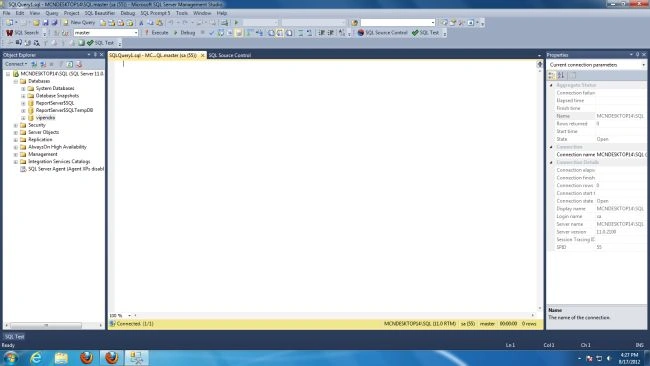
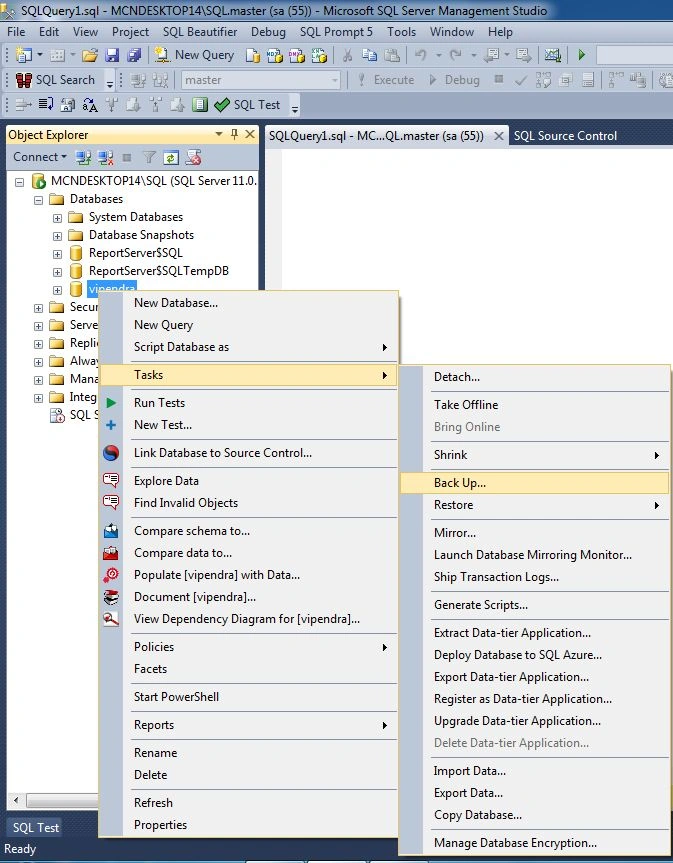
Step 2: Expand database and select database => right-click on selected database => now click on Task => then click on Backup
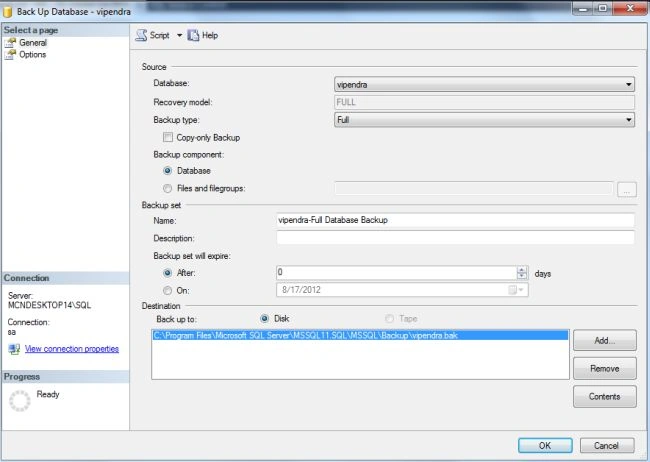
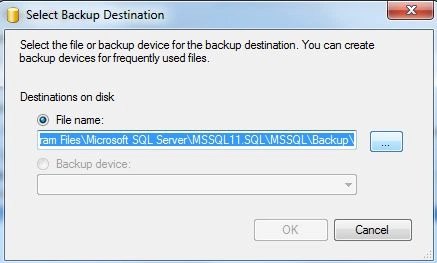
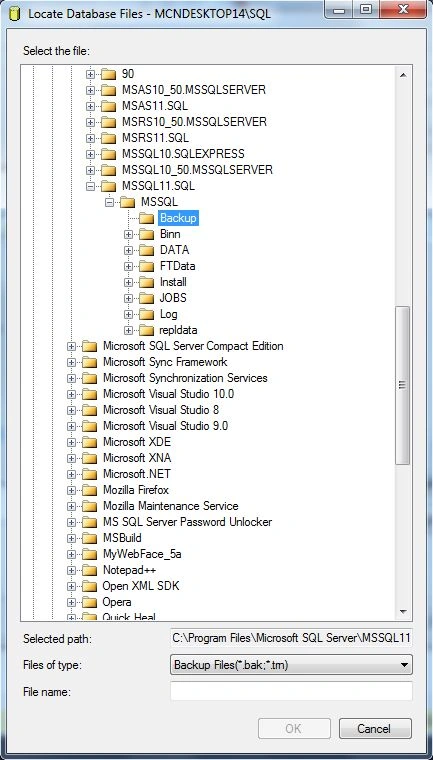
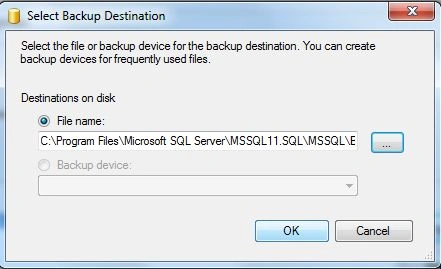
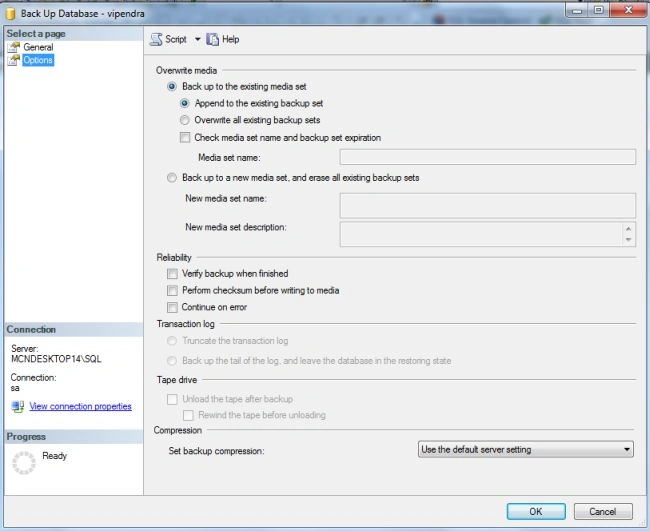
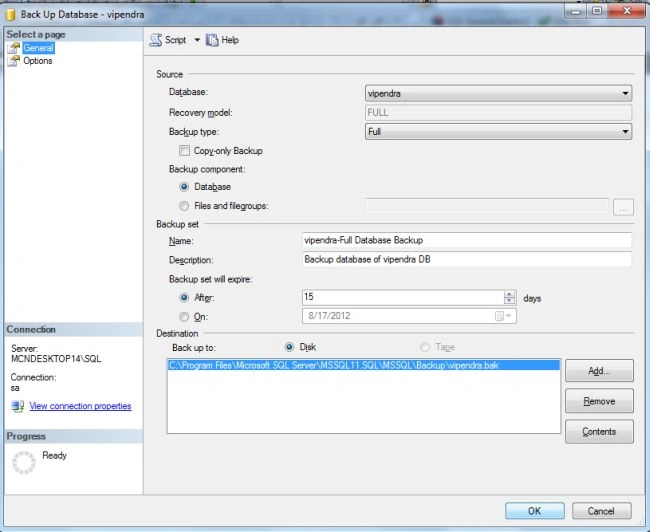
Step 3: The Backup dialog box appears; to create a database backup
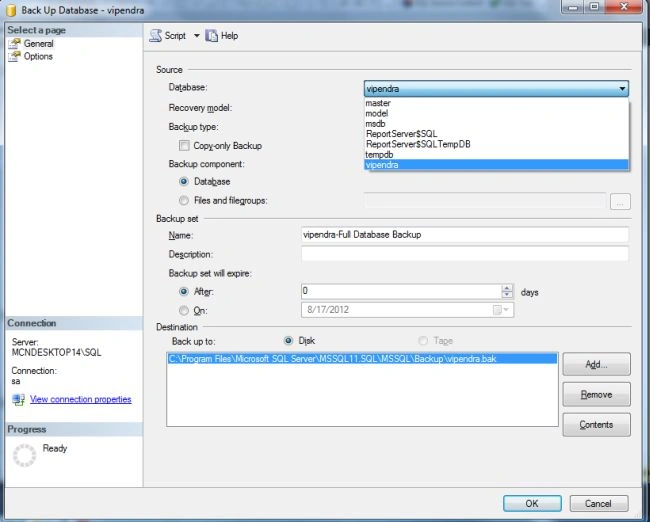
Step 4: Now verify the database or select a different database in the database list box
Step 5: Now select the backup type from the backup list box. There are three types of backup
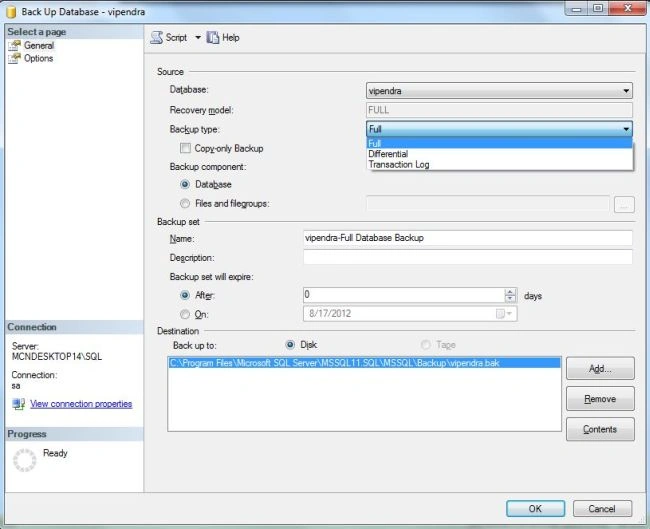
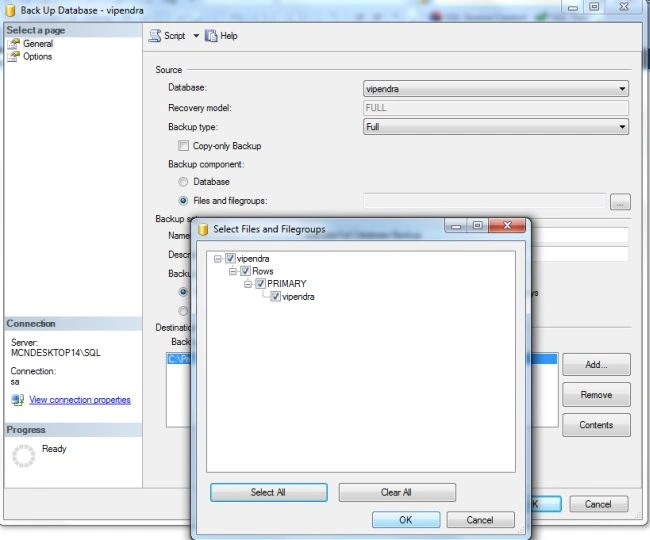
Step 6: Now select the backup component
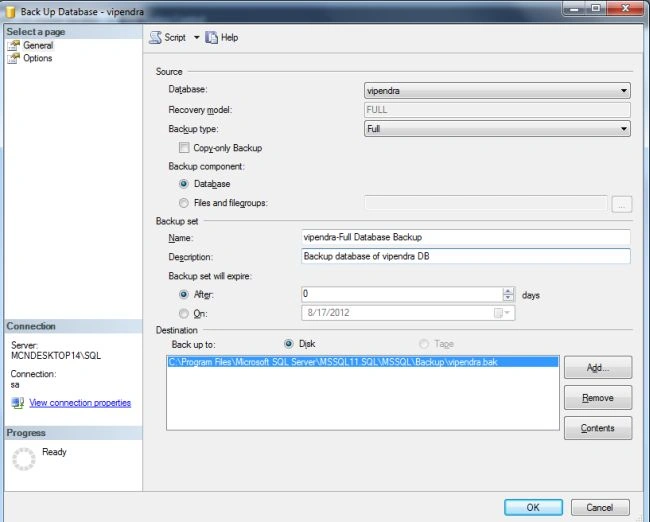
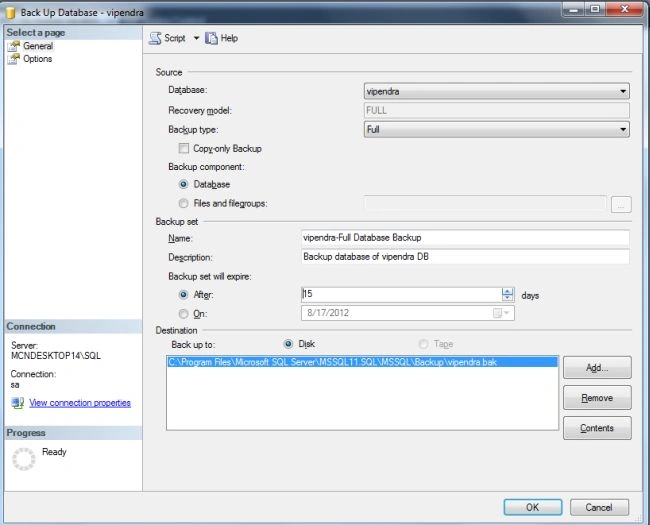
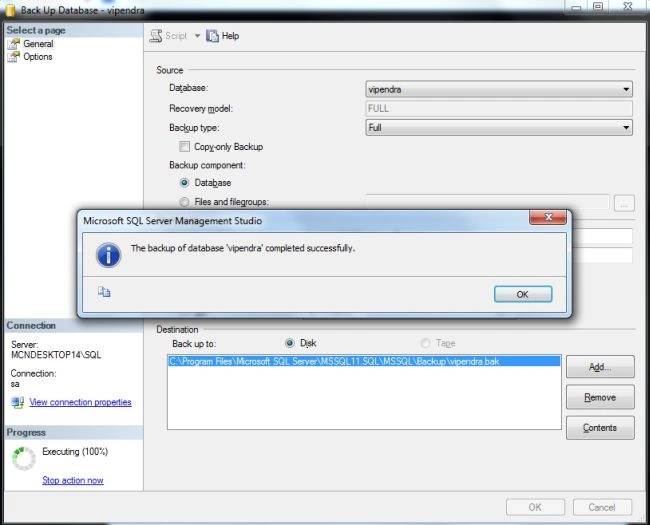
Step 7: Now provide a name of the backup database and description
Suresh MolabantiPosted Sep 1, 2016, 8:18 AM
Good one
SubashPosted Aug 28, 2016, 10:49 PM
G00d
Gowtham RajamanickamPosted Jan 6, 2016, 1:23 AM
good article..